
Introduction
The ZHIYUN Smooth 5S is a 3-axis smartphone gimbal stabilizer designed to enhance mobile videography. It features a built-in fill light, robust motor performance, and an intuitive control panel, making it suitable for various content creation needs. This manual provides essential instructions for setup, operation, and maintenance to ensure optimal performance of your device.

Figure 1: ZHIYUN Smooth 5S Gimbal with smartphone and accessories.
Setup
1. Unboxing and Initial Inspection
Upon unboxing, verify that all components are present. The standard package includes the gimbal stabilizer and a USB-C charging cable. Some versions may include a mini-tripod.
2. Unfolding the Gimbal
The Smooth 5S is designed for compact storage. To unfold, gently extend the arms until they lock into position. Ensure all axes move freely before mounting your smartphone.
Video 1: Demonstrates the unfolding and initial setup of the Zhiyun Smooth 5S gimbal.
3. Mounting Your Smartphone
Extend the phone clamp and carefully place your smartphone into it. Position the phone centrally to ensure proper balance. The wider phone clamp supports various smartphone sizes and external lens options.

Figure 2: Smartphone mounted on the gimbal, ready for use.
4. Balancing the Gimbal
After mounting your smartphone, ensure it is balanced. The gimbal's motors are powerful, but proper balancing reduces strain and improves stabilization. Adjust the phone's position within the clamp until it remains level when the gimbal is powered off.
5. Powering On/Off
Press and hold the power button located on the handle for a few seconds to turn the gimbal on or off. The indicator lights will confirm its status.
6. App Connection (ZY Cami)
For full functionality, download the ZY Cami app from your smartphone's app store. Connect the gimbal via Bluetooth through the app. The app unlocks advanced features like SmartFollow, cinematic modes, and gesture controls. Note that some features may vary based on smartphone compatibility.
Operating the Gimbal
1. Intuitive Panel Control
The Smooth 5S features a versatile control panel designed for single-hand operation. It integrates a joystick, dial, menu button, and mode switch button for smooth parameter adjustments.

Figure 3: Detailed view of the gimbal's intuitive control panel.
2. Gimbal Modes
- Pan Follow (PF): The camera pans left/right following your hand movements, while tilt and roll axes are locked.
- Lock Mode (L): All three axes are locked, keeping the camera pointing in a fixed direction.
- Follow Mode (F): All three axes follow your hand movements, providing dynamic shots.
- POV Mode: Provides 360° synchronous movement on all three axes.
3. Built-in Fill Light
The gimbal includes a built-in fill light with 650 lux peak illuminance, located on the tilt axis. Long press the fill light button on the control panel to activate it. This feature is useful for low-light conditions.
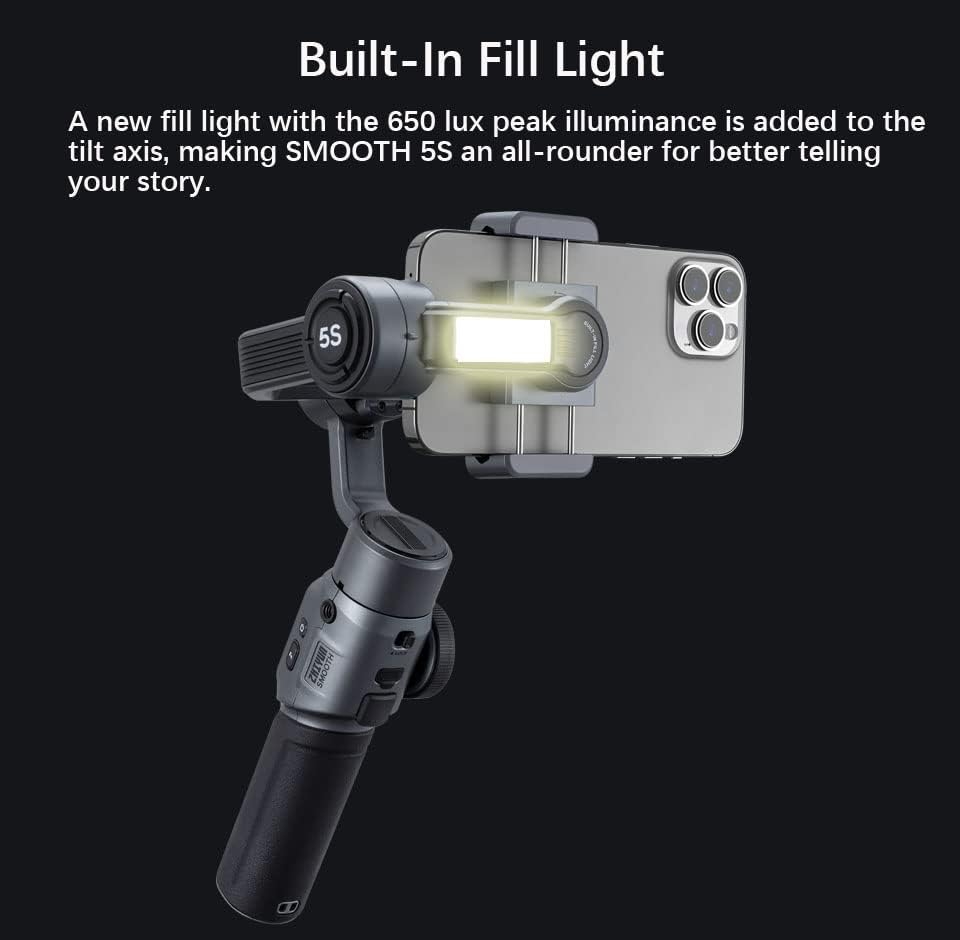
Figure 4: Built-in fill light in operation.
4. Portrait Mode Switch
The wider axes facilitate a super-fast switch between horizontal and vertical modes, providing solid support for most large smartphones. Double-tap the mode button to switch orientations.
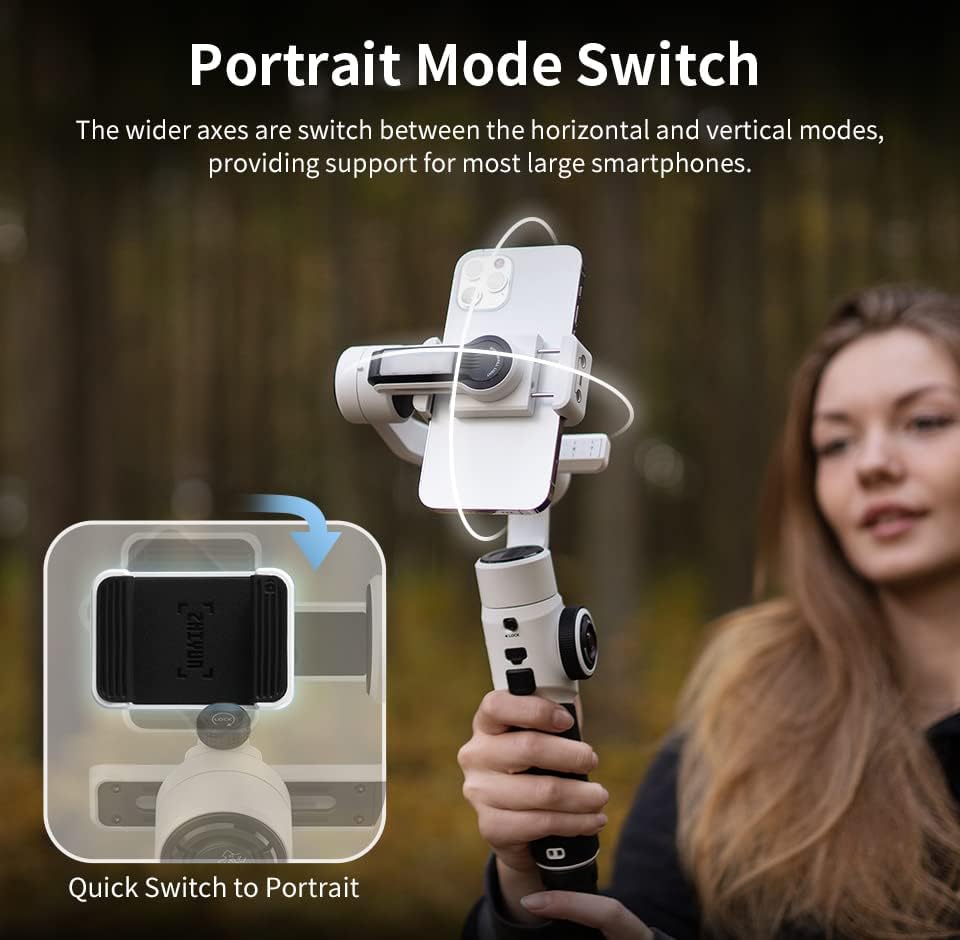
Figure 5: Quick switch to portrait mode.
5. SmartFollow
Utilize the SmartFollow feature within the ZY Cami app to track subjects automatically. You can initiate tracking via hand gestures, allowing the gimbal to keep your subject in frame without manual adjustment.
6. Dolly Zoom Effect
The control wheel supports zoom-and-focus switching, enabling the creation of professional dolly zoom effects. This feature is primarily available through the ZY Cami or StaCam app.
Maintenance
- Cleaning: Use a soft, dry cloth to clean the gimbal. Avoid harsh chemicals or abrasive materials.
- Storage: Store the gimbal in a cool, dry place away from direct sunlight. Ensure it is folded compactly to prevent damage.
- Battery Care: Charge the battery regularly, even if not in use, to maintain its lifespan. Avoid fully discharging the battery.
Troubleshooting
- Gimbal Not Balancing: Ensure your smartphone is centered in the clamp and the gimbal is properly unfolded. Re-balance the phone manually before powering on.
- App Connectivity Issues: Verify Bluetooth is enabled on your smartphone and the ZY Cami app has necessary permissions. Restart both the gimbal and the app if issues persist.
- Unresponsive Controls: Check battery level. Ensure the gimbal is powered on and connected to the app if using app-dependent features.
- Phone Buttons Being Pressed: The gimbal's design aims to avoid this, but if it occurs, slightly adjust your phone's position within the clamp.
Specifications
| Feature | Detail |
|---|---|
| Product Dimensions | 12.24 x 6.61 x 2.05 inches |
| Item Weight | 2.18 pounds |
| Item Model Number | Smooth 5s |
| Batteries | 1 Lithium Ion batteries required (included) |
| Compatible Devices | Cellphone, Smartphone |
| Folded Size | 311mm (l) x 168mm (w) x 52mm (h) |
Warranty and Support
For warranty information and technical support, please refer to the documentation included with your product or visit the official ZHIYUN website. Keep your proof of purchase for warranty claims.