
1. Introduction
This manual provides detailed instructions for setting up, operating, and maintaining your HP Smart Tank 794 Multifunction Printer. This device is designed for printing, copying, and scanning, featuring a refillable ink tank system and wireless connectivity options.
Please read this manual thoroughly before using your printer to ensure proper operation and to maximize its lifespan.
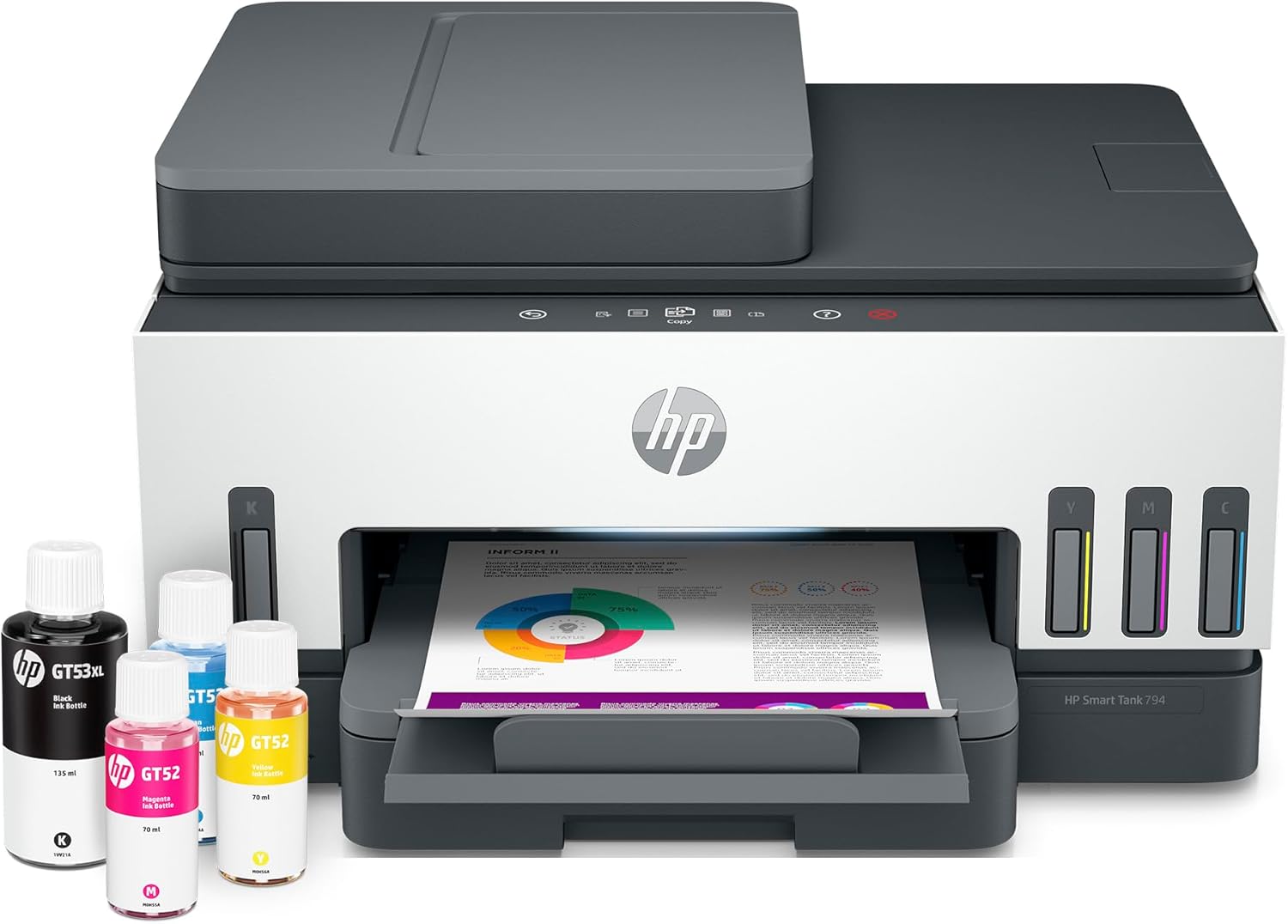
Image 1.1: The HP Smart Tank 794 Multifunction Printer, showcasing its compact design, integrated ink tanks, and a document being printed. Several ink bottles are visible next to the printer.
2. Setup Guide
2.1 Unboxing and Initial Preparation
- Carefully remove the printer from its packaging.
- Remove all protective tapes and packing materials from the exterior and interior of the printer. Refer to the quick start guide for specific locations.
- Place the printer on a stable, flat surface near a power outlet.
2.2 Filling the Ink Tanks
The HP Smart Tank 794 uses a refillable ink system. Use only genuine HP ink bottles for optimal performance and to prevent damage.
- Open the ink tank cover on the printer.
- Open the cap of the ink tank you wish to fill.
- Uncap the corresponding color ink bottle. The bottles are designed to fit only their designated tank to prevent incorrect filling.
- Invert the ink bottle and insert it into the tank's nozzle. The ink will flow automatically without squeezing.
- Wait for the ink to completely drain into the tank. Do not squeeze the bottle.
- Remove the empty bottle, recap the ink tank, and close the ink tank cover.
- Repeat for all other ink colors (Black, Cyan, Magenta, Yellow).

Image 2.1: A close-up view of the HP Smart Tank 794's ink tanks, showing the color-coded design and the corresponding HP ink bottles (GT53XL Black, GT52 Cyan, GT52 Yellow, GT52 Magenta) ready for refilling.

Image 2.2: A hand demonstrating the simple, spill-free ink refilling process for the HP Smart Tank 794, inserting a magenta ink bottle into its designated tank.
2.3 Powering On and Initial Setup
- Connect the power cord to the printer and then to a wall outlet.
- Press the Power button to turn on the printer.
- Follow the on-screen instructions on the printer's display for initial setup, including language selection and printhead alignment.
2.4 Software Installation and Connectivity
To utilize all printer features, install the HP Smart app and necessary drivers.
- HP Smart App: Download the HP Smart app from your device's app store (iOS, Android) or from hpsmart.com for Windows/macOS.
- Wi-Fi Setup:
- On the printer's control panel, navigate to the Wireless settings.
- Select "Wi-Fi Setup Wizard" and follow the prompts to connect to your wireless network.
- Alternatively, use the HP Smart app to guide you through the wireless setup process.
- USB Connection: Connect a USB cable from the printer to your computer. The necessary drivers should install automatically.
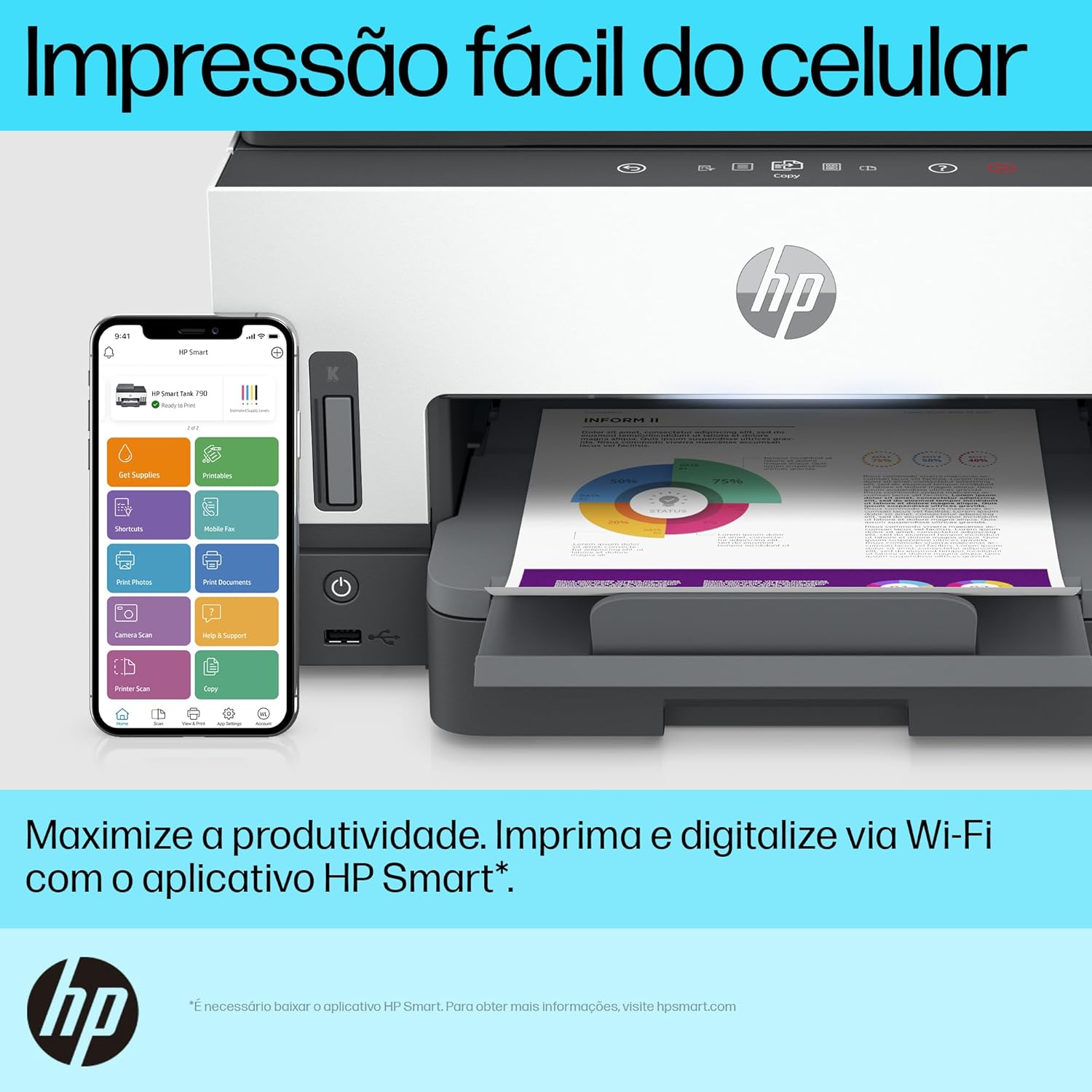
Image 2.3: The HP Smart Tank 794 printer shown alongside a smartphone running the HP Smart app, illustrating the ease of mobile printing and management via Wi-Fi.
3. Operating Instructions
3.1 Loading Paper
Load paper into the input tray with the print side facing down. Adjust the paper guides to fit the paper size.
3.2 Printing Documents
- From a Computer:
- Open the document you wish to print.
- Select "Print" from the application's menu (File > Print).
- Choose your HP Smart Tank 794 printer.
- Adjust print settings (e.g., paper size, quality, color/grayscale, duplex) as needed.
- Click "Print".
- From a Mobile Device (HP Smart App):
- Open the HP Smart app.
- Select "Print Documents" or "Print Photos".
- Browse and select the file you want to print.
- Adjust print settings and tap "Print".
- Duplex Printing: The printer supports automatic two-sided (duplex) printing. Select this option in your print settings.
3.3 Copying Documents
- Using the Scanner Glass:
- Place the document face-down on the scanner glass, aligning it with the guide.
- Close the scanner lid.
- On the printer's control panel, select "Copy".
- Choose color or black & white, and the number of copies.
- Press the "Start Copy" button.
- Using the Automatic Document Feeder (ADF):
- Load documents face-up into the ADF tray.
- On the printer's control panel, select "Copy".
- Choose color or black & white, and the number of copies.
- Press the "Start Copy" button.
3.4 Scanning Documents
- From the Printer to a Computer:
- Place the document on the scanner glass or in the ADF.
- On the printer's control panel, select "Scan".
- Choose your computer as the destination and follow the prompts.
- From a Computer (HP Smart App):
- Open the HP Smart app on your computer.
- Select "Scan" and choose your printer.
- Adjust scan settings (resolution, color, file type) and click "Scan".
- From a Mobile Device (HP Smart App):
- Open the HP Smart app on your mobile device.
- Select "Printer Scan".
- Place the document on the scanner glass or in the ADF.
- Adjust settings and tap "Scan".
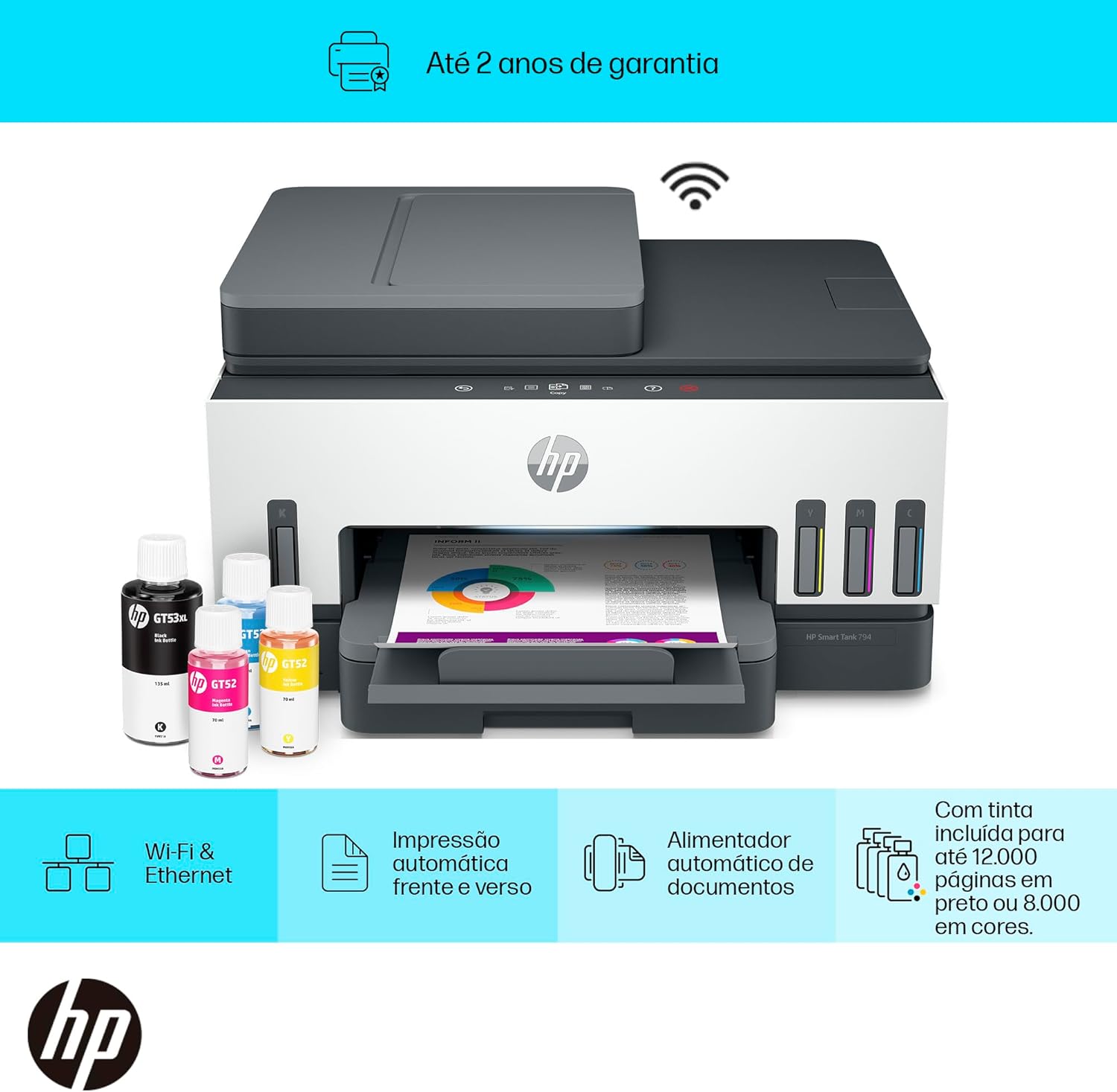
Image 3.1: The HP Smart Tank 794 printer with graphical overlays indicating its features: Wi-Fi & Ethernet connectivity, automatic duplex printing, automatic document feeder, and high ink yield (up to 12,000 black pages or 8,000 color pages).
4. Maintenance
4.1 Checking and Refilling Ink Levels
Regularly check the ink levels through the transparent ink tanks on the front of the printer or via the HP Smart app. Refill tanks when ink levels are low, following the instructions in Section 2.2.
4.2 Cleaning the Printheads
If print quality degrades (e.g., streaks, faded colors), perform a printhead cleaning. This can typically be done through the printer's control panel menu or the HP Smart app/printer software on your computer.
4.3 Cleaning the Scanner Glass
To ensure clear scans, periodically clean the scanner glass with a soft, lint-free cloth lightly dampened with glass cleaner. Avoid abrasive cleaners.
4.4 Clearing Paper Jams
If a paper jam occurs, the printer display will show instructions. Carefully open access doors and gently pull jammed paper in the direction of the paper path. Avoid tearing the paper.
5. Troubleshooting
This section addresses common issues you might encounter. For more detailed troubleshooting, refer to the HP support website.
- Printer Not Responding:
- Ensure the printer is powered on and connected to the power outlet.
- Check USB or Wi-Fi connection. Restart the printer and your computer/router.
- Verify that the correct printer is selected in your print dialog.
- Poor Print Quality:
- Check ink levels and refill if necessary.
- Perform a printhead cleaning and alignment (refer to Section 4.2).
- Ensure you are using appropriate paper for your print settings.
- Paper Jams:
- Follow the instructions on the printer's display or refer to Section 4.4.
- Ensure paper is loaded correctly and not overfilled.
- Wireless Connection Issues:
- Ensure your Wi-Fi router is on and functioning.
- Restart your router and printer.
- Run the Wireless Setup Wizard again from the printer's control panel.
- Ensure the printer is within range of your Wi-Fi router.
6. Specifications
| Feature | Detail |
|---|---|
| Brand | HP |
| Model Name | Sayan (HP Smart Tank 794) |
| Connectivity Technology | USB, Wi-Fi |
| Printing Technology | HP Thermal Inkjet |
| Special Features | Refillable Ink Tank, Automatic Document Feeder (ADF), Automatic Duplex Printing |
| Color | White |
| Printer Output | Color |
| Max Print Speed (Color) | 24 ppm (pages per minute) |
| Max Print Speed (Monochrome) | 30 ppm (pages per minute) |
| Product Weight | 7.7 Kilograms |
7. Warranty and Support
7.1 Product Warranty
This HP Smart Tank 794 Multifunction Printer comes with a one-year limited warranty from the date of purchase. This warranty covers defects in materials and workmanship under normal use. For full terms and conditions, please refer to the warranty documentation included with your product or visit the official HP support website.
7.2 Technical Support
For technical assistance, driver downloads, and additional troubleshooting resources, please visit the official HP support website:
You can also contact HP customer service through the contact information provided on their support portal.