
1. Introduction
This manual provides detailed instructions for the installation, operation, and maintenance of your Easegain E27 Light Bulb Security Camera. This 1080P HD smart wireless WiFi camera offers 360-degree surveillance, motion detection, and night vision capabilities for indoor and outdoor use. Please read this manual thoroughly before using the product to ensure proper functionality and safety.
2. Package Contents
Please verify that all items are present in your package:
- Easegain E27 Light Bulb Security Camera
- E27 Bulb Base (if included with your specific model)
- User Manual
- Mounting Screws (if applicable)
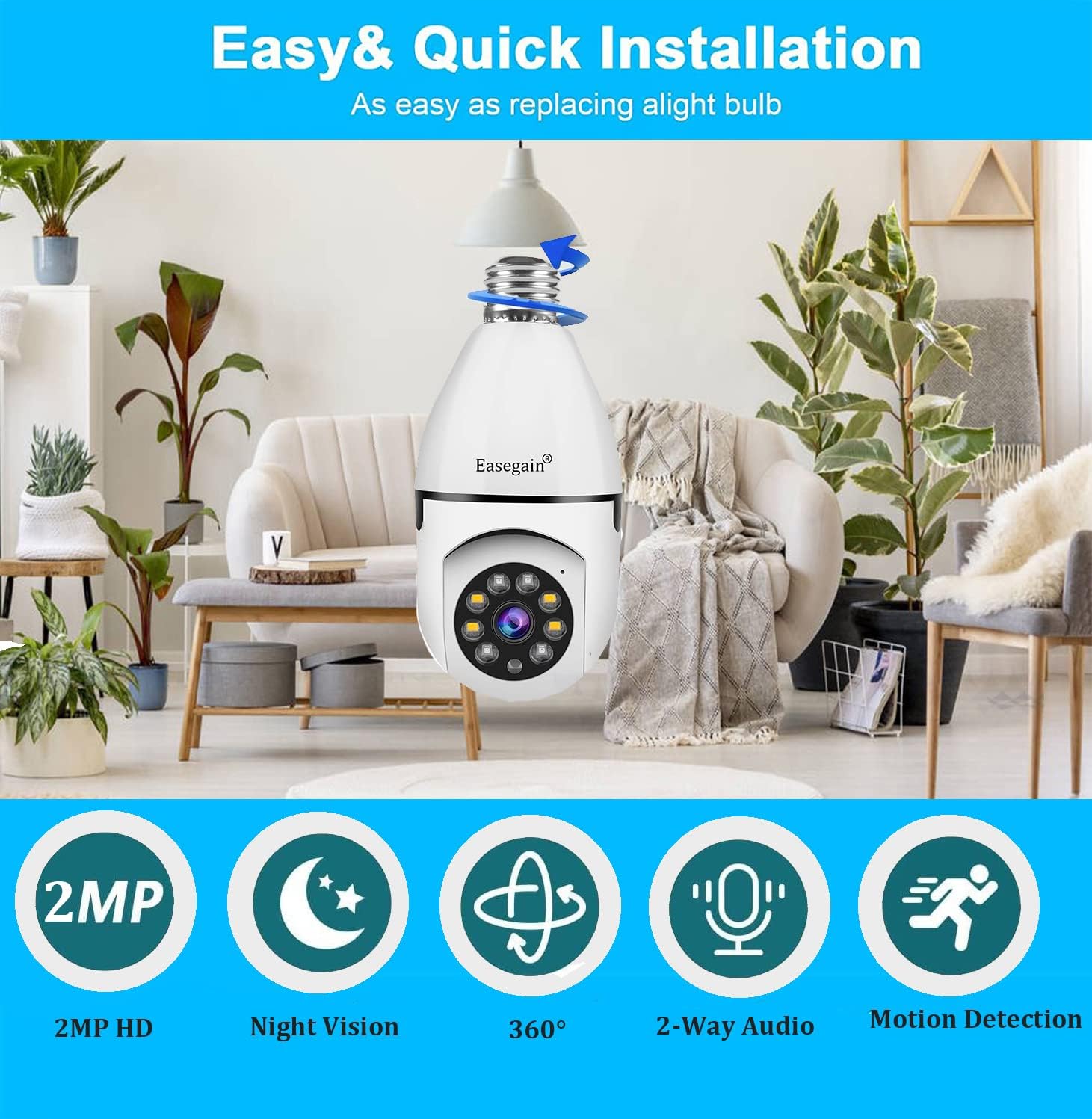
Image: Easegain Light Bulb Security Camera and included accessories.
3. Setup and Installation
Follow these steps to install and set up your Easegain Light Bulb Security Camera:
3.1 Physical Installation
- Power Off: Ensure the power to the light socket is turned off before installation.
- Screw In: Carefully screw the camera into a standard E27 bulb base. If your package includes a separate E27 base, install that first, then screw the camera into it.
- Power On: Restore power to the light socket. The camera will begin its boot-up sequence.

Image: The Easegain Light Bulb Security Camera with its E27 screw-in base.
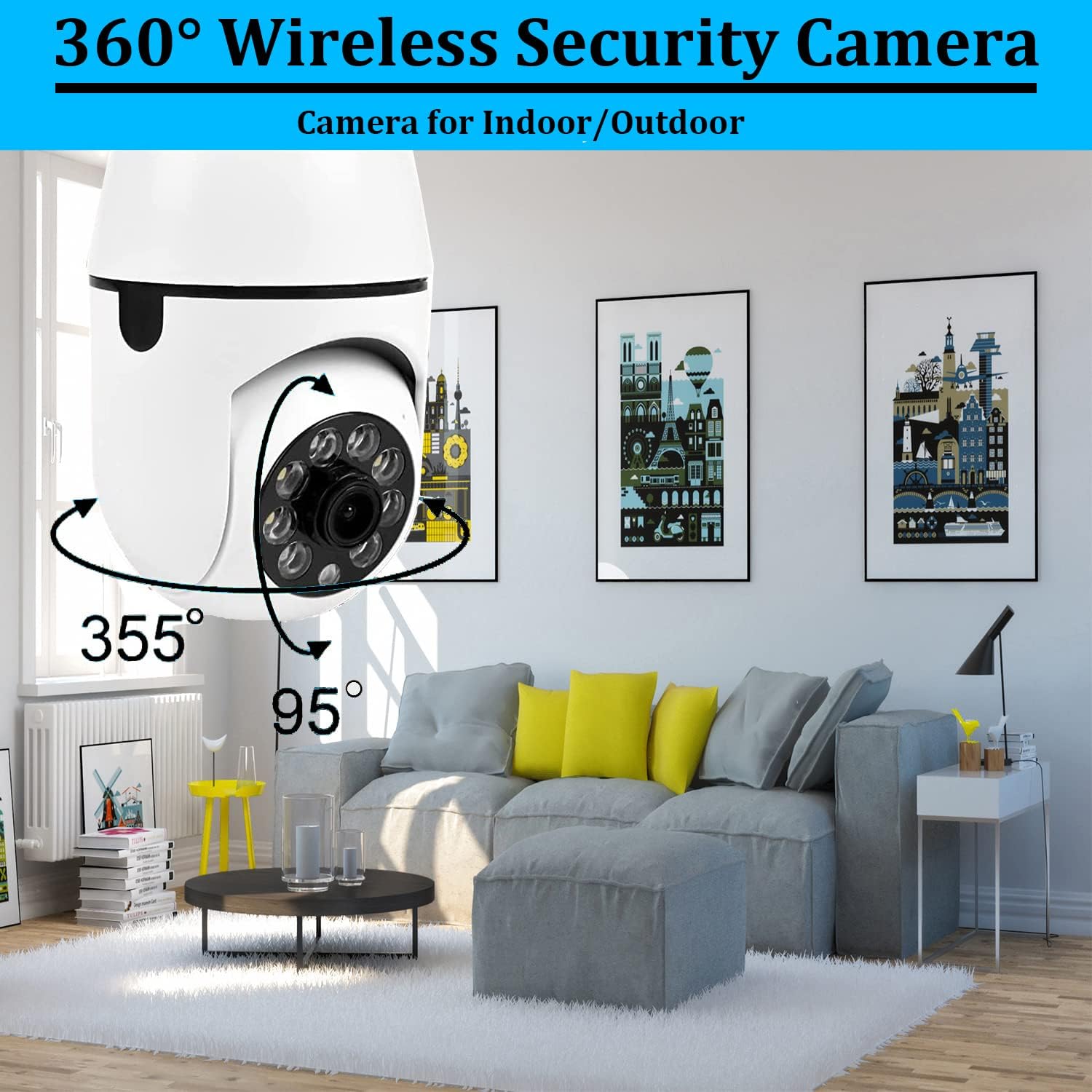
Image: The camera installed in a ceiling light fixture, demonstrating its discreet placement.
3.2 App Download and Connection
- Download App: Download the recommended mobile application (e.g., YCC365 Plus or similar as specified in the camera's packaging) from your device's app store (iOS or Android).
- Account Registration: Open the app and register for an account if you are a new user.
- Add Device: Follow the in-app instructions to add a new device. Select "Intelligent Camera" or "Light Bulb Camera" option.
- Power On Confirmation: Confirm that the device is powered on and the indicator light is flashing or a beep is heard, indicating it's ready for connection.
- Connect to Wi-Fi: Input your 2.4GHz Wi-Fi network name and password. The camera supports 2.4GHz Wi-Fi only.
- Scan QR Code: The app will generate a QR code. Hold your mobile phone with the QR code displayed in front of the camera lens at a distance of 15-20 cm (6-8 inches). The camera will scan the code and connect to your Wi-Fi network. You will hear a confirmation sound once connected.
- Name Device: Once connected, you can name your camera (e.g., "Living Room," "Shop," "Entrance").
Video: Demonstrates the app setup process, including connecting to Wi-Fi and scanning the QR code for device pairing.
4. Operating Instructions
Once your camera is set up, you can access and control it via the mobile application.
4.1 Live View and Pan/Tilt/Zoom (PTZ)
- Live Feed: Open the app and select your camera to view the live video feed.
- 360-Degree Viewing: Use the pan and tilt controls within the app to adjust the camera's viewing angle, allowing for 360-degree coverage without blind spots.
- Digital Zoom: Pinch-to-zoom on the live feed to get a closer look at specific areas.
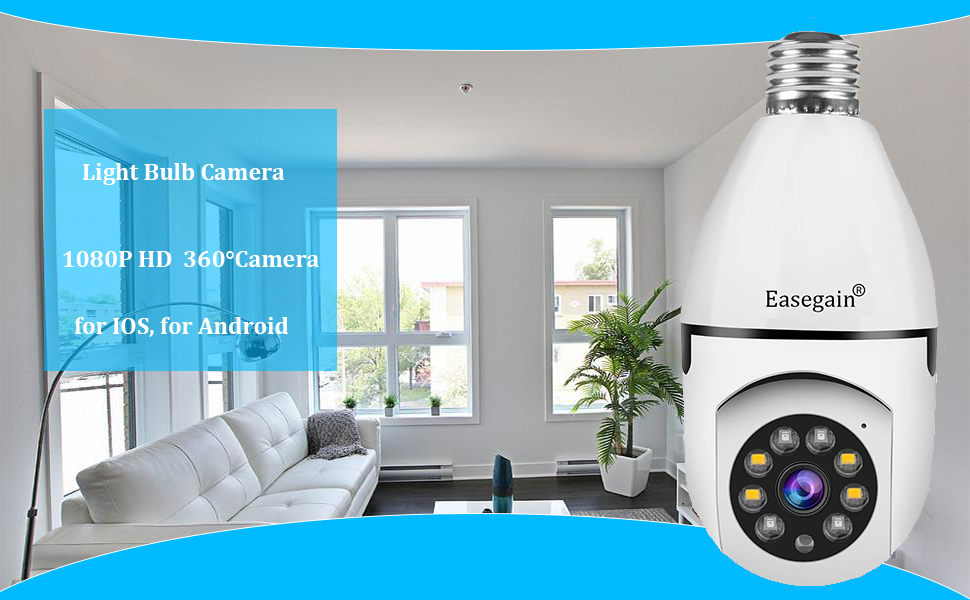
Image: Illustrates the camera's 360-degree rotation capability for comprehensive area coverage.
4.2 Night Vision
- The camera features intelligent night vision, providing both ordinary infrared night vision and full-color night vision.
- The app allows you to switch between these modes based on your preference and lighting conditions.

Image: A side-by-side comparison demonstrating the clarity of full-color night vision versus standard infrared night vision.
4.3 Motion Detection and Alerts
- The camera is equipped with a highly sensitive motion sensor.
- When motion is detected, the camera will automatically record the event and send real-time alerts to your mobile application.
- You can customize motion detection sensitivity and alert settings within the app.

Image: Depicts the motion detection feature, showing a person triggering an alert that is received on a smartphone.
4.4 Two-Way Audio
- Utilize the two-way audio feature to communicate through the camera. This allows you to speak to individuals near the camera and hear their responses.
- Ensure microphone access is granted to the app on your mobile device for this feature to function.
4.5 Remote Viewing and Sharing
- Access your camera's live feed and recorded footage remotely from anywhere using your mobile device.
- The app allows you to share camera access with family and friends, enabling multiple users to view the feed simultaneously.
5. Maintenance
To ensure optimal performance and longevity of your Easegain Light Bulb Security Camera, consider the following maintenance tips:
- Regular Cleaning: Gently wipe the camera lens and exterior with a soft, dry cloth to remove dust and smudges. Avoid abrasive cleaners.
- Firm Installation: Periodically check that the camera is securely screwed into its base to prevent loosening, which can affect its stability and functionality.
- Software Updates: Keep the mobile application and camera firmware updated to the latest versions for improved features, security, and performance.
- SD Card Management: If using an SD card for local storage, regularly back up important footage and format the card periodically to maintain recording efficiency.
6. Troubleshooting
If you encounter issues with your camera, refer to the following common problems and solutions:
- Camera Not Connecting to Wi-Fi:
- Ensure your Wi-Fi network is 2.4GHz. The camera does not support 5GHz networks.
- Verify that the Wi-Fi password entered in the app is correct.
- Place the camera and your mobile device close to the Wi-Fi router during the initial setup.
- If using the QR code method, ensure the camera lens is clean and the QR code is clearly displayed on your phone screen at the recommended distance (15-20 cm).
- Try restarting your Wi-Fi router and the camera.
- Camera Movement Issues (Pan/Tilt):
- Check for any physical obstructions around the camera's moving parts.
- Ensure the camera is securely installed and not loose in its socket, as this can affect motor function.
- Restart the camera and the app.
- Microphone/Audio Issues:
- Ensure the mobile app has permission to access your device's microphone.
- Check the volume settings within the app and on your mobile device.
- If the microphone is too sensitive or produces buzzing, adjust sensitivity settings in the app if available, or mute the microphone when not in use.
- SD Card Not Recording or Recognized:
- Ensure the SD card is properly inserted.
- The camera supports Micro SD cards from 64GB up to 128GB. Using a card outside this range may cause issues.
- Format the SD card through the camera settings in the app.
- Test with a different, compatible SD card if problems persist.
- Poor Video Quality:
- Check your Wi-Fi signal strength. A weak signal can lead to lower video quality.
- Ensure the camera lens is clean.
- Adjust video quality settings within the app if available.
7. Specifications
| Feature | Specification |
|---|---|
| Brand | Easegain |
| Model Number | E27 |
| Resolution | 1080P HD |
| Connectivity | 2.4GHz Wi-Fi (IEEE 802.11b/g/n) |
| Power Source | E27 Bulb Base |
| Night Vision | Intelligent Night Vision (Infrared & Color) |
| Motion Detection | Yes, with real-time alerts |
| Two-Way Audio | Yes |
| Storage | Micro SD Card (64GB-128GB recommended) |
| Indoor/Outdoor Usage | Outdoor (IP67 rated) |
| Dimensions (L x W x H) | 3.14 x 3.14 x 6.69 inches |
| Item Weight | 9.3 ounces |
| Compatible Devices | iOS & Android |
8. Warranty and Support
Easegain provides a three-month warranty for this product. For technical support or any inquiries, please contact our customer service. We offer 24-hour fast response technical support and service to ensure your satisfaction.
For further assistance, please refer to the contact information provided with your product packaging or visit the official Easegain website.