
1. Introduction
Thank you for choosing the Sanpyl 1080P FHD Dash Cam. This device is designed to record your driving journey, providing security and evidence in case of incidents. It features a 1.6-inch screen, 1080P Full HD recording, loop recording, motion detection, and parking monitoring capabilities. Please read this manual carefully before use to ensure proper operation and to maximize the product's performance.
2. Product Overview
2.1 Package Contents
- 1 x Sanpyl 1080P FHD Dash Cam (Host)
- 1 x Suction Cup Bracket
- 1 x Car Power Cord (Cigarette Lighter Adapter)
- 1 x User Manual

Image: The Sanpyl Dash Cam, car charger, and suction cup mount, illustrating the items included in the package.
2.2 Device Layout and Controls
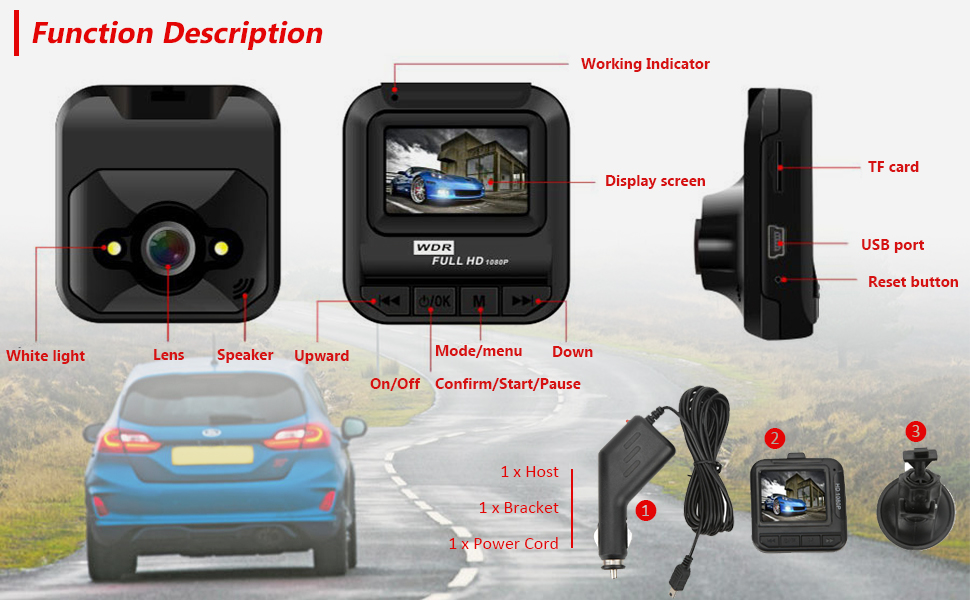
Image: A detailed diagram labeling the various parts and control buttons of the Sanpyl Dash Cam, including the lens, speaker, display screen, working indicator, mode/menu button, confirm/start/pause button, up/down buttons, TF card slot, USB port, and reset button.
- Lens: Captures video footage.
- Speaker: For audio playback.
- Display Screen (1.6-inch): Shows live view, menus, and playback.
- Working Indicator: Indicates device status.
- Up/Down Buttons: Navigate menu options.
- Mode/Menu Button: Switches between recording, photo, and playback modes; accesses settings menu.
- Power/OK Button: Powers the device on/off; confirms selections; starts/pauses recording.
- USB Port: For power supply and data transfer.
- Small Memory Card Slot (TF card): Insert microSD card for storage.
- Reset Key: Resets the device to factory settings.
3. Setup
3.1 Mounting the Dash Cam
- Attach the suction cup bracket to the dash cam.
- Clean the desired area on your car's windshield, ensuring it does not obstruct your view.
- Press the suction cup firmly against the windshield and lock it into place.
- Adjust the dash cam's angle to ensure a clear view of the road ahead.
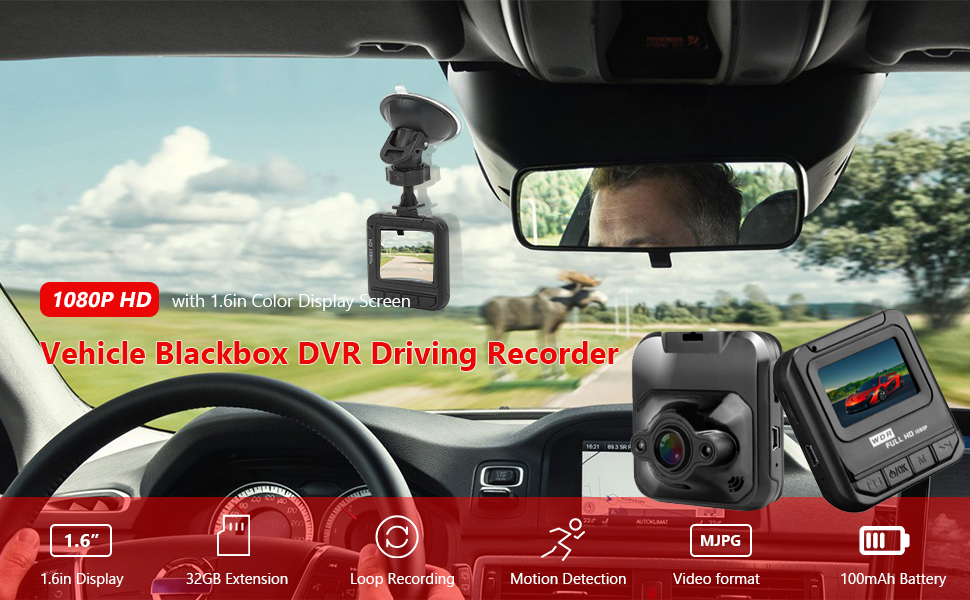
Image: The Sanpyl Dash Cam correctly mounted on a car windshield, providing a clear view of the road.
3.2 Inserting the Memory Card
The dash cam supports a microSD card up to 32GB (not included). Ensure the card is formatted before first use for optimal performance.
- With the dash cam powered off, gently insert the microSD card into the 'Small Memory Card Slot' until it clicks into place.
- To remove, gently push the card in again until it springs out.
3.3 Powering the Device
The dash cam can be powered in two ways:
- Car Charger: Connect the provided car power cord to the dash cam's USB port and plug the other end into your car's cigarette lighter socket. The device will automatically power on and begin recording when the car starts. Ensure the car charger provides a 5V output.
- Built-in Rechargeable Lithium Battery: The dash cam has a built-in battery for temporary use or parking monitoring. It can be charged by connecting to the car charger or a computer via USB.
4. Operating Instructions
4.1 Power On/Off
- Power On: Press and hold the Power/OK button. If connected to car power, it will power on automatically when the car starts.
- Power Off: Press and hold the Power/OK button. If connected to car power, it will power off automatically after the car is turned off and save the current recording.
4.2 Recording Mode
When the device is powered on, it automatically enters recording mode and begins recording. The recording indicator will flash. Press the Power/OK button to manually start or stop recording.

Image: The dash cam screen showing a clear 1080P HD image, demonstrating its recording quality.
4.3 Photo Mode
From recording mode, press the Mode/Menu button to switch to photo mode. Press the Power/OK button to take a picture.
4.4 Playback Mode
From photo mode, press the Mode/Menu button again to enter playback mode. Use the Up/Down buttons to browse recorded video files and photos. Press Power/OK to play a selected video.
4.5 Loop Recording
The dash cam features automatic loop recording. When the memory card is full, the system will automatically overwrite the oldest unlocked video files to continue recording. This ensures continuous recording without manual intervention. Important locked videos are protected from being overwritten.

Image: A visual representation of the loop recording function, indicating how the dash cam manages storage by overwriting older files.
4.6 Motion Detection
When enabled in the settings, motion detection allows the dash cam to automatically start recording if movement is detected in front of the vehicle while parked. This helps capture incidents even when you are away from the car.
4.7 Parking Monitor (Collision Wake-up)
With the parking monitor function, the dash cam will automatically wake up and start recording if it detects a collision or significant vibration while the vehicle is parked and the device is off. This feature provides security against parking incidents.

Image: An icon illustrating the 24-hour parking monitoring feature.
4.8 Deleting Files
In playback mode, select the file you wish to delete. Access the menu (usually by pressing the Mode/Menu button) and select the delete option. Confirm your selection to remove the file.
5. Maintenance
5.1 Cleaning
- Use a soft, dry cloth to clean the dash cam's body and screen.
- For the lens, use a specialized lens cleaning cloth to avoid scratches. Do not use abrasive cleaners.
5.2 Memory Card Management
It is recommended to format the microSD card periodically (e.g., once a month) to maintain optimal performance and prevent data corruption. This can usually be done through the dash cam's settings menu.
5.3 Resetting the Device
If the dash cam experiences issues such as freezing or unresponsiveness, you can perform a reset. Locate the 'Reset Key' (often a small pinhole) and use a thin object (like a paperclip) to press it gently. This will restart the device without deleting your settings or recordings.
6. Troubleshooting
| Problem | Possible Cause | Solution |
|---|---|---|
| Device does not power on. | Low battery; power cable not connected; faulty car charger. | Charge the device; ensure car charger is properly connected and functional; try a different USB power source. |
| Recording stops unexpectedly. | Memory card full; memory card error; power interruption. | Format the memory card; replace the memory card; ensure stable power supply. |
| Poor video quality. | Dirty lens; low light conditions; incorrect settings. | Clean the lens; adjust WDR settings if available; ensure sufficient lighting. |
| Screen freezes or becomes unresponsive. | Software glitch. | Perform a soft reset using the reset key. |
| Loop recording not working. | Loop recording disabled; memory card issues. | Check settings to ensure loop recording is enabled; format or replace memory card. |
7. Specifications

Image: A diagram illustrating the physical dimensions of the dash cam.
| Feature | Detail |
|---|---|
| Model | Sanpyl5ibw3vk02r8324 |
| Video Capture Resolution | 1080p Full HD |
| Screen Size | 1.6 Inches |
| Field of View | 120 Degrees |
| Frame Rate | 30 FPS |
| Storage Support | Up to 32GB MicroSD (TF) Card |
| Connectivity | USB |
| Mounting Type | Dashboard Mount (Suction Cup) |
| Special Features | Loop Recording, Motion Detection, Parking Monitor (Collision Wake-up), WDR |
| Power Supply | Built-in Rechargeable Lithium Battery, Car Charger (5V output) |
| Item Weight | 0.16 Kilograms |
8. Warranty and Support
Sanpyl products are designed for reliability and performance. This product comes with a standard manufacturer's warranty against defects in materials and workmanship. Please refer to the warranty card included in your package for specific terms and conditions, or visit the official Sanpyl website for more information.
For technical support, troubleshooting assistance, or warranty claims, please contact Sanpyl customer service through the contact information provided on our official website or your purchase platform. Please have your model number (Sanpyl5ibw3vk02r8324) and purchase details ready when contacting support.