1. Product Overview
The Haloview BT-M7 is a wireless monitor designed to provide enhanced visibility for your vehicle or trailer. It features a 7-inch display and supports 1080P video recording. This monitor is specifically designed for use with BT7 series cameras.
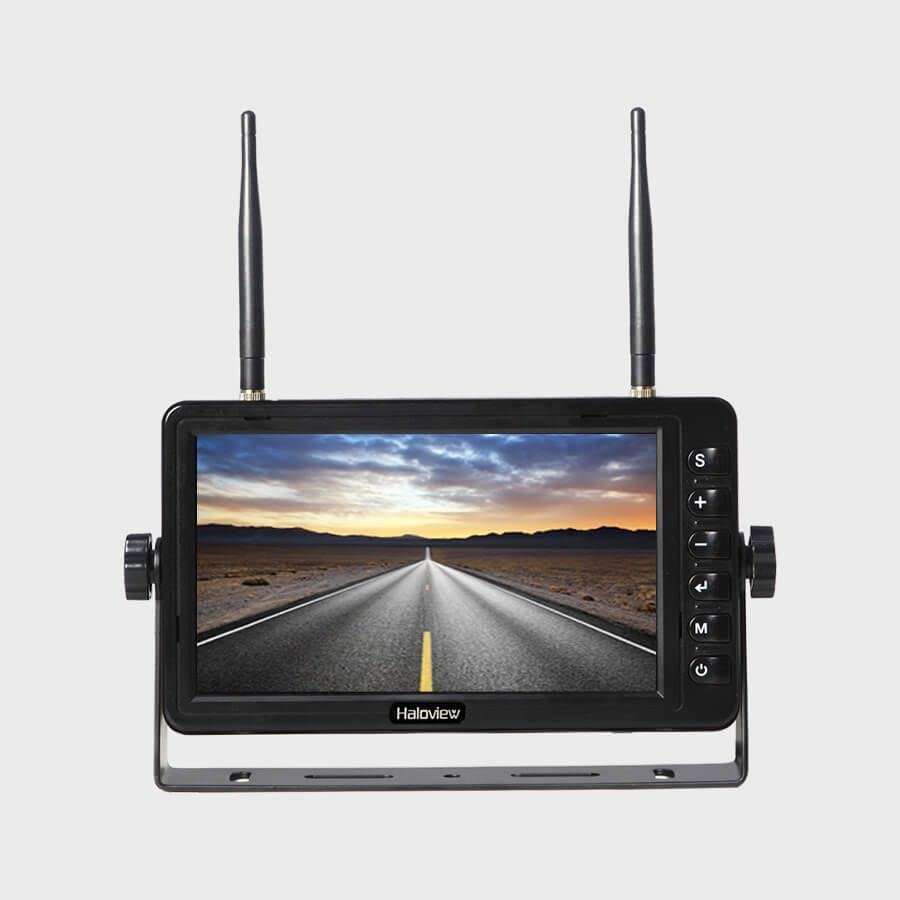
Figure 1: Haloview BT-M7 Wireless Monitor unit.
Key Features:
- 1080P Video Recording Resolution: Seamless recording events with 1080P@30fps FHD Resolution Lens.
- 7-Inch Display: Clear and bright screen for optimal viewing.
- Wireless Connectivity: Provides a stable wireless connection to compatible cameras.
- Important Compatibility Note: This monitor is NOT compatible with 720P wireless cameras.
2. Setup
2.1 Monitor Placement and Power
- Choose a Location: Place the BT-M7 monitor on your dashboard or another suitable flat surface within your vehicle's cabin. Ensure it does not obstruct your view of the road.
- Power Connection: Connect the monitor to your vehicle's 12V cigarette lighter socket using the provided power adapter. The adapter typically includes an on/off button for convenience.
- Optional Direct Wiring: For a more permanent installation, the system includes a wiring harness that allows direct integration into your vehicle's electrical system. Consult a professional for direct wiring installation if you are unsure.
2.2 Camera Installation
The Haloview BT-M7 system supports multiple cameras for comprehensive coverage. Installation methods may vary slightly depending on the camera type (rear or side marker).
- Rear Camera: Mount the rear camera securely on the back of your trailer or RV. For longer vehicles, an antenna extender may be necessary to ensure a strong signal to the monitor.
- Side Marker Cameras: These cameras are designed to replace existing side marker lights on your vehicle or trailer. Ensure proper wiring to integrate them with your vehicle's lighting system.
2.3 Pairing Cameras with the Monitor
To establish a wireless connection between your cameras and the BT-M7 monitor:
- Power on the monitor and the camera(s) you wish to pair.
- On the monitor, press the MENU button to access the main menu.
- Navigate to the PAIRING option using the arrow buttons and press OK.
- While the monitor is in pairing mode, press the pairing button on the camera's wireless repeater unit (usually located near the camera or its antenna). This typically needs to be done within a 20-second window.
- Once successfully paired, the camera's video feed will appear on the monitor. Repeat for additional cameras.
3. Operating Instructions
3.1 Switching Camera Views
To cycle through the connected camera views, press the SEL (Select) button on the monitor. Each press will switch to the next active camera feed or a multi-view display if configured.
3.2 Parking Lines
The monitor can display adjustable parking lines for assistance with backing up. These lines can be turned on, off, or adjusted for specific camera views via the monitor's menu settings.
3.3 Video Recording
The BT-M7 monitor supports video recording. Insert a compatible SD card into the designated slot on the monitor to enable recording functionality. Recorded footage can be played back directly on the monitor.
3.4 Audio Monitoring
Some cameras may transmit audio. The monitor features a volume control in its menu settings, allowing you to listen to audio from the active camera feed.
4. Maintenance
Regular maintenance ensures optimal performance and longevity of your Haloview BT-M7 system.
- Cleaning: Periodically clean the monitor screen and camera lenses with a soft, damp cloth. Avoid abrasive cleaners that could scratch surfaces.
- Connection Checks: Regularly inspect all power and antenna connections for tightness and signs of wear or corrosion.
- Software Updates: Check the Haloview official website for any available firmware updates for your monitor and cameras.
5. Troubleshooting
If you encounter issues with your BT-M7 monitor, try the following steps:
- No Signal:
- Ensure all cameras and the monitor are powered on.
- Verify that the cameras are correctly paired with the monitor (refer to Section 2.3).
- Check all cable connections for security.
- Ensure no large metal objects are obstructing the wireless signal path between the camera and monitor.
- Poor Image Quality:
- Clean camera lenses and monitor screen.
- Check for any physical damage to the camera or its lens.
- Ensure the camera is within the effective range of the monitor.
- Monitor Not Powering On:
- Check the power connection to the cigarette lighter socket or direct wiring.
- Ensure the vehicle's power outlet is functional.
6. Specifications
| Feature | Detail |
|---|---|
| Product Dimensions | 4.47 x 7.5 x 0.72 inches |
| Item Weight | 2.75 pounds |
| Manufacturer | Haloview |
| Item Model Number | BT-M7 |
| Standing Screen Display Size | 7 Inches |
| Aspect Ratio | 16:9 |
| Resolution | 1080P (1920x1080), FHD 1080p, HD |
| Screen Surface Description | Glossy |
7. Warranty and Support
For detailed warranty information, technical support, and service inquiries, please refer to the official Haloview website or contact their customer service directly. Keep your purchase receipt as proof of purchase for warranty claims.