
Nisheng M3 4K Webcam User Manual
Model: M3 | Brand: Nisheng
1. Introduction
Thank you for choosing the Nisheng M3 4K Webcam. This manual provides detailed instructions for setting up, operating, and maintaining your webcam to ensure optimal performance. The Nisheng M3 is designed to deliver high-quality video and audio for various applications, including video conferencing, streaming, and recording.
Key features include 4K Ultra HD resolution, autofocus, a built-in noise-reduction microphone, and flexible mounting options.
2. Package Contents
Please verify that all items are present in your package:
- Nisheng M3 4K Webcam
- Privacy Cover (adhesive)
- Mini Tripod
- USB-A to Type-C Adapter
- User Manual (this document)
3. Setup
The Nisheng M3 webcam offers a simple plug-and-play setup. No additional drivers are required for most operating systems.
3.1 Mounting the Webcam
The webcam can be mounted in two ways:
- Monitor Clip: Unfold the integrated clip and place it securely on top of your monitor or laptop screen. Adjust the angle as needed.
- Tripod: Screw the webcam onto the included mini tripod using the standard 1/4" tripod thread. Place the tripod on a stable, flat surface.

Image: The Nisheng M3 webcam demonstrating flexible mounting options, including a clip-on monitor mount and a standard 1/4" tripod thread for desktop use.
3.2 Connecting to Your Computer
Connect the webcam to an available USB port on your computer.
- For USB-A ports, plug the webcam's USB cable directly into the port.
- For Type-C ports, use the included USB-A to Type-C adapter.
Your operating system should automatically detect and install the webcam. A blue indicator light on the webcam will illuminate when it is active.
4. Operating Instructions
4.1 Using with Applications
Once connected, the Nisheng M3 webcam can be selected as your video and audio input device in various communication and streaming applications, such as Skype, Zoom, Microsoft Teams, OBS Studio, and more.
- Open your preferred video conferencing or streaming application.
- Navigate to the application's settings or preferences (usually found under "Audio & Video" or "Devices").
- Select "Nisheng M3 Webcam" as your camera and microphone input.
- Adjust any specific video or audio settings within the application as desired.
4.2 Autofocus Functionality
The Nisheng M3 features PDAF (Phase Detection Autofocus) technology, which automatically adjusts the focus to keep you clear and sharp during video calls or recordings. This ensures a consistently clear image without manual adjustments.

Image: The Nisheng M3 webcam highlighting its PDAF autofocus capability, ensuring clear and stable video without blur or constant refocusing during meetings.
4.3 Automatic Light Correction
Equipped with automatic light correction and AI algorithm technology, the webcam can adjust color and brightness in dim lighting conditions, providing a balanced and clear image.
4.4 Privacy Cover
For enhanced privacy and lens protection, attach the included adhesive privacy cover over the webcam lens when not in use. Slide it open when you need to use the camera.

Image: The Nisheng M3 webcam with its adhesive privacy cover installed, illustrating how it protects the lens and ensures user privacy.
5. Features Overview
- 4K Ultra HD Video: Features an 8 MP 1/2.8" CMOS image sensor, delivering resolutions up to 3840 x 2160 at 30 frames per second (fps) for sharp and clear video.
- Autofocus: Utilizes PDAF technology for instant and stable focus, eliminating blur during video calls.
- Built-in Noise Reduction Microphone: Captures clear audio for meetings and recordings while reducing background noise.
- Automatic Light Correction: Adjusts color and brightness automatically in various lighting conditions.
- Flexible Mounting: Includes a clip for monitors and laptops, and a 1/4" thread for tripod mounting.
- Plug and Play: No driver installation required. Compatible with USB-A and Type-C ports (with adapter).
- Wide Compatibility: Supports Windows 7/8/10, Mac OS, and various video conferencing platforms.

Image: The Nisheng M3 4K Ultra HD Conference Webcam, highlighting its 4K/30FPS and 1080P/60FPS capabilities for detailed and smooth video.
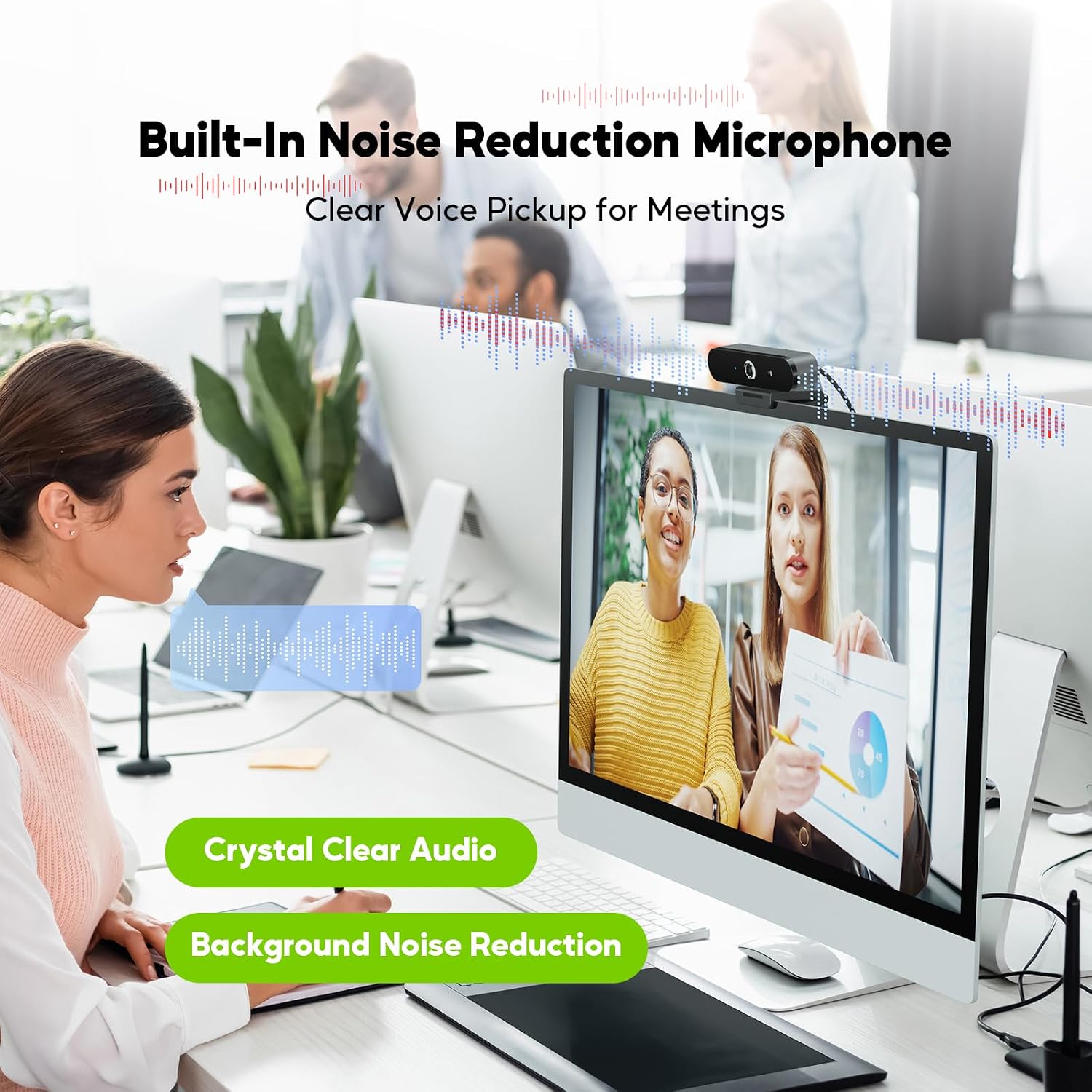
Image: The Nisheng M3 webcam showcasing its built-in noise reduction microphone for clear voice pickup during meetings, with visual representation of sound waves.
6. Maintenance
To ensure the longevity and optimal performance of your Nisheng M3 webcam, follow these maintenance guidelines:
- Cleaning the Lens: Gently wipe the lens with a soft, lint-free cloth. For stubborn smudges, use a lens cleaning solution specifically designed for optical surfaces. Avoid abrasive materials or harsh chemicals.
- Cleaning the Body: Use a soft, dry cloth to clean the webcam's exterior.
- Storage: When not in use, store the webcam in a clean, dry place. Use the privacy cover to protect the lens from dust and scratches.
- Avoid Extreme Conditions: Do not expose the webcam to extreme temperatures, humidity, or direct sunlight for prolonged periods.
7. Troubleshooting
| Problem | Possible Cause | Solution |
|---|---|---|
| No image/video | Webcam not connected or not selected. |
|
| No audio/microphone not working | Microphone not selected or muted. |
|
| Blurry image | Lens is dirty or lighting is insufficient. |
|
| Webcam not detected | USB port issue or system conflict. |
|
8. Specifications
| Feature | Detail |
|---|---|
| Model Number | M3 |
| Brand | Nisheng |
| Video Resolution | Up to 4K (3840 x 2160) at 30 fps |
| Effective Capture Resolution | 8 Megapixels |
| Image Sensor | 1/2.8" CMOS |
| Autofocus | Yes (PDAF) |
| Microphone | Built-in, Noise Reduction |
| Connectivity Technology | USB (USB-A and Type-C compatible with adapter) |
| Special Feature | Low Light Correction, Privacy Cover |
| Max Focal Length | 4 Millimeters |
| Min Focal Length | 2.8 Millimeters |
| Maximum Aperture | f/2 |
| Optical Zoom | 1x |
| Angle of View | 85 Degrees |
| Compatibility | Windows 7/8/10, Mac OS |
9. Warranty and Support
Specific warranty information for the Nisheng M3 Webcam is not provided in this document. Please refer to the product packaging or the manufacturer's official website for detailed warranty terms and conditions.
For technical support, troubleshooting assistance, or further inquiries, please contact Nisheng customer service through the contact information provided with your purchase or on the official Nisheng website.