
BUDI Upgrade version
BUDI Multifunctional 9-in-1 SD Card Reader User Manual
Model: Upgrade Version
Introduction
Thank you for choosing the BUDI Multifunctional 9-in-1 SD Card Reader. This device is designed to provide fast and versatile data transfer and storage solutions for your various digital devices. With its compact design and multiple interfaces, it offers seamless connectivity for memory cards, smartphones, tablets, and computers.
This manual provides detailed instructions on how to set up, operate, and maintain your BUDI Multifunctional Card Reader. Please read it carefully before use to ensure optimal performance and longevity of the product.
Product Overview
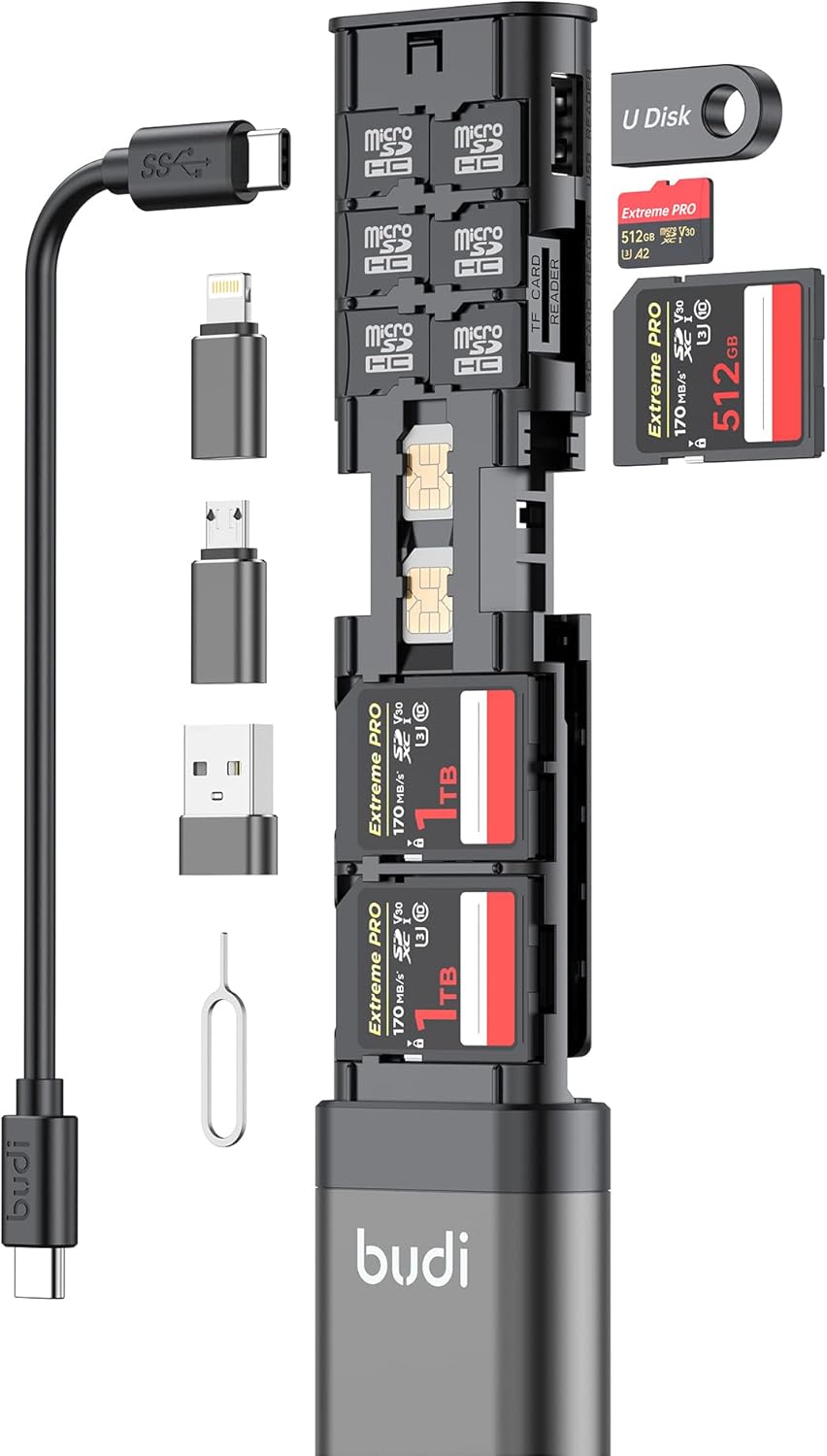
Figure 1: The BUDI Multifunctional 9-in-1 SD Card Reader, showcasing its integrated USB-C cable, various adapters (Lightning, Micro USB, USB-A), and multiple slots for SD, TF (MicroSD) cards, and SIM cards. It also includes a SIM ejector tool.

Figure 2: High-speed data transfer capability of the BUDI Card Reader, demonstrating its USB 3.0 interface with theoretical speeds up to 5Gbps and measured speeds up to 100MB/s, ideal for large file transfers.
Setup
- Unpack the Device: Carefully remove the BUDI Multifunctional Card Reader from its packaging.
- Identify Ports and Adapters: Familiarize yourself with the various ports (SD, TF/MicroSD, SIM) and the integrated USB-C cable with its interchangeable adapters (USB-A, Lightning, Micro USB).
- Connect to Device:
- For USB-C devices (laptops, Android phones, tablets): Directly plug the integrated USB-C cable into your device's USB-C port.
- For USB-A devices (computers, older laptops): Attach the USB-A adapter to the USB-C cable and then plug into your device's USB-A port.
- For Lightning devices (iPhones, iPads with Lightning port): Attach the Lightning adapter to the USB-C cable and then plug into your device's Lightning port. Note: OTG function is required for mobile devices.
- For Micro USB devices: Attach the Micro USB adapter to the USB-C cable and then plug into your device's Micro USB port.
- Insert Memory Cards: Insert your SD, TF (MicroSD), or SIM cards into the corresponding slots. Ensure they are inserted correctly with the contacts facing down.
- Plug and Play: The device is plug-and-play, requiring no driver installation on most operating systems (Windows, Mac OS, Linux, Chrome OS). Your device should automatically recognize the card reader and its contents.
Operating Instructions
Data Transfer
The BUDI Multifunctional Card Reader supports USB 3.0 for high-speed data transfer up to 5Gbps. It can read up to three memory devices simultaneously.
- Accessing Files: Once connected, your computer or mobile device will display the inserted memory cards as removable drives. Navigate to these drives to access your files.
- Copying Files: Drag and drop files between your device's storage and the memory cards, or between different memory cards.
- Supported Cards: Compatible with various driving recorders, trial cameras, and digital camera memory cards up to 512GB. Supports SD card, TF (MicroSD) card, and SIM card types.
OTG Functionality (for Mobile Devices)
The USB-C port supports USB 3.0 OTG (On-The-Go) data output, allowing direct connection to compatible smartphones and tablets.
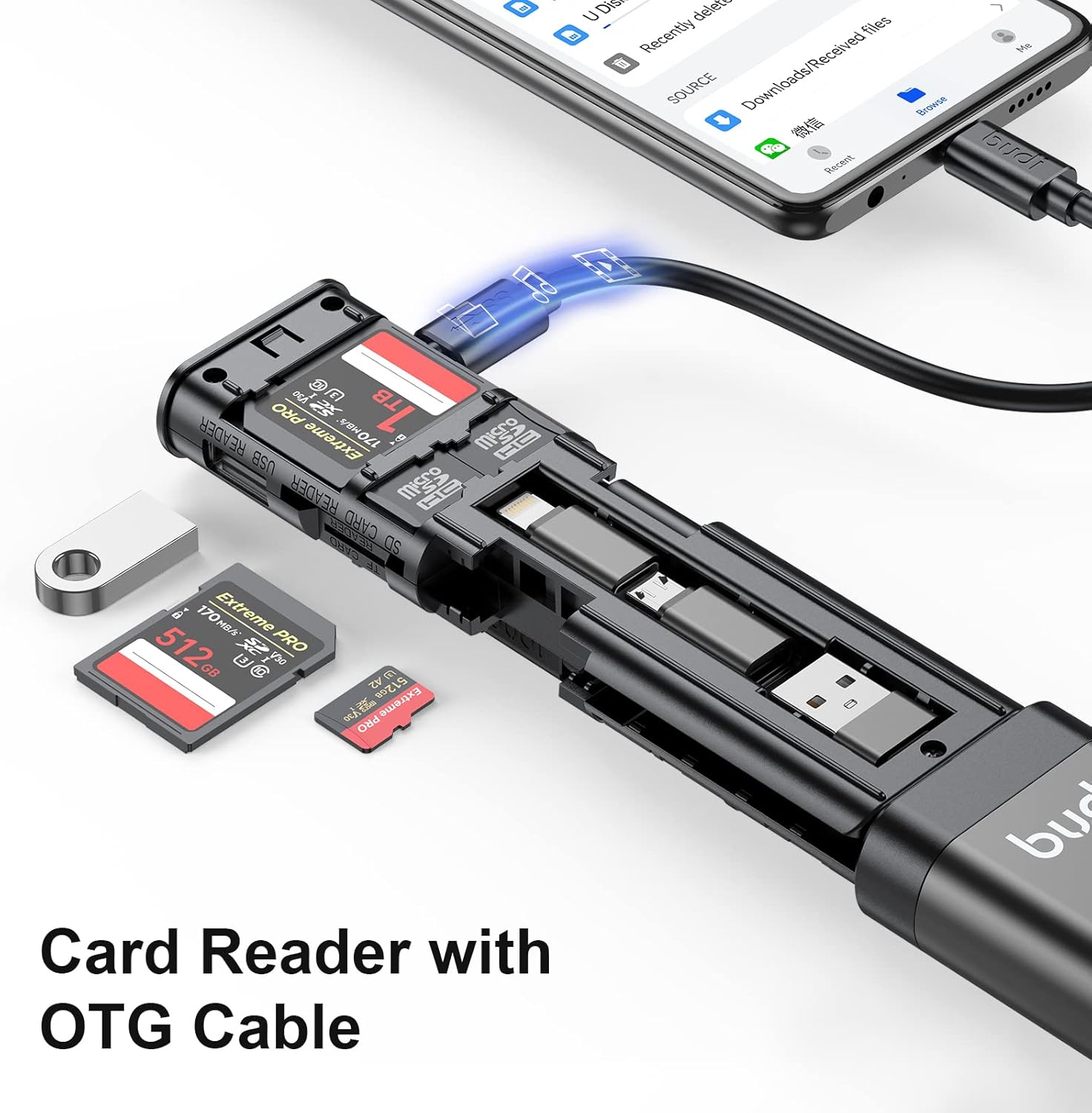
Figure 3: The BUDI Card Reader connected to a smartphone, demonstrating its OTG (On-The-Go) capability for direct file access and transfer from memory cards to mobile devices.

Figure 4: Versatile applications of the BUDI Card Reader, including mobile office setups, direct phone card reading, outdoor photography data management, and video clip editing workflows.
- Ensure your mobile phone supports OTG functionality.
- Connect the card reader to your phone using the appropriate adapter.
- Access files through your phone's file manager application.
Charging Functionality
Through the USB 3.0 port, the device can also facilitate charging for your phone when connected to a power source via a 65W fast charging cable.

Figure 5: The BUDI Multifunctional Cable with its various adapters (USB-A, Lightning, Micro USB) enabling both data synchronization and faster charging capabilities for different devices.

Figure 6: The BUDI Card Reader offers broad compatibility across multiple operating systems, including Windows, Apple OS, Linux, and Chrome OS, without requiring any driver installations.
Maintenance
- Cleaning: Use a soft, dry cloth to clean the exterior of the device. Avoid using liquid cleaners or abrasive materials.
- Storage: When not in use, store the card reader in a cool, dry place, away from direct sunlight and extreme temperatures. The compact design allows it to be easily slipped into a pocket, backpack, or handbag.
- Durability: The device is constructed with a durable aluminum alloy casing, providing protection against physical damage.

Figure 7: The robust construction of the BUDI Card Reader, featuring a 1.5mm thick aluminum alloy casing that ensures high strength, durability, and resistance to damage.

Figure 8: The compact and portable design of the BUDI Card Reader, making it easy to carry in a pocket, backpack, or handbag for on-the-go use.
Troubleshooting
| Problem | Possible Cause | Solution |
|---|---|---|
| Device not recognized by computer/phone. | Loose connection, incompatible port, or device not supporting OTG (for mobile). | Ensure the cable and adapter are securely connected. Try a different USB port. Verify your mobile device supports OTG functionality. Restart your device. |
| Memory card not detected. | Card not inserted correctly, damaged card, or unsupported card format. | Re-insert the memory card, ensuring it is fully seated and oriented correctly. Try a different memory card to rule out card issues. Ensure the card is not physically damaged. |
| Slow data transfer speed. | Using a USB 2.0 port, or card speed limitation. | Ensure you are connected to a USB 3.0 port for optimal speed. Check the speed rating of your memory card. |
| Phone not charging via the device. | Insufficient power supply, or phone/cable not compatible with fast charging. | Ensure the device is connected to a power source capable of delivering sufficient power (e.g., a 65W charger). Verify your phone and charging cable support fast charging. |
Specifications
- Brand: BUDI
- Model: Upgrade Version (DC536B)
- Item Weight: 5 ounces (approx. 141.7 grams)
- Product Dimensions: 6.3 x 1.65 x 0.78 inches (approx. 160 x 41.8 x 19.7 mm)
- Color: Black
- Connectivity Technology: USB Type-C (with USB-A, Lightning, Micro USB adapters)
- Data Transfer Speed: Up to 5Gbps (USB 3.0)
- Supported Media Types: SD Card, microSD (TF Card), SIM Card
- Max Supported Capacity: Up to 512GB (for memory cards)
- Operating System Compatibility: Windows XP/Vista/7/8/8.1/10/11, Mac OS, Linux, Chrome OS
- Special Features: Easy Setup, Built-In USB Cord, Plug & Play, Compact, OTG Functionality, Fast Charging Support
- Material: High strength aluminum alloy casing
Warranty and Support
The BUDI Multifunctional 9-in-1 SD Card Reader comes with a 1-year worry-free warranty from the date of purchase.
If you encounter any issues or have questions regarding your product, please contact BUDI customer service. You can typically find support contact information on the official BUDI website or through your purchase platform.
Please retain your proof of purchase for warranty claims.
Ask a question about this manual
Ask about setup, troubleshooting, compatibility, parts, safety, or missing instructions. Manuals+ will review the question and use this page’s manual context to help answer it.