
Introduction
Thank you for choosing the VIFLYKOO Weather Station. This device provides real-time indoor and outdoor temperature and humidity monitoring, atmospheric pressure readings, and a 12-hour weather forecast. This manual will guide you through the setup, operation, and maintenance of your weather station to ensure optimal performance.
Package Contents
Please check the package contents to ensure all items are present:
- 1 x VIFLYKOO Weather Station Main Unit
- 3 x Wireless Remote Sensors
- 1 x USB Cable
- 1 x User Manual (Multi-language)
Product Overview
Familiarize yourself with the main unit's components and controls:

This image shows the rear panel of the VIFLYKOO Weather Station main unit, highlighting key features and controls.
- Table stand hole
- Battery cover
- Max/Min reading button
- Resetting and sensor scanning button
- Data/Time setting button
- Wall hook
- Snooze/Light display button
- Display in °C or °F button
- Display in 12 or 24 hour format button
- Alarm setting button
- DC 5V power input socket
Setup
1. Powering the Main Unit
The main weather station unit can be powered by either a USB cable or batteries.

This image illustrates the two power modes for the main unit (USB cable or 3 AAA batteries) and the battery compartment for the outdoor transmitter (2 AA batteries).
- USB Power: Connect the included USB cable to the DC 5V power input socket (11) on the back of the main unit and plug the other end into a USB power adapter (not included) or a computer USB port.
- Battery Power: Open the battery cover (2) and insert 3 AAA batteries (not included) according to the polarity markings. When operating on batteries, the backlight will only illuminate for 8 seconds after pressing the 'Snooze/Light' button.
2. Installing Remote Sensors
Each wireless remote sensor requires 2 AA batteries (not included).
- Open the battery compartment on the back of each remote sensor.
- Insert 2 AA batteries, observing the correct polarity.
- Close the battery compartment securely.
3. Sensor Placement
The remote sensors have a transmission range of up to 100 meters. Choose suitable locations for accurate readings.
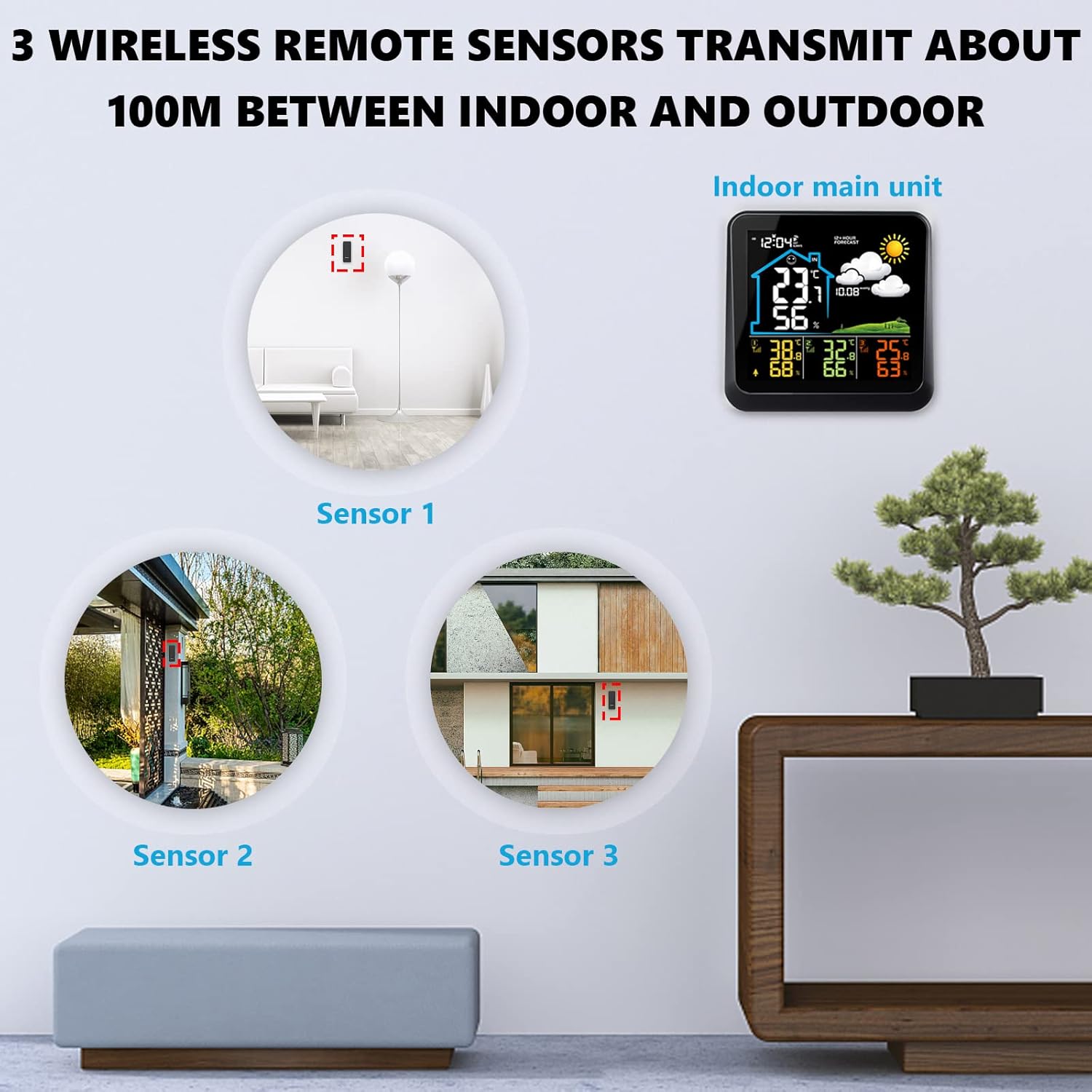
This image demonstrates suitable locations for placing the three wireless remote sensors, such as a baby's room, a wine cellar, or a garden, to monitor temperature and humidity.
- Place sensors in areas where you need to monitor temperature and humidity, such as baby rooms, wine cellars, gardens, or backyards.
- Ensure sensors are protected from direct sunlight and heavy rain for accurate outdoor readings.
- Avoid placing sensors near large metal objects or strong electromagnetic interference sources.
4. Initial Settings (Time, Date, Units)
After powering on, the main unit will automatically search for the remote sensors. Once connected, you can set the time, date, and preferred units.
- Press the 'Data/Time setting' button (5) to enter time setting mode.
- Use the 'Max/Min reading' (3) and 'Resetting and sensor scanning' (4) buttons to adjust values.
- Press 'Data/Time setting' (5) again to confirm and move to the next setting (e.g., year, month, day, 12/24 hour format).
- To switch between Celsius (°C) and Fahrenheit (°F), press the 'Display in °C or °F' button (8).
- To switch between 12-hour and 24-hour time format, press the 'Display in 12 or 24 hour' button (9).
Operating Instructions
1. Display Features
The color LCD screen displays various information at a glance:
- Indoor/Outdoor Temperature and Humidity
- 12-Hour Weather Forecast
- Atmospheric Pressure (hPa)
- Time and Date
- Comfort Level Indicator
- Battery Indicator
2. Setting Alarm
To set an alarm:
- Press the 'Alarm setting' button (10) to enter alarm setting mode.
- Use the adjustment buttons (3, 4) to set the desired alarm time.
- Press 'Alarm setting' (10) again to confirm.
3. Snooze/Backlight Function
- Battery Operation: Press the 'Snooze/Light display' button (7) to illuminate the screen for 8 seconds.
- USB Operation: Repeatedly press the 'Snooze/Light display' button (7) to cycle through low brightness, high brightness, or off modes.
- When an alarm sounds, press the 'Snooze/Light display' button (7) to activate the snooze function. The alarm will sound again after a short interval.
4. Max/Min Readings
Press the 'Max/Min reading' button (3) to view the maximum and minimum recorded temperature and humidity values. Press again to cycle through current, maximum, and minimum readings.
5. Weather Forecast
The station provides a 12-hour weather forecast based on atmospheric pressure trends. The forecast accuracy is approximately 75%.

This image shows the various weather forecast icons used by the station: Sunny, Freeze, Cloudy, Partly Cloudy, and Rainy.
Forecast icons include: Sunny, Sunny to Cloudy, Cloudy, Rainy, Snowy.
Note: If the weather station is moved, it may take 12 to 24 hours for the atmospheric pressure to adjust and recalculate the forecast.
6. Indoor Comfort Indicator
The display includes a comfort indicator based on indoor humidity levels:

This image displays the main unit's screen, indicating comfort levels: optimal (40-70% RH), high (70-100% RH), and low (0-40% RH).
- Optimal: 40-70% Relative Humidity (RH)
- High: 70-100% RH
- Low: 0-40% RH
Maintenance
1. Battery Replacement
- When the battery indicator appears on the main unit, replace the 3 AAA batteries.
- For remote sensors, replace the 2 AA batteries when their performance degrades.
- Always replace all batteries at the same time with new ones of the same type.
2. Cleaning
Wipe the main unit and sensors with a soft, damp cloth. Do not use abrasive cleaners or immerse the devices in water.
Troubleshooting
| Problem | Possible Cause | Solution |
|---|---|---|
| No display on main unit | No power or low batteries. | Connect USB power or replace AAA batteries. |
| Remote sensor not connecting / Incorrect outdoor readings | Sensor batteries low or dead; sensor out of range; interference. | Replace AA batteries in sensor. Move sensor closer to main unit. Avoid obstacles. Press 'Resetting and sensor scanning' button (4) on main unit to re-scan. |
| Display shows 'LL.L' or 'HH.H' | Temperature or humidity is outside the measurable range. | This indicates the reading is below the minimum ('LL.L') or above the maximum ('HH.H') operating range. The device is functioning as expected under extreme conditions. |
| Inaccurate weather forecast | Station recently moved; forecast is an estimation. | Allow 12-24 hours for the station to recalibrate after moving. Forecasts are based on atmospheric pressure trends and are not 100% accurate. |
Specifications

This image provides the physical dimensions of the main weather station unit (14.5cm x 14cm) and the remote sensor (10cm x 3.8cm).
| Feature | Detail |
|---|---|
| Brand | VIFLYKOO |
| Model Number | 3 sensor |
| Display Type | Color LCD |
| Connectivity Technology | Wireless, USB |
| Power Source (Main Unit) | USB cable (included) or 3 x AAA batteries (not included) |
| Power Source (Remote Sensors) | 2 x AA batteries per sensor (not included) |
| Indoor Temperature Range | 0 °C to +50 °C (32 °F to 122 °F) |
| Outdoor Temperature Range | -30 °C to +60 °C (-22 °F to 140 °F) |
| Humidity Range | 20% to 90% RH |
| Wireless Transmission Distance | Up to 100 meters (open air) |
| Special Features | 12-hour weather forecast, Max/Min records, Alarm, Snooze, Comfort indicator |
| Main Unit Dimensions | Approx. 14.5 cm x 14 cm |
| Remote Sensor Dimensions | Approx. 10 cm x 3.8 cm |
Warranty and Support
Information regarding product warranty and customer support is typically provided with your purchase documentation or on the manufacturer's official website. Please refer to those resources for details on warranty coverage, returns, and technical assistance.