1. Introduction
Thank you for choosing the BK362A Wireless USB Keyboard. This keyboard offers versatile connectivity options (2.4GHz wireless and Bluetooth), a comfortable typing experience, and a convenient integrated mobile phone holder. This manual provides detailed instructions to help you get the most out of your new device.

Image: The BK362A Wireless USB Keyboard, showcasing its full layout, integrated touchpad, and the included USB receiver and charging cable.
2. Package Contents
Please verify that all items are present in your package:
- 1 × Wireless Keyboard (BK362A)
- 1 × USB Receiver
- 1 × Charging Cable
- 1 × User Manual (this document)
3. Setup and Connection
3.1 Charging the Keyboard
The keyboard comes with a built-in rechargeable lithium polymer battery. Before first use, it is recommended to fully charge the keyboard using the provided USB charging cable. Connect the small end of the charging cable to the keyboard's charging port and the other end to a USB power source (e.g., computer USB port, USB wall adapter).
The charging indicator light will illuminate during charging and turn off when fully charged.
3.2 System Compatibility
This keyboard is compatible with a wide range of operating systems:
- Android 4.0 devices and above
- OS X 6.0 operating system and above
- Windows 7 and above
3.3 Connection Methods
The keyboard supports two wireless connection modes: 2.4GHz wireless via USB receiver and Bluetooth.
3.3.1 Mode Selection
Locate the mode switch on the keyboard. It has three positions:
- Middle Position: Off
- Left Position: Bluetooth Mode
- Right Position: 2.4G Mode
Switch to the desired mode. The corresponding mode indicator light will illuminate for approximately 3 seconds and then turn off.
3.3.2 2.4GHz Wireless Connection
- Switch the mode switch to the right position (2.4G Mode).
- Insert the USB receiver into an available USB port on your computer or device.
- On the keyboard, long press the ESC and Q keys simultaneously for approximately three seconds to enter 2.4G code pairing state.
- During code pairing, the 2.4G indicator light will flash quickly (at 500ms). Once successfully paired, the light will stop flashing.

Image: A close-up view of the keyboard's keys, highlighting the ESC and Q keys used for 2.4G pairing.
3.3.3 Bluetooth Connection
- Switch the mode switch to the left position (Bluetooth Mode).
- On the keyboard, long press the FN key and one of the Bluetooth keys (e.g., FN + Bluetooth 1) simultaneously for three seconds. The corresponding channel will enter Bluetooth code pairing state.
- The Bluetooth indicator light will flash quickly (at 500ms) during code pairing.
- On your device (computer, tablet, smartphone), enable Bluetooth and search for available devices. Select "BK362A Keyboard" (or similar name) from the list to connect.
- Once successfully paired, the Bluetooth indicator light on the keyboard will stop flashing.
4. Operating Instructions
4.1 Basic Keyboard Functions
The keyboard features a standard QWERTY layout with 104 keys, providing a familiar typing experience. All standard alphanumeric, symbol, and function keys operate as expected.
4.2 Touchpad Usage
The integrated touchpad functions as a mouse, allowing for precise cursor control. It supports standard gestures such as tapping for clicks, two-finger scrolling, and pinch-to-zoom (depending on operating system support).

Image: A user demonstrating the keyboard in a desktop computer environment, highlighting its use with a monitor and mouse.
4.3 Mobile Phone/Tablet Holder
The keyboard is equipped with a specially designed bracket that can securely hold your mobile phone or tablet, allowing for an optimal viewing angle while typing or consuming media.
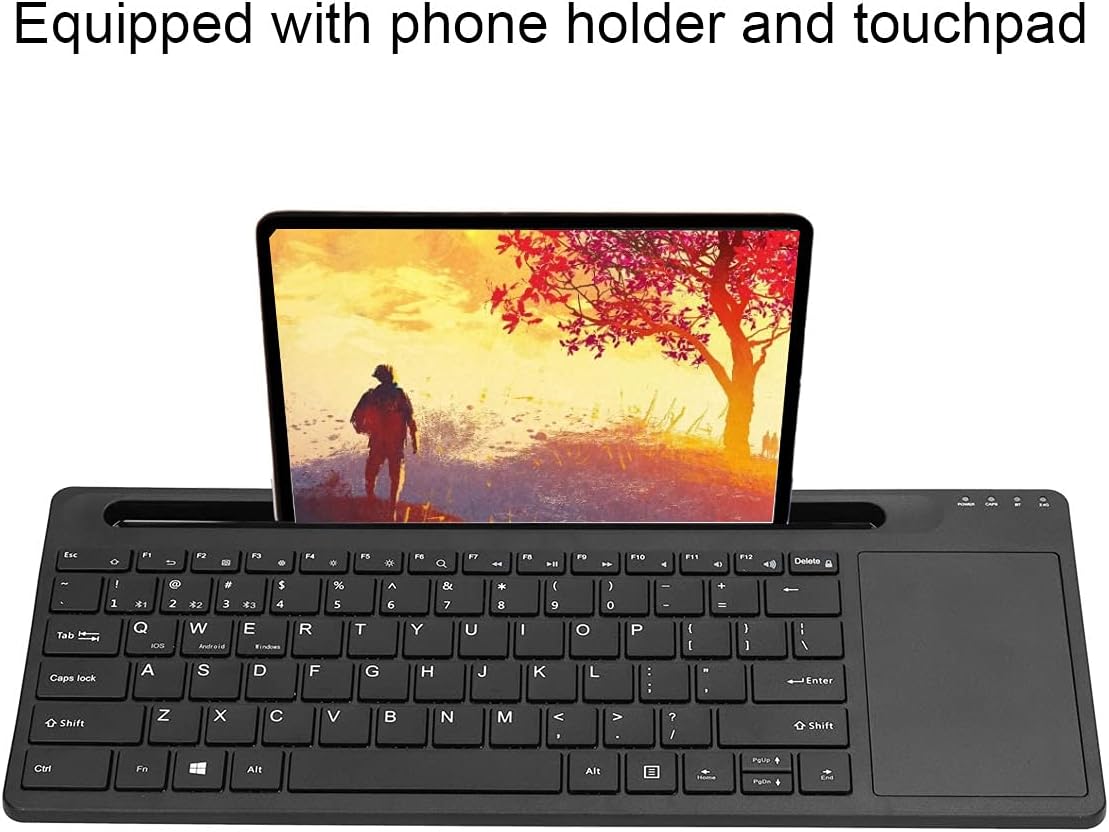
Image: The keyboard with a smartphone positioned in its integrated holder, demonstrating the convenience for mobile device users.

Image: The keyboard with both a smartphone and a tablet placed in its integrated holder, illustrating its capacity for multiple devices.
4.4 Function Keys (FN Combinations)
The keyboard includes function keys (F1-F12) that can be activated in combination with the FN key to perform various multimedia and system shortcuts. Refer to the keycap legends for specific functions (e.g., volume control, media playback, screen brightness).
5. Maintenance
5.1 Cleaning
To clean your keyboard, gently wipe the surface with a soft, damp cloth. Avoid using harsh chemicals, abrasive cleaners, or excessive moisture, as these can damage the keyboard's finish or internal components.
5.2 Storage
When not in use for extended periods, store the keyboard in a cool, dry place away from direct sunlight and extreme temperatures. Ensure the keyboard is turned off to conserve battery life.
6. Troubleshooting
6.1 Keyboard Not Connecting
- Ensure the keyboard is charged.
- Verify the mode switch is in the correct position (2.4G or Bluetooth).
- For 2.4G: Ensure the USB receiver is securely plugged into your device. Try a different USB port. Re-pair the keyboard by long pressing ESC + Q.
- For Bluetooth: Ensure Bluetooth is enabled on your device. Forget the device in your device's Bluetooth settings and attempt to re-pair by long pressing FN + Bluetooth key.
- Move the keyboard closer to your device to ensure it's within the effective range (approx. 10 meters).
6.2 Keys Not Responding
- Check battery level and charge if necessary.
- Restart your computer/device.
- Try reconnecting the keyboard (see 6.1).
6.3 Touchpad Not Working
- Ensure the touchpad is not accidentally disabled (some keyboards have a function key to toggle touchpad).
- Clean the touchpad surface.
- Reboot your device.
7. Specifications
| Feature | Detail |
|---|---|
| Product Type | Wireless Keyboard |
| Model | BK362A |
| Material | ABS |
| Bluetooth Protocol | 3.0 |
| Battery Type | Built-in Polymer Lithium Battery |
| Battery Capacity | 300 mAh |
| Connection Method | BT (Bluetooth) / RF2.4G |
| Effective Distance | Approx. 10 meters / 10.9 yards |
| Keyboard Size (L x W x H) | Approx. 362 × 145 × 19 mm / 14.3 × 5.7 × 0.7 inches |
| Number of Keys | 104 |
| Operating System Compatibility | Android 4.0+, OS X 6.0+, Windows 7+ |

Image: A diagram illustrating the physical dimensions of the keyboard, including length, width, and thickness.
8. Warranty and Support
This product is covered by a standard manufacturer's warranty. Please retain your proof of purchase for any warranty claims. For technical support, troubleshooting assistance, or warranty inquiries, please contact the retailer or manufacturer directly.
For further assistance, you may refer to the product's official support page or contact customer service via the details provided at the point of purchase.