
KIDOMO F03
KIDOMO F03 Drone User Manual
Model: F03
1. Product Overview
The KIDOMO F03 Drone is a foldable RC quadcopter equipped with a 4K GPS camera, designed for ease of use and stable flight. It features a brushless motor for extended lifespan, dual cameras for versatile shooting, and advanced GPS and Optical Flow positioning for precise control and automatic return functions. This manual provides essential information for safe operation, maintenance, and troubleshooting.

Figure 1: KIDOMO F03 Drone, remote controller, and two modular batteries.
2. Safety Guidelines
Always prioritize safety when operating the drone. Failure to follow these guidelines may result in injury, damage to the drone, or property damage.
- Pre-Flight Check: Ensure all components are securely attached, batteries are fully charged, and propellers are free from damage before each flight.
- Environmental Conditions: Avoid flying in strong winds, rain, snow, or fog. Maintain a clear line of sight to the drone at all times.
- Flight Area: Fly in open areas away from people, animals, buildings, and power lines. Do not fly near airports or restricted airspace.
- Battery Safety: Use only original KIDOMO batteries and chargers. Do not overcharge or puncture batteries. Store batteries in a cool, dry place.
- Propeller Safety: Keep hands, face, and loose clothing away from rotating propellers.
- Responsible Operation: Do not operate the drone under the influence of alcohol or drugs. Respect privacy and local regulations.
3. Package Contents
Verify that all items are present in your package:
- KIDOMO F03 Drone
- Remote Controller
- 2 x Lithium Polymer Batteries (7.4V 2200mAh)
- USB Charging Cable
- Spare Propellers (quantity may vary)
- Screwdriver
- User Manual
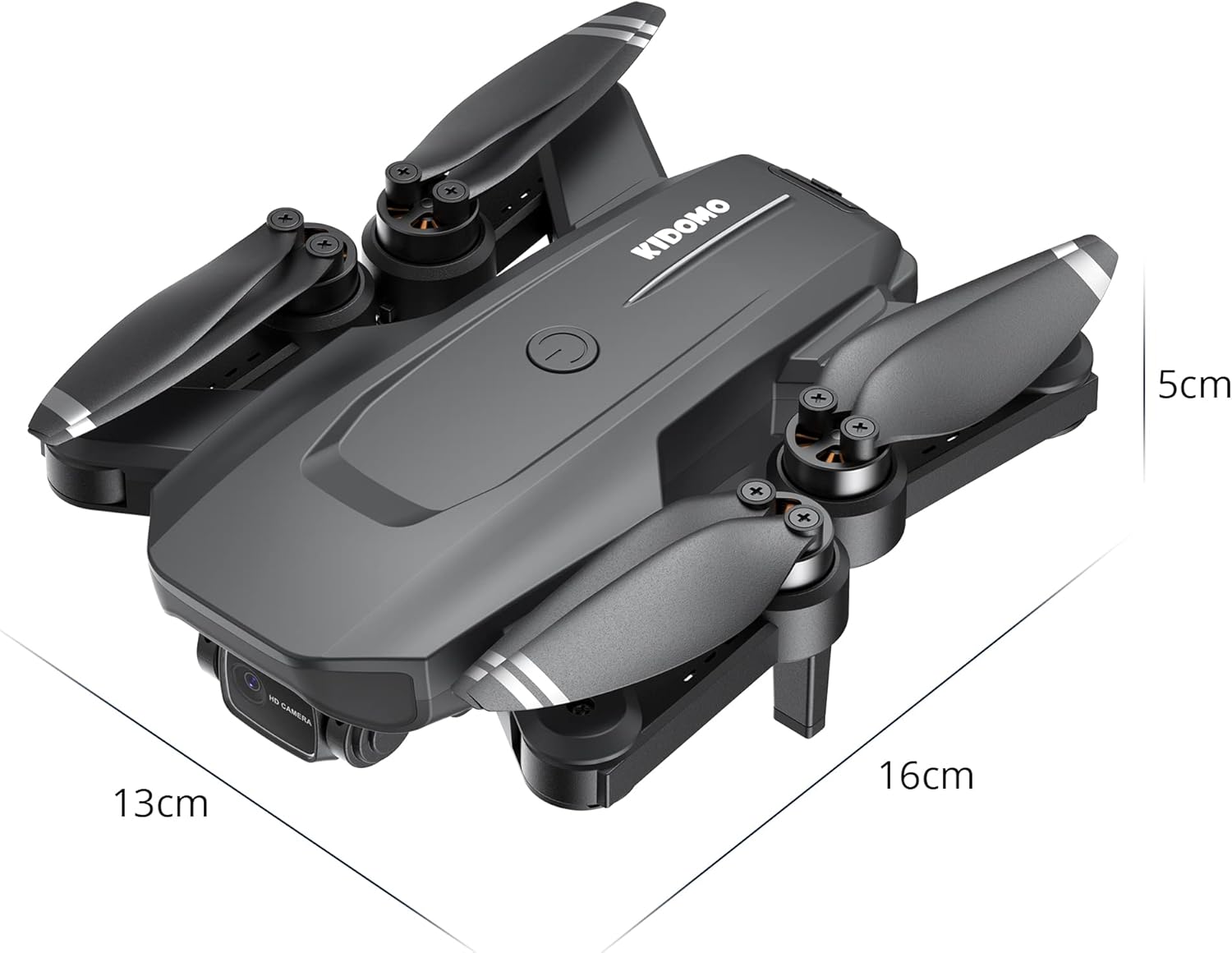
Figure 2: Folded dimensions of the KIDOMO F03 Drone (approx. 13cm x 16cm x 5cm).
4. Setup Guide
4.1. Charging the Batteries
Before first use, fully charge both drone batteries and the remote controller battery (if applicable).
- Connect the USB charging cable to the drone battery.
- Plug the other end of the USB cable into a 5V/2A USB power adapter (not included).
- The indicator light on the battery will be green during charging and will turn off when fully charged.
- Charging time is approximately 3-4 hours per battery.

Figure 3: The 7.4V 2200mAh Li-ion modular batteries provide up to 56 minutes of total flight time.
4.2. Installing Drone Batteries
- Ensure the drone is powered off.
- Insert a fully charged battery into the battery compartment on the drone until it clicks into place.
4.3. Unfolding the Drone
- Gently unfold the front arms first, then the rear arms until they are fully extended.
- Ensure all arms are locked into position before flight.
4.4. Remote Controller Setup
- Install 3 x AA batteries (not included) into the remote controller.
- Pull out the phone holder and securely mount your smartphone.
4.5. App Installation and Connection
- Scan the QR code in the manual (or search "KIDOMO F03 App" on your app store) to download the official control application.
- Turn on the drone and then the remote controller.
- On your smartphone, connect to the drone's Wi-Fi network (e.g., "KIDOMO-F03-XXXX").
- Open the app. The app should automatically connect to the drone, displaying the live camera feed.
5. Operating Instructions
5.1. Pairing and Calibration
- Place the drone on a flat, level surface.
- Power on the drone, then the remote controller.
- Push the left joystick up then down to pair the remote with the drone. The drone lights will stop flashing and become solid.
- Perform gyroscope calibration by pushing both joysticks to the bottom-right corner simultaneously until the drone lights flash rapidly and then become solid.
- Perform compass calibration (for GPS mode):
- Press the GPS calibration button on the remote (refer to remote diagram in app).
- Hold the drone horizontally and rotate it 360 degrees until the lights change.
- Hold the drone vertically with the camera facing down and rotate it 360 degrees until the lights become solid. Calibration is complete.
5.2. Take-off and Landing
- One-Key Take-off: Press the one-key take-off/landing button on the remote or in the app. The drone will automatically ascend to a safe height.
- Manual Take-off: Push both joysticks to the bottom-left/right corners (depending on model) to arm the motors. Then slowly push the left joystick up to ascend.
- One-Key Landing: Press the one-key take-off/landing button again. The drone will automatically descend and land.
- Emergency Stop: In an emergency, press and hold the one-key landing button for 3 seconds to immediately stop the motors. Use only in emergencies.
5.3. Flight Modes and Features
The KIDOMO F03 drone offers various intelligent flight modes:
- GPS Positioning Mode: Provides precise outdoor positioning, stable hovering, and accurate return-to-home functions. Essential for intelligent flight modes.
- Optical Flow Positioning Mode: Ideal for indoor flight or areas without GPS signal. Uses a downward-facing camera to maintain position.
- Automatic Return (RTH):
- Smart RTH: Press the Return-to-Home button on the remote or in the app. The drone will return to its recorded take-off point.
- Low Battery RTH: The drone will automatically return when the battery is critically low.
- Signal Loss RTH: If the connection between the drone and remote is lost, the drone will automatically return to the take-off point.
- Follow Me Mode: In GPS mode, enable "Follow Me" in the app. The drone will automatically follow the remote controller (and thus the user's smartphone) at a set distance.
- Surround Mode (Point of Interest): In GPS mode, select a point of interest in the app. The drone will circle around that point at a specified radius and altitude.
- Waypoint Flight (Trajectory Flight): Draw a path on the map in the app. The drone will automatically fly along the designated route.

Figure 4: The drone utilizes Optical Flow Positioning for stable indoor flight and GPS Positioning for precise outdoor flight.

Figure 5: GPS precise localization ensures the drone can automatically return home under various conditions.

Figure 6: The drone's intelligent flight modes, such as Follow Me and Waypoint Flight, allow for dynamic aerial photography.
5.4. Camera Operation
The F03 drone features a dual-camera system:
- 4K Front Camera: Captures high-resolution photos and videos. The camera angle can be adjusted remotely from 0-90 degrees via the app or remote controller.
- 480P Bottom Camera: Used for Optical Flow Positioning and can also capture images/videos from a different perspective.

Figure 7: The drone features a 4K front camera with 90-degree adjustable angle and a 480P bottom camera.
- Taking Photos: Press the photo button on the remote or in the app.
- Recording Videos: Press the video button on the remote or in the app to start/stop recording.
- Media Storage: Photos and videos are saved directly to your smartphone via the app.
6. Maintenance
- Cleaning: Use a soft, dry cloth to clean the drone body and camera lenses. Do not use liquid cleaners.
- Propeller Inspection: Regularly check propellers for cracks, bends, or damage. Replace damaged propellers immediately using the provided screwdriver.
- Motor Care: The brushless motors are designed for durability. Keep them free from dust and debris.
- Battery Storage: If storing the drone for an extended period, charge batteries to approximately 50-60% and store them in a cool, dry place. Remove batteries from the drone and remote controller.
- Firmware Updates: Check the official KIDOMO website or app for any available firmware updates to ensure optimal performance.
7. Troubleshooting
| Problem | Possible Cause | Solution |
|---|---|---|
| Drone does not power on. | Battery not charged or not inserted correctly. | Ensure battery is fully charged and securely inserted. |
| Remote controller does not connect. | Remote batteries low; not paired correctly. | Replace remote batteries; re-pair drone and remote (Section 5.1). |
| Drone drifts during flight. | Gyroscope not calibrated; strong wind. | Perform gyroscope calibration (Section 5.1); avoid flying in strong winds. |
| No live video feed in app. | Not connected to drone's Wi-Fi; app not open. | Ensure phone is connected to drone's Wi-Fi; restart app. |
| GPS signal weak/unavailable. | Flying indoors or in an area with obstructions. | Move to an open outdoor area; ensure clear sky view. |
| Drone does not respond to commands. | Out of range; signal interference; low battery. | Fly within range (max 1000m); avoid areas with strong interference; check drone battery level. |
8. Specifications
| Model | F03 |
| Brand | KIDOMO |
| Dimensions (Folded) | Approx. 13 x 16 x 5 cm |
| Weight | 950 g |
| Flight Time | Up to 56 minutes (with 2 batteries) |
| Battery Type | 7.4V 2200mAh Lithium Polymer |
| Charging Time | Approx. 3-4 hours per battery |
| Control Range | Up to 1000 meters |
| Video Resolution | 4K (Front Camera), 480P (Bottom Camera) |
| Connectivity | 5G FPV Wi-Fi, APP Control |
| Motor Type | Brushless Motor |
| Positioning System | GPS, Optical Flow Positioning |
9. Warranty and Support
KIDOMO products come with a standard manufacturer's warranty. Please refer to the warranty card included in your package for specific terms and conditions. For technical support, troubleshooting assistance, or warranty claims, please contact KIDOMO customer service:
- Email: support@kidomo.com
- Website: www.kidomo.com
- Please have your model number (F03) and purchase date ready when contacting support.
Related documentsF03

Ask a question about this manual
Ask about setup, troubleshooting, compatibility, parts, safety, or missing instructions. Manuals+ will review the question and use this page’s manual context to help answer it.