
1. Introduction
The Veidoo Kids Tablet (Model V88) is a 7-inch Android tablet PC designed specifically for children. It features a safety eye protection screen, dual cameras, and comes with a durable silicone case. This tablet is equipped with parental control features and the iWawa app to provide a safe and engaging entertainment and learning environment for young users.
This manual provides detailed instructions on setting up, operating, maintaining, and troubleshooting your Veidoo Kids Tablet to ensure optimal performance and a positive user experience.
2. What's in the Box
Please check the contents of your package. If any items are missing or damaged, contact customer support.
- Veidoo Kids Tablet (Model V88)
- Protective Silicone Case with Handle
- USB Charging Cable
- Power Adapter
- User Manual (this document)

Image: Front and back views of the Veidoo Kids Tablet in its purple silicone protective case, highlighting the integrated kickstand and handle.
3. Product Overview
3.1 Key Features
- Parental Control Mode: Create and customize profiles for children, hand-pick content, control screen time, and ensure safe browsing.
- iWawa APP: Pre-installed app designed for children with password control, remote video control, one-button lock screen, alarm settings, and educational games.
- Eye Protection Screen: 7-inch HD 1024x600 display with features like anti-blue light and adjustable brightness for comfortable reading.
- Powerful Performance: Upgraded quad-core CPU, 2GB RAM, 32GB ROM, running Android 10. Supports Wi-Fi, Bluetooth, and GPS.
- Expandable Storage: Storage can be expanded up to 64GB with an additional Micro SD card (not included).
- Dual Cameras: Equipped with front and rear cameras (2MP rear webcam).
- Kid-Proof Silicone Case: Durable and safe case with an integrated handle and kickstand for easy carrying and viewing.

Image: Visual representation of the tablet's main features and pre-installed applications.
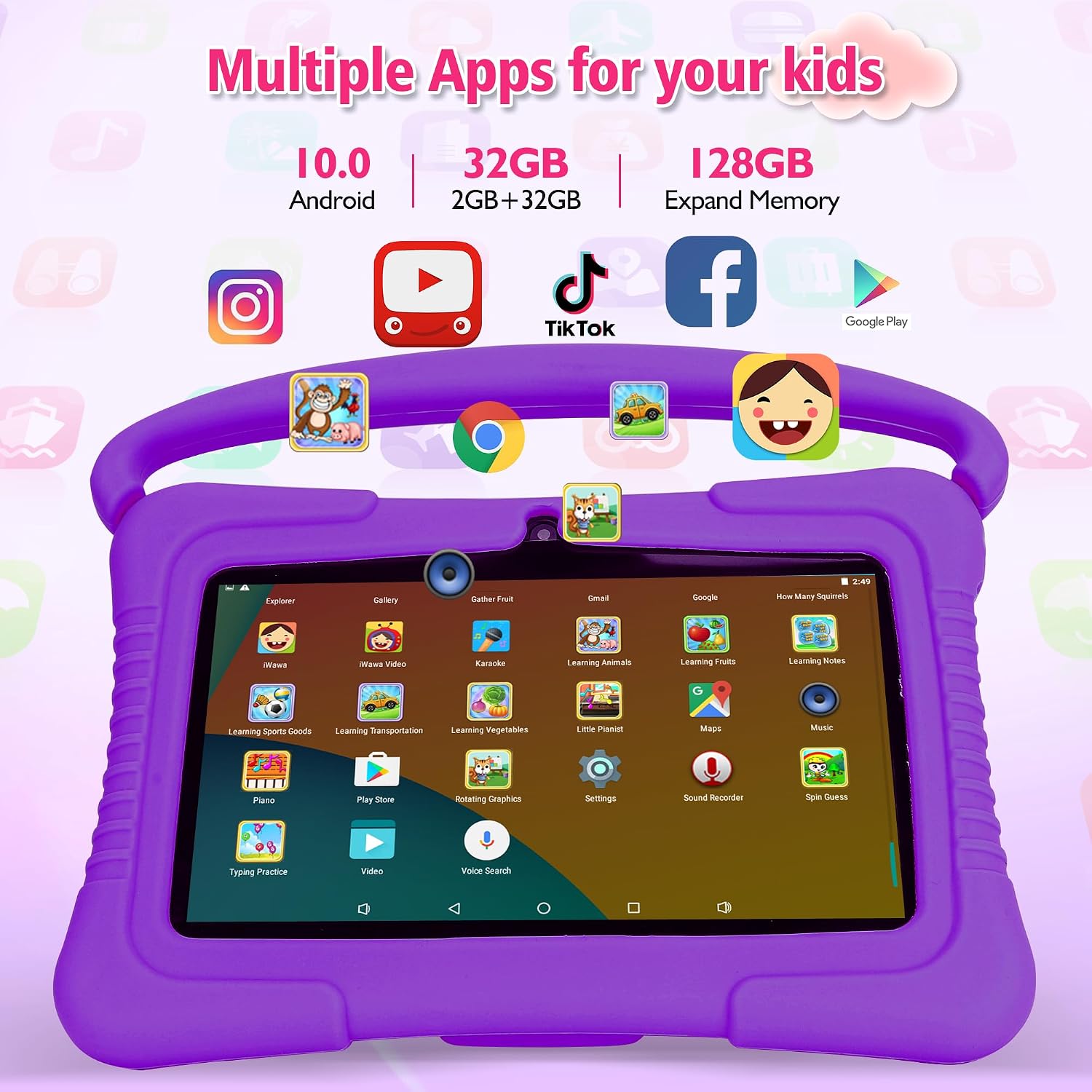
Image: The tablet screen showing a variety of apps, emphasizing its Android operating system and memory capabilities.

Image: Rear view of the tablet, detailing the location of ports and components.
4. Setup
4.1 Initial Charging
Before first use, fully charge the tablet. Connect the USB charging cable to the tablet's Type-C port and the power adapter, then plug the adapter into a wall outlet. The charging indicator will show the charging status.
4.2 Power On/Off
- To Power On: Press and hold the Power Button (located on the side) until the screen lights up.
- To Power Off: Press and hold the Power Button until a power-off menu appears, then select "Power Off".
4.3 Wi-Fi Connection
To connect to Wi-Fi:
- Ensure you are not in the iWawa child interface. If you are, exit it first.
- Go to Settings > Network & Internet > Wi-Fi.
- Turn on Wi-Fi.
- Select your desired Wi-Fi network from the list.
- Enter the password if prompted and tap Connect.
4.4 Inserting a Micro SD Card (Optional)
To expand storage, locate the Micro SD card slot on the side of the tablet. Gently insert a Micro SD card (up to 64GB) until it clicks into place. Ensure the tablet is powered off before inserting or removing the card.
5. Operating Instructions
5.1 Navigating the Android Interface
The tablet runs on Android 10. Use touch gestures to navigate:
- Tap: Select an item.
- Swipe: Scroll through screens or lists.
- Pinch: Zoom in or out on images and web pages.
- Long Press: Access contextual menus or move icons.
5.2 Using the iWawa App and Parental Controls
The iWawa app is central to the child-friendly experience. It allows parents to manage content and screen time.

Image: The parental control settings screen, illustrating various management options.
- Accessing iWawa: Tap the iWawa icon on the home screen.
- Parental Mode: To enter parental mode, you will need to enter a password. This allows you to:
- Create and manage child profiles.
- Select specific apps and content accessible to children.
- Set daily screen time limits.
- Monitor activity and browsing history.
- Control remote video access.
- Exiting iWawa: To exit the iWawa interface and access full Android settings (e.g., for Wi-Fi connection), use the designated exit option within the iWawa app, which will require the parental password.
5.3 Learning and Entertainment
The tablet is pre-loaded with educational games and content. Children can engage in various activities designed for learning while playing.
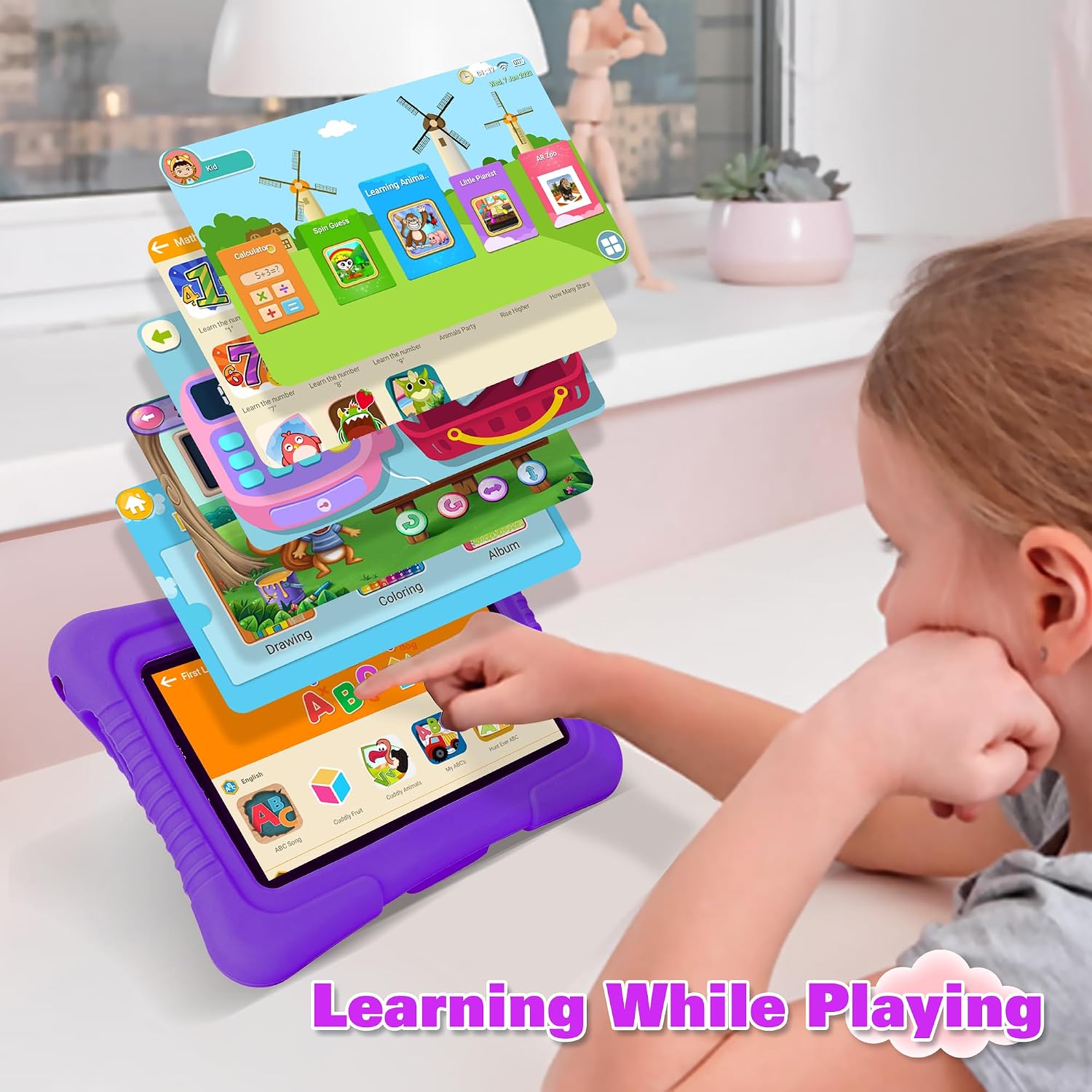
Image: A child using the tablet, with graphics illustrating the educational and interactive content available.
Video: An official product video showcasing the Veidoo 7-inch 32GB Kids Tablet, demonstrating its features and user interface, including the iWawa app and augmented reality learning cards.
5.4 Eye Protection Features
The 7-inch IPS display is designed with eye protection in mind. It offers a 1024x600 resolution and features like anti-blue light and adjustable brightness to reduce eye strain during prolonged use. The reading mode further optimizes the display for comfortable viewing of text.

Image: Details on the tablet's 7-inch IPS display, highlighting its eye protection features and superior viewing experience compared to TN screens.
6. Maintenance
6.1 Cleaning the Tablet
- Use a soft, lint-free cloth to clean the screen and body of the tablet.
- For stubborn smudges, slightly dampen the cloth with water or a screen cleaner. Do not spray liquids directly onto the tablet.
- Avoid using abrasive cleaners, alcohol, or solvents, as these can damage the screen and finish.
6.2 Battery Care
- To prolong battery life, avoid fully discharging the tablet frequently.
- Charge the tablet regularly, ideally before the battery level drops below 20%.
- Do not expose the tablet to extreme temperatures (hot or cold), as this can degrade battery performance.
- Use only the provided charger and cable or certified replacements.
6.3 Silicone Case Care
The silicone case provides protection. It can be removed and cleaned with mild soap and water if it gets dirty. Ensure the case is completely dry before reattaching it to the tablet.

Image: Details of the durable silicone case, highlighting its protective features and design.
7. Troubleshooting
| Problem | Possible Cause | Solution |
|---|---|---|
| Tablet won't turn on. | Low battery; system crash. | Charge the tablet for at least 30 minutes. Press and hold the Power Button for 10-15 seconds to force restart. |
| Tablet won't charge. | Faulty cable/adapter; dirty charging port. | Ensure cable and adapter are securely connected. Try a different compatible charger/cable. Clean the charging port gently with a dry, soft brush. |
| Cannot connect to Wi-Fi. | Incorrect password; out of range; iWawa interface lock. | Verify Wi-Fi password. Move closer to the router. Exit the iWawa child interface before attempting to connect to Wi-Fi. Restart the tablet and router. |
| Apps are slow or crashing. | Too many apps running; low storage; outdated app. | Close background apps. Clear app cache (Settings > Apps > [App Name] > Storage > Clear Cache). Free up storage space. Update apps from Google Play Store. |
| Parental controls not working as expected. | Incorrect settings; app glitch. | Review parental control settings within the iWawa app. Ensure the correct child profile is active. Restart the tablet. |
8. Specifications
| Feature | Detail |
|---|---|
| Model Name | V88 |
| Screen Size | 7 Inches |
| Screen Resolution | 1024 x 600 Pixels |
| Operating System | Android 10 |
| Processor | Quad-core (1.6 GHz) Allwinner |
| RAM | 2 GB |
| Internal Storage (ROM) | 32 GB |
| Expandable Storage | Up to 64 GB via Micro SD card |
| Wireless Connectivity | 2.4 GHz Wi-Fi, Bluetooth, GPS |
| Rear Camera Resolution | 2 MP |
| Average Battery Life | 3 Hours (usage dependent) |
| Item Weight | 1.21 pounds |
| Product Dimensions (LxWxH) | 7.13 x 4.76 x 0.43 inches |
| Color | Purple |
9. Warranty & Support
9.1 Warranty Information
Please refer to the warranty card included with your product or contact the seller/manufacturer directly for specific warranty terms and conditions. Typically, electronic devices come with a limited manufacturer's warranty covering defects in materials and workmanship.
9.2 Customer Support
For technical assistance, troubleshooting beyond this manual, or warranty claims, please contact Veidoo customer support. Contact information can usually be found on the product packaging, the official Veidoo website, or through your point of purchase.
When contacting support, please have your product model (V88) and purchase details ready.


