
1. Introduction
This manual provides essential information for the installation, operation, and maintenance of your Raymarine Element 12 S Chartplotter. The Element 12 S is a high-performance marine navigation display featuring a 12-inch touchscreen, Lighthouse North America charts, High CHIRP Sonar, RealBathy Mapping, AIS target overlays, and autopilot integration. Please read this manual thoroughly before using the device to ensure proper functionality and safety.
2. Safety Information
- Installation: Ensure all electrical connections are made correctly and securely to prevent damage to the unit or vessel. Consult a qualified marine electronics technician if you are unsure about any installation steps.
- Power Supply: Connect the unit only to a 12V DC power source. Incorrect voltage can cause severe damage.
- Navigation: The Element 12 S is an aid to navigation. Always use official government charts and exercise caution. Do not rely solely on electronic navigation for safe passage.
- Environmental: This device is designed for marine environments. However, avoid exposing it to extreme temperatures or direct impact.
- Proposition 65 Warning: This product may contain chemicals known to the State of California to cause cancer, birth defects, or other reproductive harm. Wash hands after handling.
3. Package Contents
While specific included components may vary, a typical Raymarine Element 12 S package contains:
- Raymarine Element 12 S Display Unit
- Mounting Hardware (e.g., bracket, knobs, screws for dashboard mount)
- Power/Data Cable
- Documentation Pack (including this manual)
Note: Transducers, additional network cables, and other accessories are typically sold separately.
4. Product Overview
The Raymarine Element 12 S is a powerful chartplotter designed for intuitive navigation and marine data display.
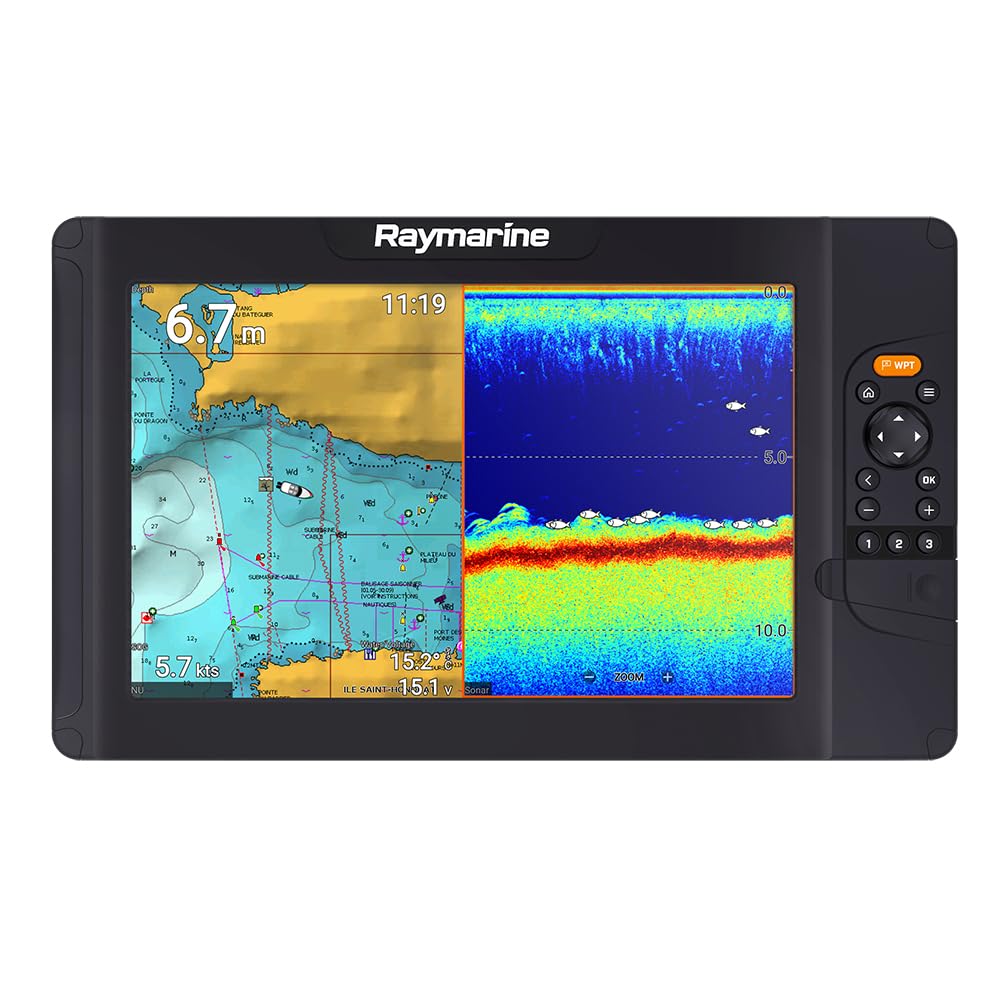
This image displays the Raymarine Element 12 S chartplotter unit. It features a large 12-inch color LCD/LED touchscreen display, suitable for dashboard mounting. The screen shows a detailed marine chart, indicating its primary function as a navigation device.
5. Setup and Installation
5.1 Mounting the Display
The Element 12 S is designed for dashboard mounting. Choose a location that provides clear visibility, easy access to the touchscreen, and protection from direct sunlight and excessive moisture. Ensure sufficient space behind the unit for cable connections and ventilation.
- Carefully mark the mounting holes using the provided template or bracket.
- Drill pilot holes as recommended by the mounting hardware instructions.
- Secure the mounting bracket to the dashboard using the appropriate fasteners.
- Attach the Element 12 S display to the bracket, ensuring it is firmly secured.
5.2 Power Connection
Connect the power cable to a 12V DC power source on your vessel. Ensure the circuit is protected by an appropriate fuse or circuit breaker (refer to the unit's specifications for recommended fuse size). Observe correct polarity: red wire to positive (+), black wire to negative (-).
5.3 Network Connections
- Ethernet: For connecting to other Raymarine devices (e.g., radar, additional displays) or a network switch.
- NMEA 2000: For integrating with other NMEA 2000 compatible devices such as engines, sensors, and autopilots. Ensure proper termination of the NMEA 2000 backbone.
- WiFi: The Element 12 S features built-in WiFi for connectivity with mobile devices and software updates.
5.4 Transducer Connection (if applicable)
If using a compatible High CHIRP Sonar transducer, connect it to the designated port on the Element 12 S. Ensure the transducer is correctly installed on your vessel according to its specific instructions for optimal sonar performance.
6. Operating Instructions
6.1 Powering On/Off
- Power On: Press and hold the Power button until the Raymarine logo appears.
- Power Off: Press and hold the Power button until the shutdown menu appears, then select 'Power Off'. A quick press of the Power button will put the unit into standby mode.
6.2 Touchscreen Interface
The Element 12 S features a responsive capacitive touchscreen. Use touch gestures (tap, swipe, pinch-to-zoom) to navigate menus, control functions, and interact with charts and sonar displays.
6.3 Chartplotter Functions
- Navigation: Access the Chart application to view Lighthouse North America charts. Plan routes, set waypoints, and monitor your vessel's position.
- Zooming: Use pinch-to-zoom gestures on the touchscreen or dedicated zoom controls (if available) to adjust chart scale.
- Data Overlays: Customize the display to show various data overlays such as speed, depth, course, and wind information.
6.4 Sonar Operation
Utilize the High CHIRP Sonar for detailed underwater imaging. Select the Sonar application to view fish targets, bottom structure, and depth readings. Adjust gain, range, and frequency settings for optimal performance in different water conditions.
6.5 RealBathy Mapping
The RealBathy feature allows you to create personalized bathymetric charts in real-time using your sonar data. This is particularly useful for mapping uncharted areas or improving detail in frequently visited locations.
6.6 AIS Target Overlays
If connected to an AIS receiver, the Element 12 S can display AIS targets directly on your chart, enhancing situational awareness by showing the position, course, and speed of nearby vessels.
6.7 Autopilot Integration
Integrate your Element 12 S with a compatible Raymarine autopilot system. This allows for direct control of the autopilot from the chartplotter, enabling features like 'Go To Waypoint' or 'Follow Route'.
7. Maintenance
7.1 Cleaning the Display
Clean the touchscreen with a soft, damp, lint-free cloth. For stubborn marks, use a mild screen cleaner specifically designed for electronics. Avoid abrasive cleaners, solvents, or harsh chemicals that can damage the screen coating.
7.2 Software Updates
Periodically check the Raymarine website (www.raymarine.com) for software updates. Updates often include new features, performance enhancements, and bug fixes. Software can typically be updated via a USB drive or over WiFi.
7.3 Cable and Connection Inspection
Regularly inspect all cables and connections for signs of wear, corrosion, or damage. Ensure all connections are secure to maintain optimal performance and prevent intermittent issues.
8. Troubleshooting
- No Power: Check power cable connections, fuse/circuit breaker, and battery voltage.
- No GPS Signal: Ensure the GPS antenna has a clear view of the sky. Check antenna connections.
- Sonar Not Working: Verify transducer connection. Check sonar settings (gain, range). Ensure the transducer is clean and free of marine growth.
- Network Communication Issues: Check all Ethernet and NMEA 2000 cable connections. Verify network device power.
- Touchscreen Unresponsive: Try restarting the unit. Ensure the screen is clean and dry.
For more detailed troubleshooting, refer to the comprehensive Raymarine support resources online or contact customer service.
9. Specifications
| Feature | Specification |
|---|---|
| Brand | Raymarine |
| Model Name | E70535-00-102 |
| Screen Size | 12 Inches |
| Display Type | LCD/LED |
| Touch Screen Type | Capacitive |
| Control Method | Touch |
| Human-Interface Input | Touchscreen |
| Vehicle Service Type | Boat |
| Mounting Type | Dashboard Mount |
| Connectivity Technology | Ethernet, WiFi, NMEA 2000 |
| Map Type | North America (Lighthouse Charts) |
| Special Features | High CHIRP Sonar, RealBathy Mapping, AIS Target Overlays, Autopilot Integration |
| Audio Output Mode | Speaker |
| Are Batteries Included | No |
| Item Weight | 14.8 Pounds |
| Manufacturer Model Number | CWR-85074 |
| Mfr Part Number | E70535-00-102 |
10. Warranty and Support
Raymarine products are backed by a manufacturer's warranty. The specific terms and duration of your warranty may vary by region and product registration. Please refer to the warranty card included with your product or visit the official Raymarine website for detailed warranty information.
For technical support, service, or further inquiries, please visit the Raymarine support portal on their official website (www.raymarine.com/support/) or contact your local Raymarine dealer.
