
Introduction
The NUX Mini SCF (SUPER CHORUS Flanger & Pitch Modulation) is a compact effects pedal designed for guitarists seeking versatile modulation. It pays homage to the classic TC Electronic Stereo Chorus Flanger, utilizing modern DSP technology to combine analog and digital characteristics. This pedal replicates the sound principles of BBD chips, which are crucial for authentic analog chorus effects, offering a range of chorus, flanger, and pitch modulation sounds in a mini-pedal format.

Image: Front-angled view of the NUX Mini SCF pedal, showcasing its compact size and the NUX logo.
Setup
Power Connection
- Connect a 9-volt DC power adapter (center negative, 50 milliamps minimum) to the DC 9V input jack on the pedal.
- Ensure the power source is stable and meets the specified voltage and amperage requirements.
Audio Connections
- Connect your instrument (e.g., guitar) to the input jack on the right side of the pedal.
- Connect the output jack on the left side of the pedal to your amplifier or next effect pedal.
- For stereo output, use a TRS cable from the output jack to a stereo input, or two mono cables if your setup supports it (refer to TS Indicator for mono/stereo mode).

Image: Angled view of the NUX Mini SCF pedal, highlighting the input, output, and DC 9V power jacks.
Initial Boot-up and Mode Selection
- FS Indicator Mode: Hold the footswitch (FS) while powering on the pedal to enter FS Indicator mode. The indicator light will show Green for Bypass (BF) or Red for Tap Tempo (TB).
- TS Indicator Mode (Mono/Stereo): Hold the Tone Switch (TS) while powering on the pedal to select output mode. The indicator will flash Blue for Mono output or Red for Stereo output.

Image: Bottom view of the NUX Mini SCF pedal, displaying text instructions for boot-up modes related to FS and TS indicators for bypass/tap tempo and mono/stereo selection.
Operating the Pedal
Controls Overview
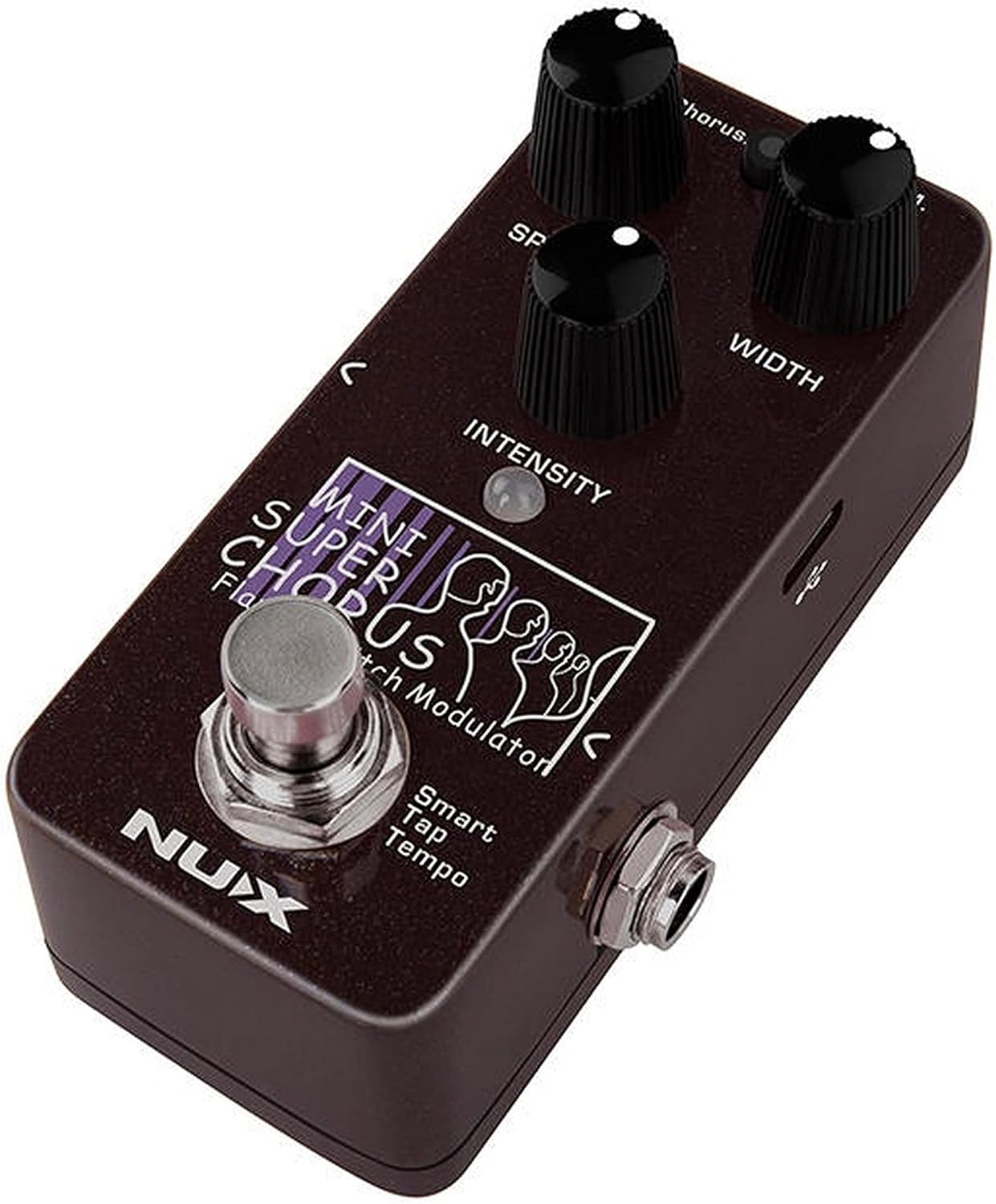
Image: Top-down view of the NUX Mini SCF pedal, clearly showing the three control knobs: Speed, Width, and Intensity, along with the mode selector.
- SPEED Knob: Adjusts the rate of the modulation effect. Turn clockwise for faster modulation, counter-clockwise for slower modulation.
- WIDTH Knob: Controls the depth or intensity of the modulation. Higher settings result in a more pronounced effect.
- INTENSITY Knob: Determines the mix level of the effect with your dry signal.
- Mode Selector (Chorus Knob): This knob also functions as a mode selector.
- Red: P.M. (Pitch Modulation): Activates the Pitch Modulation effect.
- Blue: FLG (Flanger): Activates the Flanger effect.
- Chorus: Activates the Chorus effect.
Footswitch Functions
- Engage/Bypass: Press the footswitch once to toggle the effect on or off.
- Smart Tap Tempo: Hold the footswitch down for a moment, then tap it multiple times to set the tempo of the modulation effect. The LED indicator will flash to show the set tempo.
Maintenance
General Care
- Keep the pedal clean by wiping it with a soft, dry cloth.
- Avoid exposing the pedal to extreme temperatures, humidity, or direct sunlight.
- Do not use abrasive cleaners or solvents.
- Protect the pedal from impacts and drops.
Firmware Updates
The NUX Mini SCF pedal supports firmware updates via its USB-C port. Periodically check the official NUX website for available firmware updates to ensure optimal performance and access to new features.
- Connect the pedal to your computer using a USB-C cable.
- Follow the instructions provided on the NUX website for downloading and installing firmware updates.

Image: Side view of the NUX Mini SCF pedal, highlighting the USB-C port for connectivity and firmware updates.
Troubleshooting
| Problem | Possible Cause | Solution |
|---|---|---|
| No sound or weak signal | Incorrect power supply, faulty cables, incorrect connections, pedal bypassed. |
|
| Effect is not as expected | Incorrect knob settings, wrong mode selected. |
|
| LED indicator not working | Power issue, internal fault. |
|
Specifications
| Brand | NUX |
| Model Name | Mini SCF |
| Model Number | NCH-5 |
| Effects Type | Chorus, Flanger, Pitch Modulation |
| Signal Format | Analog (DSP-modeled) |
| Power Requirement | 9V DC (Center Negative) |
| Current Draw | 50 milliamps |
| Connectivity | Input, Output, USB-C (for firmware updates) |
| Controls | Speed, Width, Intensity, Mode Selector (Chorus Knob), Footswitch |
| Dimensions (L x W x H) | 2.48 x 2.24 x 4.45 inches (approx. 6.3 x 5.7 x 11.3 cm) |
| Weight | 247 g (approx. 0.54 lbs) |
| Color | Black |
| UPC | 885947104710 |
Warranty and Support
Warranty Information
NUX products typically come with a limited manufacturer's warranty. Please refer to the warranty card included with your product or visit the official NUX website for detailed warranty terms and conditions specific to your region and purchase date. Keep your proof of purchase for warranty claims.
Customer Support
For technical assistance, troubleshooting, or any questions regarding your NUX Mini SCF pedal, please contact NUX customer support. You can usually find contact information, FAQs, and support resources on the official NUX website: