
Packard Bell PBWC1081BK
Packard Bell 1080p Desktop Webcam User Manual
Model: PBWC1081BK
Brand: Packard Bell
1. Introduction
Thank you for choosing the Packard Bell 1080p Desktop Webcam. This manual provides essential information for setting up, operating, maintaining, and troubleshooting your new webcam. Please read this manual thoroughly before using the product to ensure optimal performance and longevity.
2. Product Overview
The Packard Bell 1080p Desktop Webcam is designed to provide high-quality video and audio for various applications, including online meetings, video calls, and content creation. Its compact design and flexible clip make it suitable for use with desktops, laptops, and other displays.
Key Features:
- Full HD 1080p Resolution: Delivers crystal-clear images and video at 30 frames per second for reliable streaming.
- Built-in Microphone: Ensures precise and clear audio for conversations without the need for an external microphone.
- Easy Plug-and-Play Setup: Connects via USB 2.0, compatible with Windows XP, Vista, 7, 8, 10, and 11.
- Compact and Portable Design: Occupies minimal space on your desktop or monitor, making it easy to store or transport.
- Flexible Clip: Allows secure attachment to various monitors, laptop screens, or placement on a flat surface.
Package Contents:
- Packard Bell 1080p Desktop Webcam
- User Manual (this document)
Product Components:
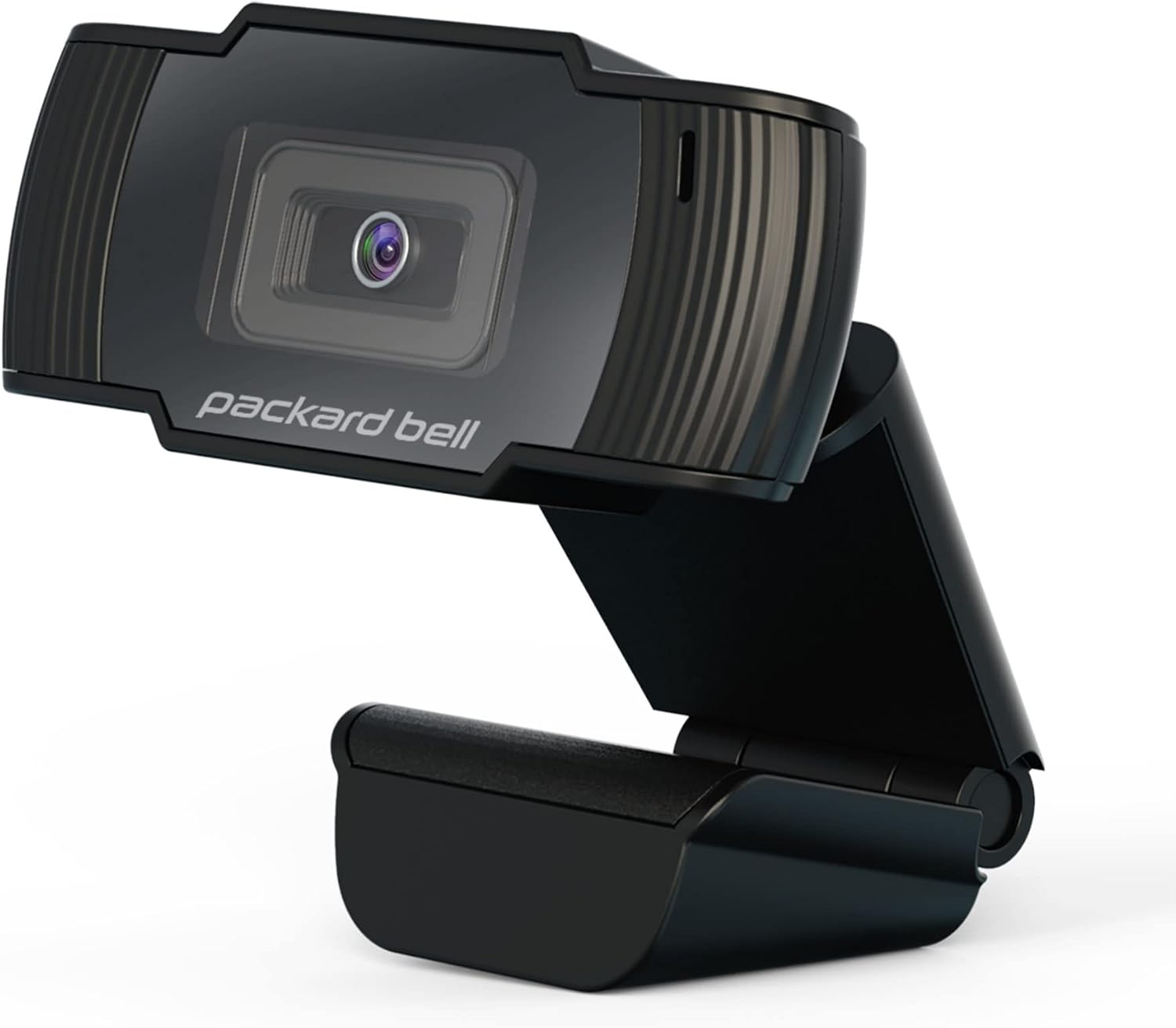


3. Setup Guide
Setting up your Packard Bell Webcam is a straightforward process. Follow these steps to get started:
3.1 Placement
The webcam features a flexible clip design, allowing it to be securely placed on various surfaces:
- On a Monitor/Laptop Screen: Gently open the clip and place the webcam on top of your monitor or laptop screen, ensuring the front of the webcam faces you. Adjust the angle for optimal viewing.
- On a Flat Surface: The clip can also serve as a stand, allowing you to place the webcam on a desk or table.


3.2 Connecting the Webcam
- Locate an available USB 2.0 port on your computer or laptop.
- Plug the USB cable from the webcam into the USB port.
- The webcam is plug-and-play, meaning your operating system (Windows XP, Vista, 7, 8, 10, or 11) should automatically detect and install the necessary drivers. This may take a few moments.
- Once installed, a notification may appear, indicating that the device is ready for use.
4. Operating Instructions
After successful installation, you can begin using your Packard Bell Webcam with various applications.
4.1 Using with Video Conferencing Software
The webcam is ideal for applications like Zoom, Skype, Microsoft Teams, Google Meet, and others.
- Open your preferred video conferencing application.
- Navigate to the application's settings or preferences (often found under 'Audio & Video' or 'Devices').
- Select the Packard Bell Webcam as your primary camera device.
- Select the Packard Bell Webcam's integrated microphone as your primary audio input device.
- Adjust any video or audio settings within the application as needed (e.g., resolution, brightness, microphone volume).
- Start your video call or recording.
4.2 General Use Tips
- Ensure adequate lighting in your environment for the best video quality.
- Position the webcam at eye level for a more natural appearance during calls.
- Keep the lens clean to avoid blurry images.
5. Maintenance
Proper care will help extend the life of your webcam and ensure consistent performance.
- Cleaning the Lens: Use a soft, lint-free cloth specifically designed for optical lenses to gently wipe the webcam lens. Avoid using harsh chemicals or abrasive materials.
- Cleaning the Body: Wipe the body of the webcam with a slightly damp, soft cloth. Do not immerse the webcam in water or any other liquid.
- Storage: When not in use, store the webcam in a clean, dry place away from extreme temperatures and direct sunlight.
- Cable Care: Avoid bending or crimping the USB cable excessively. Always grasp the plug, not the cable, when disconnecting.
6. Troubleshooting
If you encounter issues with your Packard Bell Webcam, refer to the following common problems and solutions:
| Problem | Possible Cause / Solution |
|---|---|
| No image or video feed. |
|
| Microphone is not working or audio is unclear. |
|
| Video quality is poor or blurry. |
|
| Webcam is not detected by the computer. |
|
7. Specifications
| Brand Name | Packard Bell |
| Model Number | PBWC1081BK |
| Item Weight | 1 pounds |
| Product Dimensions | 6 x 4 x 2 inches |
| Color | BLACK |
| Special Features | High Resolution, Mountable On Desktop |
| Photo Sensor Technology | CMOS |
| Video Capture Resolution | 1080p |
| Maximum Aperture | 4 f |
| Connectivity Technology | USB |
| Compatible Operating Systems | Windows XP, Vista, 7, 8, 10, 11 |
8. Warranty and Customer Support
Packard Bell is committed to providing excellent care and takes responsibility for all quality-related issues concerning this product.
If you have any questions, require technical assistance, or experience any issues with your webcam, please do not hesitate to contact our customer support team. We are dedicated to providing prompt and helpful responses.
For support, please visit the official Packard Bell website or refer to the contact information provided with your purchase documentation.
Ask a question about this manual
Ask about setup, troubleshooting, compatibility, parts, safety, or missing instructions. Manuals+ will review the question and use this page’s manual context to help answer it.