
1. Introduction
Thank you for purchasing the Lanix LX240 V7 23.8-inch Full HD Monitor. This manual provides essential information for the safe and efficient use of your new monitor. Please read it thoroughly before installation and keep it for future reference.
2. Safety Information
Observe the following safety precautions to prevent damage to the monitor and ensure user safety:
- Do not expose the monitor to rain or moisture to avoid fire or electric shock.
- Do not open the monitor casing. There are no user-serviceable parts inside. Refer all servicing to qualified personnel.
- Place the monitor on a stable, flat surface to prevent it from falling.
- Ensure proper ventilation around the monitor. Do not block ventilation openings.
- Use only the power adapter supplied with the monitor.
- Disconnect the power plug from the outlet if the monitor will not be used for an extended period.
3. Package Contents
Verify that all items are present and in good condition upon unpacking:
- Lanix LX240 V7 Monitor
- Power Adapter
- HDMI Cable
- User Manual (this document)

Image: Lanix LX240 V7 Monitor packaging box, showing the monitor model and key features.
4. Setup
4.1 Assembling the Stand
Follow these steps to attach the stand to your monitor:
- Carefully remove the monitor from its packaging, keeping it protected.
- Attach the stand base to the stand neck. Secure with screws if provided.
- Align the assembled stand with the mounting slot on the back of the monitor.
- Gently push the stand into the slot until it clicks into place or secure with screws.

Image: Rear view of the Lanix LX240 V7 monitor, showing the stand attachment point and port area.
4.2 Connecting the Monitor
Connect the monitor to your computer using the appropriate cables:
- Power Connection: Connect the power adapter to the monitor's power input, then plug the adapter into a power outlet.
- Video Connection:
- HDMI: Connect one end of the HDMI cable to the HDMI port on your monitor and the other end to the HDMI port on your computer.
- VGA: Connect one end of the VGA cable to the VGA port on your monitor and the other end to the VGA port on your computer.
- Audio Connection (if applicable): The monitor has integrated speakers. If using HDMI, audio will transmit automatically. For VGA, ensure your computer's audio output is configured correctly.
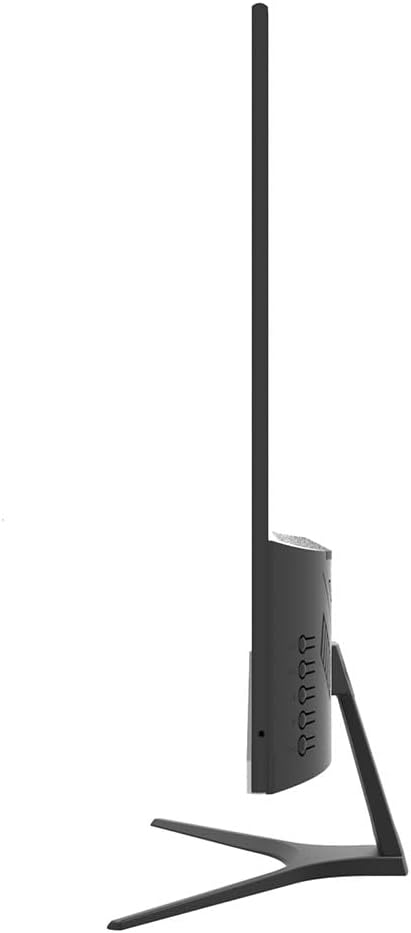
Image: Side view of the Lanix LX240 V7 monitor, illustrating the location of input ports and control buttons.
5. Operating Instructions
5.1 Powering On/Off
Press the power button located on the monitor to turn it on or off. The power indicator light will illuminate when the monitor is on.
5.2 Input Source Selection
If you have multiple devices connected, you may need to manually select the input source:
- Press the "Input" or "Source" button on the monitor (refer to the side view image for button locations).
- Use the navigation buttons to select between HDMI and VGA inputs.
- Press the "Menu" or "OK" button to confirm your selection.
5.3 On-Screen Display (OSD) Menu
The OSD menu allows you to adjust various monitor settings:
- Press the "Menu" button to open the OSD.
- Use the navigation buttons (usually up/down or left/right arrows) to browse through menu options such as Brightness, Contrast, Color Settings, Aspect Ratio, etc.
- Press "Menu" or "OK" again to enter a sub-menu or confirm a setting.
- Press the "Exit" or "Menu" button repeatedly to close the OSD.

Image: Front view of the Lanix LX240 V7 monitor, showcasing its display area and slim bezels.
6. Maintenance
Proper maintenance ensures the longevity of your monitor:
- Cleaning the Screen: Gently wipe the screen with a soft, lint-free cloth. For stubborn marks, dampen the cloth slightly with water or a specialized screen cleaner. Never spray liquid directly onto the screen.
- Cleaning the Casing: Use a soft, dry cloth to wipe the monitor casing. Avoid abrasive cleaners or solvents.
- Storage: If storing the monitor for an extended period, disconnect all cables and store it in a cool, dry place, preferably in its original packaging.
7. Troubleshooting
Refer to the following table for common issues and their solutions:
| Problem | Possible Cause | Solution |
|---|---|---|
| No image on screen | Monitor not powered on; Incorrect input source; Loose video cable. | Ensure power cable is connected and monitor is turned on. Select correct input source (HDMI/VGA). Check video cable connections. |
| Image too dark/bright | Brightness/Contrast settings incorrect. | Adjust Brightness and Contrast settings via the OSD menu. |
| No audio from speakers | Audio settings incorrect; Volume too low. | Check monitor's volume settings in OSD. Ensure computer's audio output is set to the monitor (for HDMI) or external speakers (for VGA). |
| Flickering or unstable image | Loose video cable; Incorrect refresh rate. | Ensure video cable is securely connected. Check your computer's display settings for the correct refresh rate (60Hz). |
8. Specifications
| Model Name | LX240 V7 |
| Screen Size | 23.8 inches (23.6 inches actual) |
| Panel Type | LED |
| Resolution | 1920 x 1080 (Full HD) |
| Aspect Ratio | 1.78:1 (16:9) |
| Refresh Rate | 60 Hz |
| Response Time | 5 Milliseconds |
| Brightness | 250 cd/m² |
| Contrast Ratio | 3000:1 |
| Viewing Angle | 178 Degrees |
| Connectivity | 1x HDMI, 1x VGA |
| Built-in Speakers | Yes |
| Power Consumption | 22 Watts |
| Dimensions (H x W x D) | Approx. 21cm x 25cm x 5cm (screen only, based on image) |
| Weight | 2.71 Kilograms |
Image: Front view of the Lanix LX240 V7 monitor with height, width, and depth measurements indicated.
9. Warranty & Support
Warranty Information: The Lanix LX240 V7 monitor comes with a 1-year manufacturer's warranty. This warranty covers defects in materials and workmanship under normal use. It does not cover damage caused by misuse, accidents, unauthorized modifications, or external causes.
Customer Support: For technical assistance, warranty claims, or service inquiries, please contact Lanix customer support. Refer to the official Lanix website or your purchase documentation for contact details.


