
HP 15s-fq5059ne
HP Laptop 15s fq5059ne User Manual
Model: 15s-fq5059ne (79T34EA)
Introduction
This manual provides comprehensive instructions for setting up, operating, maintaining, and troubleshooting your HP Laptop 15s fq5059ne. Please read this manual thoroughly to ensure optimal performance and longevity of your device.
The HP Laptop 15s fq5059ne is a portable and efficient computing device designed for everyday tasks. It features a 15.6-inch HD display, powered by a 12th Gen Intel Core i3 processor, 8GB of RAM, and a 256GB Solid State Drive, running on Windows 11 Home.
Setup
1. Unboxing and Initial Inspection
Carefully remove the laptop and all accessories from the packaging. Verify that all components are present:
- HP Laptop 15s fq5059ne
- AC Power Adapter and Power Cord
- Documentation (this manual, warranty information)
Inspect the laptop for any visible damage. If any damage is found, contact your retailer immediately.
2. Connecting to Power
Before first use, ensure the laptop is fully charged. Connect the AC power adapter to the laptop's power port and then plug the power cord into a wall outlet.
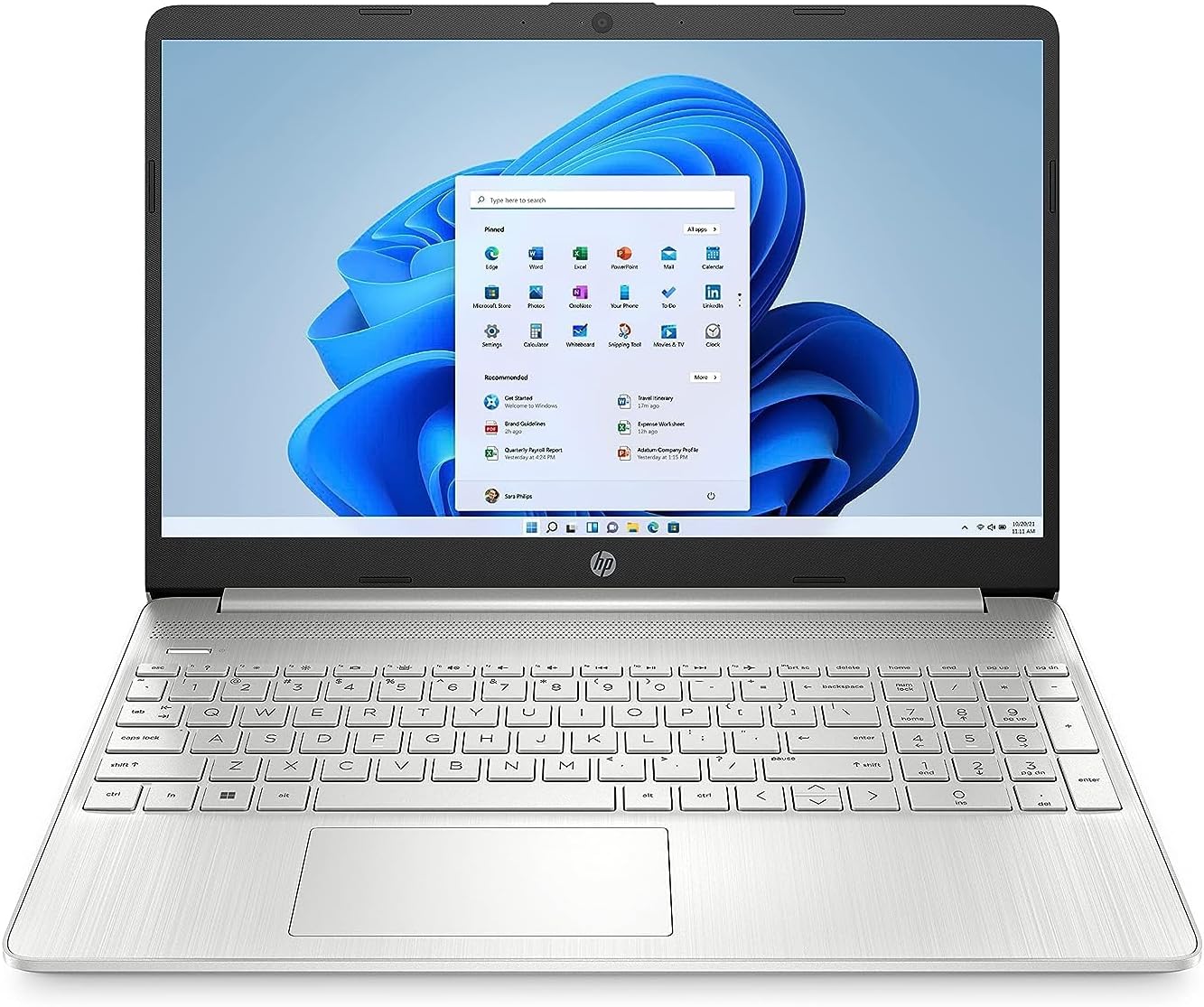
Image: The HP Laptop 15s fq5059ne displaying the Windows 11 desktop, illustrating the overall appearance of the device.
3. Initial Boot and Windows Setup
Press the power button to turn on the laptop. Follow the on-screen instructions to complete the Windows 11 Home setup process. This includes:
- Selecting your region and keyboard layout.
- Connecting to a Wi-Fi network.
- Signing in with or creating a Microsoft account.
- Setting up a PIN or password.
- Reviewing privacy settings.
Allow the system to complete any initial updates before proceeding with regular use.
Operating Your Laptop
1. Keyboard and Touchpad Usage
The laptop features a full-size keyboard and a precision touchpad. Use the touchpad for navigation, clicking, and multi-touch gestures. Refer to Windows settings for customizing touchpad gestures.
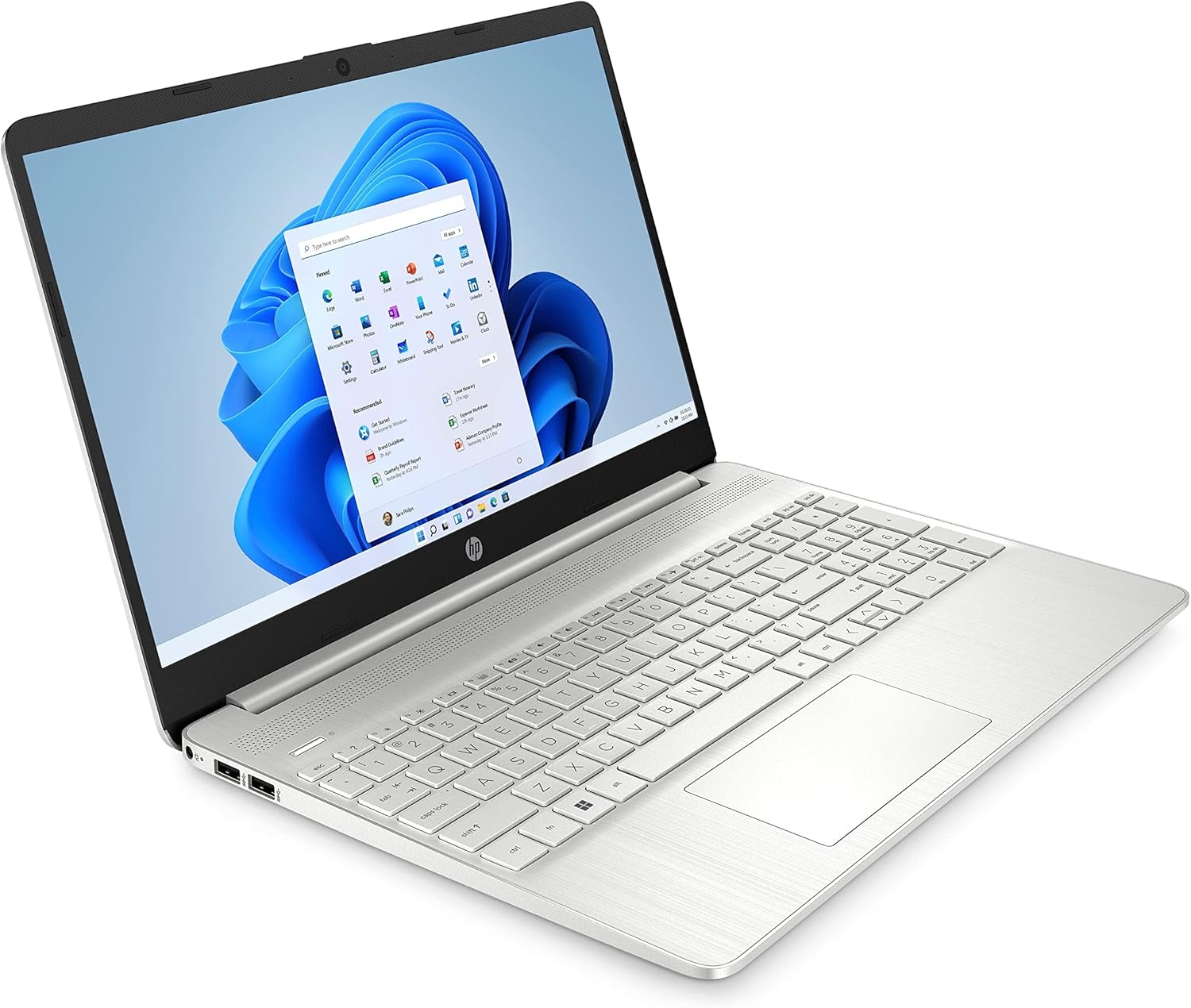
Image: An angled view of the HP Laptop 15s fq5059ne, highlighting the keyboard layout and the display.
2. Connecting Peripherals
Your HP Laptop 15s fq5059ne is equipped with various ports for connecting external devices:
- USB Ports: Connect USB devices such as external hard drives, mice, or keyboards. The laptop has 3 USB 3.0 ports.
- HDMI Port: Connect to an external monitor or TV for extended display.
- Headphone/Microphone Combo Jack: For audio input/output.
- SD Card Reader: Insert SD cards for data transfer.

Image: A close-up view of the left side of the HP Laptop 15s fq5059ne, showing the SD card slot, headphone jack, USB-C port, and HDMI port.

Image: A close-up view of the right side of the HP Laptop 15s fq5059ne, showing the power input and two USB-A ports.
3. Battery Management
The laptop is equipped with a Lithium Ion battery. To maximize battery life:
- Adjust screen brightness.
- Close unused applications.
- Utilize Windows power saving modes.
- Avoid extreme temperatures.
The laptop supports HP Fast Charge technology for quick recharging.
Maintenance
1. Software Updates
Regularly check for and install Windows updates and HP driver updates to ensure system stability, security, and optimal performance.
2. Cleaning Your Laptop
- Use a soft, lint-free cloth to clean the screen and exterior.
- For stubborn marks, slightly dampen the cloth with water or a screen cleaner.
- Avoid spraying liquids directly onto the laptop.
- Use compressed air to clear dust from keyboard keys and vents.
3. Storage Management
Periodically review and delete unnecessary files to free up storage space on the 256GB SSD. Consider using cloud storage for large files.
Troubleshooting
| Problem | Possible Solution |
|---|---|
| Laptop does not power on. | Ensure the power adapter is securely connected and the outlet is functional. Try a different power outlet. If battery is low, allow it to charge for a few minutes before attempting to power on. |
| Screen is blank or black. | Check screen brightness settings. Connect to an external monitor to verify if the issue is with the laptop's display or graphics driver. Restart the laptop. |
| Wi-Fi connection issues. | Restart your router and modem. Check Wi-Fi settings on the laptop to ensure Wi-Fi is enabled and connected to the correct network. Update network drivers. |
| Slow performance. | Close unnecessary applications. Check for background processes consuming high resources. Ensure sufficient free storage space. Run a virus scan. |
For more complex issues, refer to the HP support website or contact customer service.
Specifications
| Feature | Detail |
|---|---|
| Brand | HP |
| Model Name | 15s-fq5059ne |
| Item Model Number | 79T34EA |
| Screen Size | 15.6 inches |
| Screen Resolution | 1366 x 768 pixels (HD) |
| Processor Brand | Intel |
| Processor Type | Core i3 (12th Gen) |
| Processor Speed | 4.4 GHz |
| RAM Size | 8 GB DDR4 |
| Hard Drive Size | 256 GB SSD |
| Graphics Card | Integrated Intel Graphics |
| Operating System | Windows 11 Home |
| Color | Sliver |
| Battery Life (Average) | 8.5 Hours |
| Item Weight | 2.48 Kilograms |
| USB Ports | 3 x USB 3.0 |
Warranty and Support
Warranty Information
This product comes with a 1-Year Seller Warranty. Please retain your proof of purchase for warranty claims. For detailed warranty terms and conditions, refer to the documentation included with your product or visit the official HP support website.
Customer Support
For technical assistance, driver downloads, or service requests, please visit the official HP support website or contact HP customer service. You can find contact information on the HP website or in your product documentation.
HP Support Website: support.hp.com
Ask a question about this manual
Ask about setup, troubleshooting, compatibility, parts, safety, or missing instructions. Manuals+ will review the question and use this page’s manual context to help answer it.