Samsung LS32BG702ENXGO

SAMSUNG Odyssey G70B Series 32-Inch 4K UHD Gaming Monitor User Manual

Model: LS32BG702ENXGO

1. Introduction

This manual provides essential information for the safe and efficient use of your Samsung Odyssey G70B Series 32-Inch 4K UHD Gaming Monitor. Please read these instructions thoroughly before operating the device and retain them for future reference.

Samsung Odyssey G70B monitor displaying a game scene with 'Go Beyond' text.

Image: Samsung Odyssey G70B monitor showcasing its display capabilities with a gaming scene.

2. Safety Information

Observe the following safety precautions to prevent damage to your monitor and ensure personal safety:

  • Do not place the monitor near heat sources or in direct sunlight.
  • Ensure proper ventilation around the monitor.
  • Use only the power cord and adapter supplied with the monitor.
  • Avoid placing heavy objects on the power cord.
  • Do not attempt to repair the monitor yourself. Refer all servicing to qualified personnel.
  • Keep the monitor away from water and high humidity environments.
  • Disconnect the power plug from the wall outlet if the monitor will be unused for a long period.

3. What's in the Box

Verify that all components are present:

  • Samsung Odyssey G70B Monitor
  • Stand Base
  • Stand Neck
  • Power Cable
  • DP Cable (DisplayPort Cable)
  • USB 3.0 Cable
  • Remote Controller
  • User Manual (this document)

4. Setup

4.1 Assembling the Stand

  1. Carefully place the monitor face down on a soft, clean surface to prevent scratches.
  2. Attach the stand neck to the back of the monitor. Ensure it clicks securely into place.
  3. Connect the stand base to the stand neck. Tighten any screws if provided, typically located on the underside of the base.
  4. Place the assembled monitor on a stable, level surface.
Front view of the Samsung Odyssey G70B monitor with its stand assembled.

Image: Front view of the Samsung Odyssey G70B monitor with its stand.

4.2 Connecting Cables

Refer to the image below for port locations. Ensure the monitor is powered off before connecting or disconnecting cables.

Rear view of the Samsung Odyssey G70B monitor showing all input and output ports labeled.

Image: Rear view of the monitor with labeled ports including DisplayPort, HDMI, USB, LAN, and Headphone Out.

  • Power Connection: Connect the power cable to the monitor's power input and then to a wall outlet.
  • Video Input:
    • DisplayPort (DP IN): Connect one end of the DP cable to the monitor's DisplayPort input and the other end to your computer's graphics card DisplayPort output.
    • HDMI (HDMI IN 1, HDMI IN 2): Connect one end of an HDMI cable to the monitor's HDMI input and the other end to your computer or console's HDMI output.
  • USB Connection (PC IN, USB): Connect the USB 3.0 cable from your computer to the monitor's PC IN port to enable the monitor's USB hub functionality. You can then connect USB devices to the monitor's USB ports.
  • LAN (Ethernet): Connect an Ethernet cable to the LAN port for network connectivity, if desired.
  • Headphone Out: Connect headphones or external speakers to this port.

5. Operating the Monitor

5.1 Power On/Off

Press the power button on the monitor or the remote control to turn the monitor on or off.
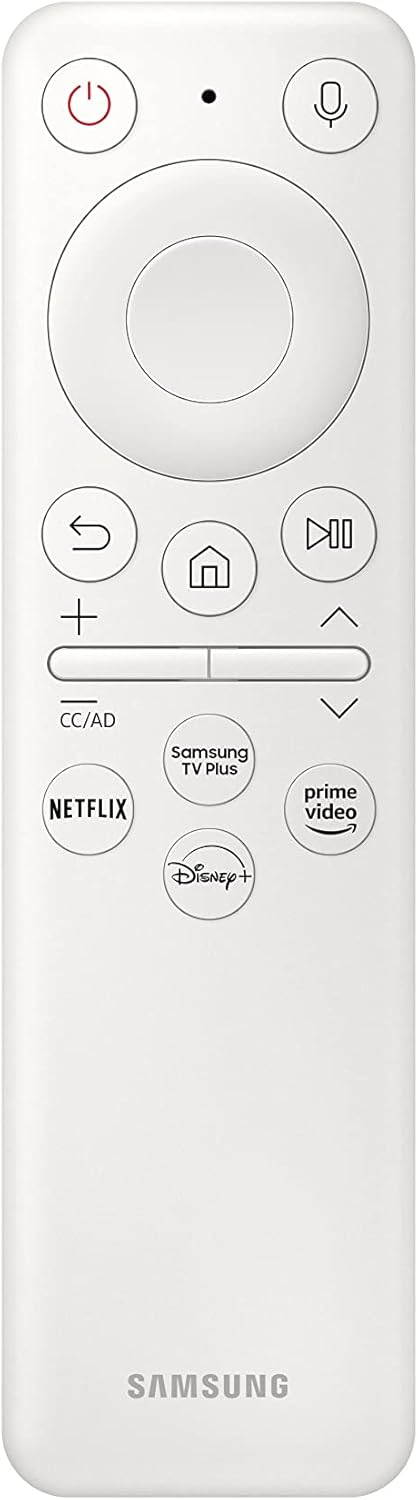
Front view of the Samsung remote control for the monitor.

Image: The remote control used to operate the monitor's functions.

5.2 Menu Navigation (On-Screen Display - OSD)

Use the remote control or the joystick button on the monitor to navigate the On-Screen Display (OSD) menu. The OSD allows you to adjust various settings such as picture mode, brightness, contrast, input source, and more.

5.3 Key Features

UHD Resolution & IPS Panel

Experience games with exceptional detail. The 4K UHD resolution provides four times the pixel density of Full HD. The IPS panel ensures accurate color reproduction and wide 178° viewing angles, maintaining clarity from various perspectives.

Diagram illustrating UHD resolution and IPS panel benefits on the monitor.

Image: Visual representation of UHD resolution and IPS panel technology.

DisplayHDR 400

DisplayHDR 400 enhances contrast, delivering deeper blacks and brighter whites. This feature helps reveal details in both dark and bright scenes, improving overall visual fidelity.

Image showing a comparison between a conventional monitor and Odyssey G7 with DisplayHDR 400.

Image: Comparison demonstrating the enhanced detail with DisplayHDR 400.

G-Sync & FreeSync Premium Pro

G-Sync compatibility synchronizes the GPU and monitor panel to eliminate screen tearing, stuttering, and input lag. AMD FreeSync Premium Pro further ensures stable and fluid gameplay, especially in fast-paced scenes.

Image comparing screen tearing with G-Sync off versus smooth display with G-Sync on.

Image: Visual comparison of screen output with and without G-Sync enabled.

144Hz Refresh Rate & 1ms Response Time

The 144Hz refresh rate provides smooth motion, reducing lag for a responsive experience. A 1ms response time minimizes motion blur, allowing for precise tracking and clear visuals during rapid movements.

Image illustrating the difference between 60Hz and 144Hz refresh rates and 1ms response time.

Image: Diagram showing the benefits of high refresh rate and low response time.

Game Bar

The Game Bar provides quick access to important settings without interrupting your game. You can view FPS, HDR status, and adjust response time, screen ratio, or picture mode directly from the Game Bar overlay.

Screenshot of the Game Bar overlay on the monitor, showing various settings.

Image: The Game Bar interface with options for response time, game picture, screen ratio, and sound output.

Ergonomic Stand

The monitor features an ergonomic stand that allows for height adjustment (HAS), tilt, swivel, and pivot. This enables you to position the screen for optimal viewing comfort.

Diagram showing the ergonomic adjustments of the monitor stand: height, tilt, swivel, and pivot.

Image: Illustrations of the monitor's adjustable stand capabilities.

Ultrawide Game View

The monitor supports an ultrawide 21:9 aspect ratio, providing an extended field of view in compatible games. This can reveal more of the game environment.

Monitor displaying a game in ultrawide 21:9 aspect ratio.

Image: A game scene displayed in ultrawide aspect ratio on the monitor.

Smart TV Experience

Beyond gaming, the monitor offers integrated smart TV features. With a Wi-Fi connection, you can access streaming services and Samsung TV Plus for various content in 4K HDR.

Monitor displaying a smart TV interface with various streaming apps.

Image: The monitor's smart TV interface showing available streaming applications.

CoreSync & Core Lighting Design

The monitor features customizable core lighting on the back. CoreSync technology can match the on-screen colors of your game, extending the visual experience beyond the display.

Close-up of the monitor's rear core lighting design.

Image: Detail of the monitor's rear core lighting feature.

Auto Source Switch+

This feature automatically detects when a connected device is turned on and switches the monitor's input source to that device. This streamlines the process of switching between multiple connected systems.

Diagram showing Auto Source Switch+ functionality, automatically switching between a laptop and a game console.

Image: Illustration of Auto Source Switch+ automatically changing input sources.

6. Maintenance

6.1 Cleaning the Monitor

  • Always unplug the monitor from the power outlet before cleaning.
  • Use a soft, lint-free cloth slightly dampened with water or a specialized screen cleaner.
  • Do not spray cleaner directly onto the screen. Apply it to the cloth first.
  • Avoid using abrasive cleaners, waxes, or solvents.

6.2 General Care

  • Keep the monitor in a clean, dry environment.
  • Avoid extreme temperatures and humidity.
  • Do not block the ventilation openings on the monitor.

7. Troubleshooting

If you encounter issues with your monitor, refer to the following common problems and solutions:

ProblemPossible CauseSolution
No power / Monitor does not turn onPower cable not connected; Power outlet not workingEnsure power cable is securely connected to monitor and outlet. Test outlet with another device.
No signal / Blank screenVideo cable not connected; Incorrect input source selected; Computer/console not powered onCheck video cable connections (DisplayPort/HDMI). Select the correct input source via the OSD menu. Ensure connected device is powered on.
Flickering screen / Image distortionFaulty video cable; Graphics driver issues; G-Sync/FreeSync compatibility issuesTry a different video cable. Update graphics drivers. Disable G-Sync/FreeSync temporarily in your graphics card settings to see if the issue persists.
Colors appear incorrectPicture settings incorrect; Faulty cableAdjust color settings in the OSD menu. Try resetting picture settings to default. Check video cable.
Remote control not workingLow battery; Obstruction between remote and monitorEnsure remote control batteries are charged or replaced. Remove any obstructions. Point remote directly at the monitor's sensor.

If the problem persists after trying these solutions, contact Samsung customer support.

8. Specifications

Technical specifications for the Samsung Odyssey G70B Series 32-Inch 4K UHD Gaming Monitor (LS32BG702ENXGO):

FeatureDetail
Model NumberLS32BG702ENXGO
Screen Size32 Inches
Screen Resolution4K UHD (3840 x 2160 Pixels)
Panel TypeIPS
Refresh Rate144Hz
Response Time1ms
HDR SupportDisplayHDR 400
Adaptive SyncG-Sync Compatible, AMD FreeSync Premium Pro
Aspect Ratio16:9 (supports Ultrawide Game View 21:9)
Brightness (Typical)350 cd/m²
Contrast Ratio Static1000:1 (Typ.)
Viewing Angle (H/V)178°/178°
ConnectivityDisplayPort IN, 2x HDMI IN, 2x USB 3.0, PC IN (USB), Headphone IN, LAN
ErgonomicsHAS (Height Adjustable Stand), Tilt, Swivel, Pivot
Dimensions (LxWxH)12.25 x 28.12 x 23.72 inches (with stand)
Item Weight18.3 pounds
ColorBlack
Voltage240 Volts
Diagram showing the dimensions of the Samsung Odyssey G70B monitor.

Image: Dimensional drawing of the monitor with measurements.

9. Warranty and Support

For warranty information and technical support, please refer to the official Samsung website or contact Samsung customer service directly. Keep your purchase receipt as proof of purchase for warranty claims.

Online Support: Visit the official Samsung support website for your region.

Contact Information: Refer to the documentation included with your product or the Samsung website for phone numbers and service center locations.

© 2023 Samsung. All rights reserved.

Ask a question about this manual

Ask about setup, troubleshooting, compatibility, parts, safety, or missing instructions. Manuals+ will review the question and use this page’s manual context to help answer it.