
1. Introduction
The Mezed 5G WiFi Digital Photo Frame (Model P200) allows you to display your cherished memories with ease. Featuring a 10.1-inch IPS touch screen, auto-rotate functionality, and seamless photo/video sharing via a dedicated app, this frame is designed to keep you connected to your loved ones' moments from anywhere.

Image: Mezed 10.1 inch 5G WiFi Digital Picture Frame displaying a photo of a father and child, with text 'Record your wonderful moments'.
Package Contents
- Mezed 5G WiFi Digital Photo Frame (Model P200)
- Power Adapter
- User Manual
- Detachable Stand
2. Setup Guide
- Power On: Connect the power adapter to the frame and a power outlet. The frame will automatically power on.
- Initial Configuration: Follow the on-screen prompts to select your language, time zone, and connect to a 5G or 2.4G WiFi network.
- Download the App: Download the dedicated photo sharing application (e.g., 'Uhale' or 'Frameo' as indicated in some videos) from your smartphone's app store (Google Play or Apple App Store).
- Pair Your Frame: Open the app on your smartphone. The frame will display a unique code (or QR code) to pair with your device. Enter this code into the app to establish a connection.
- Start Sharing: Once paired, you can begin uploading photos and videos directly from your smartphone to the digital photo frame.

Image: Easy steps to share photos or videos wirelessly using the dedicated app.
3. Operating Instructions
Touchscreen Navigation
The Mezed P200 features an intuitive IPS touch screen for easy navigation. Swipe left or right to browse through photos and videos. Tap on the screen to access settings and options for the currently displayed media.

Image: The digital photo frame displaying a picture, highlighting its touchscreen interface.
Photo & Video Management
- Uploading: Use the paired smartphone app to select and upload photos and videos. You can upload multiple items at once.
- Deleting: From the frame's touchscreen menu, you can select individual photos or videos to delete them from the device's storage.
- Favoriting/Hiding: Mark photos as favorites or hide specific images from the slideshow directly from the frame's interface.
Slideshow Customization
Customize your viewing experience through the frame's settings:
- Intervals: Adjust the duration each photo is displayed.
- Transition Effects: Choose from various transition styles between photos.
- Order: Set photos to display in chronological order, shuffled, or by specific albums.
- Video Playback: Enable or disable video autoplay and adjust video volume.
Multi-User Sharing
The frame supports multi-user connections, allowing friends and family to share photos and videos to your frame from anywhere. Simply provide them with the unique frame code from your device settings.
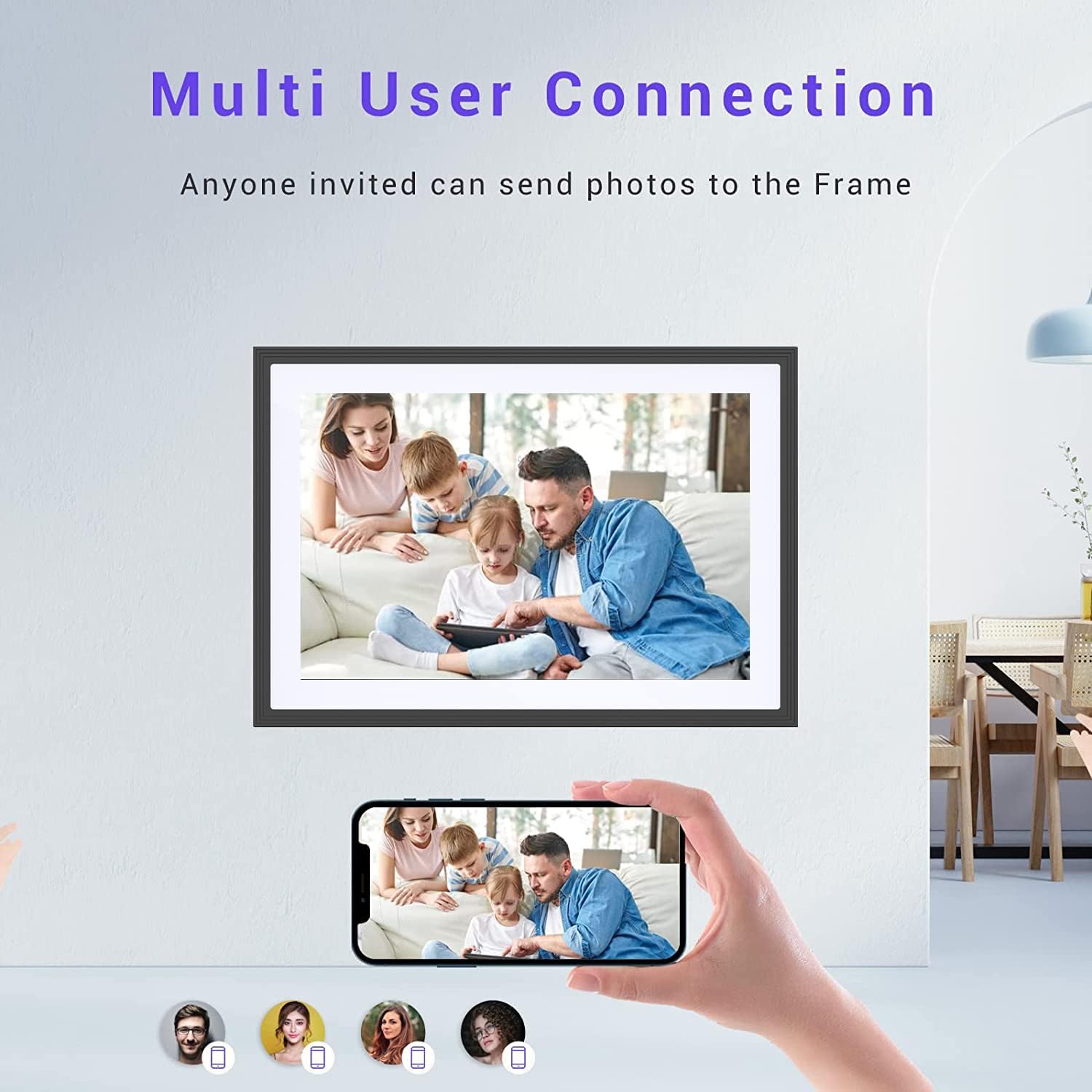
Image: The frame supports multi-user connections, enabling multiple individuals to share photos.
Connecting with Alexa
The Mezed P200 can be integrated with Alexa for voice commands. Refer to the app's instructions for connecting your frame with Alexa services.
Video: Instructions on how to connect the Mezed Digital Photo Frame with Alexa using the dedicated app.
4. Features
- 10.1-inch IPS Touch Screen: Provides a clear, vibrant display with wide viewing angles and easy touch control.
- 5G WiFi Connectivity: Ensures fast and stable transfer of photos and videos.
- Auto-Rotate: Automatically adjusts photo orientation for both portrait and landscape display.
- Wall Mountable: Designed for flexible placement on a table using the included stand or mounted on a wall.
- External Storage Support: Supports USB drives and SD cards for additional storage and direct media import.
- Clock & Weather Display: Can function as a digital clock and display local weather information when not actively showing photos.

Image: Key features of the Mezed Digital Photo Frame, including Wi-Fi, app support, and external storage options.

Image: The frame supports auto-rotation and can be wall-mounted for versatile display.
5. Maintenance
- Cleaning: Use a soft, dry, lint-free cloth to clean the screen and frame. Avoid abrasive cleaners or solvents.
- Placement: Place the frame on a stable surface or mount it securely on a wall. Avoid direct sunlight or extreme temperatures.
- Software Updates: Ensure your frame's software is up-to-date for optimal performance. Updates are typically managed through the connected app.
- Power Cycle: If the frame experiences freezing or a black screen, unplug it from the power source, wait 10 seconds, and plug it back in to reset.
6. Troubleshooting
| Problem | Solution |
|---|---|
| Frame not powering on | Ensure the power adapter is securely connected to both the frame and a working power outlet. Try a different outlet. |
| Unable to connect to WiFi | Check your WiFi password. Ensure the frame is within range of your router. Restart your router and the photo frame. The frame supports 5G and 2.4G networks. |
| Photos not uploading from app | Verify the frame is connected to WiFi and paired correctly with the app. Check your internet connection on your phone. Ensure the frame has sufficient storage space. |
| Screen freezes or goes black | Perform a power cycle: unplug the frame, wait 10 seconds, then plug it back in. If the issue persists, contact customer support. |
| Photos appear distorted or incorrect orientation | The frame has an auto-rotate feature. Ensure the frame is placed on a flat surface or mounted correctly. You can also manually adjust photo orientation via the touchscreen settings. |
7. Technical Specifications
| Specification | Detail |
|---|---|
| Brand | Mezed |
| Model Number | P200 |
| Screen Size | 10.1 Inches |
| Resolution | 1280x800 (WXGA) IPS Touch Screen |
| Connectivity | 5G WiFi |
| Compatible Devices | Laptop, Smartphone, Tablet |
| Product Dimensions | 10.24 x 7.09 x 0.99 inches |
| Item Weight | 0.634 ounces |
| Internal Storage | 16GB (expandable via SD card/USB) |
| Color | Black & White |
8. Warranty and Support
For warranty information and customer support, please refer to the documentation included with your product or visit the official Mezed website. You may also contact the seller directly through your purchase platform for assistance.
For additional resources and product information, visit the Mezed Store on Amazon.


