
1. Introduction
Thank you for purchasing the HAMFIT 7010B Car Stereo. This device is designed to enhance your in-car entertainment and connectivity experience with its 7-inch touchscreen, multimedia playback capabilities, Bluetooth, Mirror Link function, and support for a rear view camera. Please read this manual thoroughly before installation and operation to ensure proper use and to prevent damage.
2. Safety Information
- Always operate the device safely and responsibly. Distracted driving can lead to accidents.
- Do not attempt to disassemble or modify the unit. This may cause damage and void the warranty.
- Ensure all wiring is correctly connected to prevent short circuits or electrical hazards.
- Consult a professional for installation if you are unsure about any steps.
- Keep the volume at a safe level to avoid hearing damage and to remain aware of traffic conditions.
3. Package Contents
Please check the package for the following items:
- 1 x HAMFIT 7010B Car Multimedia Player
- 1 x Rear View Camera with Cable
- 1 x Power Cable
- 1 x English User Manual
- 1 x 12 LED Night Vision Camera (with frame, screws, and iron sheets)

Image 3.1: The HAMFIT 7010B Car Stereo unit shown with its included accessories, including a remote control, a rear view camera, and mounting frame.
4. Product Overview
4.1 Key Features
- 7-inch HD Touchscreen Display (800 x 480 resolution)
- Bluetooth Wireless Connection for hands-free calls and audio streaming
- FM/MP5 Player
- USB/TF Card Slot/AUX IN Interface
- Rear View Camera Input
- Mirror Link Function for Android and iPhone devices
- Support for Steering Wheel Control
- Multiple Sound Effects Adjustment
4.2 Dimensions

Image 4.1: The physical dimensions of the HAMFIT 7010B Car Stereo, showing a width of 178mm, height of 103mm, and depth of 63mm.
5. Setup and Installation
5.1 Wiring Connections
Refer to the wiring diagram below for proper connection of the power, speakers, and other accessories. Incorrect wiring can damage the unit or your vehicle's electrical system.

Image 5.1: Rear view of the HAMFIT 7010B Car Stereo showing the audio connection ports and main wiring harness connector.
- Power Cable: Connect the yellow wire to constant 12V power, red wire to accessory 12V (switched), and black wire to ground.
- Speaker Wires: Connect to your vehicle's speakers, ensuring correct polarity.
- Rear Camera Input: Connect the video output of the rear camera to the 'CAMIN' port. The reverse trigger wire should be connected to your vehicle's reverse light circuit.
- AUX IN: For external audio sources.
- ANT: Connect to your car's radio antenna.
5.2 Rear Camera Installation
The included 12 LED night vision camera provides improved visibility when reversing. Mount the camera securely at the rear of your vehicle, ensuring a clear view. Connect the camera's power to the reverse light circuit and its video output to the car stereo's camera input.

Image 5.2: A visual comparison highlighting the enhanced performance of the 12 LED camera included with the HAMFIT 7010B, offering superior night vision compared to older 4/8 LED camera technology.
6. Operating Instructions
6.1 Basic Functions
- Power On/Off: Press the power button on the front panel or remote control.
- Volume Control: Use the rotary knob or volume buttons on the remote.
- Mode Selection: Tap the 'Mode' icon on the touchscreen to switch between FM, USB, TF, AUX, and Bluetooth modes.
6.2 Bluetooth Connectivity
The HAMFIT 7010B supports wireless Bluetooth connection for hands-free calling and audio streaming.
- Turn on Bluetooth on your mobile phone.
- Search for available devices and select 'HAMFIT 7010B'.
- Enter the pairing password (0000 or 1234) if prompted.
- Once paired, you can make/receive calls and play music wirelessly.

Image 6.1: The Bluetooth hands-free calling interface on the HAMFIT 7010B screen, demonstrating how to answer or hang up calls wirelessly.
6.3 Mirror Link Function
The Mirror Link feature allows you to display your smartphone's screen on the car stereo's display via a USB cable connection.
- For iPhones: Directly connect your iPhone to the USB port using a USB cable.
- For Android Phones: You need to enable USB debugging in your phone's developer options. Then, connect your Android phone to the USB port. The system may prompt you to download an application; click to download and use it to control the stereo.
Note: This stereo supports iPhone 8 Plus and earlier models. iPhone X and newer models are not compatible. For Android, it supports up to Android 9.0; Android 10.0 and above are not compatible.
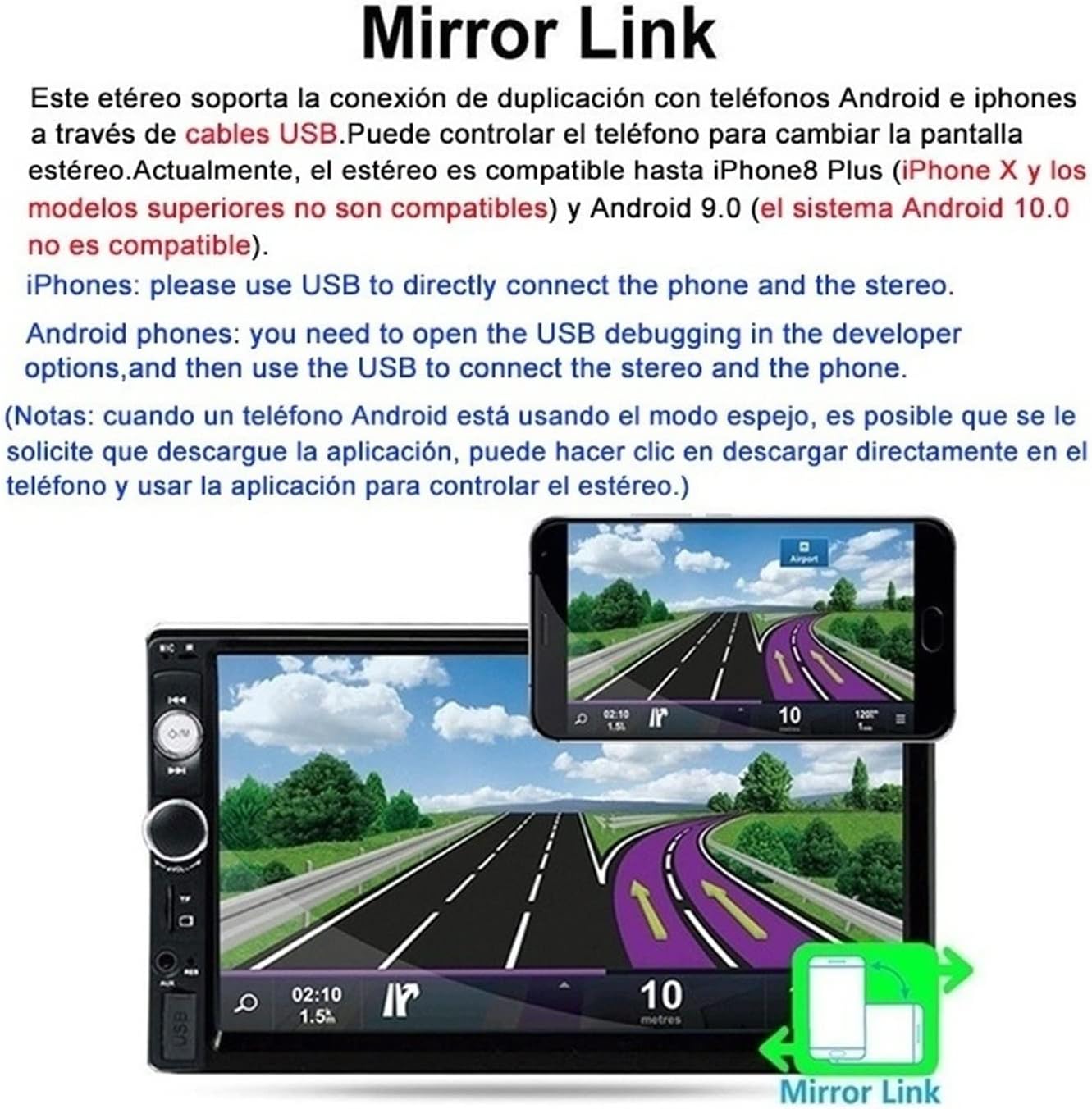
Image 6.2: A visual representation of the Mirror Link function, showing a smartphone screen mirrored onto the HAMFIT 7010B display, enabling navigation and other apps to be viewed on the larger screen.
6.4 Media Playback (USB/TF/AUX)
The unit supports various audio and video formats for playback from USB drives, TF cards, or external devices via AUX IN.
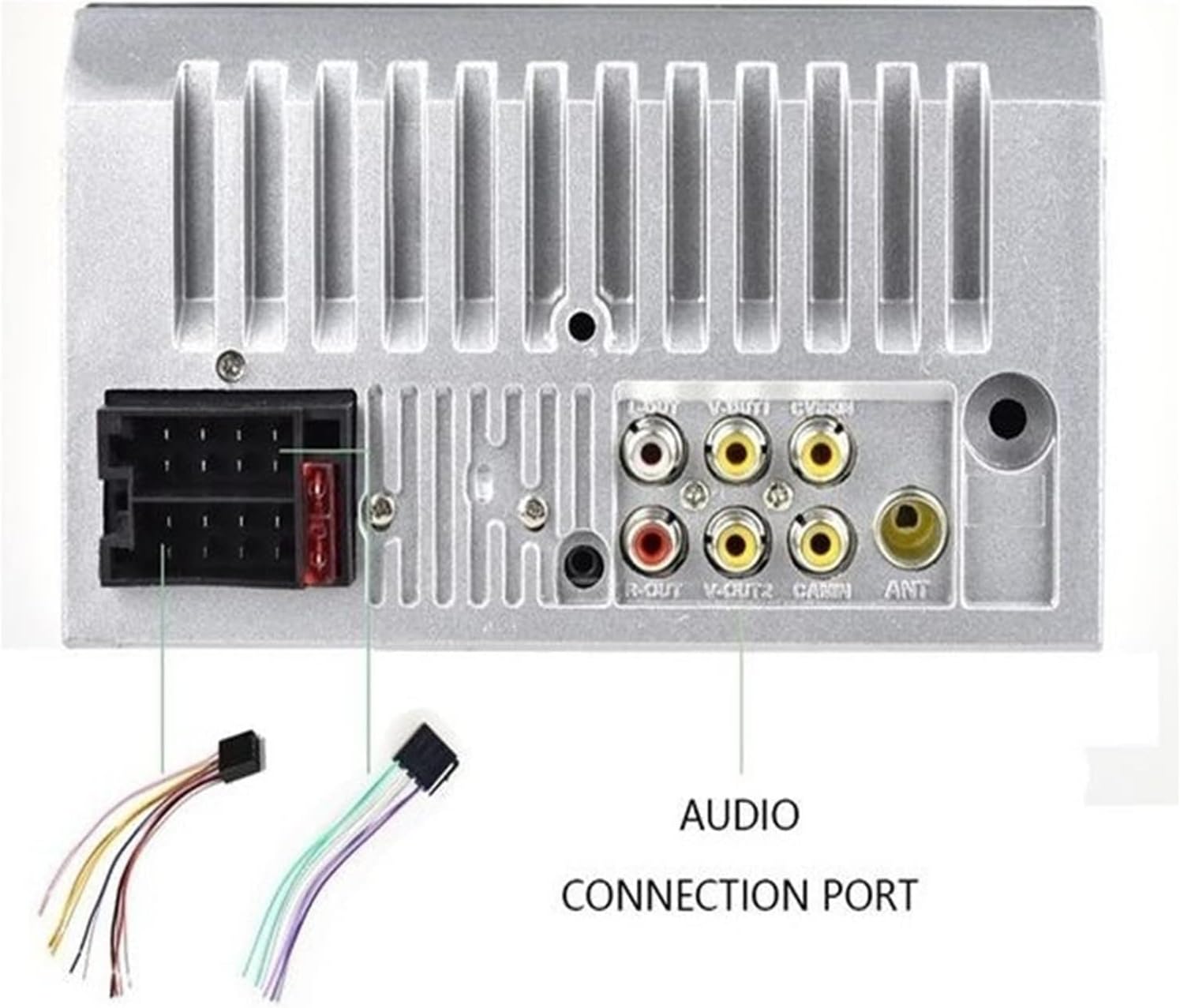
Image 6.3: Illustration of the four available music playback modes: Bluetooth, USB, TF card, and AUX input, supporting various lossless audio formats.
- USB/TF: Insert a USB drive or TF card into the respective slot. The unit will automatically detect and play compatible media files.
- AUX IN: Connect an external audio device (e.g., MP3 player) to the 3.5mm AUX IN port using an audio cable.
- Supported Audio Formats: MP3, WMA, ACC, OGG, FLAC, APE, WAV
- Supported Video Formats: MKV, AVI, MOV, MP4, TS, ASF, FLV, PMP, RMVB, VOB, WMV
- Supported Image Format: JPG
6.5 FM Radio
Access the FM radio mode to listen to your favorite stations. The unit features automatic and manual tuning options.
- Press the 'FM' icon to enter radio mode.
- Use the scan function to automatically search and save stations.
- Manually tune to specific frequencies using the touchscreen controls.
6.6 Rear View Camera Display
When the vehicle is shifted into reverse gear, the stereo will automatically switch to the rear view camera display, providing a clear image to assist with parking and maneuvering.
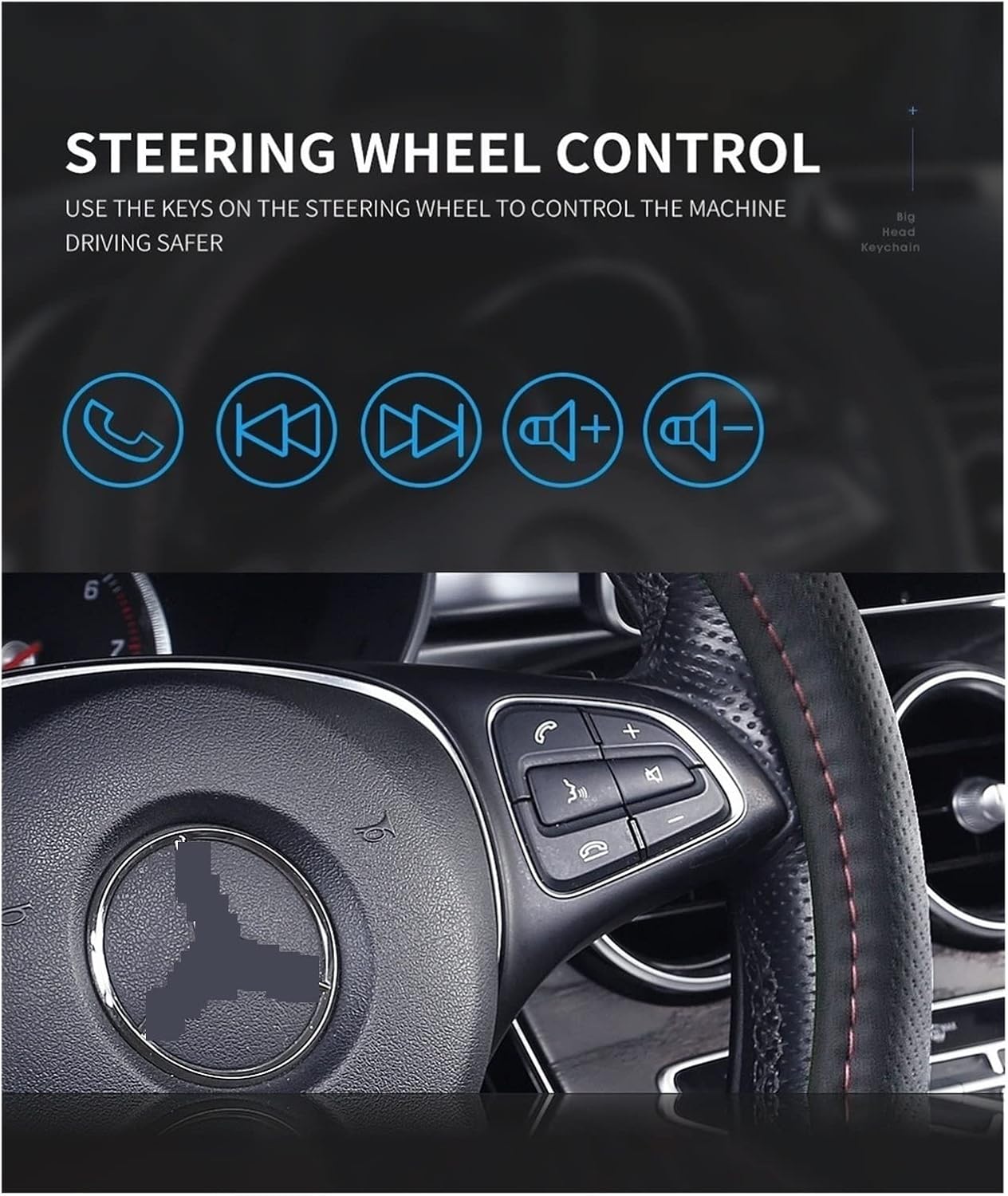
Image 6.4: The HAMFIT 7010B display showing the rear view camera feed with parking guidelines, activated automatically when reversing.
6.7 Steering Wheel Control
The unit supports connection to your vehicle's steering wheel controls, allowing you to manage basic functions without taking your hands off the wheel.
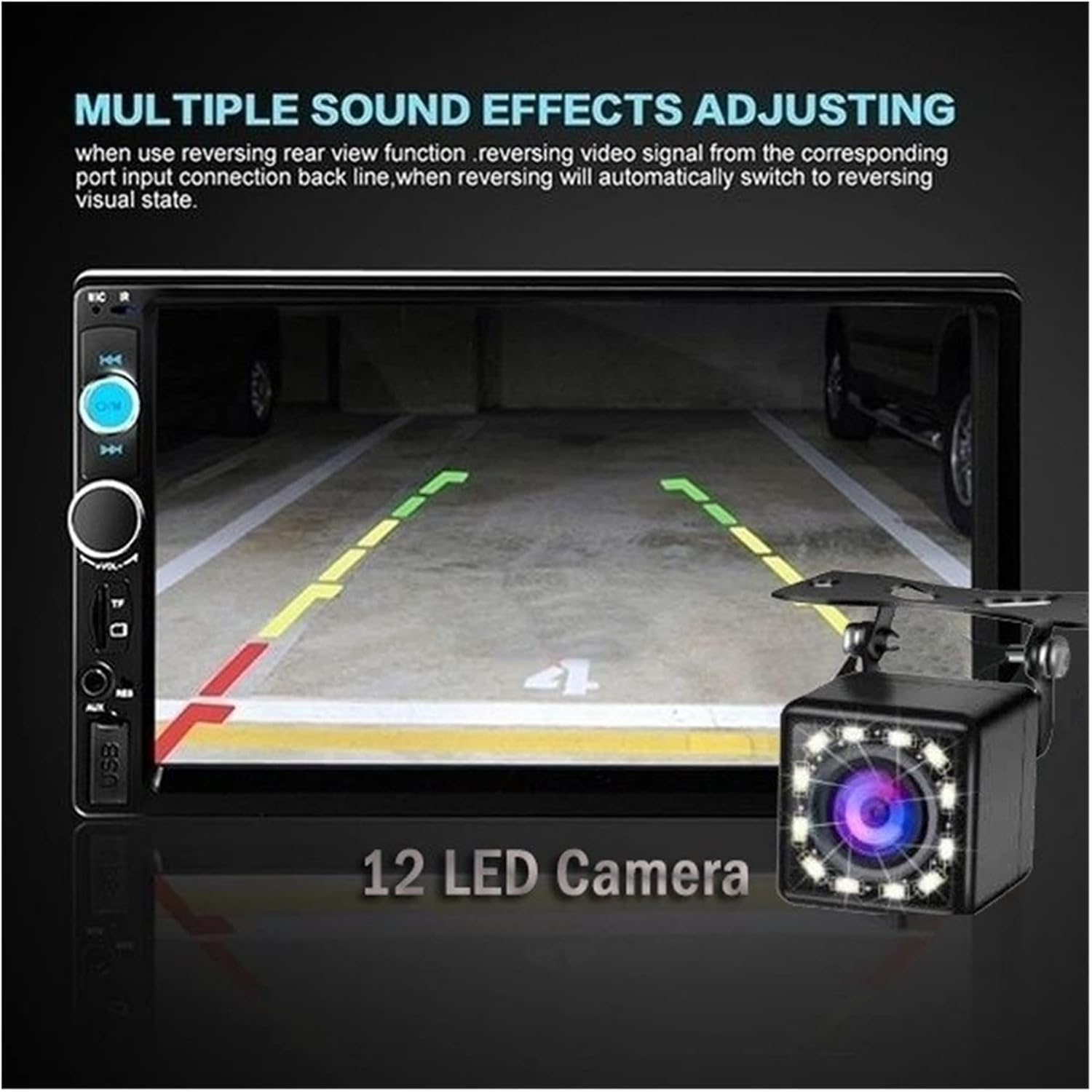
Image 6.5: Icons representing common steering wheel control functions such as answer/end call, skip track, and volume adjustment, enhancing driving safety.
7. Specifications
| Feature | Specification |
|---|---|
| Screen Size | 7 inches (17.8 cm x 10 cm) |
| Screen Resolution | 800 x 480 |
| Languages | English, Spanish |
| Video Formats | MKV, AVI, MOV, MP4, TS, ASF, FLV, PMP, RMVB, VOB, WMV |
| Audio Formats | MP3, WMA, ACC, OGG, FLAC, APE, WAV |
| Image Format | JPG |
| Output Power | 40W * 4 - 60W * 4 |
| Interface | USB, TF, AUX IN |
| Input Voltage | 12V |
| Bluetooth Version | V2.0 |
| Bluetooth Pairing Password | 0000 or 1234 |
| Special Features | Touchscreen |
| Product Weight | 1 Gram |
8. Troubleshooting
- No Power: Check power connections (yellow, red, black wires). Ensure the car's ignition is on if connected to accessory power. Check fuses.
- No Sound: Check speaker connections. Ensure volume is not muted or too low. Verify audio source selection.
- Bluetooth Not Connecting: Ensure Bluetooth is enabled on both devices. Try re-pairing. Check pairing password.
- Mirror Link Not Working: For Android, ensure USB debugging is enabled. For iPhone, check compatibility (up to iPhone 8 Plus). Ensure a good quality USB cable is used.
- Rear Camera Not Displaying: Check camera power and video connections. Ensure the reverse trigger wire is correctly connected to the reverse light.
- Unit Freezes: Try resetting the unit (refer to the device for a small reset button, usually recessed).
9. Maintenance
- Cleaning: Use a soft, dry cloth to clean the screen and unit exterior. Do not use abrasive cleaners or solvents.
- Temperature: Avoid exposing the unit to extreme temperatures or direct sunlight for prolonged periods.
- Moisture: Keep the unit dry. Do not expose it to water or other liquids.
10. Warranty and Support
For warranty information and technical support, please refer to the documentation provided at the time of purchase or contact your retailer. Keep your purchase receipt as proof of purchase.