
1. Introduction
Thank you for choosing the Casaria Electric Height-Adjustable Desk. This manual provides essential information for the safe and efficient use of your new desk. Designed for a functional workspace, this desk features a powerful motor, an intuitive LCD screen, and robust construction to support your productivity and well-being by allowing seamless transitions between sitting and standing positions.

Image 1.1: The Casaria Electric Height-Adjustable Desk in white, showcasing its spacious tabletop, dual monitor setup, and integrated accessories like the cup holder and headphone hook.
2. Safety Information
Please read all safety warnings and instructions carefully before assembly and use to prevent injury or damage to the product.
- Weight Limit: Caution: Do not exceed the weight limit of 80 kg (as per product features, not 120kg from safety info which seems generic). Overloading the desk can cause instability and damage.
- Electrical Safety: Ensure the desk is properly grounded when using the electric motor. Do not operate with wet hands or in damp environments. Disconnect power before cleaning or maintenance.
- Pinch Points: Be careful when adjusting the height to avoid pinched fingers or other injuries. Keep children and pets away from the moving parts during operation.
- Assembly: Assemble the desk on a soft, clean surface to prevent scratches. Ensure all screws and bolts are tightened securely before use.
- Placement: Place the desk on a level surface to ensure stability.
3. Product Features
- Functional Workspace: The desk features a large, 2-part wooden tabletop, a powerful motor, and an easy-to-use LCD screen, designed to enhance productivity and back health.
- Memory Function: Save up to 2 different height settings for quick adjustments, catering to multiple users or preferred sitting/standing heights.
- Integrated Timer: A built-in timer reminds you to change positions after 30, 45, or 60 minutes, promoting ergonomic habits and reducing discomfort.
- High Performance Motor: Smooth and continuous height adjustment from 73 cm to 118 cm at a speed of 2.25 cm/s, with a low noise level of 50 dB.
- Integrated Accessories: Equipped with additional cable management spaces, a convenient cup holder, and a headphone hook for an organized workspace.
- Robust & Stable Construction: Features a solid powder-coated steel frame, ensuring stability and durability. Supports up to 80 kg. Height-adjustable leveling glides provide stability on uneven floors.

Image 3.1: Underside view highlighting the desk's robust construction, 80 kg load capacity, durable steel frame, and quiet operation (less than 50 dB).
4. Setup and Assembly
The Casaria desk is designed for easy assembly. Follow the instructions provided in the included manual for a quick setup.
- Unpack Components: Carefully unpack all parts and verify against the parts list in your assembly manual.
- Assemble Frame: Attach the lifting columns to the crossbar, ensuring all connections are secure.
- Attach Feet: Secure the desk feet to the bottom of the lifting columns. Use the leveling glides to adjust for uneven floors.
- Mount Tabletop: Place the tabletop sections onto the assembled frame and secure them with the provided screws.
- Connect Control Panel: Connect the motor and control panel cables according to the diagram.
- Install Accessories: Attach the cup holder, headphone hook, and cable management clips as desired.
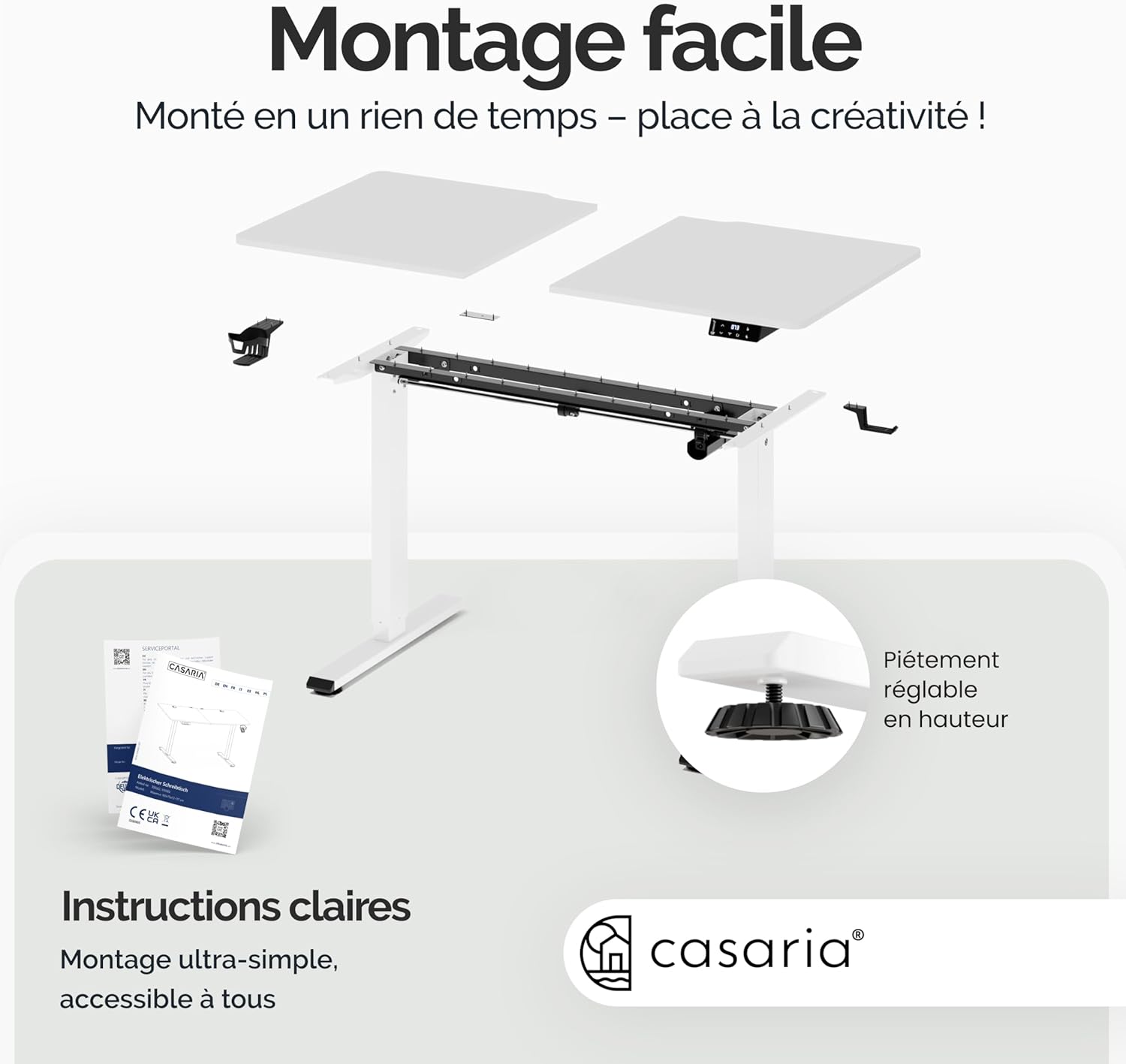
Image 4.1: An exploded diagram illustrating the simple assembly process, emphasizing the clear instructions and adjustable feet for stability.
5. Operating Instructions
The desk's intuitive control panel allows for easy height adjustments and memory functions.

Image 5.1: The intuitive LCD control panel, showing buttons for raising/lowering the desk, setting memory positions, activating the timer, resetting, and switching between sitting and standing modes.
5.1. Adjusting Height
- Press the Up (▲) button to raise the desk.
- Press the Down (▼) button to lower the desk.
- The LCD screen will display the current height in centimeters.
5.2. Memory Presets
The desk allows you to save 2 preferred height settings.
- Adjust the desk to your desired height.
- Press the Memory (M) button. The display will flash.
- Press either 1 or 2 to save the current height to that preset.
- To recall a saved height, simply press the corresponding 1 or 2 button.
5.3. Timer Function
The timer reminds you to change positions for ergonomic benefits.
- Press the Timer (T) button to activate the timer.
- Cycle through 30, 45, or 60 minutes by pressing the Timer button repeatedly.
- The desk will beep to remind you when the set time has elapsed.
5.4. Reset Function
If the desk encounters an error or does not respond, perform a reset.
- Press and hold the Reset (C) button until the desk moves to its lowest position and then slightly up, indicating a successful reset.

Image 5.2: Visual representation of the desk's continuous height adjustment range (73 cm to 118 cm) and the ergonomic benefits of alternating between sitting and standing positions.
6. Maintenance
Regular maintenance ensures the longevity and optimal performance of your Casaria desk.
- Cleaning: Wipe the tabletop and frame with a soft, damp cloth. Avoid abrasive cleaners or solvents that could damage the finish.
- Motor Care: Keep the motor and electrical components free from dust and moisture. Do not attempt to open or repair the motor housing.
- Cable Management: Periodically check that all cables are neatly organized and not pinched or tangled, using the integrated cable management features.
- Fastener Check: Occasionally check and tighten any loose screws or bolts to maintain stability.
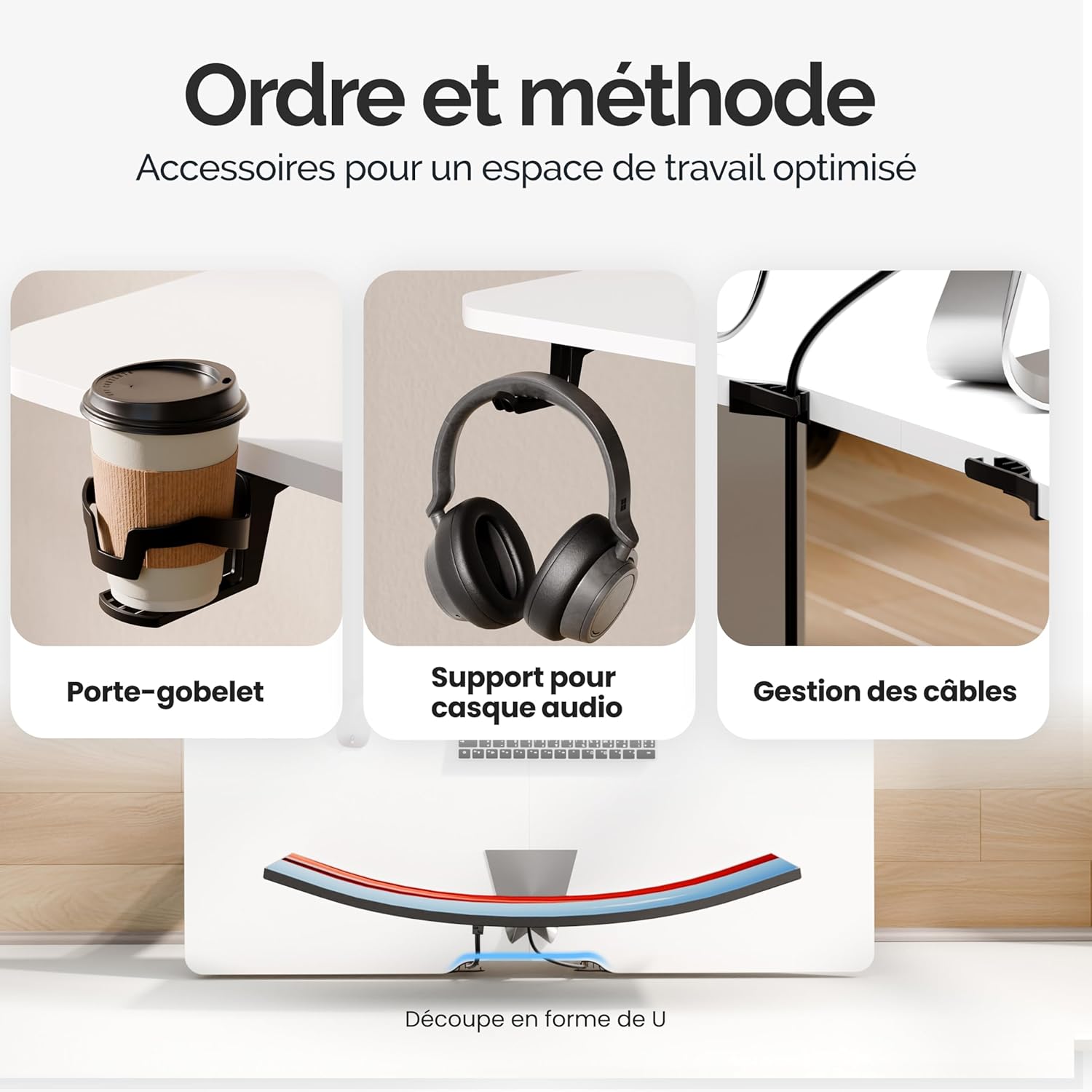
Image 6.1: Close-up view of the desk's practical accessories: a cup holder, a headphone hook, and integrated cable management solutions for an organized workspace.
7. Troubleshooting
If you encounter any issues with your desk, refer to the following common troubleshooting steps:
- Desk Not Moving:
- Check if the power cord is securely plugged into both the desk and a working power outlet.
- Perform a reset (see Section 5.4).
- Uneven Movement:
- Ensure the desk is not overloaded beyond its 80 kg capacity.
- Check that the leveling glides on the feet are properly adjusted for a stable surface.
- Error Code on LCD:
- Refer to the specific error codes in your detailed assembly manual for solutions. Often, a reset can resolve minor errors.
- Noise During Operation:
- A low noise level (50 dB) is normal. If the noise is excessive or unusual, ensure all fasteners are tight and there are no obstructions.
For persistent issues, please contact Casaria customer support.
8. Specifications
| Specification | Detail |
|---|---|
| Brand | Casaria |
| Model | B0BGRPCGMC |
| Color | White |
| Product Dimensions (L x W x H) | 110 x 60 x 73-118 cm |
| Material | Wood (Tabletop), Metal (Base) |
| Item Weight | 24 Kilograms |
| Max Load Capacity | 80 kg |
| Height Adjustment Range | 73 cm to 118 cm |
| Adjustment Speed | 2.25 cm/s |
| Noise Level | < 50 dB |
| Special Features | Ergonomic, Height Adjustable, Electric, Scratch Resistant, Memory Presets, Timer |
| Recommended Uses | Gaming, Writing, Work, Study |

Image 8.1: Detailed dimensions of the Casaria desk, illustrating its length, width, and the full range of its height adjustment.
9. Warranty and Support
For warranty information and customer support, please refer to the documentation included with your purchase or visit the official Casaria website. Keep your proof of purchase for any warranty claims.


