
1. Introduction
This instruction manual provides essential information for the safe and efficient operation of your Tripp Lite SMART600PSGLCD Pure Sine Wave Gaming UPS. This Uninterruptible Power Supply (UPS) is designed to protect your gaming PC, console, and other sensitive electronics from power outages, surges, and line noise, ensuring continuous, clean power. Please read this manual thoroughly before installation and use.
2. Important Safety Information
Failure to follow these safety instructions can result in fire, electric shock, or serious injury. Save these instructions for future reference.
- Electrical Safety: Connect the UPS to a properly grounded AC power outlet. Do not remove the grounding prong.
- Location: Install the UPS indoors in a controlled environment, away from excessive moisture, heat, or direct sunlight. Ensure adequate ventilation around the unit.
- Liquid Exposure: Do not expose the UPS to rain or liquids. Do not insert objects into the ventilation openings.
- Servicing: The UPS contains hazardous voltages. Refer all servicing to qualified service personnel. There are no user-serviceable parts inside except for the battery.
- Battery Safety: Battery replacement should only be performed by qualified personnel using the same type and number of batteries. Do not dispose of batteries in a fire.
- Overload: Do not overload the UPS outlets. Ensure the total power draw of connected equipment does not exceed the UPS's capacity.
- Medical Equipment: This UPS is not intended for use with life support or other critical medical equipment.
- California Warning: Note: Not for sale in California, USA until further notice.
3. Key Features
The Tripp Lite SMART600PSGLCD UPS offers advanced features for optimal power protection:
- Pure Sine Wave Output: Provides clean, stable power for sensitive electronics, ensuring optimal performance for gaming PCs and consoles.
- Automatic Voltage Regulation (AVR): Corrects minor power fluctuations without switching to battery, preserving battery life.
- Detachable Wireless LCD Screen: Displays real-time operating mode, voltage, frequency, battery level, and load level. Can operate wirelessly up to 20 feet (6 meters) for up to 12 hours.
- RGB LED Lighting: Customizable lighting with seven preset modes and programmable effects, including responses to power consumption changes. Controllable via LCD or software.
- Reliable Battery Backup: Provides 7.5 minutes of runtime for a typical 250W gaming system during power failures. Features hot-swappable internal battery.
- USB Communication Port: Allows for automatic shutdown and monitoring via free power management software.
- Surge Protection: Protects connected equipment from damaging power surges and spikes.
- ECO Energy-Saving Mode: Outlets controlled by a master outlet, automatically powering down peripherals when the main device is off.

Figure 3.1: Front view of the Tripp Lite SMART600PSGLCD UPS with the detachable LCD screen.
4. Package Contents
Verify that all items are present before proceeding with installation:
- Tripp Lite SMART600PSGLCD UPS Unit
- Detachable Wireless LCD Screen
- USB Cable
- Instruction Manual (this document)
5. Setup
5.1 Placement
Place the UPS in a cool, dry, indoor environment with adequate airflow. Avoid placing it near heat sources, direct sunlight, or areas with excessive dust or moisture. Ensure the fan on the bottom has at least half an inch of clearance for proper ventilation.
5.2 Initial Battery Connection
The UPS battery may be disconnected for shipping. Follow these steps to connect it:
- Ensure the UPS is unplugged from the wall outlet.
- Refer to the battery compartment access instructions (usually on the bottom or rear of the unit) to open the battery cover.
- Connect the internal battery cables as indicated by the labels (typically red to red, black to black).
- Securely close the battery compartment.
5.3 Connecting Equipment
The UPS features both battery backup/surge protected outlets and surge-only protected outlets. Identify the correct outlets for your devices.

Figure 5.1: Rear panel of the UPS showing power outlets, USB, and network protection ports.
- Battery Backup & Surge Protected Outlets: Connect your critical gaming PC, monitor, and other essential devices that require continuous power during outages.
- Surge-Only Protected Outlets: Connect non-critical peripherals like printers or speakers that only need surge protection.
- USB Port: Connect the included USB cable from the UPS to your computer for automatic shutdown and power management software functionality.
- Network/Phone Line Protection: Use the RJ11/RJ45 ports to protect network or phone lines from surges.
5.4 Powering On
- Plug the UPS power cord into a grounded wall outlet.
- Press and hold the power button on the UPS or the detachable LCD until the unit powers on.
- Allow the UPS to charge for at least 24 hours before relying on its full battery runtime.
6. Operation
6.1 Detachable LCD Screen
The LCD screen provides real-time status updates. It can be detached from the main unit and operated wirelessly. To detach, gently pull the screen forward from the top. To reattach, align the connectors and push firmly until it clicks into place.

Figure 6.1: The detachable LCD screen provides flexible monitoring options.
6.2 Monitoring and Controls
The LCD displays various parameters:
- Input Voltage: Current voltage from the wall outlet.
- Output Voltage: Voltage supplied by the UPS to connected devices.
- Battery Capacity: Remaining battery charge level.
- Load Level: Percentage of the UPS's capacity being used by connected devices.
- Estimated Runtime: Approximate time the UPS can power devices on battery.
- Operating Mode: Indicates if the UPS is on AC power, battery, or AVR mode.
6.3 RGB LED Lighting
The RGB LEDs can be customized to match your gaming setup or provide visual feedback on power draw. Use the buttons on the LCD or the power management software to change modes and colors.
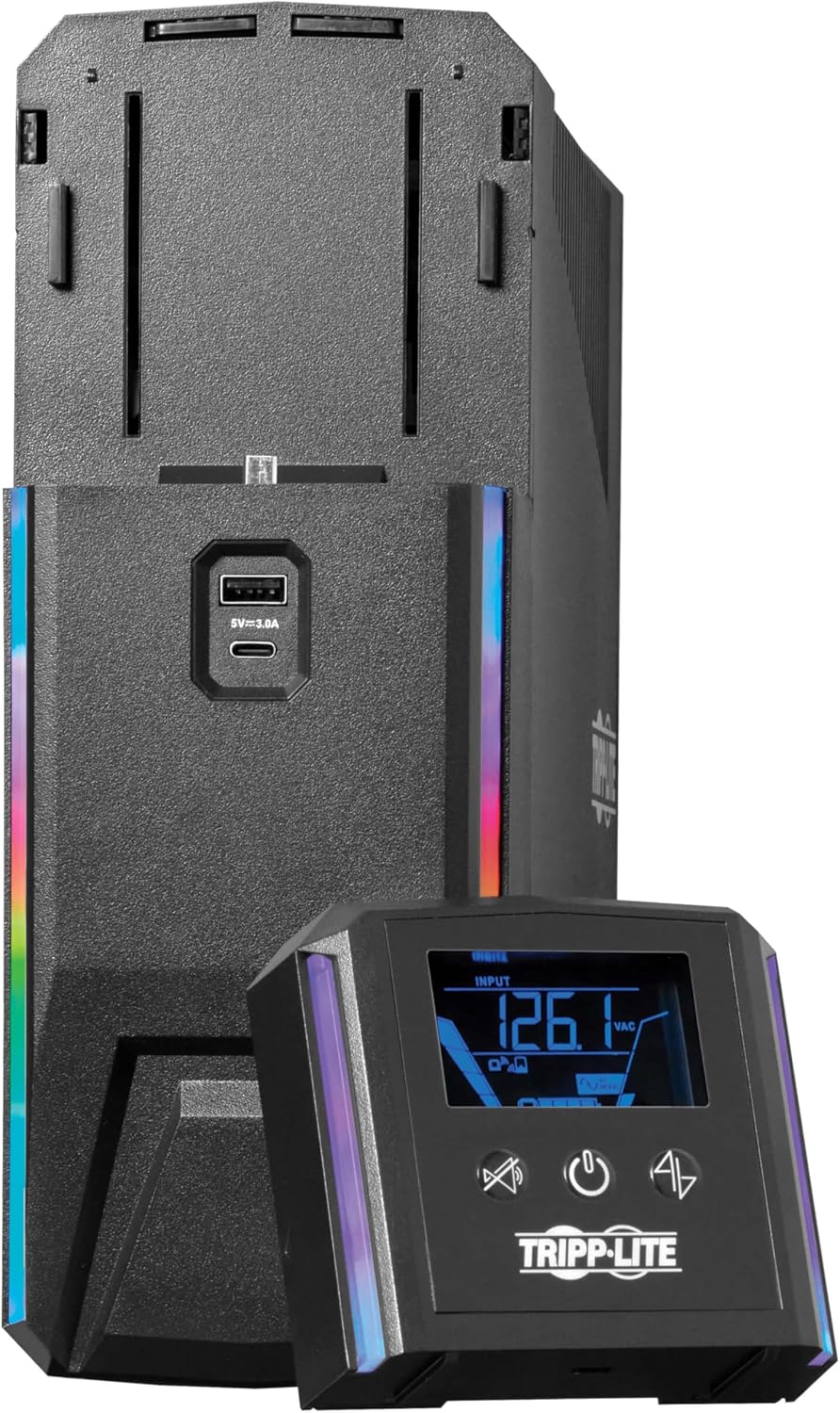
Figure 6.2: RGB LED lights enhance the aesthetic and can indicate power status.
6.4 Power Management Software
Download and install Tripp Lite's PowerAlert software from their official website. Connect the UPS to your computer via the USB port. The software allows for advanced monitoring, configuration of shutdown parameters, and control of RGB lighting.
Video 6.1: Official video demonstrating the Tripp Lite Gaming UPS features, including pure sine wave power, RGB LEDs, and the wireless LCD display. This video highlights how the UPS prevents game interruptions and displays key data like voltage, frequency, battery capacity, backup time, wattage, and load percentage. It also shows how the LCD and LEDs can indicate PC power draw (low, medium, high).
7. Maintenance
7.1 Battery Replacement
The internal battery is hot-swappable, meaning it can be replaced without powering down connected equipment. However, battery replacement should only be performed by qualified service personnel. Use only Tripp Lite approved replacement batteries to ensure compatibility and safety. Refer to the specific battery replacement instructions provided with the replacement battery kit or contact Tripp Lite support.
7.2 Cleaning
Periodically clean the exterior of the UPS with a soft, dry cloth. Do not use liquid or aerosol cleaners. Ensure ventilation openings are free from dust and obstructions.
8. Troubleshooting
This section addresses common issues you might encounter with your UPS. If the problem persists, contact Tripp Lite technical support.
| Problem | Possible Cause | Solution |
|---|---|---|
| UPS does not turn on. | Battery not connected; UPS not plugged in; UPS fault. | Ensure battery cables are connected. Verify UPS is plugged into a live wall outlet. If problem persists, contact support. |
| UPS beeps continuously or frequently. | Overload; On battery power; Low battery. | Reduce connected load. Check AC power. Allow battery to charge. |
| Connected equipment loses power during an outage. | Equipment connected to surge-only outlets; Battery depleted. | Ensure critical equipment is connected to battery backup outlets. Allow battery to fully charge. |
| Detachable LCD screen is blank or unresponsive. | Battery low in LCD; Communication issue. | Reattach LCD to main unit to charge. Ensure proper connection if reattached. |
| UPS emits a high-pitched buzzing sound. | Normal operation (minor coil whine); Overload; Internal component issue. | A faint buzz can be normal. If loud or persistent, check load. Ensure adequate ventilation. If concerning, contact support. |
9. Specifications
| Feature | Detail |
|---|---|
| Model Number | SMART600PSGLCD |
| Capacity (VA/Watts) | 600VA / 360W |
| Input Voltage | 120V AC |
| Output Voltage | 120V AC (Pure Sine Wave) |
| Number of Outlets | 8 (4 Battery Backup & Surge, 4 Surge Only) |
| Battery Type | Sealed Lead Acid |
| Typical Runtime (250W load) | 7.5 minutes |
| Battery Recharge Time | 7 Hours (to 90%) |
| Surge Protection Rating | 316 Joules |
| Dimensions (H x W x D) | 12.13 x 3.9 x 11.02 inches |
| Weight | 16.5 Pounds |
| Communication Ports | USB, RJ11/RJ45 |
| Certifications | Energy Star, RoHS |
10. Warranty and Support
10.1 Product Warranty
This Tripp Lite UPS is covered by a 3-Year Limited Warranty. This warranty covers defects in materials and workmanship under normal use. Please retain your proof of purchase for warranty claims.
10.2 Connected Equipment Insurance
The product includes $250,000 Connected Equipment Insurance. This insurance provides protection for equipment properly connected to the UPS against damage caused by power surges or spikes that bypass the UPS's protection. Refer to the official Tripp Lite website or warranty documentation for full terms and conditions.
10.3 Technical Support
For technical assistance, troubleshooting, or warranty inquiries, please contact Tripp Lite's Chicago-based expert technical support team. Support is available via phone and email. Visit the official Tripp Lite website for current contact information.
Online Resources: For additional information, FAQs, and software downloads, please visit the Tripp Lite official website.


