
1. Introduction
This manual provides essential information for the safe and efficient use of your AOC U34V5C/BK 34-inch WQHD LED Monitor. Please read this manual thoroughly before operating the device and retain it for future reference. The AOC U34V5C/BK is designed to deliver a high-quality visual experience with its 3440 x 1440 WQHD resolution and 21:9 aspect ratio, suitable for various applications from professional work to entertainment.
2. Safety Information
Observe the following safety precautions to prevent damage to the monitor and ensure personal safety:
- Do not expose the monitor to rain or moisture to avoid fire or shock hazards.
- Do not open the monitor casing. There are no user-serviceable parts inside. Refer all servicing to qualified service personnel.
- Place the monitor on a stable, flat surface to prevent it from falling.
- Ensure proper ventilation around the monitor. Do not block ventilation openings.
- Use only the power cord and adapter supplied with the monitor.
- Unplug the monitor from the power outlet during lightning storms or when unused for long periods.
3. Package Contents
Verify that all items are present in the package:
- AOC U34V5C/BK Monitor
- Monitor Stand (Base and Neck)
- Power Cable
- HDMI Cable
- DisplayPort Cable
- USB-C Cable
- User Manual (this document)
4. Product Overview
The AOC U34V5C/BK monitor features a 34-inch VA panel with WQHD resolution, USB-C connectivity with 65W Power Delivery, and a 100Hz refresh rate with AMD FreeSync support.
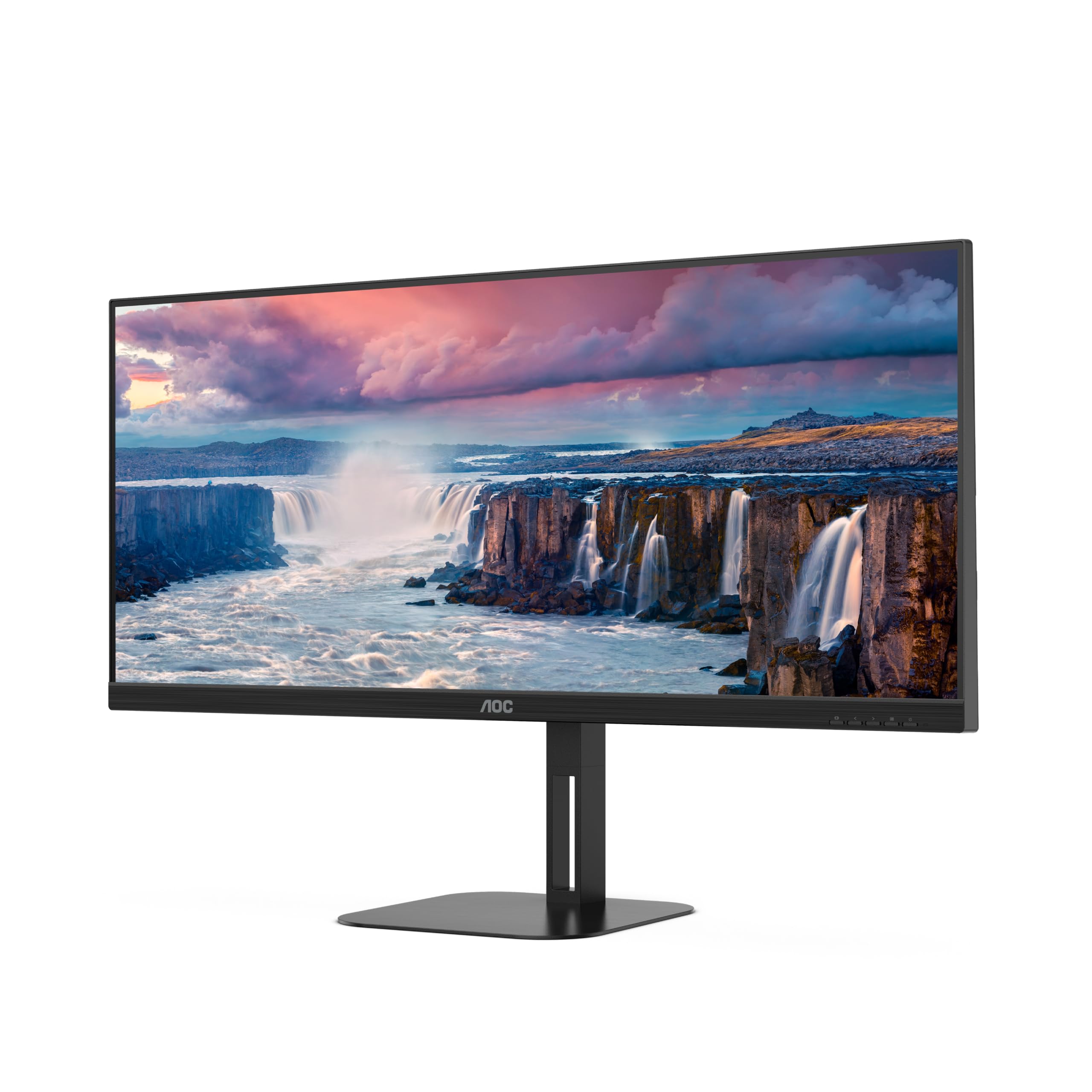
Figure 4.1: Front view of the AOC U34V5C/BK monitor highlighting its 34-inch VA panel, USB-C port with 65W Power Delivery, 100Hz refresh rate, and AMD FreeSync technology.
4.1 Monitor Components
Familiarize yourself with the various parts of your monitor:
- Front Panel: Display screen, OSD control buttons (usually located on the bottom right bezel).
- Rear Panel: Power input, video input ports (HDMI, DisplayPort, USB-C), USB hub ports, security lock slot.
- Stand: Provides stable support and allows for height, tilt, and swivel adjustments.

Figure 4.2: Rear view of the AOC U34V5C/BK monitor, showing the VESA mount compatibility and the stand attachment point.

Figure 4.3: Bottom view of the AOC U34V5C/BK monitor, detailing the power input, DisplayPort, HDMI, USB-C, and USB-A hub ports.
5. Setup
5.1 Assembling the Stand
- Carefully place the monitor face down on a soft, clean cloth to prevent scratches.
- Attach the stand neck to the back of the monitor until it clicks into place or is secured with screws (if applicable).
- Attach the stand base to the stand neck and tighten the captive screw at the bottom of the base.
- Carefully lift the monitor and place it on a stable desk.
5.2 Connecting the Monitor
Ensure your computer and monitor are powered off before making any connections.
- Power Connection: Connect the power cable to the monitor's power input and then to a grounded electrical outlet.
- Video Connection: Choose one of the following options:
- HDMI: Connect one end of the HDMI cable to your computer's HDMI output and the other end to an HDMI input on the monitor.
- DisplayPort: Connect one end of the DisplayPort cable to your computer's DisplayPort output and the other end to the DisplayPort input on the monitor.
- USB-C: Connect one end of the USB-C cable to your computer's USB-C port (which supports video output) and the other end to the USB-C input on the monitor. This connection can also provide power delivery and USB data transfer.
- USB Hub Connection (Optional): If using the monitor's USB hub, connect a USB upstream cable (USB-C to USB-A or USB-C to USB-C, depending on your computer) from your computer to the monitor's USB upstream port. This enables the monitor's USB-A ports for peripherals.
6. Operating the Monitor
6.1 Power On/Off
Press the power button, usually located on the bottom right bezel, to turn the monitor on or off. The power indicator light will illuminate when the monitor is on.
6.2 On-Screen Display (OSD) Menu
The OSD menu allows you to adjust various monitor settings. Use the control buttons (joystick or individual buttons) on the monitor's bezel to navigate the menu.
- Press the Menu button (or push the joystick) to open the OSD menu.
- Use the navigation buttons (or joystick) to move through the menu options.
- Press the Select button (or push the joystick) to enter a sub-menu or confirm a selection.
- Use the Exit button (or move the joystick left) to go back to the previous menu or exit the OSD.
6.3 Common OSD Settings
- Luminance: Adjust brightness, contrast, and gamma.
- Image Setup: Fine-tune image quality, sharpness, and pixel clock.
- Color Setup: Select color temperature, sRGB mode, or user-defined color settings.
- Picture Boost: Enhance specific areas of the screen.
- OSD Setup: Adjust OSD language, position, and transparency.
- Game Setting: Enable/disable FreeSync, adjust overdrive, and game modes.
- Extra: Select input source, reset settings, view information.
7. Maintenance
7.1 Cleaning the Monitor
- Always unplug the monitor before cleaning.
- Use a soft, lint-free cloth lightly dampened with water or a mild, non-abrasive screen cleaner.
- Do not use alcohol, ammonia, or abrasive cleaners, as they may damage the screen or casing.
- Wipe the screen gently. Do not apply excessive pressure.
7.2 General Care
- Avoid placing heavy objects on the monitor or its cables.
- Keep the monitor away from direct sunlight, heat sources, and extreme temperatures.
- Do not expose the monitor to strong vibrations or impacts.
8. Troubleshooting
If you encounter issues with your monitor, refer to the following common problems and solutions:
| Problem | Possible Cause | Solution |
|---|---|---|
| No image on screen | Monitor not powered on; Incorrect input source; Loose video cable | Press power button; Select correct input via OSD; Reconnect video cable securely |
| Image too dark/bright | Brightness/Contrast settings incorrect | Adjust Brightness and Contrast in OSD menu |
| Flickering image | Incorrect refresh rate; Faulty cable | Set refresh rate to 100Hz in display settings; Try a different video cable |
| USB ports not working | USB upstream cable not connected | Connect the USB-C upstream cable from the monitor to your computer |
If the problem persists after trying these solutions, contact AOC customer support.
9. Specifications
Below are the technical specifications for the AOC U34V5C/BK monitor:

Figure 9.1: Product Information Sheet for AOC U34V5C/BK, detailing energy efficiency and technical parameters.
| Parameter | Value |
|---|---|
| Brand | AOC |
| Model | U34V5C/BK |
| Screen Size | 34 Inches (86.4 cm) |
| Resolution | 3440 x 1440 WQHD |
| Aspect Ratio | 21:9 |
| Response Time | 4 Milliseconds |
| Refresh Rate | 100 Hz (default 60 Hz) |
| Panel Technology | VA Panel, LED LCD |
| Viewing Angle | 178 Degrees (Horizontal/Vertical) |
| Hardware Interface | DisplayPort, HDMI, USB-C |
| Total USB Ports | 4 (USB Hub) |
| Power Delivery (USB-C) | 65W |
| Voltage | 5 Volts (Internal Power Supply) |
| Product Dimensions | 50 x 25 x 40 cm; 7 kg |
| Energy Efficiency Class (SDR) | G |
| Power Consumption (SDR) | 34.0 W |
| Energy Efficiency Class (HDR) | G |
| Power Consumption (HDR) | 35.0 W |
| Standby Power | 0.5 W |
| Minimum guaranteed software/firmware updates | 8 Years |
| Minimum guaranteed spare parts availability | 7 Years |
| Minimum guaranteed product support | 8 Years |
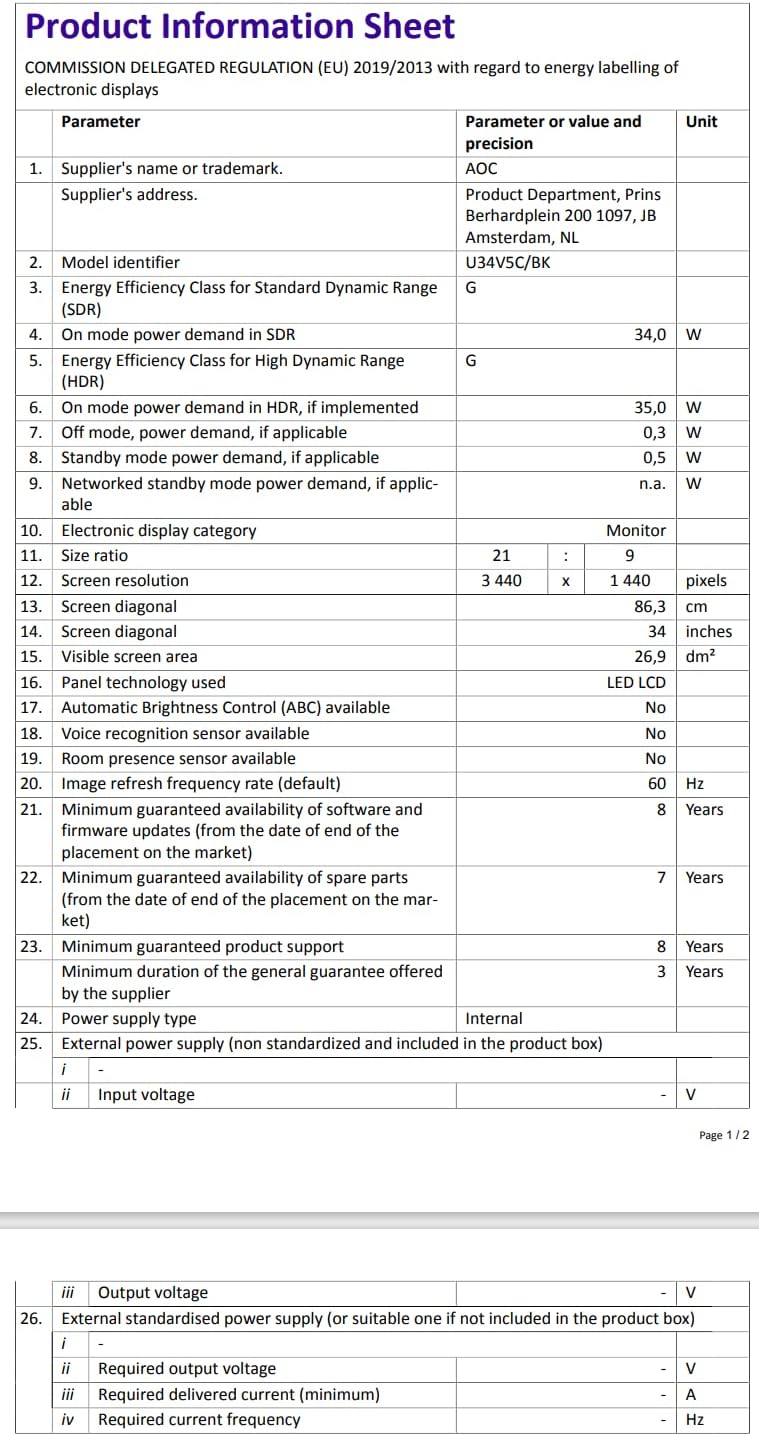
Figure 9.2: Energy Label for AOC U34V5C/BK. For more details, visit the EPREL database.
10. Warranty and Support
The AOC U34V5C/BK monitor comes with a minimum guaranteed general warranty of 3 years provided by the supplier.
For technical support, warranty claims, or service inquiries, please visit the official AOC website or contact your local AOC customer service center. Ensure you have your monitor's model number (U34V5C/BK) and serial number ready when contacting support.


