
Introduction
This manual provides comprehensive instructions for the IWEUKJLO 4K Digital Camera (Model DC101). Please read this guide carefully before use to ensure proper operation and to maximize your camera's potential. Keep this manual for future reference.

Figure 1: IWEUKJLO 4K Digital Camera and included accessories.
What's in the Box
Verify that all items listed below are included in your package:
- 1 x 4K Digital Camera
- 1 x 32GB SD Card
- 1 x Charging Stand
- 1 x User Manual
- 1 x Charger
- 1 x Mini USB Cable
- 1 x HDMI Cable
- 1 x Lens
- 1 x Lens Cap
- 2 x Rechargeable Batteries
- 1 x Camera Bag
- 1 x Wrist Strap
- 1 x Cleaning Cloth

Figure 2: Contents of the camera package.
Setup
1. Charging the Battery
Insert the rechargeable battery into the charging stand. Connect the charger to the charging stand and plug it into a power outlet. The indicator light on the charging stand will show the charging status. Ensure batteries are fully charged before first use.
2. Inserting the Battery and SD Card
Open the battery compartment cover on the bottom of the camera. Insert the charged battery, ensuring correct polarity. Close the battery compartment. Insert the provided 32GB SD card into the SD card slot until it clicks into place. Ensure the card is inserted correctly to avoid damage.
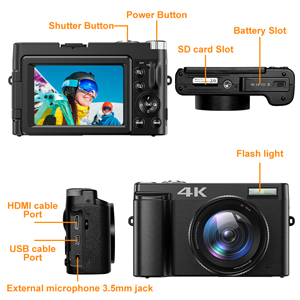
Figure 3: Location of battery and SD card slots.
Operating Instructions
Powering On/Off
Press and hold the Power button located on the top of the camera to turn it on or off.
Basic Photography
In photo mode, lightly press the capture button to allow the camera to autofocus. The focus frame on the screen will change from yellow to green when focus is complete. Press the capture button firmly to take the photo.

Figure 4: Autofocus in action. Half-press the shutter button to focus.
Video Recording
Switch the camera to video mode. Press the record button to start recording 4K video at 30fps. Press again to stop. The camera supports video pause, allowing you to pause and resume recording to save editing time.

Figure 5: UHD 4K and 16X Digital Zoom capabilities.
180° Flip Screen
The 3-inch touchscreen can be rotated 180 degrees, making it ideal for vlogging and self-portraits, allowing you to see yourself while recording or framing shots.
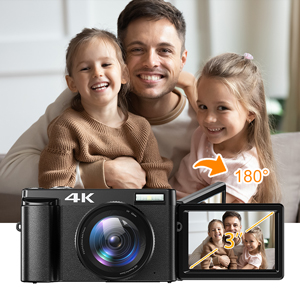
Figure 6: The 180° flip screen for easy self-recording.
Webcam and HDMI Output
Connect the camera to your computer using the USB cable and switch to "webcam" mode to use it for live streaming, video calls, or online teaching. For larger displays, connect the camera to a TV or projector via the HDMI cable.

Figure 7: Webcam functionality and HDMI output.
Additional Shooting Modes
The camera supports various modes including time-lapse, looping video, slow-motion video, anti-shake shooting, and continuous shooting. Explore these options through the camera's menu settings.

Figure 8: Diverse shooting functions for various scenarios.
Maintenance
Cleaning the Camera
Use the provided cleaning cloth to gently wipe the camera body and lens. For stubborn smudges on the lens, use a specialized lens cleaning solution applied to the cloth, not directly to the lens. Avoid using abrasive materials or harsh chemicals.
Storage
When not in use, store the camera in its protective bag in a cool, dry place away from direct sunlight and extreme temperatures. Remove batteries if storing for extended periods to prevent leakage.
Troubleshooting
| Problem | Possible Cause | Solution |
|---|---|---|
| Camera does not power on. | Battery is dead or incorrectly inserted. | Charge the battery fully. Reinsert the battery correctly. |
| Images are blurry. | Autofocus failed or subject is too close/far. | Ensure autofocus engages (green frame). Maintain appropriate distance from subject. Clean the lens. |
| SD card error. | SD card is full, corrupted, or incorrectly inserted. | Delete unnecessary files or use a new SD card. Reinsert the SD card. Format the SD card (this will erase all data). |
| Video quality is poor. | Low light conditions or incorrect settings. | Ensure adequate lighting. Adjust video resolution settings. |
If problems persist, please contact customer support.
Specifications
- Model Name: DC101
- Photo Sensor Resolution: 48 MP
- Video Resolution: 4K (2160p), 4320p
- Digital Zoom: 16x
- Screen Size: 3 inches (180° Flip Screen)
- Display Type: LCD, Capacitive Touch Screen
- Autofocus: Yes (Contrast/Face/Smile Detection)
- Image Stabilization: Digital
- Supported File Format: JPEG (Image), AVI (Audio)
- Connectivity: Micro USB, HDMI
- Memory: Supports up to 32GB SD Card (32GB included)
- Battery Type: Rechargeable Lithium Polymer (2 included)
- Item Weight: 239 Grams
- Dimensions (approx.): 11.5 x 7 x 4 cm (from image 71QwshWWUqL)
- Special Features: Webcam function, Time-lapse, Looping video, Slow-motion video, Video Pause, Anti-shake, Continuous Shooting, Self Timer (2s, 5s, 10s)
Warranty & Support
Warranty Information
This product comes with a 2-year manufacturer's warranty. Please retain your proof of purchase for warranty claims.
Customer Support
If you encounter any issues or have questions regarding your IWEUKJLO 4K Digital Camera, please feel free to contact us. We aim to reply within 24 hours.
For additional resources, you may refer to the official User Manual (PDF) available online: User Manual (PDF)
