
La Crosse Technology WiFi Professional Weather Station
La Crosse Technology WiFi Professional Weather Station User Manual
Model: WiFi Professional Weather Station
Introduction
This manual provides detailed instructions for the setup, operation, and maintenance of your La Crosse Technology WiFi Professional Weather Station. Please read this guide thoroughly to ensure proper use and to maximize the performance of your device. This weather station offers comprehensive environmental monitoring with WiFi connectivity for enhanced data access.
Package Contents
Verify that all components are present in your package:
- Display Console
- Outdoor Sensor Array (Anemometer, Wind Vane, Rain Collector, Temperature/Humidity Sensor)
- Mounting Hardware
- Power Adapter for Display Console
- User Manual (this document)
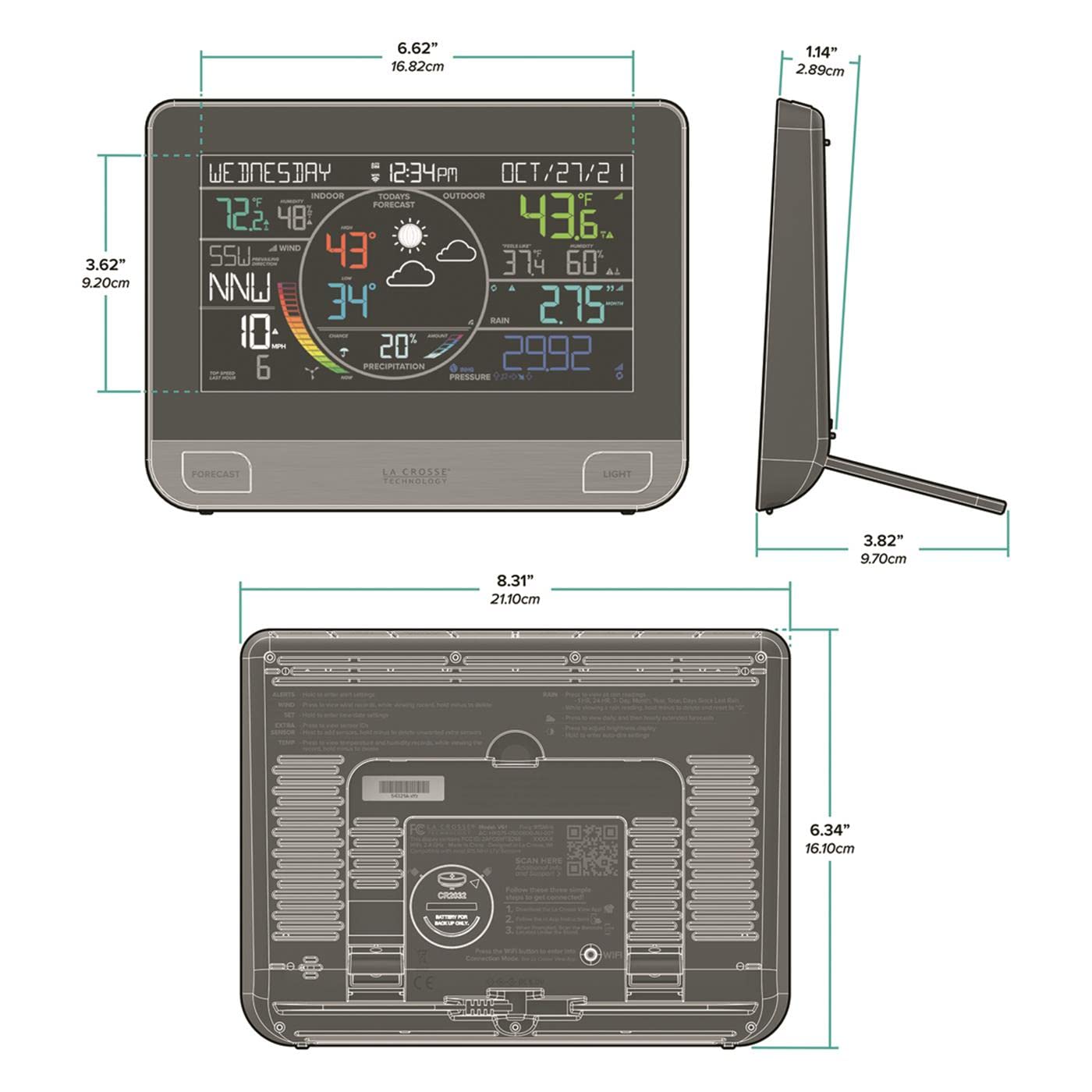
Image: The complete La Crosse Technology WiFi Professional Weather Station system, including the main display console, the multi-sensor outdoor array, and the separate rain gauge. These are the primary components included in the package.
Setup Instructions
1. Powering the Display Console
- Insert the included power adapter into the DC port on the back of the display console.
- Plug the adapter into a standard wall outlet.
- The console will power on and begin searching for the outdoor sensor.

Image: The back of the display console, highlighting the power input and the battery compartment. This view also shows the various control buttons and labels for setup and configuration.
2. Installing the Outdoor Sensor Array
The outdoor sensor array measures wind speed, wind direction, rainfall, temperature, and humidity. Proper placement is crucial for accurate readings.
- Location: Choose an open area, free from obstructions, to ensure accurate wind and rain measurements.
- Mounting: Use the provided mounting hardware to secure the sensor array to a pole or post. Ensure it is level.
- Orientation: Orient the wind vane correctly according to the compass directions for accurate wind direction readings.
- Batteries: Install 3 "AA" alkaline batteries (not included) into the outdoor sensor array's battery compartment.

Image: A detailed view of the outdoor sensor array, featuring the wind cups (anemometer), wind vane, and the integrated solar panel. This unit collects various outdoor weather data.
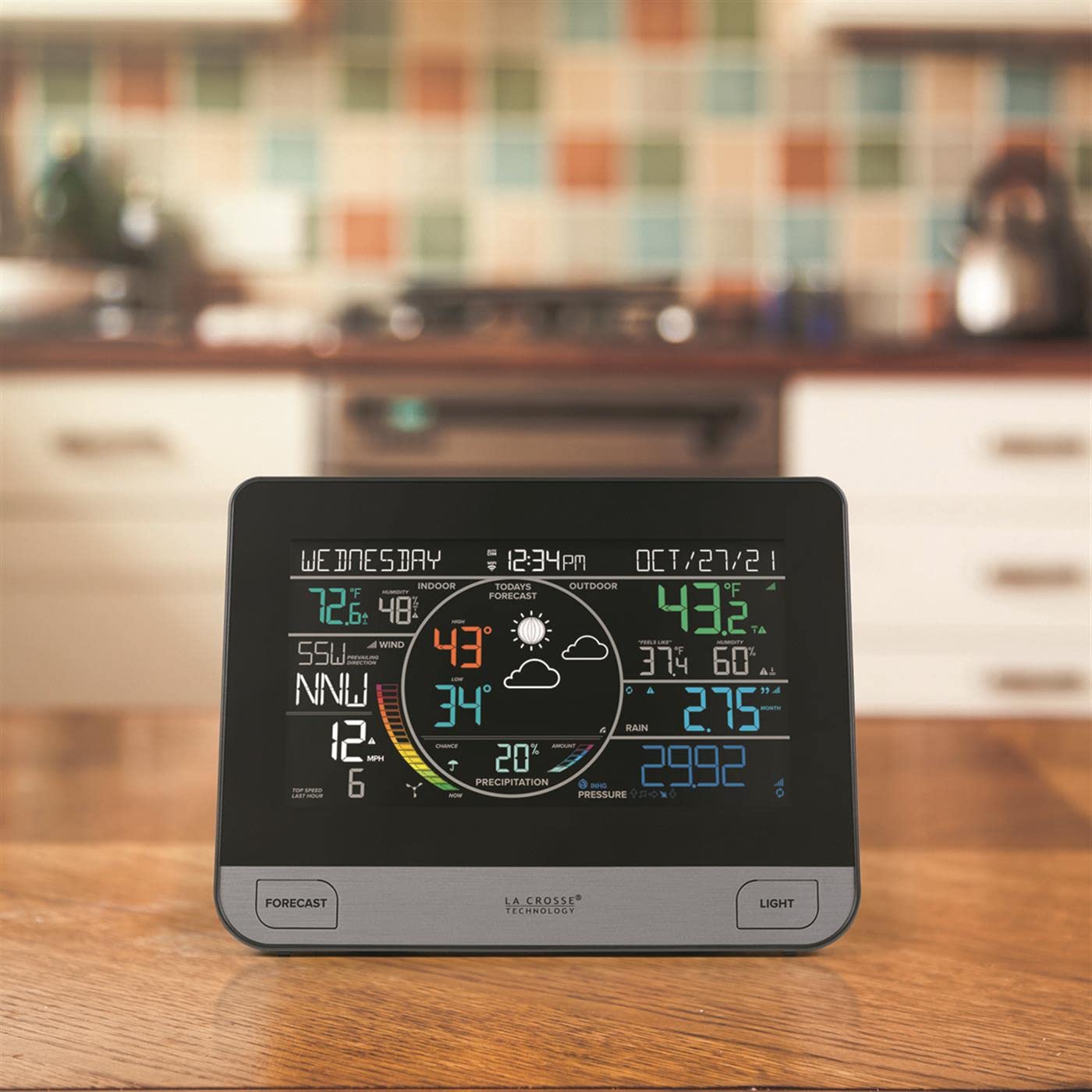
Image: The main display console showing current weather data, including indoor and outdoor temperatures, wind speed, wind direction, and a weather forecast. The display is brightly lit and easy to read.
3. WiFi Connection
Connect your weather station to your home WiFi network to access advanced features and data on the La Crosse View app.
- Download the La Crosse View app from your smartphone's app store.
- Create an account or log in.
- Follow the in-app instructions to add your weather station. This typically involves scanning a QR code on the back of the display console or manually entering the device ID.
- Ensure your smartphone is connected to a 2.4 GHz WiFi network during the setup process.

Image: A smartphone screen showing the La Crosse View app, which provides detailed weather information and allows for remote monitoring. The image also includes the outdoor sensor and display console, illustrating the connected system.
Operating Instructions
Display Console Functions
The display console provides a variety of information and settings. Refer to the back panel for button functions.
- TIME/DATE: Press to view time and date. Hold to set.
- ALERTS: Press to view alerts. Hold to set alerts.
- RAIN: Press to view daily, weekly, monthly rain totals.
- WIND: Press to view wind speed and direction.
- LIGHT: Press to adjust backlight brightness.
- FORECAST: Displays predicted weather conditions.
Image: The main display console showing current weather data, including indoor and outdoor temperatures, wind speed, wind direction, and a weather forecast. The display is brightly lit and easy to read.
La Crosse View App
The La Crosse View app offers remote monitoring and advanced data analysis.
- Real-Time Data: View current temperature, humidity, wind, and rain data from anywhere.
- Historical Graphs: Access historical data and trends for various measurements.
- Custom Alerts: Set personalized alerts for specific weather conditions (e.g., high wind, low temperature).
- Add-on Sensors: Integrate additional La Crosse Technology sensors (sold separately) for expanded monitoring.
Maintenance
Cleaning
- Display Console: Wipe with a soft, damp cloth. Avoid abrasive cleaners.
- Outdoor Sensor Array: Periodically check the rain collector for debris (leaves, insects) and clean as necessary. Ensure the wind cups and wind vane spin freely.
Battery Replacement
- Outdoor Sensor Array: Replace batteries annually or when the low battery indicator appears on the display console. Use fresh "AA" alkaline batteries.
- Display Console: The console primarily uses AC power. Batteries (not included) can be installed for backup in case of power outage.
Troubleshooting
| Problem | Possible Cause | Solution |
|---|---|---|
| No outdoor data on display. | Sensor not paired or out of range. Low sensor batteries. |
|
| WiFi connection lost. | Router issues. Incorrect WiFi password. |
|
| Inaccurate wind/rain readings. | Obstructions. Incorrect sensor placement. |
|
Specifications
| Feature | Detail |
|---|---|
| Model | WiFi Professional Weather Station |
| Brand | La Crosse Technology |
| Power Source (Console) | AC Adapter (included), Optional 3 "AA" batteries (not included) |
| Power Source (Outdoor Sensor) | 3 "AA" batteries (not included) |
| Connectivity | WiFi (2.4 GHz), RF (433 MHz) |
| Temperature Accuracy | ±1 °C |
| Wireless Range | Up to 400 feet (121 meters) in open air |
| Display Type | Digital Color Display |
| Dimensions (Console) | 6.62" W x 3.62" H x 1.14" D (16.82cm W x 9.20cm H x 2.89cm D) |

Image: A technical diagram illustrating the precise dimensions of the display console from multiple angles, including width, height, and depth measurements in both inches and centimeters.
Warranty Information
La Crosse Technology provides a limited warranty for this product. Please refer to the official La Crosse Technology website or the warranty card included in your package for specific terms and conditions. Typically, this covers defects in materials and workmanship for a period of one year from the date of purchase.
For warranty claims, proof of purchase is required. Do not attempt to repair the device yourself, as this may void the warranty.
Customer Support
If you encounter any issues or have questions regarding your La Crosse Technology WiFi Professional Weather Station, please contact customer support:
- Website: Visit the official La Crosse Technology website for FAQs, support articles, and contact information.
- Phone: Refer to your product packaging or the website for the most current customer service phone number.
- Email: Support email addresses are typically available on the official website.
When contacting support, please have your product model number (WiFi Professional Weather Station) and purchase date available.
Ask a question about this manual
Ask about setup, troubleshooting, compatibility, parts, safety, or missing instructions. Manuals+ will review the question and use this page’s manual context to help answer it.