
Rimoody 1G+32G
Rimoody Android Car Stereo User Manual
Model: 1G+32G for Suzuki Swift 2017-2020
Introduction
This manual provides comprehensive instructions for the installation, operation, and maintenance of your new Rimoody Android Car Stereo. Designed specifically for Suzuki Swift models from 2017 to 2020, this system integrates advanced features such as GPS navigation, Bluetooth connectivity, Wi-Fi, and mirror link functionality to enhance your driving experience. Please read this manual thoroughly before installation and use to ensure proper function and safety.
1. Setup and Installation
1.1 Package Contents
Before beginning installation, please verify that all components are present in the package:
- Rimoody 9-inch Android Car Stereo Unit
- Power Cable
- USB Cables (x2)
- GPS Antenna
- External Microphone (MIC)
- Rear Camera
- Rear Camera Input Cable
- RCA Cables (Audio/Video Input/Output)
- Installation Tool (Iron Sheet)
- Original USB Cable Adapter (if applicable for vehicle)
- User Manual (this document)

Figure 1.1: Included components and wiring diagram. This image displays the main stereo unit, various cables (power, USB, RCA, camera input), GPS antenna, external microphone, rear camera, and installation tools. It also shows a simplified wiring diagram for connecting the unit.
1.2 Vehicle Compatibility
This car stereo is designed for direct fit and integration with the following Suzuki Swift models:
- Suzuki Swift 2017
- Suzuki Swift 2018
- Suzuki Swift 2019
- Suzuki Swift 2020
1.3 Installation Steps
Professional installation is recommended. Ensure the vehicle's battery is disconnected before starting. The installation process typically involves removing the original car radio, connecting the new stereo's wiring harness, GPS antenna, and external microphone, and then mounting the new unit into the dashboard. The included rear camera should be routed and connected to the appropriate input.
- Preparation: Disconnect the negative terminal of the car battery. Carefully remove the trim panels and the original car radio from the dashboard.
- Wiring Connections: Connect the provided power cable harness to the vehicle's wiring. Connect the GPS antenna, external microphone, and USB cables to their respective ports on the stereo unit. Refer to the wiring diagram (Figure 1.1) for detailed connections.
- Rear Camera Installation: Route the rear camera cable from the back of the vehicle to the stereo unit. Connect the camera's power to the reverse light circuit and the video signal cable to the "Camera Input" on the stereo.
- Mounting: Secure the new Rimoody car stereo into the dashboard opening. Ensure all cables are neatly tucked away and not pinched.
- Testing: Reconnect the car battery. Turn on the ignition and test the stereo's basic functions (power, sound, touch screen).
- Final Assembly: Reinstall all trim panels.
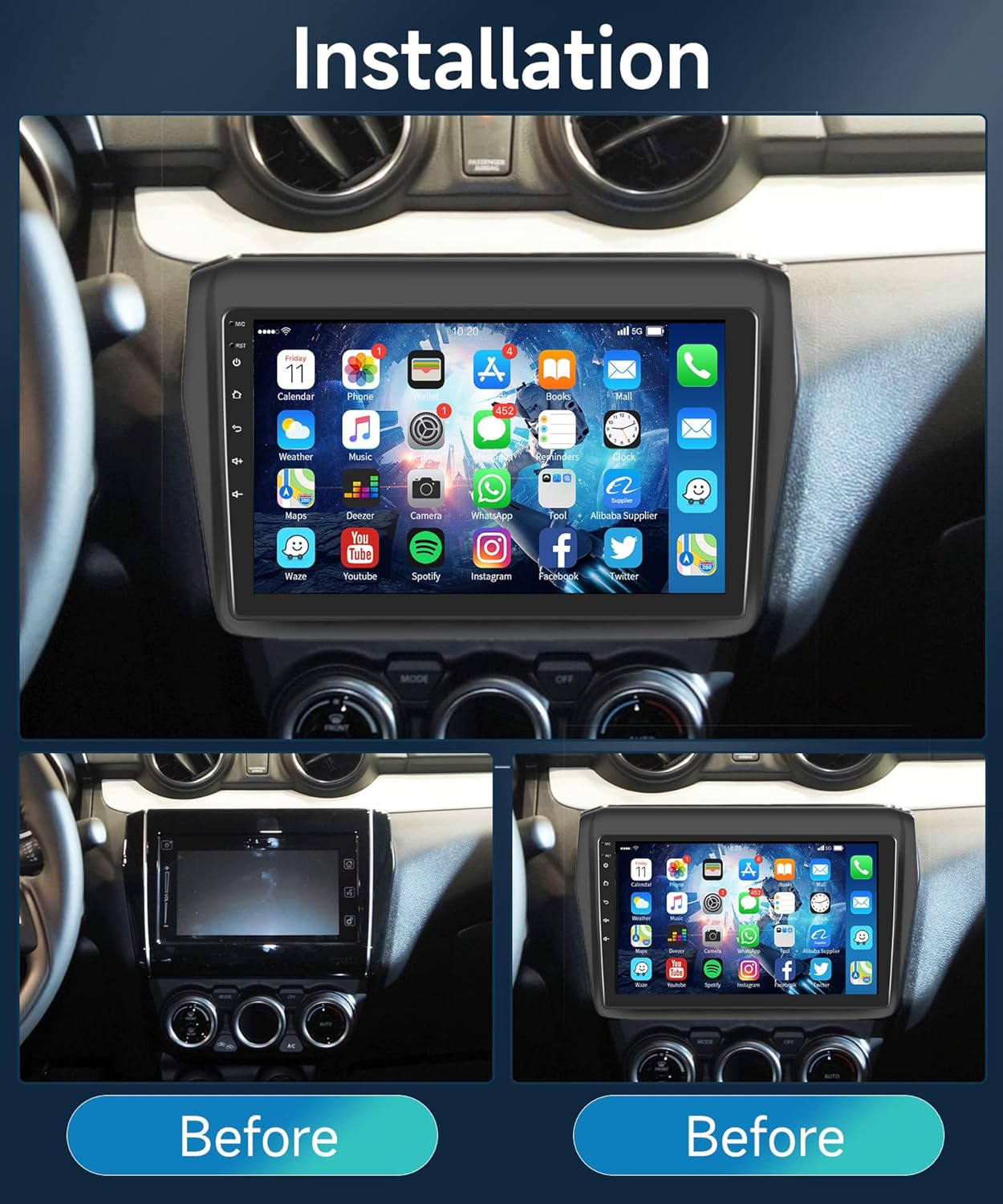
Figure 1.2: Visual comparison of the dashboard before and after the installation of the Rimoody Android Car Stereo, demonstrating a seamless fit.
2. Operating Instructions
2.1 Basic Operation
The stereo features a responsive 9-inch 2.5D tempered glass touch screen. Navigate through menus and applications by tapping, swiping, and pinching. The main interface provides quick access to essential functions like Phone, Music, Navigation, and Settings.

Figure 2.1: The main home screen of the Android car stereo, displaying a grid of application icons including Calendar, Phone, Wallet, App Store, Music, Settings, Messages, Reminders, Clock, Maps, Deezer, Camera, WhatsApp, Tool, Alibaba Supplier, Waze, YouTube, Spotify, Instagram, Facebook, and Twitter.
2.2 GPS Navigation
The unit comes with a built-in GPS module and pre-installed North America maps. You can use offline navigation or connect to Wi-Fi to download online maps and use real-time navigation apps like Waze or Google Maps.

Figure 2.2: Demonstrates the GPS navigation interface with a map showing a route and distance information. Below, it illustrates the Wi-Fi Hotspot capability, allowing access to online content and app downloads.
2.3 Wi-Fi Connectivity
Connect the stereo to a Wi-Fi network (e.g., your phone's hotspot) to access online features, download applications from the Play Store, stream music, and browse the internet. The system offers stable Wi-Fi wireless signal and fast transmission speed.
2.4 Bluetooth Functionality
Pair your smartphone via Bluetooth for hands-free calling, Bluetooth music streaming (A2DP), and automatic phonebook loading. The built-in clear microphone and external microphone ensure clear communication.

Figure 2.3: Shows the Bluetooth interface for calls and music playback, the FM/RDS radio tuner with preset stations, and the graphic equalizer (EQ) settings for audio customization.
2.5 FM/RDS Radio
Enjoy high-quality digital radio with 18 preset stations. The system supports FM/AM RDS function, allowing for clear channel search and reduced noise. You can listen to real-time traffic, news, and weather forecasts.
2.6 Mirror Link (Android/iOS)
The mirror link feature allows you to project your smartphone screen onto the car stereo display. This supports both Android (two-way connection) and iOS (one-way projection) devices, enabling you to view maps, videos, and games from your phone on the larger screen.

Figure 2.4: Illustrates the Mirror Link functionality, showing a smartphone screen being mirrored onto the car stereo display, with options for wireless/Wi-Fi and wired/USB connections for iOS and Android devices.
2.7 Reversing Display (Backup Camera)
When the vehicle shifts into reverse gear, the car stereo screen will automatically display the image from the included waterproof night vision rear camera, making parking and reversing safer and easier.
2.8 Steering Wheel Control (SWC)
If your Suzuki Swift has original steering wheel buttons, you can configure them to control the stereo, allowing you to quickly switch functions, adjust volume, and manage calls without taking your hands off the wheel.

Figure 2.5: Displays the automatic reversing image from the backup camera, highlighting features like HD, AHD Image, Night Vision, Waterproof, and Wide Angle. It also shows the Steering Wheel Control interface for custom button mapping.
2.9 EQ Setting
Customize your audio experience with the built-in equalizer. Choose from preset modes like Classical, Jazz, Pop, Rock, Standard, or create your own custom sound profile to achieve the perfect car audio quality.
3. Maintenance
3.1 Cleaning the Unit
To maintain the clarity of the touch screen and the overall appearance of the unit, gently wipe the screen and exterior surfaces with a soft, dry, lint-free cloth. For stubborn smudges, a slightly damp cloth with a mild, non-abrasive cleaner suitable for electronics can be used, ensuring no liquid enters the unit.
3.2 Software Updates
Periodically check the manufacturer's website or contact customer support for available software updates. Updates can improve performance, add new features, and resolve potential issues. Follow the provided instructions carefully when performing any software update.
4. Troubleshooting
If you encounter issues with your Rimoody Android Car Stereo, refer to the following common problems and their solutions:
| Problem | Possible Cause | Solution |
|---|---|---|
| No Power / Unit Does Not Turn On | Loose power connection, blown fuse, vehicle battery issue. | Check power cable connections. Inspect vehicle fuses. Ensure car battery is charged. |
| No Sound | Volume too low, mute activated, speaker wiring issue, incorrect audio source. | Increase volume. Check if mute is active. Verify speaker connections. Select correct audio source. |
| GPS Not Working / Inaccurate Location | GPS antenna not connected, poor satellite signal, outdated maps. | Ensure GPS antenna is securely connected and has a clear view of the sky. Update maps if necessary. |
| Bluetooth Connection Issues | Device not in pairing mode, interference, incorrect pairing procedure. | Ensure Bluetooth is enabled on both devices and in pairing mode. Delete previous pairings and try again. Move closer to the unit. |
| Mirror Link Not Functioning | Incorrect cable, app not installed, phone settings, compatibility issues. | Use the correct USB cable. Ensure the mirror link app is installed on your phone. Check phone's USB debugging or mirroring settings. |
| Unit Freezes or Becomes Unresponsive | Software glitch, too many apps running, insufficient memory. | Perform a soft reset (locate reset button, usually a small pinhole). Close unnecessary applications. If persistent, consider a factory reset (data will be lost). |
| Steering Wheel Controls Not Working | Incorrect wiring, not configured, vehicle incompatibility. | Verify SWC wiring connections. Go to "Steering Learn" in settings to configure buttons. Ensure your vehicle's SWC system is compatible. |
| Phone Overheats During Mirror Link | Prolonged use, high processing demand, poor ventilation. | Reduce usage time. Close background apps on phone. Ensure phone is not in direct sunlight or enclosed space. |
If the problem persists after attempting these solutions, please contact Rimoody customer support for further assistance.
5. Specifications
| Feature | Detail |
|---|---|
| Model Name | Rimoody Car Stereo (1G+32G) |
| Display Size | 9 Inches |
| Screen Type | 2.5D Tempered Glass Touch Screen |
| Resolution | 720*1280p |
| Processor | Quad Core CPU |
| RAM | 1GB |
| ROM (Internal Storage) | 32GB |
| Operating System | Android |
| Connectivity Technology | Bluetooth, RCA, USB, Wi-Fi |
| GPS | Built-in GPS module, supports offline/online maps |
| Radio | FM/AM RDS function, 18 preset stations |
| Mirror Link | Supports Android (two-way) and iOS (one-way) |
| Backup Camera Input | Yes (includes backup camera) |
| Steering Wheel Control | Supported |
| Audio Output Mode | Stereo, Multiple EQ scenes adjustment |
| Product Dimensions | 9 x 9 x 9 inches |
| Item Weight | 2.81 pounds |
| Manufacturer | Rimoody |
| ASIN | B0BGH67WF1 |
| Date First Available | September 26, 2022 |
6. Warranty and Support
6.1 Manufacturer's Warranty
The Rimoody Android Car Stereo comes with a 2-year manufacturer's warranty from the date of purchase, covering defects in materials and workmanship under normal use. Please retain your proof of purchase for warranty claims.
6.2 Customer Support
For any questions, technical assistance, or warranty claims, please contact Rimoody customer support. Rimoody is committed to providing excellent service, including:
- Quick Response within 24 Hours
- Professional Installation Guide and Video Support
- 90 Days Free Return for Refund or Exchange
- Lifetime Technical Support Team
You can typically find contact information on the Rimoody official website or through your purchase platform.
Ask a question about this manual
Ask about setup, troubleshooting, compatibility, parts, safety, or missing instructions. Manuals+ will review the question and use this page’s manual context to help answer it.