1. Introduction
Thank you for choosing the OwLUCK Light Bulb Security Camera. This device is designed to provide comprehensive surveillance with its unique light bulb form factor, offering discreet monitoring for your home or office. Featuring 360° panoramic view, motion tracking, two-way audio, and versatile storage options, this camera ensures you stay connected and aware of your surroundings. Please read this manual thoroughly before use to ensure proper installation and operation.

Figure 1.1: OwLUCK Light Bulb Security Camera with its accompanying mobile application interface, demonstrating dual-band connectivity and 360-degree panoramic viewing capabilities.
2. Safety Information
- Ensure the power is off before installing or removing the camera.
- This camera is designed for indoor use or sheltered outdoor areas (IP54, IP67 rated for dust and water resistance, but avoid direct exposure to heavy rain).
- Do not attempt to disassemble or modify the camera.
- Keep the camera away from extreme temperatures, humidity, and direct sunlight.
- Use only the recommended power source (standard E27 light bulb socket).
- Keep out of reach of children.
3. Product Components
Familiarize yourself with the various parts of your OwLUCK Light Bulb Security Camera:
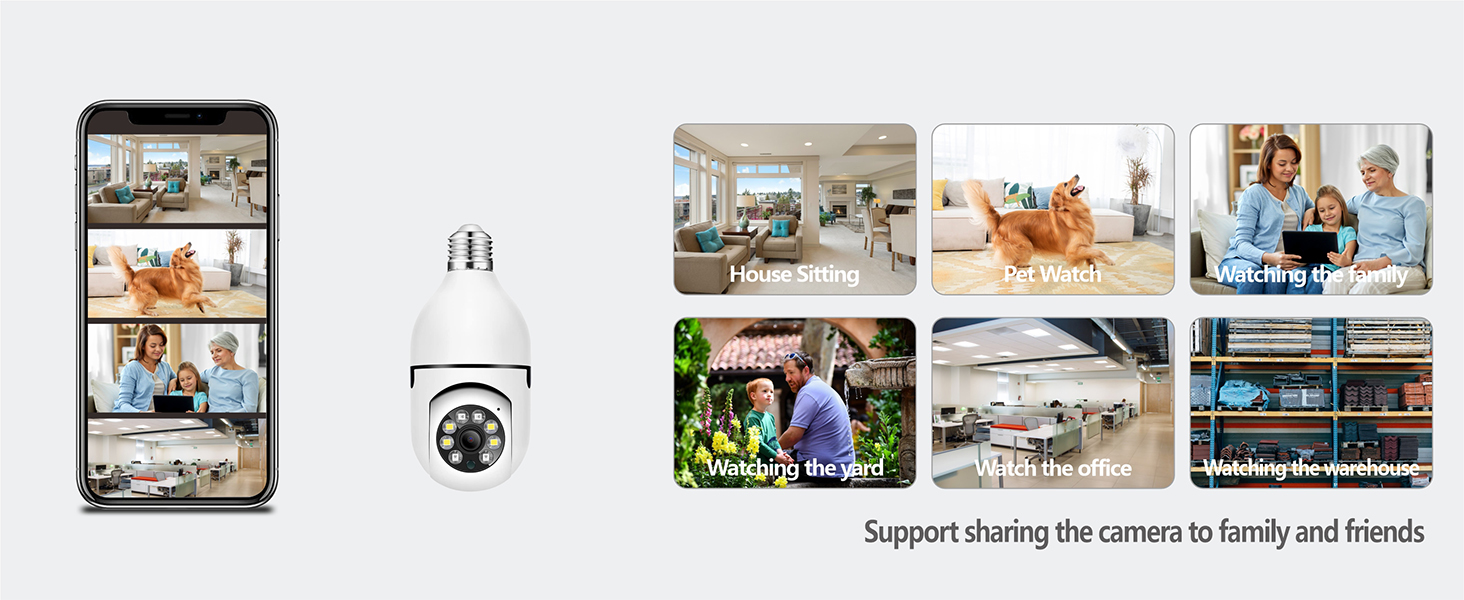
Figure 3.1: Detailed diagram illustrating the components of the Light Bulb Camera, including the E27 screw bulb connector, infrared sensors, camera lens, microphone, sound sensor, built-in WiFi antenna, speaker, reset hole, and SD card slot.
- E27 Screw Bulb Connector: Standard base for installation into a light bulb socket.
- Camera Lens: Captures video footage.
- Infrared Sensors: For night vision capabilities.
- Microphone: Captures audio for two-way communication and sound detection.
- Sound Sensor: Detects audio events.
- Speaker: For two-way audio communication.
- Antenna (Built-in): For Wi-Fi connectivity.
- Reset Hole: Used to reset the device to factory settings.
- SD Card Slot: For local storage of recordings (supports up to 128GB TF card).
4. Setup Guide
4.1 Installation
- Power Off: Ensure the power to the light bulb socket is turned off at the switch or circuit breaker before installation.
- Screw In: Carefully screw the OwLUCK Light Bulb Security Camera into a standard E27 light bulb socket. Ensure it is securely fastened.
- Power On: Turn on the power to the light bulb socket. The camera will power on and initiate its startup sequence.

Figure 4.1: Visual guide demonstrating the simple screw-in installation process of the OwLUCK Light Bulb Security Camera into a standard light fixture.
4.2 App Download and Account Creation
Download the official OwLUCK app from your smartphone's app store (available for Android and iOS). Follow the on-screen instructions to create a new account or log in if you already have one.
4.3 Connecting to Wi-Fi
- Open the OwLUCK app and tap "Add Device" or the "+" icon.
- Select "Light Bulb Camera" or the appropriate device type.
- Follow the in-app instructions to connect the camera to your Wi-Fi network. The camera supports 2.4GHz and 5GHz dual-band Wi-Fi.
- Ensure your phone is connected to the same Wi-Fi network you intend to connect the camera to.
- The camera will indicate successful connection, and you will see its live feed in the app.
5. Operation
5.1 Live View and Pan/Tilt/Zoom (PTZ) Control
Once connected, tap on the camera in the app to access the live view. You can remotely control the camera's pan (360° horizontal rotation) and tilt (95° vertical rotation) directly from the app to view different angles of your space. The camera also features optical zoom.
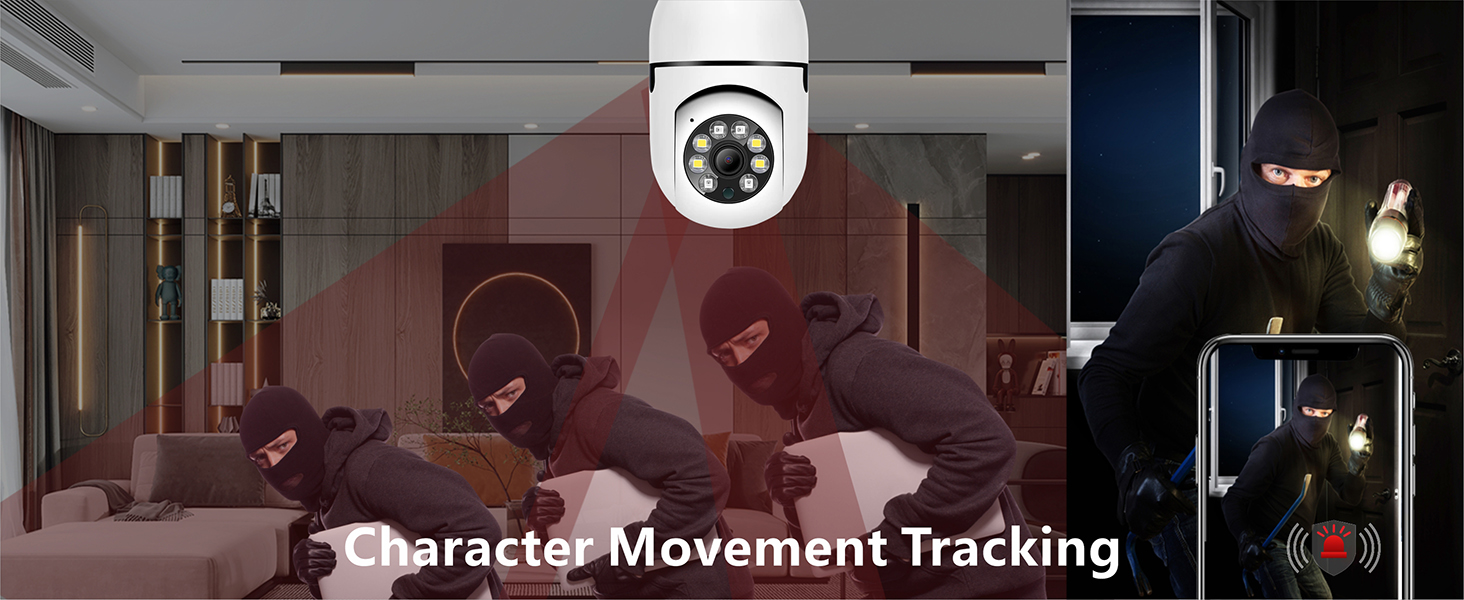
Figure 5.1: Illustration of the camera's 360-degree panoramic rotation and 95-degree vertical tilt capabilities, providing comprehensive area coverage.
5.2 Motion Tracking and Intelligent Alarm
The camera is equipped with advanced motion detection and character movement tracking. When motion is detected, the camera can automatically track the moving object and send instant alerts to your smartphone. You can customize alert sensitivity and notification settings within the app.

Figure 5.2: Depiction of the camera's character movement tracking feature, highlighting its ability to follow detected motion within its field of view.
5.3 Two-Way Intercom
Utilize the built-in microphone and speaker for two-way audio communication. This allows you to speak to individuals on the camera's end and hear their responses directly through your smartphone app.
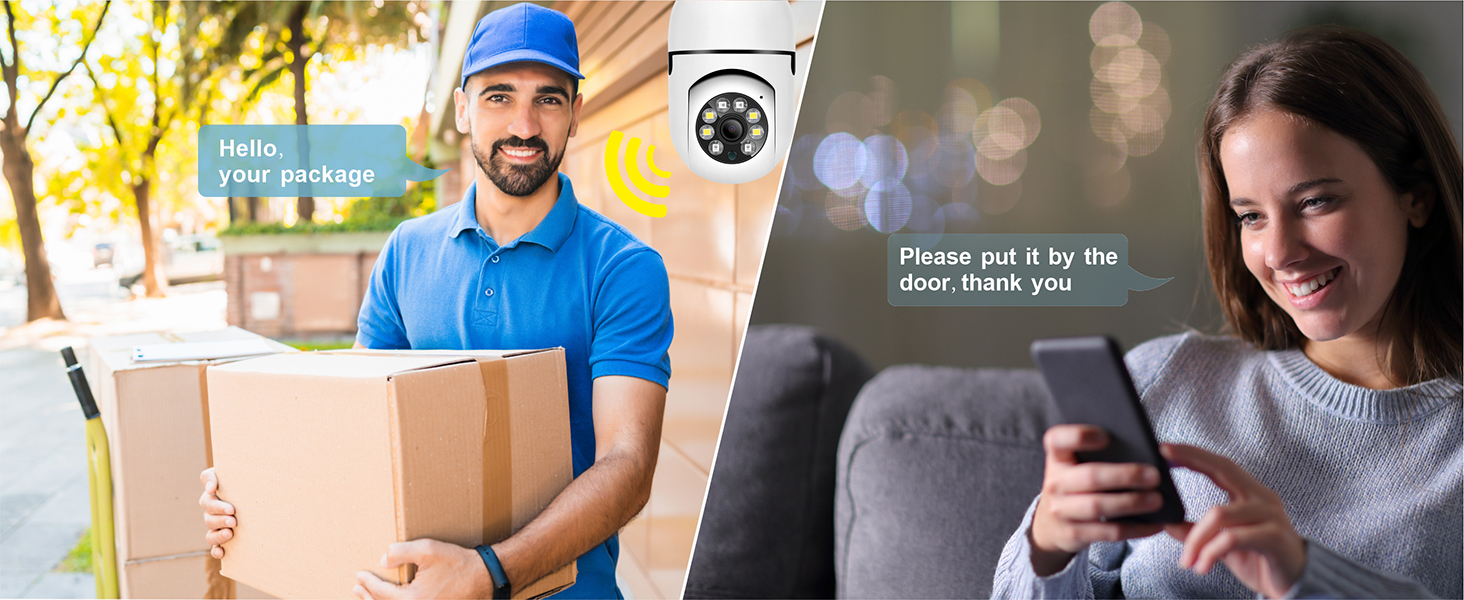
Figure 5.3: Illustration of the two-way intercom functionality, showing a user communicating with a delivery person through the camera.
5.4 Night Vision Modes
The camera offers both infrared (black and white) and full-color night vision modes, ensuring clear visibility even in low-light or no-light conditions. The camera automatically switches between modes based on ambient light, or you can manually select your preferred mode in the app.

Figure 5.4: Comparison demonstrating the camera's infrared night vision (monochrome) and full-color night vision capabilities in low-light environments.
5.5 Recording and Playback
The camera records video in MPEG-4 format with 3MP resolution, offering HD playback. Recordings can be triggered by motion detection or set for continuous recording. Access recorded footage through the app's playback feature.
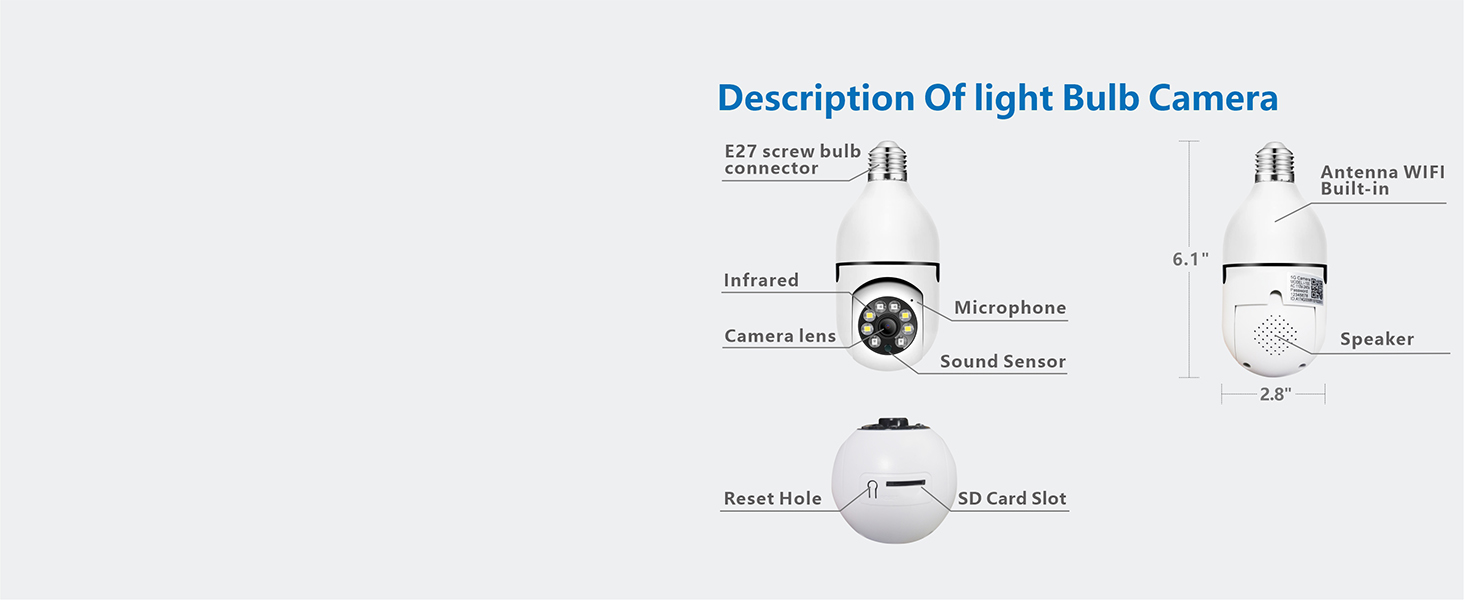
Figure 5.5: Visual comparison illustrating the difference between 720P and 1080P HD video quality, highlighting the superior clarity of 1080P.
5.6 Storage Options
Your camera supports two primary storage methods:
- Local Storage: Insert a TF (microSD) card (up to 128GB, not included) into the designated slot. Ensure the chip faces the lens when inserting.
- Cloud Storage: Optional cloud storage services are available for secure, off-site backup of your recordings. Refer to the app for subscription details.
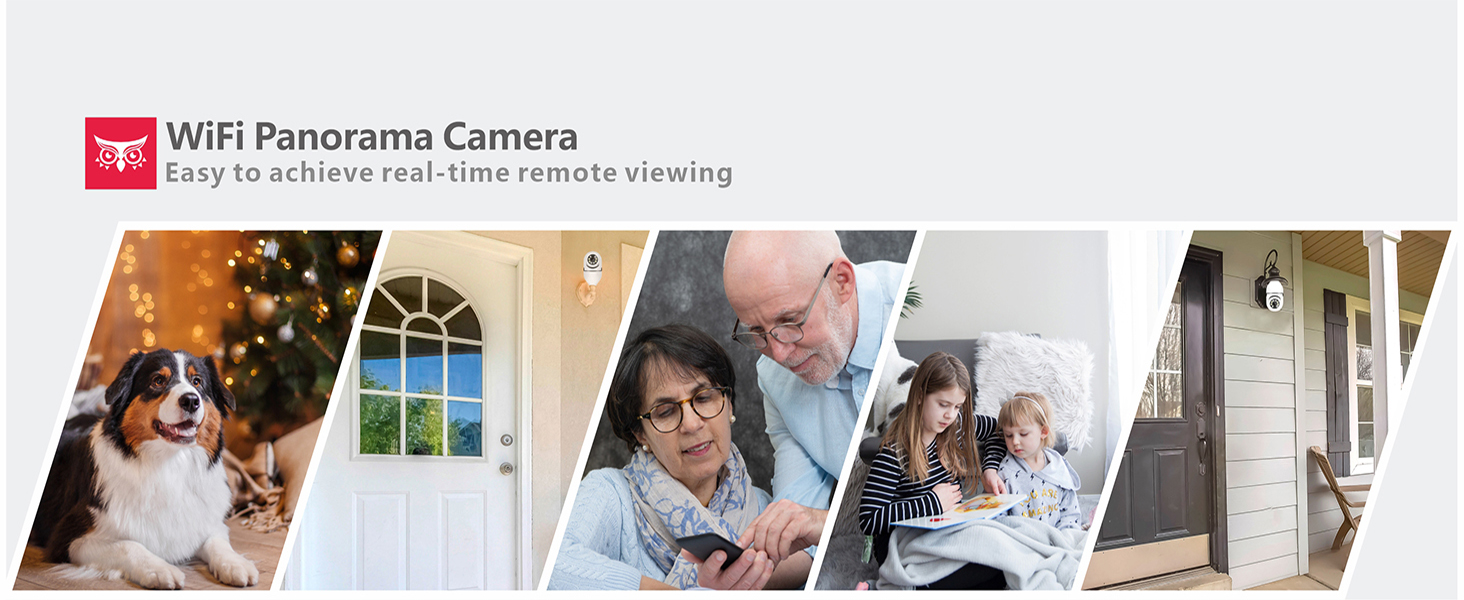
Figure 5.6: Diagram illustrating the camera's diversified storage solutions, including local storage via a Max 128GB TF Card (not included) and optional Cloud Storage.
5.7 Sharing Camera Access
You can share access to your camera's live feed and recordings with family and friends through the OwLUCK app. This feature allows multiple users to monitor the same location simultaneously.
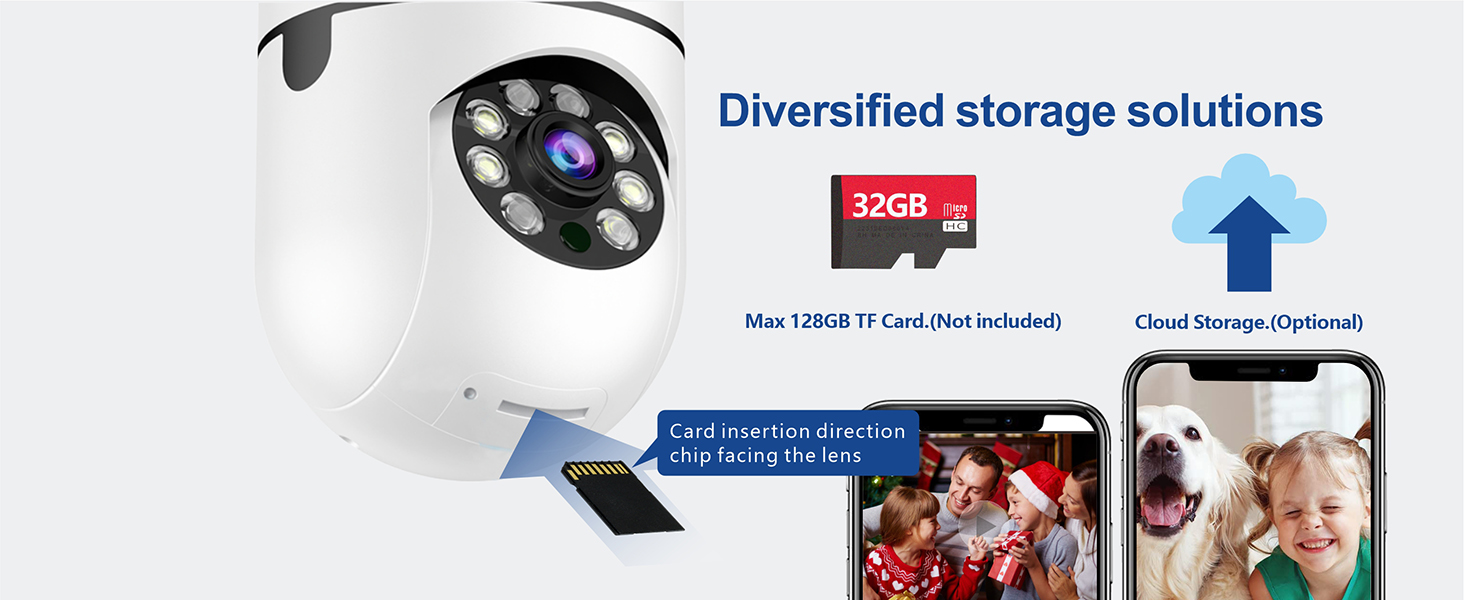
Figure 5.7: Visual representation of the camera's sharing capability, allowing multiple users to view the feed for various applications like house sitting, pet watch, or office monitoring.
6. Maintenance
- Cleaning: Gently wipe the camera lens and body with a soft, dry cloth. Do not use harsh chemicals or abrasive cleaners.
- Firmware Updates: Regularly check the OwLUCK app for available firmware updates. Keeping your camera's firmware up-to-date ensures optimal performance and security.
- Power Cycle: If the camera becomes unresponsive, try turning off the power to the socket for a few seconds and then turning it back on.
7. Troubleshooting
| Problem | Possible Cause | Solution |
|---|---|---|
| Camera not powering on. | No power to the socket; camera not screwed in properly. | Ensure the light switch is on. Check if the camera is securely screwed into the E27 socket. Test the socket with a regular bulb. |
| Unable to connect to Wi-Fi. | Incorrect Wi-Fi password; camera too far from router; network congestion; incorrect Wi-Fi band. | Double-check Wi-Fi password. Move camera closer to the router. Restart your router. Ensure your router supports 2.4GHz or 5GHz and you are connecting to the correct band. Try resetting the camera. |
| Poor video quality. | Weak Wi-Fi signal; dirty lens; insufficient lighting. | Improve Wi-Fi signal strength (e.g., use a Wi-Fi extender). Clean the camera lens. Ensure adequate lighting for optimal image quality, or verify night vision is active. |
| Motion alerts not received. | App notifications disabled; motion detection sensitivity too low; network issues. | Check app notification settings and phone's system notification settings. Adjust motion detection sensitivity in the app. Ensure stable internet connection. |
| SD card not recording. | SD card full or corrupted; incorrect insertion; card not supported. | Format the SD card in the app. Reinsert the SD card correctly. Ensure it is a compatible TF card (up to 128GB). Replace the card if corrupted. |
8. Specifications
| Feature | Detail |
|---|---|
| Model | zz4-owluck-4Cardless Camera |
| Brand | OwLUCK |
| Connectivity Technology | Wireless (Wi-Fi) |
| Wireless Communication Technology | Wi-Fi (Dual-band 2.4GHz/5GHz) |
| Power Source | Corded Electric (E27 Socket) |
| Video Capture Resolution | 3 MP (1080P HD) |
| Video Capture Format | MPEG-4 |
| Mounting Type | Wall Mount (via E27 socket) |
| Controller Type | Android (and iOS via app) |
| Compatible Devices | Smartphone |
| Focus Type | Manual Focus |
| Zoom Type | Optical Zoom |
| Low Light Technology | Night Color, Infrared |
| Light Source Type | Infrared |
| Alert Type | Motion Only |
| International Protection Rating | IP54, IP67 |
| Storage | Max 128GB TF Card (not included), Cloud Storage (optional) |
| Dimensions (approx.) | 6.1" (Height) x 2.8" (Diameter) |
| UPC | 738086250445 |
9. Warranty and Support
OwLUCK products are designed for reliability and performance. For warranty information, technical support, or any inquiries regarding your Light Bulb Security Camera, please refer to the contact information provided on the product packaging or visit the official OwLUCK website. Our customer service team is available to assist you with any questions or issues you may encounter.
For the most up-to-date support resources, including FAQs and troubleshooting guides, please visit: www.owluck.com/support (Note: This is a placeholder URL, please refer to actual product documentation for correct support contact details).


