CAMECHO Car Stereo Receiver User Manual
Model: 2+64G CarPlay & Android Auto Car Stereo Receiver
1. Product Overview
The CAMECHO 2+64G CarPlay & Android Auto Car Stereo Receiver is an advanced in-dash navigation system designed to upgrade your vehicle's infotainment experience. Featuring the latest Android 13 system, it provides seamless integration with your smartphone, superior audio quality, and comprehensive navigation capabilities.

Figure 1.1: CAMECHO Car Stereo Receiver installed in a compatible vehicle dashboard.
Key Features:
- Android 13 System: Enjoy a fast and responsive user experience with 2GB RAM and 64GB ROM.
- Wireless CarPlay & Android Auto: Seamless smartphone integration for navigation, calls, and music.
- GPS Navigation: Built-in offline maps for North America and support for online navigation via WiFi.
- HiFi & EQ Settings: Customize your audio with a 15-band graphic equalizer and subwoofer output.
- Bluetooth Connectivity: Hands-free calling and music streaming.
- FM/RDS Radio: Listen to real-time traffic, news, and weather broadcasts.
- 2.5D 1080P Touchscreen: High-temperature and scratch-resistant display.
- Split Screen Functionality: Run two applications simultaneously.
2. Setup and Installation
This section provides general guidance for installing your CAMECHO car stereo. Professional installation is recommended.
2.1 Package Contents
Before beginning installation, verify all components are present:
- Car Multimedia Player
- Power Cable
- GPS Antenna
- Rear Camera Input Cable
- RCA Cable
- 2 USB Cables
- 2 Mounting Brackets
- 4 Screws
- Instruction Manual

Figure 2.1: Product dimensions and included accessories.
2.2 Installation Steps (General)
- Carefully remove the original car stereo and dashboard trim.
- Connect the provided power cable and other necessary cables (GPS antenna, USB, RCA, rear camera input) to the new CAMECHO unit. Refer to the wiring diagram for specific connections.
- Secure the new unit into the dashboard using the mounting brackets and screws.
- Reinstall the dashboard trim.
- Power on the vehicle and test the stereo's functions.

Figure 2.2: Visual comparison of the dashboard before and after installation.
2.3 Wiring Diagram
The following diagram illustrates the main connections for the CAMECHO car stereo. Ensure correct polarity and secure connections.

Figure 2.3: Main wiring connections and button descriptions.
3. Operating Instructions
Familiarize yourself with the various functions and settings of your new car stereo.
3.1 CarPlay & Android Auto
Connect your iPhone wirelessly for CarPlay or your Android phone via USB for Android Auto to access navigation, music, and communication features directly on the stereo screen.

Figure 3.1: Wireless CarPlay and Android Auto interface.
3.2 Bluetooth Connectivity
Pair your mobile phone via Bluetooth for hands-free calling and audio streaming.
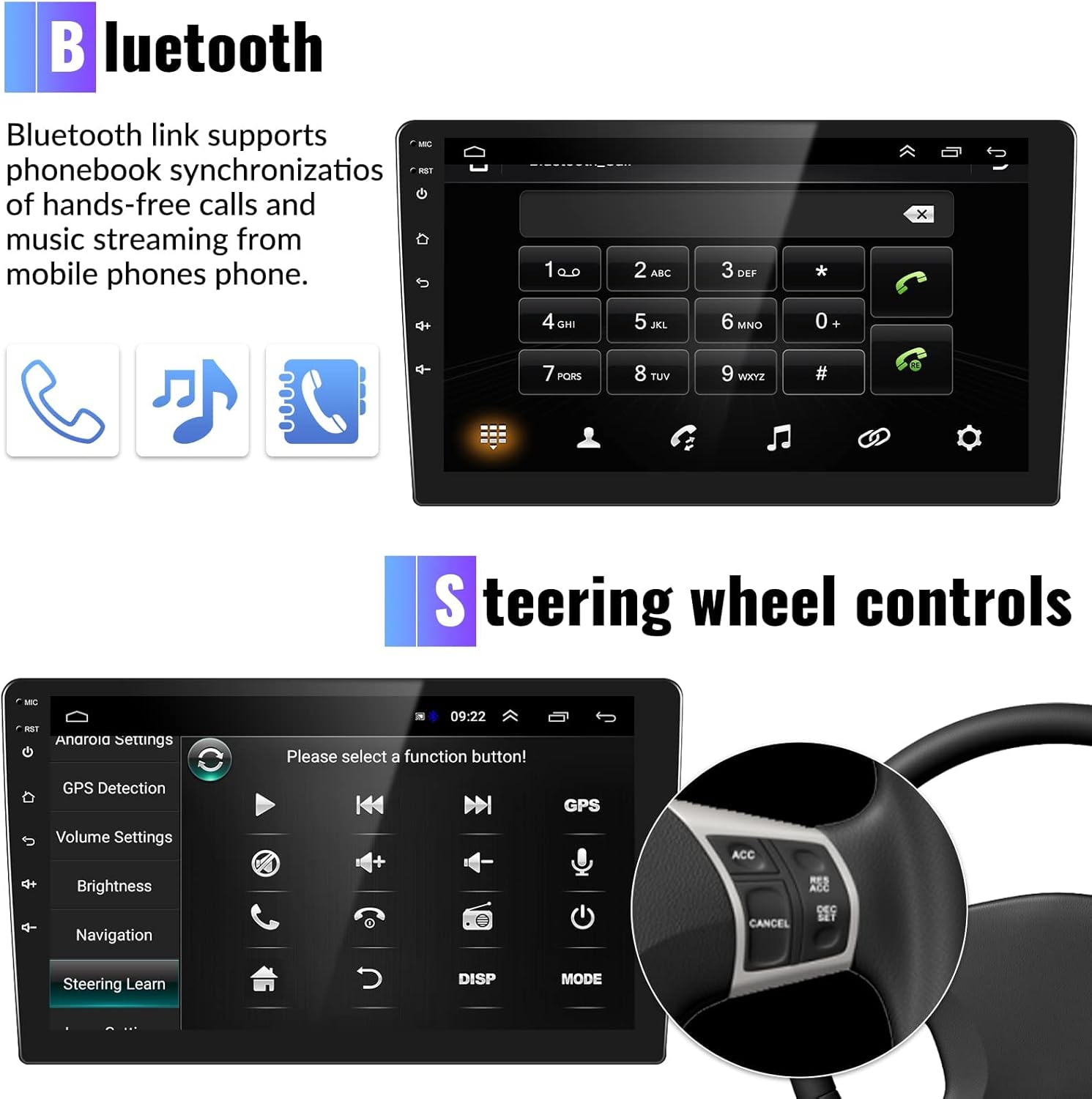
Figure 3.2: Bluetooth interface for calls and music.
3.3 GPS Navigation & WiFi
Utilize the built-in GPS for navigation. Connect to WiFi to download online maps, stream content, and access various applications.

Figure 3.3: GPS Navigation and WiFi connectivity.
3.4 HiFi Playback & FM/RDS Radio
Experience high-fidelity audio with adjustable EQ settings. Tune into FM/RDS radio for local broadcasts.

Figure 3.4: HiFi audio settings and FM/RDS radio.
3.5 Steering Wheel Controls
Configure your steering wheel controls to manage media playback, volume, and other functions directly from your steering wheel.
Figure 3.5: Steering wheel control configuration.
3.6 Split Screen Function
The split screen feature allows you to run two applications simultaneously, such as navigation and music playback.

Figure 3.6: Split screen functionality.
3.7 Reversing Assist
The unit supports a reversing camera input for enhanced safety during parking. The camera provides a wide-angle view, eliminating blind spots.

Figure 3.7: Reversing assist camera view.

Figure 3.8: Reversing camera wiring diagram.
3.8 Functional Overview Video
Watch this video for a comprehensive overview of the car stereo's multi-functional capabilities and user interface.
Video 3.1: Multi-functional and Outlook of the CAMECHO Car Stereo. This video demonstrates various features including Wi-Fi connection, music playback, equalizer settings, radio tuning, Bluetooth pairing, file management, video playback, and accessing different applications and settings.
4. Maintenance
To ensure the longevity and optimal performance of your CAMECHO car stereo, follow these maintenance guidelines:
- Cleaning: Use a soft, dry cloth to clean the screen and exterior. Avoid abrasive cleaners or solvents.
- Temperature: Do not expose the unit to extreme temperatures.
- Moisture: Keep the unit dry. Avoid contact with liquids.
- Software Updates: Periodically check for and install software updates to improve performance and add new features.
5. Troubleshooting
This section addresses common issues you might encounter with your CAMECHO car stereo.
Common Issues & Solutions:
- Unit does not power on: Check power cable connections and vehicle's fuse box. Ensure the car's wiring is correctly connected to the unit.
- No sound: Verify volume settings, speaker connections, and EQ settings. Check if the unit is muted.
- Bluetooth connection issues: Ensure Bluetooth is enabled on both the stereo and your phone. Delete previous pairings and try reconnecting. Restarting the Bluetooth power on the stereo might help.
- GPS not working or inaccurate: Ensure the GPS antenna is properly installed and has a clear view of the sky. Check GPS detection in settings. For offline maps, ensure they are downloaded.
- Steering wheel controls not responding: Access the 'Steering Learn' menu in settings and follow the on-screen instructions to program the controls.
- Backup camera display issues: In 'Factory Settings', select the correct encoding format (e.g., NTSC/PAL) for your camera.
- Apps crashing or slow performance: Ensure sufficient storage space. Close unused applications. Consider a factory reset if issues persist (back up important data first).
- Wi-Fi connection unstable: Ensure your phone's hotspot is active and visible. Check Wi-Fi settings on the stereo and ensure the correct password is entered.
6. Specifications
| Feature | Specification |
|---|---|
| Model Name | 2+64G CarPlay & Android Auto Car Stereo Receiver |
| Operating System | Android 13 |
| Memory (RAM) | 2GB |
| Storage (ROM) | 64GB |
| Display Size | 9 Inches |
| Screen Type | 2.5D 1080P Touchscreen |
| Connectivity | Bluetooth, Wi-Fi, USB |
| Audio Output Mode | Stereo |
| Map Type | North America (Built-in offline) |
| Item Weight | 3.03 pounds |
| Package Dimensions | 14.33 x 12.36 x 4.61 inches |
| Manufacturer | CAMECHO |
7. Warranty & Support
For technical assistance, troubleshooting, or warranty inquiries, please contact CAMECHO customer support.

Figure 7.1: CAMECHO Customer Support.
You can reach our support team via email at: camechovip@126.com
Please provide your product model and a detailed description of the issue when contacting support to ensure a prompt resolution.