
Product Overview
The MIUCDA Wireless Foldable Bluetooth Keyboard with Touchpad is designed for portability and multi-device compatibility. It features a full-size keyboard layout with a large touchpad, scissor-key switches for comfortable typing, and the ability to connect to up to three devices simultaneously across various operating systems.

Image: The MIUCDA foldable Bluetooth keyboard shown fully unfolded, revealing the full QWERTY layout and the integrated touchpad on the right side.
Package Contents
- MIUCDA Wireless Foldable Bluetooth Keyboard with Touchpad
- USB Charging Cable (Type-C)
- User Manual

Image: The keyboard in its folded state, highlighting the durable and stylish leather cover that protects it during transport.
Setup
1. Charging the Keyboard
The keyboard features a built-in 210mAh rechargeable lithium battery. Before first use, or when the battery is low, connect the provided USB Type-C cable to the charging port on the keyboard and to a USB power source. The LED indicator will show charging status.

Image: A detailed view of the keyboard's side, illustrating the Type-C micro charging port and the LED indicators for power and connection status.
2. Powering On/Off
Locate the power switch on the side of the keyboard. Slide it to the "ON" position to power on the device. Slide it to "OFF" to power off. The keyboard will automatically enter a smart sleep state after 10 minutes of inactivity to conserve power.
3. Bluetooth Pairing
The keyboard can connect to up to three Bluetooth devices. Follow these steps to pair your device:
- Ensure the keyboard is powered on.
- Press and hold the Fn key and one of the channel keys (A, S, or D) for 3 seconds. The indicator light for the selected channel will quickly flash, indicating it's in Bluetooth pairing mode.
- On your device (tablet, phone, laptop), go to Bluetooth settings and search for available devices.
- Select "Bluetooth Keyboard" (or similar name) from the list.
- If prompted, enter the pairing code displayed on your device using the keyboard and press Enter.
- Once paired, the indicator light will stop flashing and remain solid for a few seconds before turning off.

Image: Instructions for easy pairing, showing the combination of the Fn key and a channel key (e.g., Tab) to activate Bluetooth pairing mode.
Operating Instructions
1. Multi-Device Switching
To switch between paired devices, simply press the Fn key along with the corresponding channel key (A, S, or D) for the desired device. The keyboard will quickly connect to the selected device.

Image: The keyboard demonstrating its 3-channel Bluetooth connection, simultaneously linked to a smartphone, tablet, and laptop, with highlighted channel keys.
2. Keyboard Layout and Keys
The keyboard features a 64-key standard layout with comfortable scissor-key switches, providing a quiet and responsive typing experience. Function keys (F1-F12) are accessible via the Fn key combination.

Image: A close-up showing the comfortable scissor switch keycap design, which provides a quiet and tactile typing experience.
3. Touchpad Functionality
The integrated large-size touchpad offers a laptop-like user experience. It supports standard mouse functions, including left and right clicks, and multi-touch gestures (depending on the connected device's operating system).
- Left Click: Press the left button on the touchpad.
- Right Click: Press the right button on the touchpad.
- Scrolling: Use two fingers to scroll on the touchpad (functionality may vary by OS).
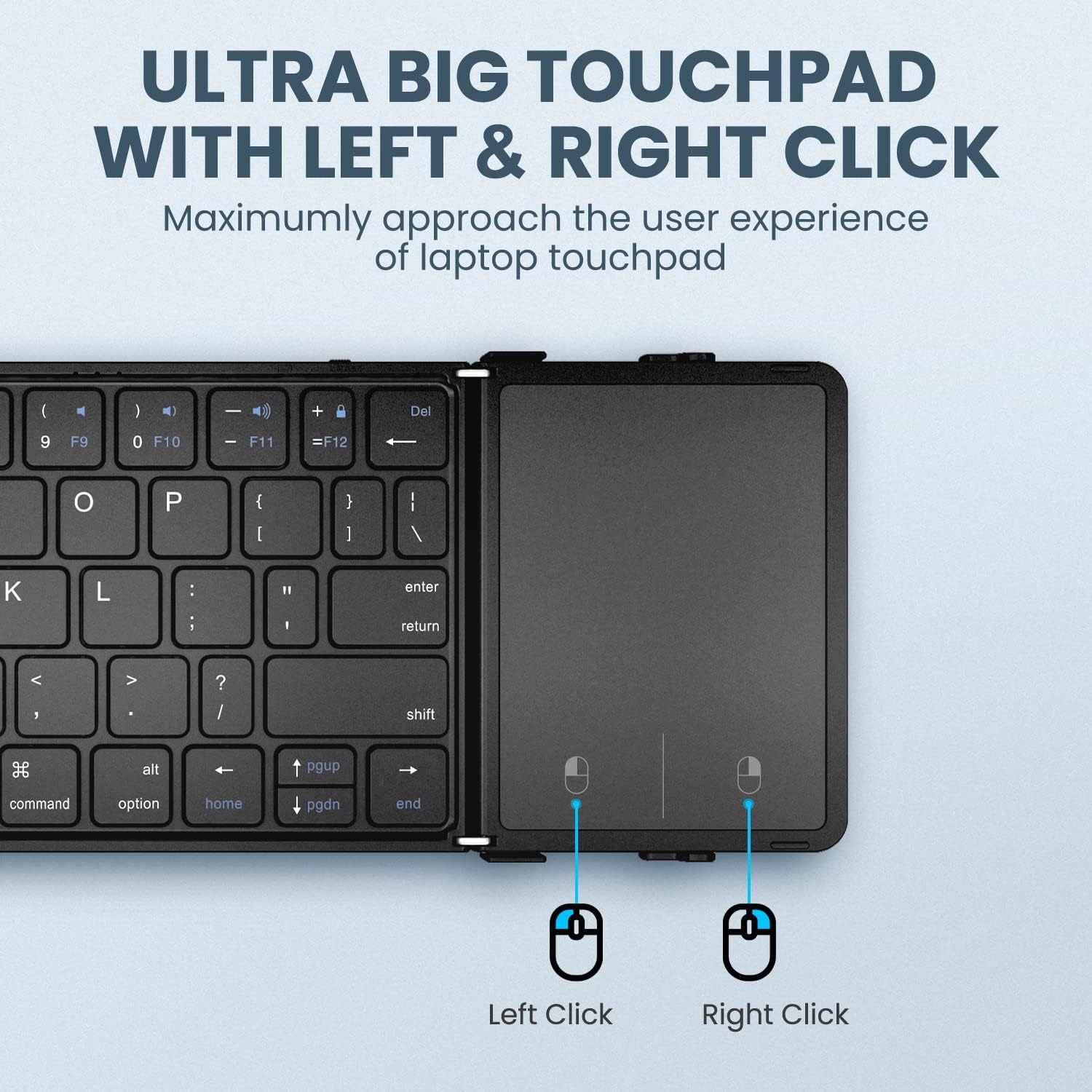
Image: A detailed view of the ultra-big touchpad, clearly showing the dedicated left and right click buttons for enhanced navigation.
Maintenance
- Keep the keyboard clean by wiping it with a soft, dry cloth.
- Avoid exposing the keyboard to extreme temperatures, humidity, or direct sunlight.
- Do not disassemble the keyboard, as this will void the warranty.
- Charge the keyboard regularly to maintain battery health, even if not in frequent use.
Troubleshooting
- Keyboard not connecting: Ensure Bluetooth is enabled on your device and the keyboard is in pairing mode. Try restarting both the keyboard and your device.
- Keys not responding: Check if the keyboard is charged. Ensure it is properly paired to the correct channel.
- Touchpad not working: Verify the keyboard is connected. Some operating systems may require specific settings for touchpad functionality.
- Intermittent connection: Move the keyboard closer to your device to ensure it's within the 10-meter wireless transmission range. Avoid interference from other wireless devices.
Specifications
| Feature | Detail |
|---|---|
| Brand | MIUCDA |
| Model Number | 103a9753-2fcb-47e3-a87c-7cd46ec34666 |
| Connectivity Technology | Bluetooth 5.1 |
| Compatible Devices | iOS, Windows, Android, Mac (Tablet, Phone, Laptop) |
| Keyboard Description | Wireless, Foldable, Scissor-key |
| Special Feature | Lightweight, Touchpad, Multi-device connection |
| Battery Capacity | 210mAh Lithium Battery |
| Product Dimensions (Unfolded) | 13.62"L x 4.18"W x 0.35"H (346.86mm x 106.09mm x 8.89mm) |
| Product Dimensions (Folded) | Approx. 4.18"L x 7.36"W x 0.7"H (106.09mm x 187mm x 17.8mm) |
| Item Weight | 10.8 ounces (306g) |

Image: Visual representation of the keyboard's dimensions in both its compact, folded state and its full, unfolded operational state.
Warranty and Support
For warranty information or technical support, please refer to the contact details provided with your purchase documentation or visit the official MIUCDA website. Keep your proof of purchase for any warranty claims.

