
HP P24 G5
HP P24 G5 23.8" Full HD Edge LED LCD Monitor User Manual
Model: P24 G5 | Brand: HP
1. Product Overview
The HP P24 G5 is a 23.8-inch Full HD Edge LED LCD Monitor designed to enhance productivity for both home and office environments. It features a crisp, smooth display and a simple, functional design.

Image: Front view of the HP P24 G5 monitor, showcasing its display and stand.
This IPS monitor provides excellent front-of-screen views with FHD resolution and a 75Hz refresh rate, ensuring sharp images and fluid motion for various applications.
Its modern design includes a sleek 3-sided micro-edge bezel, efficient cable management, and a slim stand with adjustable tilt, allowing for an optimized viewing experience in any workspace.
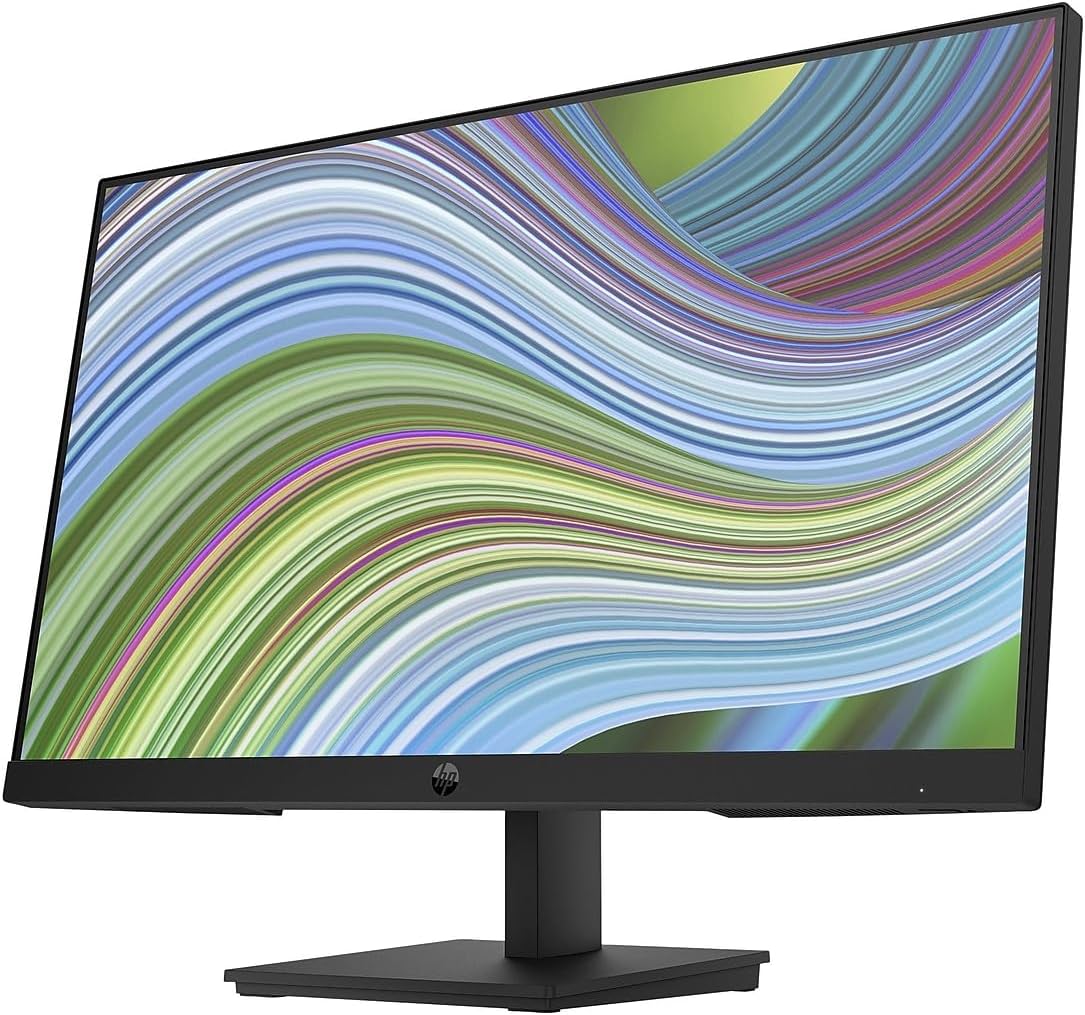
Image: Angled view of the HP P24 G5 monitor, highlighting its thin bezels and overall aesthetic.
User settings can be easily customized using the intuitive Joypad OSD button, and advanced management is available through HP Display Center and HP Display Manager software.
Committed to environmental responsibility, the HP P24 G5 monitor incorporates 85% recycled plastics from recycled IT equipment and ships in 100% recyclable packaging.
Key Features:
- Reliable LCD Monitor for convenient usage.
- 23.8" viewable screen size for a lively viewing experience.
- 5 ms GTG (OD) response time, suitable for fast-paced content.
- 250 Nit brightness levels for captivating visuals.
- 1920x1080 resolution (Full HD) for native display without degradation.
- Edge LED backlighting technology for a bright and sharp display.
- 75 Hz standard refresh rate to reduce blur.
- 16:9 widescreen resolution, ideal for multimedia and office work.
- DisplayPort interface for efficient and reliable connectivity.
2. What's in the Box
Upon unpacking your HP P24 G5 monitor, please verify that all the following components are included:
- HP P24 G5 FHD Monitor
- HDMI cable
- Warranty card
- Quick Setup Poster
- Doc-kit (documentation kit)
- AC power cord
3. Setup Instructions
Follow these steps to set up your HP P24 G5 monitor:
- Unpack the Monitor: Carefully remove the monitor and all components from the packaging. Place the monitor face down on a soft, clean surface to prevent scratches.
- Assemble the Stand:
- Attach the stand neck to the base, ensuring it clicks securely into place or is fastened with the provided screw.
- Attach the assembled stand to the back of the monitor. Align the stand with the mounting slots and push until it locks. Refer to the "Quick Setup Poster" for detailed visual instructions.

Image: Rear view of the HP P24 G5 monitor, illustrating the stand attachment point and various input ports.
- Connect Cables:
- Power Cable: Connect the AC power cord to the monitor's power input and then to a wall outlet.
- Video Cable: Connect the included HDMI cable from your computer's video output port to the HDMI input port on the monitor. If your computer has a DisplayPort, you may use a DisplayPort cable (not included) for connection.
- Power On: Press the power button on the monitor. Power on your computer. The monitor should automatically detect the input signal.
- Adjust Tilt: Gently tilt the monitor screen to achieve your preferred viewing angle. The stand allows for easy tilt adjustments.
4. Operating the Monitor
Power On/Off
To turn the monitor on or off, press the power button located on the bottom right side of the monitor's bezel.
Using the On-Screen Display (OSD) Menu
The monitor features an intuitive Joypad OSD button for navigating and adjusting settings. This button is typically located on the back or bottom edge of the monitor.
- Accessing the OSD: Press the Joypad button to bring up the OSD menu.
- Navigation: Use the Joypad button to move through menu options (up, down, left, right) and to select items.
- Common Settings:
- Brightness/Contrast: Adjust these settings to optimize visual comfort.
- Input Source: Manually select between HDMI or DisplayPort inputs if the monitor does not auto-detect.
- Color Settings: Fine-tune color temperature, gamma, and other color parameters.
- Image Adjustment: Options for sharpness, aspect ratio, and overscan.
- Menu Language: Change the language of the OSD menu.
- Exiting the OSD: Navigate to the "Exit" option or press the Joypad button in a specific direction (often left or back) to close the menu.
HP Display Center and HP Display Manager
For more advanced settings and updates, you can manage your monitor directly from your computer using HP Display Center and HP Display Manager software. These applications provide a user-friendly interface for controlling monitor settings without using the OSD button.

Image: Angled front view of the HP P24 G5 monitor, illustrating its display and the slim profile from a side angle.
5. Maintenance and Care
Proper maintenance ensures the longevity and optimal performance of your HP P24 G5 monitor.
Cleaning the Monitor
- Screen:
- Always turn off the monitor and unplug the power cord before cleaning.
- Use a soft, lint-free cloth lightly dampened with water or a non-abrasive screen cleaner.
- Wipe the screen gently to remove dust and smudges. Avoid applying pressure.
- Do not use alcohol, ammonia, or abrasive cleaners, as they can damage the screen surface.
- Casing:
- Use a soft, dry cloth to wipe the monitor casing.
- For stubborn marks, a lightly dampened cloth with mild soap solution can be used, followed by a dry cloth.
General Care
- Avoid placing the monitor in direct sunlight or near heat sources.
- Ensure adequate ventilation around the monitor.
- Do not block ventilation openings.
- Protect the monitor from excessive dust and moisture.
- Handle the monitor with care, especially when moving it.
6. Troubleshooting
This section provides solutions to common issues you might encounter with your HP P24 G5 monitor.
| Problem | Possible Cause | Solution |
|---|---|---|
| No image on screen |
|
|
| Image is blurry or distorted |
|
|
| Monitor flickers |
|
|
| OSD menu does not appear |
|
|
7. Technical Specifications
| Feature | Detail |
|---|---|
| Brand | HP |
| Model Number | P24 G5 |
| Screen Size | 23.8 Inches |
| Screen Resolution | 1920x1080 (Full HD) |
| Max Screen Resolution | 1920 x 1080 Pixels |
| Aspect Ratio | 16:9 |
| Refresh Rate | 75 Hz |
| Response Time | 5 ms GTG (OD) |
| Brightness | 250 Nit |
| Display Technology | Edge LED LCD, IPS |
| Color | Black |
| Item Weight | 11.33 pounds |
| Product Dimensions (LxWxH) | 2 x 21.2 x 12.7 inches |
| Connectivity | HDMI, DisplayPort |
| Manufacturer | HP INC. - SB DESKTOP DISPLAYS |
| First Available Date | September 21, 2022 |
8. Warranty Information
Your HP P24 G5 monitor comes with a manufacturer's warranty. Please refer to the Warranty Card included in your product packaging for detailed information regarding the terms, conditions, and duration of the warranty.
The warranty typically covers defects in materials and workmanship under normal use. Keep your proof of purchase for warranty claims.
9. Customer Support
For technical assistance, troubleshooting beyond this manual, or warranty service, please contact HP Customer Support.
You can find support resources, drivers, and contact information on the official HP website:
When contacting support, please have your monitor's model number (P24 G5) and serial number ready. The serial number is usually located on a label on the back of the monitor.
Ask a question about this manual
Ask about setup, troubleshooting, compatibility, parts, safety, or missing instructions. Manuals+ will review the question and use this page’s manual context to help answer it.