
Introduction
This manual provides detailed instructions for the setup, operation, and maintenance of your Iaret Smart Watch. Please read this manual thoroughly to ensure proper use and to fully utilize all features of your device. This smart watch is designed to integrate seamlessly with your daily life, offering communication, health monitoring, and fitness tracking functionalities.

This image displays the Iaret Smart Watch, highlighting its sleek design with a metal mesh band and a customizable digital watch face. A secondary view shows the watch with a silicone band, illustrating its call dialing feature.
Package Contents
Verify that all items listed below are included in your package:
- 1 Smart Watch Body
- 1 Black Stainless Steel Band
- 1 Black Silicone Band
- 1 Smart Watch Charger
- 1 User Manual
Getting Started
1. Charging the Device
Before first use, fully charge your smart watch. Connect the provided charger to the watch's charging port and a USB power source. A full charge typically takes approximately 2.5 hours. A fully charged watch can provide 3-7 days of normal use, depending on individual usage patterns.

Detailed product specifications are presented, including the watch's physical dimensions, wristband length, charging time, typical battery life, and battery capacity.
2. App Installation
To access all features and synchronize data, download the Da Fit app on your smartphone.
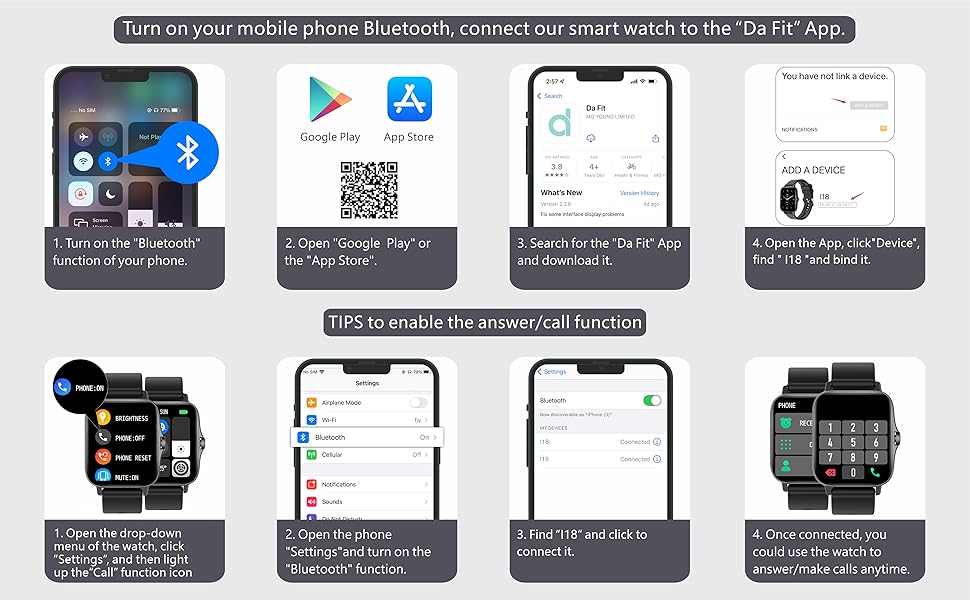
- Turn on the Bluetooth function on your mobile phone.
- Open the Google Play Store (for Android) or the App Store (for iOS).
- Search for "Da Fit" and download the application. Alternatively, scan the QR code provided in the watch's packaging or visit http://plus.crrepa.com/app-download/dafit.
3. Device Pairing
After installing the app, follow these steps to pair your watch:
- Open the Da Fit app on your smartphone.
- Navigate to the "Device" section and tap "Add a Device".
- The app will scan for available devices. Select "Iaret Smart Watch" or the device name displayed (e.g., "F18") to bind it.

This image provides a visual guide for the initial setup process, detailing how to turn on your phone's Bluetooth, download the 'Da Fit' app, search for the device, and bind it to your watch.
4. Enabling Bluetooth Call Function
To use the call answering and dialing feature directly from your watch, a second Bluetooth connection is required:
- On your smart watch, swipe down from the main screen to access the quick settings. Tap the "Settings" icon, then locate and tap the "Call" function icon to enable it.
- On your smartphone, go to your phone's Bluetooth settings.
- Search for and connect to the device named "F18" (or similar audio Bluetooth name) in your phone's Bluetooth device list.
- Once connected, you can use your watch to answer and make calls.

A visual walkthrough demonstrating how to activate the call answering and dialing feature on your smart watch by adjusting settings and ensuring proper Bluetooth connection.
Basic Operation
1. Navigating the Interface
- Swipe Down: Access quick settings (brightness, DND, battery saver, etc.).
- Swipe Up: View notifications.
- Swipe Left/Right: Cycle through main function screens (e.g., activity data, heart rate, weather).
- Tap: Select an icon or option.
- Press Side Button: Return to the main watch face or power on/off.
2. Customizing Watch Faces
The watch offers over 100 free watch faces. You can also create a custom watch face using your own photos via the Da Fit app.
- On Watch: Long-press the main watch face to quickly switch between pre-loaded options.
- Via App: Open the Da Fit app, go to the "Device" section, and select "Watch Faces" to browse and apply new designs or create a custom one.

This visual highlights the extensive customization options for watch faces, including over 100 pre-designed options and the ability to personalize your watch face with any photo from your phone.
3. Switching Menu Styles
The watch supports two menu display styles:
- Hive Style: A grid-based icon layout.
- List Style: A scrollable list of functions.
To switch between styles, swipe down on the watch screen, tap the menu style icon (usually a grid or list icon), and select your preferred display.
This image illustrates the watch's ability to sync health data with popular fitness apps like Apple Health and Google Fit. It also showcases the two available menu styles: a grid-based 'Hive' view and a scrollable 'List' view.
Key Features
1. Call and Message Notifications
Once connected via Bluetooth, the smart watch allows you to answer and make calls directly from your wrist. It also displays notifications for incoming messages and social media alerts (e.g., Facebook, WhatsApp, Instagram, Twitter). Notifications are accompanied by vibration alerts.

This visual demonstrates the smart watch's capability to receive calls and display notifications from popular messaging and social media platforms, ensuring you stay connected.
2. Health Monitoring
The watch provides comprehensive health monitoring features. Note: These functions are for reference only and are not intended for medical use.
- Heart Rate Monitoring: Tracks your heart rate 24/7.
- Blood Pressure Monitoring: Provides blood pressure readings.
- Blood Oxygen (SpO2) Monitoring: Measures your blood oxygen levels.
- Sleep Monitoring: Automatically monitors your sleep status, providing analysis of deep sleep, light sleep, and awake times.
- Female Physiological Cycle: Tracks and predicts menstrual cycles (requires setup in the app).

An overview of the watch's comprehensive health monitoring functions, including real-time tracking of blood pressure, heart rate, blood oxygen levels, daily steps, and detailed sleep analysis.
3. Fitness Tracking
The watch functions as a precision fitness tracker, supporting 8 sports modes:
- Walking
- Running
- Cycling
- Skipping
- Badminton
- Basketball
- Football
- Swimming
It accurately tracks all-day activities such as steps, distance, calories burned, exercise time, and heart rate during workouts. A stopwatch tool is also available for timing activities.

This image illustrates the smart watch's fitness tracking capabilities, featuring 8 distinct sports modes to accurately record your workout data, such as steps, calories, and heart rate during activities.
4. Additional Functions
The smart watch includes various practical tools for daily convenience:
- Music Playback Control: Control music on your phone directly from the watch.
- Camera Remote Control: Use the watch as a remote shutter for your phone's camera.
- Weather Display: Get real-time weather updates.
- Alarm Clock: Set alarms with vibration alerts.
- Timer: A countdown timer function.
- Find Watch: Locate your watch if misplaced (via the app).
- Sedentary Reminder: Alerts you to move after periods of inactivity.
- Drink Reminder: Reminds you to stay hydrated.

The watch's HD full touch screen interface is shown, demonstrating access to a variety of practical functions such as music playback control, weather updates, alarms, and other useful tools.
Care and Maintenance
1. Water Resistance Guidelines
The Iaret Smart Watch has an IP67 water resistance rating. This means it is resistant to splashes and brief immersion in water. You do not need to remove it when washing your hands.
Important: The watch is not suitable for diving, showering with hot water, or use in saunas, as steam and high temperatures can compromise the water seal.
2. Cleaning
To maintain the watch's appearance and functionality, regularly clean the device and its bands. Use a soft, dry cloth. If necessary, a slightly damp cloth can be used, followed by immediate drying. Avoid harsh chemicals or abrasive materials.
3. Battery Life and Charging
To optimize battery life, avoid extreme temperatures. Charge the watch using the provided charger. If the watch will not be used for an extended period, charge it periodically to prevent deep discharge.
Troubleshooting
If you encounter issues with your Iaret Smart Watch, refer to the following common solutions:
- Watch not turning on: Ensure the watch is fully charged. Connect it to the charger and wait a few minutes before attempting to power it on again.
- Unable to pair with phone:
- Ensure Bluetooth is enabled on your phone and the watch.
- Make sure the watch is within range of your phone.
- Restart both your phone and the watch.
- Try unpairing and re-pairing the device through the Da Fit app.
- Notifications not appearing:
- Check notification permissions for the Da Fit app in your phone's settings.
- Ensure the watch is properly connected to the app.
- Verify that notification settings are enabled within the Da Fit app for specific applications.
- Call function not working: Ensure both Bluetooth connections (for app data and for audio/calls) are established. Refer to the "Enabling Bluetooth Call Function" section.
- Inaccurate health data: Ensure the watch is worn snugly on your wrist. Note that health monitoring features are for reference and not medical diagnosis.
Product Specifications
| Feature | Specification |
|---|---|
| Model Number | Partielle Aktualisierung |
| Screen Size | 1.7 Inches |
| Product Dimensions | 1.73 x 1.54 x 0.47 inches |
| Item Weight | 7.8 ounces |
| Battery Capacity | 230 mAh Lithium Ion |
| Charging Time | Approx. 2.5 hours |
| Normal Use Time | 3-7 days |
| Operating System Compatibility | Android & iOS |
| Connectivity Technology | Bluetooth |
| Water Resistance | IP67 |
| Special Features | Activity Tracker, Heart Rate Monitor, Pedometer, Notifications, Alarm Clock, Calorie Tracker, Camera & Music Player Control, Cycle Tracking, Gesture Control, Sedentary Reminder, Time Display, Phone Call, Sleep Monitor |