
1. Product Overview
The QTHREE GT 210 Graphic Card is designed for desktop PCs, offering 1GB DDR3 memory and a 64-bit interface. It features a 589MHz core clock and up to 1066MHz memory speed, suitable for general computing tasks, video playback, and photo editing. This low-profile card includes VGA, DVI, and HDMI outputs, supporting up to two monitors, and is compatible with PCI Express x16 slots.

Figure 1: Close-up view of the NVIDIA GPU chip, the core component of the QTHREE GT 210 Graphic Card.
This card is an independently powered unit, requiring no external power supply, and utilizes all-solid-state capacitors for low power consumption and stable performance. It is compatible with Windows 10, 8, 7, Vista, and XP operating systems, but not with Windows 11.
2. What's in the Box
Upon opening the package, verify that all the following items are present:
- 1x GeForce 210 Graphics Card
- 2x Low Profile Brackets
- 1x Manual (this document)
- 1x CD (for drivers and utilities)

Figure 2: Package contents including the graphics card, low profile brackets, manual, and driver CD.
3. Technical Specifications
| Graphics Coprocessor | NVIDIA GeForce 210 |
| Graphics RAM Size | 1024 MB (1GB) DDR3 |
| GPU Clock Speed | 589 MHz |
| Memory Speed | Up to 1066 MHz |
| Memory Interface | 64-bit |
| Video Output Interface | HDMI, DVI, VGA |
| Bus Interface | PCI Express x16 (2.0) |
| Low Profile Design | Yes, includes low profile brackets |
| Power Consumption | Low, no external power required |
| Operating System Support | Windows 10/8/7/Vista/XP (Not compatible with Windows 11) |
| Dimensions (Approx.) | 5.75 inches (Length) x 4.72 inches (Height) |
| Item Weight | 9.3 ounces |
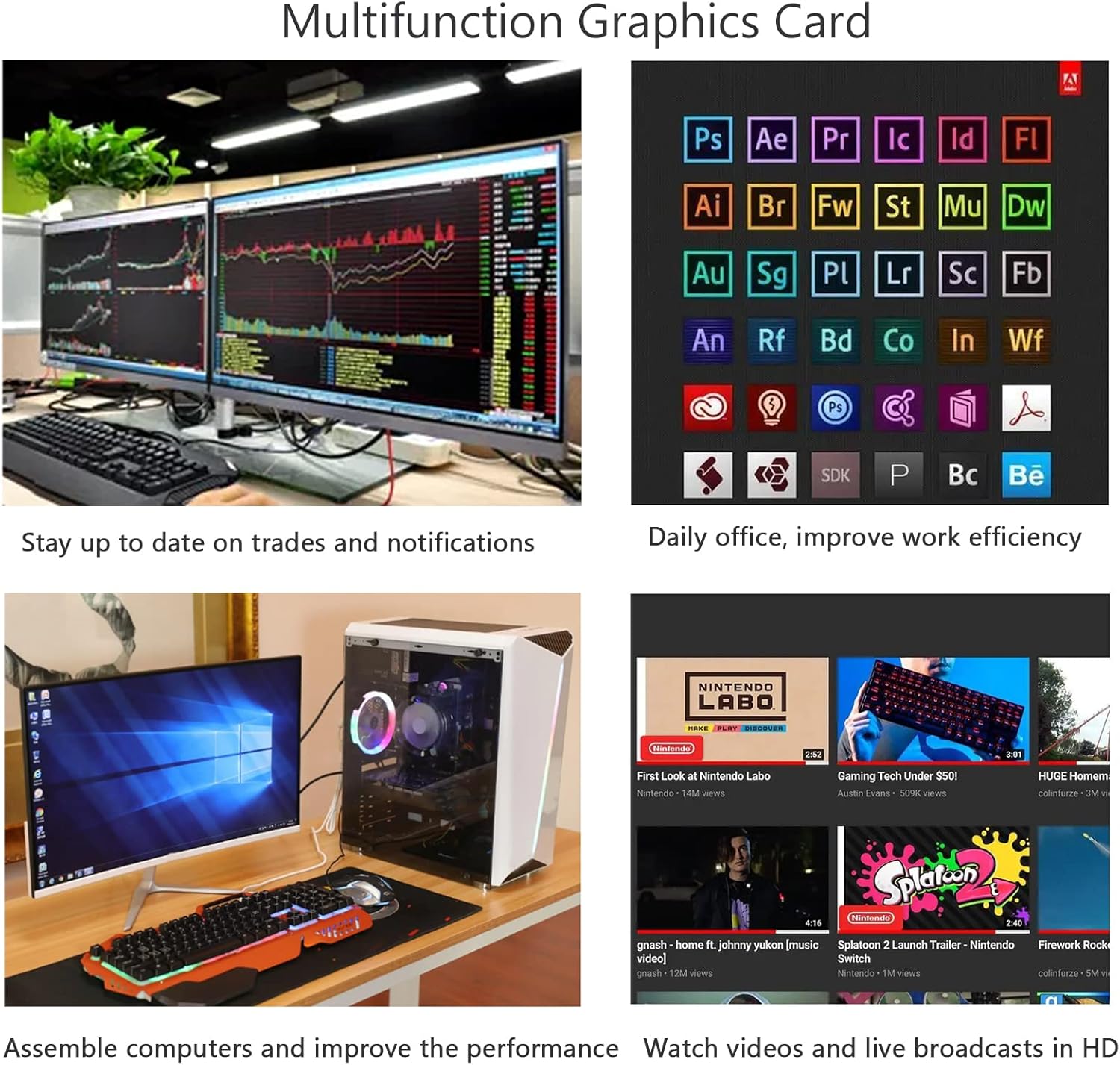
Figure 3: Dimensions of the QTHREE GT 210 Graphic Card, including standard and low-profile bracket measurements.

Figure 4: The QTHREE GT 210 Graphic Card, highlighting its G210 1GB designation and features like low profile bracket support, 2K display support, quiet operation, and dual monitor support.
4. Installation Guide
4.1. Hardware Installation
- Power Off and Disconnect: Before installation, ensure your computer is completely powered off and unplugged from the wall outlet.
- Open PC Case: Remove the side panel of your computer case to access the motherboard.
- Locate PCI Express x16 Slot: Identify an available PCI Express x16 slot on your motherboard. This is typically the longest slot.
- Remove Slot Cover: Remove the metal slot cover from the back of your PC case corresponding to the chosen PCI Express x16 slot.
- Insert Graphics Card: Carefully align the graphics card with the PCI Express x16 slot and press down firmly until it is securely seated. You should hear a click from the retention clip.
- Secure Card: Fasten the graphics card to the PC case using the screw or latch mechanism.
- Install Low Profile Brackets (Optional): If installing into a slim or ITX chassis, you may need to replace the standard bracket with the included low-profile brackets. Refer to the diagram below for bracket replacement.
- Close PC Case: Reattach the side panel of your computer case.
- Reconnect Power: Plug your computer back into the wall outlet and power it on.
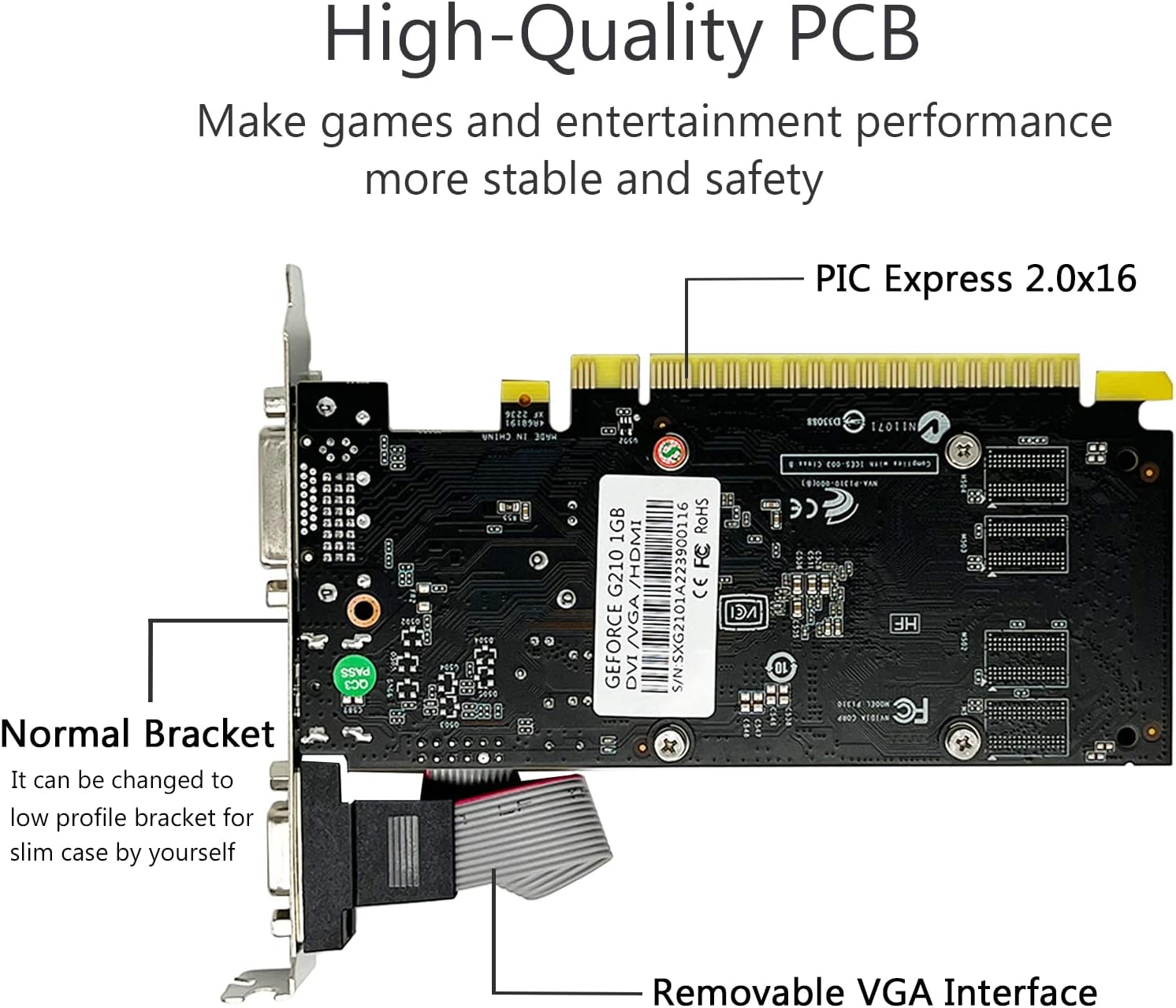
Figure 5: Rear view of the graphics card, indicating the PCI Express 2.0 x16 interface.

Figure 6: The graphics card showing the normal bracket and the option to change to a low-profile bracket for slim cases, along with the removable VGA interface.
4.2. Driver Installation
- Initial Boot: Upon first boot with the new graphics card, your operating system may install a generic display driver.
- Install from CD: Insert the included driver CD into your computer's optical drive and follow the on-screen instructions to install the official drivers.
- Download Latest Drivers: For optimal performance and compatibility, it is recommended to download the latest drivers directly from the NVIDIA website. Navigate to the NVIDIA driver download page, select "GeForce 210" as your product, and choose your specific operating system (Windows 10/8/7/Vista/XP).
- Follow On-Screen Prompts: Run the downloaded driver installer and follow the prompts to complete the installation. A system restart may be required.
Note: This graphics card is not compatible with Windows 11. Ensure your operating system is Windows 10 or earlier for proper functionality.
5. Operation
5.1. Connecting Displays
The QTHREE GT 210 Graphic Card provides multiple output interfaces for connecting to various display devices:
- VGA Port: Connects to older monitors using a VGA cable.
- DVI Port: Connects to digital monitors using a DVI cable.
- HDMI Port: Connects to modern displays, TVs, or projectors using an HDMI cable for both video and audio.
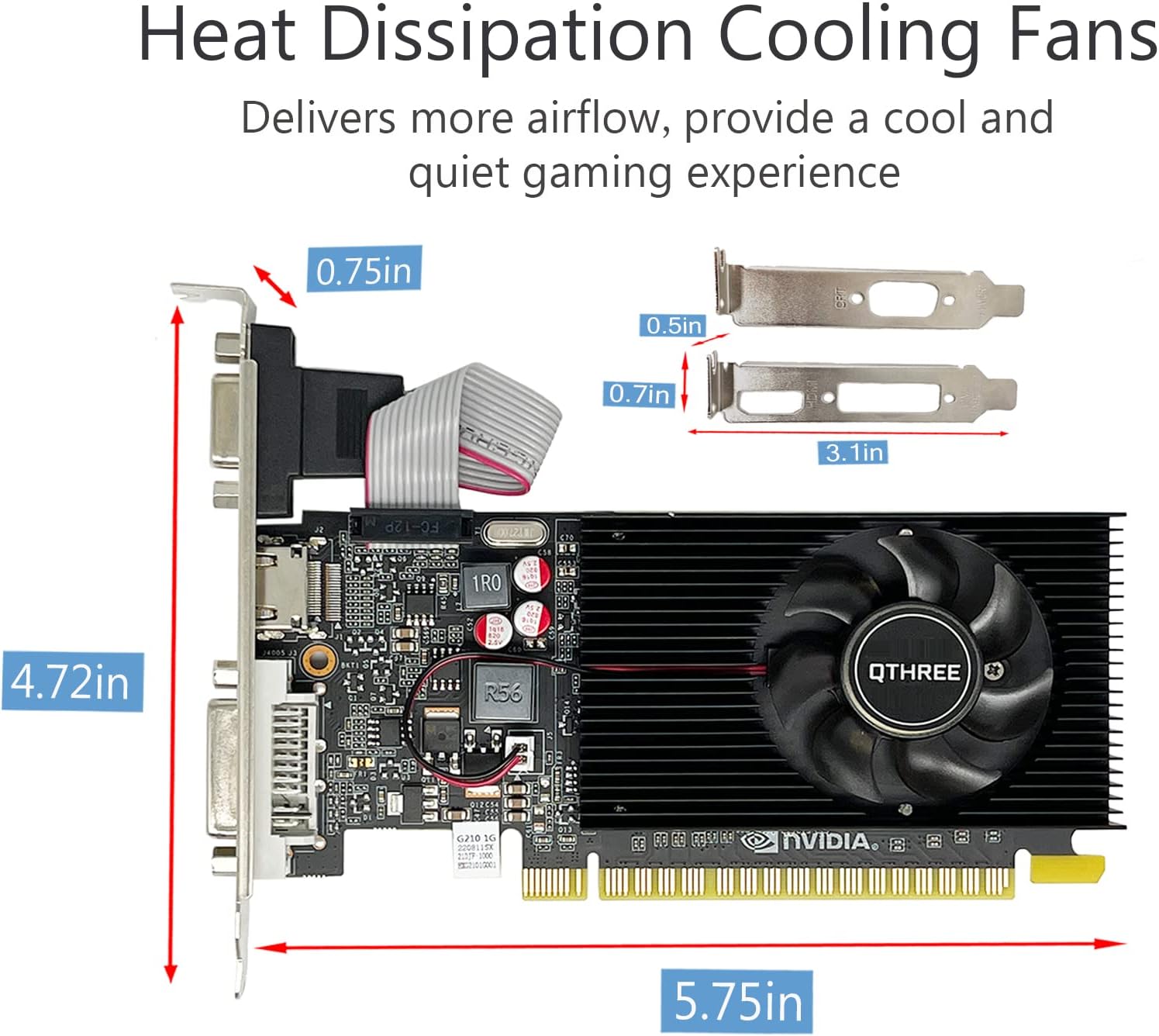
Figure 7: The output panel of the graphics card, clearly showing the VGA, HDMI, and DVI ports.
The card supports up to two monitors simultaneously. You can configure display settings (e.g., extend desktop, duplicate displays) through your operating system's display settings.
5.2. General Usage
This graphics card is suitable for enhancing the visual performance of your PC for everyday tasks:
- Office and Productivity: Improves display quality and responsiveness for office applications, web browsing, and general computing.
- Multimedia Playback: Provides smooth playback for high-definition videos and streaming content.
- Photo and Video Editing: Offers basic acceleration for photo and video editing software, allowing for better fluency in these applications.
- Light Gaming: Capable of running older or less graphically demanding games. It is not designed for modern AAA gaming titles.

Figure 8: Example of a multi-monitor setup for productivity tasks, enabled by the graphics card.
6. Maintenance
To ensure the longevity and optimal performance of your QTHREE GT 210 Graphic Card, follow these maintenance guidelines:
- Keep Clean: Periodically clean dust from the graphics card, especially the fan and heatsink, using compressed air. Ensure the computer is powered off and unplugged before cleaning.
- Ensure Proper Airflow: Make sure your PC case has adequate ventilation to prevent overheating. Avoid blocking air vents.
- Driver Updates: Regularly check the NVIDIA website for updated drivers. Keeping drivers current can improve stability and performance.
- Avoid Physical Stress: Handle the card carefully during installation or removal. Avoid bending or applying excessive force.
Figure 9: The cooling fan of the graphics card, which should be kept free of dust for efficient heat dissipation.
7. Troubleshooting
If you encounter issues with your QTHREE GT 210 Graphic Card, refer to the following common problems and solutions:
- No Display Output:
- Ensure the monitor cable is securely connected to both the graphics card and the monitor.
- Verify the monitor is powered on and set to the correct input source (VGA, DVI, or HDMI).
- Check if the graphics card is fully seated in the PCI Express x16 slot.
- Confirm that your power supply is sufficient for your system, although this card requires no external power.
- Test with a different display cable or monitor if possible.
- Driver Issues / Low Resolution:
- Ensure the correct NVIDIA GeForce 210 drivers are installed for your operating system. Reinstall drivers if necessary.
- Download the latest drivers from the official NVIDIA website.
- Verify your operating system is not Windows 11, as this card is not compatible.
- System Instability / Crashes:
- Ensure the graphics card is properly cooled. Check for dust buildup on the fan and heatsink.
- Verify that your system's power supply is stable.
- Check for any conflicts with other hardware components.
- Poor Performance:
- Ensure you have the latest drivers installed.
- Close unnecessary background applications.
- Note that this card is designed for basic tasks and light usage, not high-performance gaming or demanding professional applications.
Figure 10: Ensure all components, including the graphics card and its accessories, are correctly installed and connected.
8. Warranty and Support
8.1. Product Warranty
The QTHREE GT 210 Graphic Card comes with a standard manufacturer's warranty. Please refer to the warranty information provided in your product packaging or contact QTHREE customer service for details regarding warranty terms and conditions. Keep your proof of purchase for warranty claims.
8.2. Customer Support
For technical assistance, troubleshooting, or general inquiries, please contact QTHREE customer support. You can typically find contact information on the official QTHREE website or through the retailer where the product was purchased.
For additional resources and product information, visit the QTHREE Store on Amazon.
9. Official Product Videos
No official product videos from the seller were found for this model in the provided data.