
1. Introduction
The MAIWO K2022CL is a dual-bay M.2 SSD enclosure designed for both data transfer and offline cloning. It supports both NVMe and SATA M.2 solid-state drives, offering high-speed data transfer up to 10Gbps via USB Type-C. This device allows users to expand storage capacity or duplicate M.2 SSDs without requiring a computer connection for the cloning process.

Image 1.1: Overview of the MAIWO K2022CL Duplicator Enclosure highlighting its features.
2. Key Features
- Dual Protocol Support: Accommodates both M.2 SATA and M.2 NVMe SSDs.
- Offline Clone Function: Supports direct cloning between NVMe and SATA M.2 SSDs without a host computer.
- High-Speed USB 3.2 Gen 2: Offers data transfer rates up to 10Gbps (theoretical 1GB/s).
- Wide SSD Compatibility: Supports M.2 SSD sizes 2230, 2242, 2260, and 2280.
- Tool-Free Installation: Easy insertion and removal of SSDs.
- Efficient Heat Dissipation: Aluminum alloy shell with silicone heat sink for stable performance.
- LED Indicators: Provides clear status updates for power, SSD activity, and cloning progress.
- Broad System Compatibility: Works with Windows, Mac, and Linux operating systems.
3. Package Contents
- MAIWO K2022CL M.2 SSD Duplicator Enclosure
- USB-C to USB-C Cable
- USB-A to USB-C Cable
- 5V-3A Power Adapter
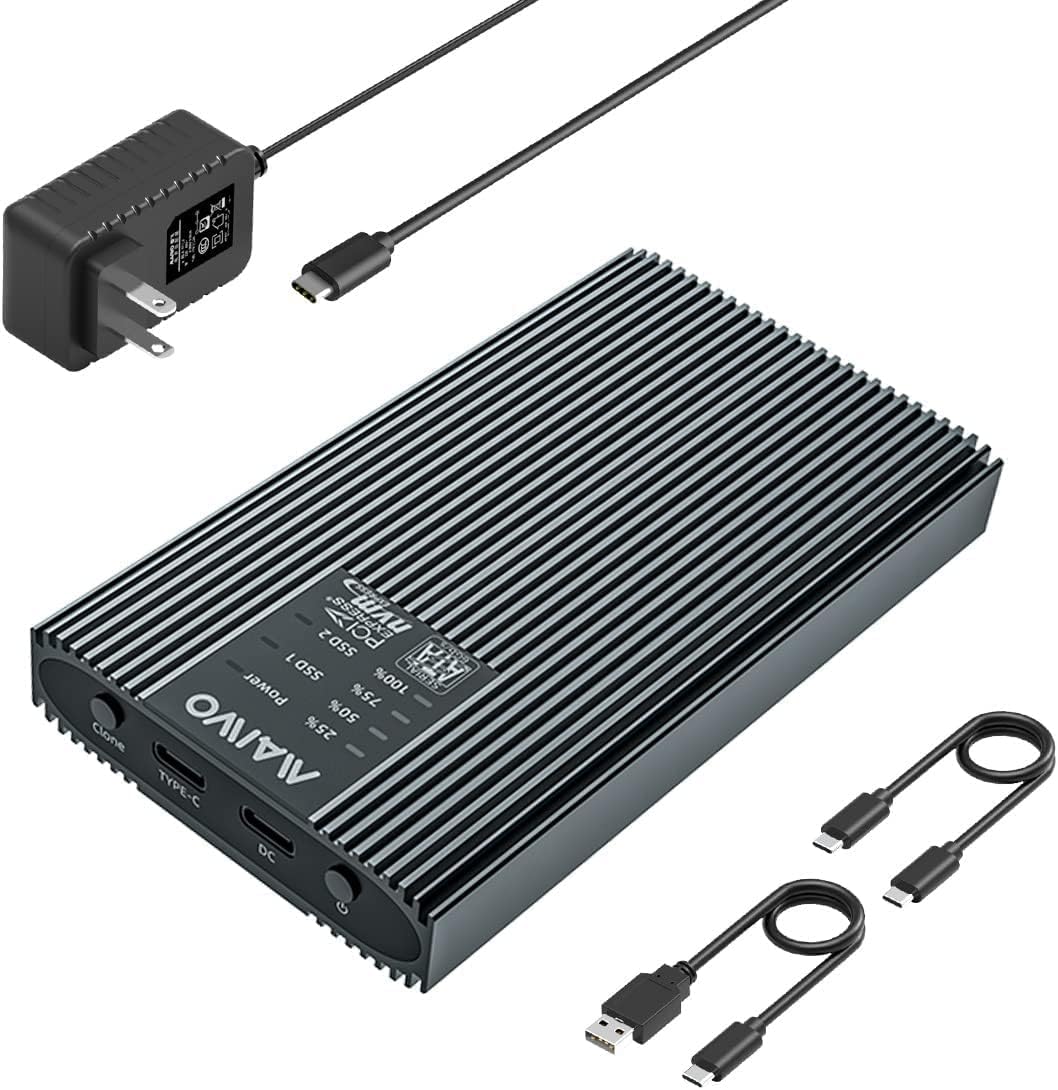
Image 3.1: The MAIWO K2022CL enclosure with its power adapter and USB cables.
4. Compatibility
4.1. SSD Types and Sizes
The MAIWO K2022CL supports both M.2 SATA and M.2 NVMe SSDs. It is compatible with various M.2 form factors, including 2230, 2242, 2260, and 2280.

Image 4.1: Visual guide for compatible M.2 SSD sizes and key types (M Key, B+M Key for NVMe and SATA).
4.2. Operating System Compatibility
The enclosure is compatible with major operating systems, including Windows, macOS, and Linux, allowing for versatile use across different computing environments.

Image 4.2: The device is compatible with Windows, Mac OS, and Linux operating systems.
5. Setup Instructions
5.1. Inserting M.2 SSDs
- Gently slide open the enclosure cover to reveal the M.2 slots.
- Carefully insert your M.2 SATA SSD into the designated SATA slot and your M.2 NVMe SSD into the NVMe slot. Ensure the SSDs are fully seated.
- Secure the SSDs if necessary (some models may have a tool-free latch or screw).
- Close the enclosure cover.

Image 5.1: Illustration of how to correctly insert M.2 SATA and NVMe SSDs into their respective slots within the enclosure.
6. Operating Instructions
6.1. Read/Write Mode (External Enclosure)
To use the device as an external SSD enclosure for data transfer:
- Ensure SSDs are properly installed in the enclosure.
- Connect the enclosure to your computer, smartphone, or other compatible device using the provided USB-C to USB-C or USB-A to USB-C cable.
- The connected SSDs will appear as external drives on your device, allowing you to read and write data.

Image 6.1: The enclosure can be connected to various devices like laptops and smartphones for data access.

Image 6.2: The enclosure supports USB 3.2 Gen 2 for high-speed data transfer up to 10Gbps.
6.2. Offline Clone Function
The offline clone function allows you to duplicate an SSD without connecting the enclosure to a computer. This process copies all data from a source SSD to a target SSD.
Important: Back up all data on the target SSD before cloning. The cloning process will erase all existing data on the target SSD, overwriting it with data from the source SSD. The capacity of the target SSD must be equal to or larger than the source SSD.

Image 6.3: The device supports cloning from SATA to NVMe and NVMe to SATA SSDs.
- Connect Power Adapter: Connect the provided 5V-3A power adapter to the DC port of the enclosure. Do not connect any USB cables to the enclosure during offline cloning, otherwise, it will switch to read/write mode.
- Insert SSDs: Insert the source M.2 SSD into the 'SSD 1' slot and the target M.2 SSD into the 'SSD 2' slot. Ensure they are correctly seated according to their protocol (SATA or NVMe).
- Set Clone Mode: Use the switch on the side of the enclosure to select the corresponding clone mode (e.g., NVMe to SATA or SATA to NVMe).
- Power On: Press the power button to turn on the enclosure.
- Initiate Clone: Press the 'Clone' button twice. The 25% progress light will start flashing, indicating the cloning process has begun.
- Completion: When all progress lights stop flashing and remain blue, the clone is complete. If the progress lights keep flashing, cloning has failed. Please verify that the capacity of the target SSD is equal to or greater than the source SSD.

Image 6.4: Visual step-by-step instructions for performing an offline clone.
7. LED Indicators
The LED indicators on the enclosure provide visual feedback on its operational status:
- Power Indicator: Illuminates when the device is powered on.
- SSD1/SSD2 Light Flashing: Indicates reading or writing activity on the respective SSD.
- SSD1/SSD2 Blue Light: Indicates the SSD is in Read & Write mode.
- Clone Mode Progress Lights (25%, 50%, 75%, 100%) Flashing: Shows the progress of the cloning operation.
- Red Light Flashing: Indicates an SSD defect or cloning failure.

Image 7.1: Explanation of LED indicators for various operational statuses.
8. Heat Dissipation
The MAIWO K2022CL is designed with an aluminum alloy shell and includes a silicone heat sink to ensure efficient heat dissipation. This design helps maintain stable data transmission and prolongs the lifespan of the SSDs, especially during extended operation or high-speed transfers.
Video 8.1: This video demonstrates the heat dissipation features of the MAIWO K2022CL enclosure, showing how its design contributes to stable performance.
9. Specifications
| Feature | Specification |
|---|---|
| Model Number | K2022CL |
| Brand | MAIWO |
| Compatible Devices | Laptop, PC, Smart TV, Router, Smartphone (OTG support) |
| Supported SSDs | M.2 NVMe SSD, M.2 SATA SSD |
| Supported SSD Sizes | 2230, 2242, 2260, 2280 |
| Max Storage Capacity | 4 TB (per bay, total 8TB) |
| Hardware Interface | USB Type-C |
| Data Transfer Rate | Up to 10Gbps (1000 Megabytes Per Second) |
| Material | Aluminum Alloy |
| Color | Black |
| Item Weight | 14.4 ounces |
| Package Dimensions | 6.26 x 4.21 x 2.24 inches |
10. Troubleshooting
- Device Not Recognized:
- Ensure all cables are securely connected.
- Try a different USB port or cable.
- Verify that the SSDs are correctly inserted and seated.
- For new SSDs, they may need to be initialized and formatted in Disk Management (Windows) or Disk Utility (macOS).
- Cloning Failure (Red Light Flashing):
- Ensure the target SSD's capacity is equal to or larger than the source SSD's capacity.
- Check if both SSDs are properly inserted.
- Ensure no USB cables are connected to the enclosure during offline cloning.
- Try cleaning the SSD connectors and reinserting.
- Slow Transfer Speeds:
- Ensure you are using a USB 3.2 Gen 2 compatible port on your host device.
- Verify the quality of the USB cable.
- Check the health and performance of the SSDs themselves.
- Ensure proper heat dissipation; excessive heat can throttle performance.
11. Maintenance
- Keep the enclosure clean and free from dust. Use a soft, dry cloth for cleaning.
- Avoid exposing the device to extreme temperatures, humidity, or direct sunlight.
- Handle the enclosure and SSDs with care to prevent physical damage.
- When not in use, store the enclosure in a safe, dry place.
12. Warranty and Support
MAIWO products typically come with a standard manufacturer's warranty. For specific warranty details, technical support, or service inquiries, please refer to the warranty card included with your product or visit the official MAIWO website. Keep your purchase receipt for warranty claims.