
1. Introduction
This manual provides detailed instructions for the installation, operation, and maintenance of your Rimoody 10.1 Inch Android Car Stereo. This unit is specifically designed for Toyota Camry models from 2012 to 2014, offering advanced features such as Apple CarPlay, Android Auto, GPS navigation, Bluetooth connectivity, FM radio, and a backup camera. Please read this manual thoroughly before using the product to ensure proper functionality and safety.

Figure 1: Rimoody 10.1 Inch Android Car Stereo and included components.
2. Setup and Installation
2.1 Package Contents
- Rimoody 10.1 Inch Android Car Stereo Unit
- Power Cable
- RCA Cable
- USB Cables (2)
- GPS Antenna
- Rear Camera
- Microphone
- Brackets
- Installation Tool
- User Manual
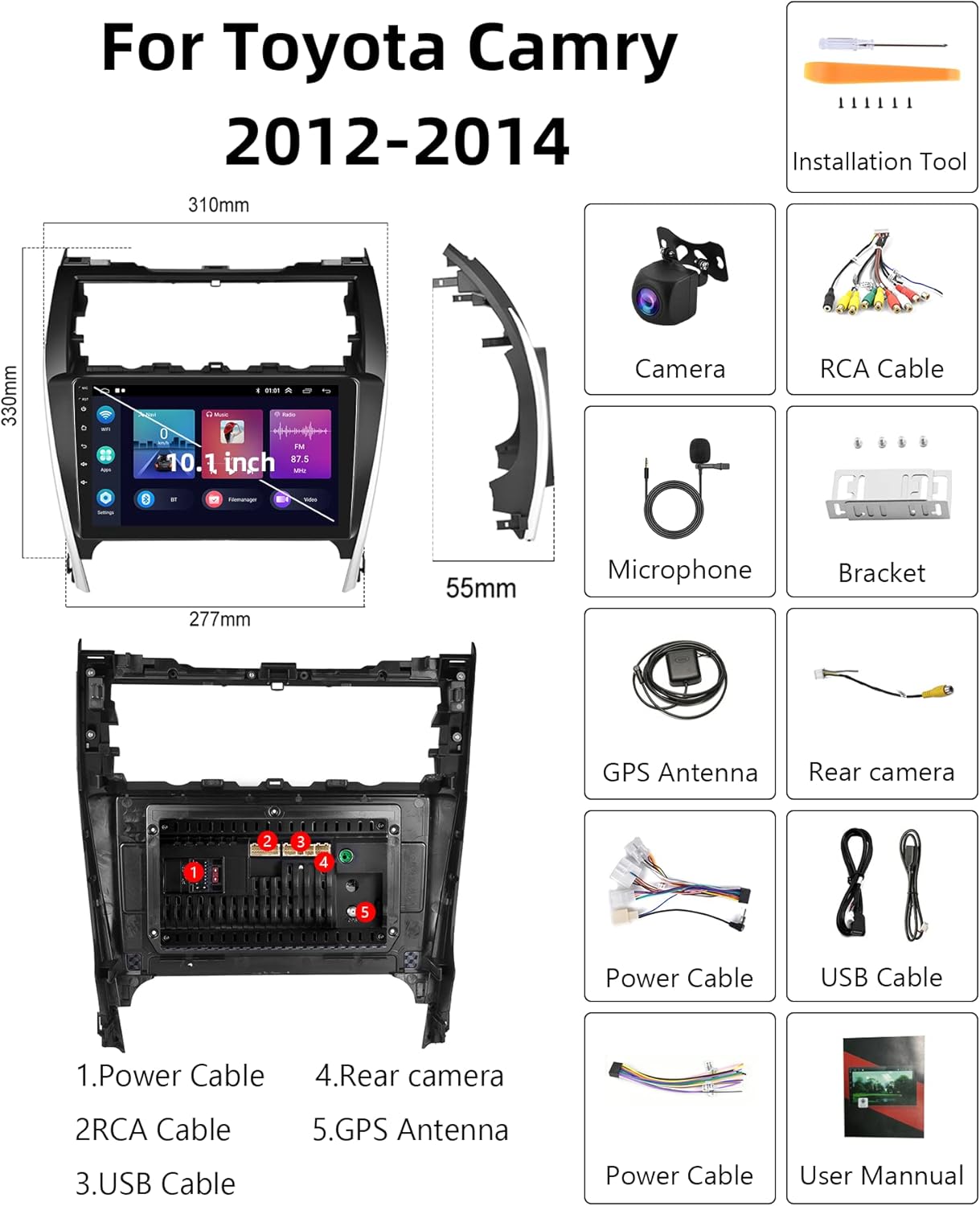
Figure 2: Product dimensions and a visual representation of included accessories.
2.2 Physical Installation
The car stereo is designed to fit the factory dashboard of Toyota Camry 2012-2014 models. Professional installation is recommended. Ensure all cables (power, RCA, USB, GPS antenna, rear camera) are correctly connected according to the wiring diagram provided with the unit. Use the included brackets and installation tool for secure mounting.

Figure 3: Detailed installation diagram showing the stereo unit and its integration into the vehicle's dashboard.
2.3 Initial Power-On and Basic Settings
After installation, turn on your vehicle's ignition. The stereo should power on automatically. Follow any on-screen prompts for initial setup, such as language selection and time zone. The unit features a 10.1-inch 2.5D tempered glass mirror touchscreen for easy operation.
3. Operating Instructions
3.1 Bluetooth Connectivity
To connect your mobile phone via Bluetooth for hands-free calls and music streaming:
- On the stereo, navigate to the Bluetooth settings.
- Enable Bluetooth on your mobile phone and search for available devices.
- Select 'CarBT' from the list of devices on your phone.
- Enter the PIN '0000' if prompted.
- Once connected, 'mobile phone audio' and 'media audio' will be displayed, indicating a successful connection.

Figure 4: Bluetooth interface for pairing devices and managing connections.
3.2 Apple CarPlay and Android Auto (Wireless/Wired)
The unit supports both wireless and wired connections for Apple CarPlay and Android Auto, allowing access to phone functions like navigation, music, and messages via voice control.
- Ensure your phone's Bluetooth and Wi-Fi are enabled.
- On the stereo, open the 'ZLINK' application.
- The system will attempt to connect to your phone. For wireless connection, ensure your phone is discoverable.
- If the connection is not successful, manually connect to the vehicle's Wi-Fi hotspot (see section 3.3). After connecting to Wi-Fi, delete the history record in the vehicle's Wi-Fi settings, then re-open ZLINK.
- For wired connection, connect your phone via a USB cable.
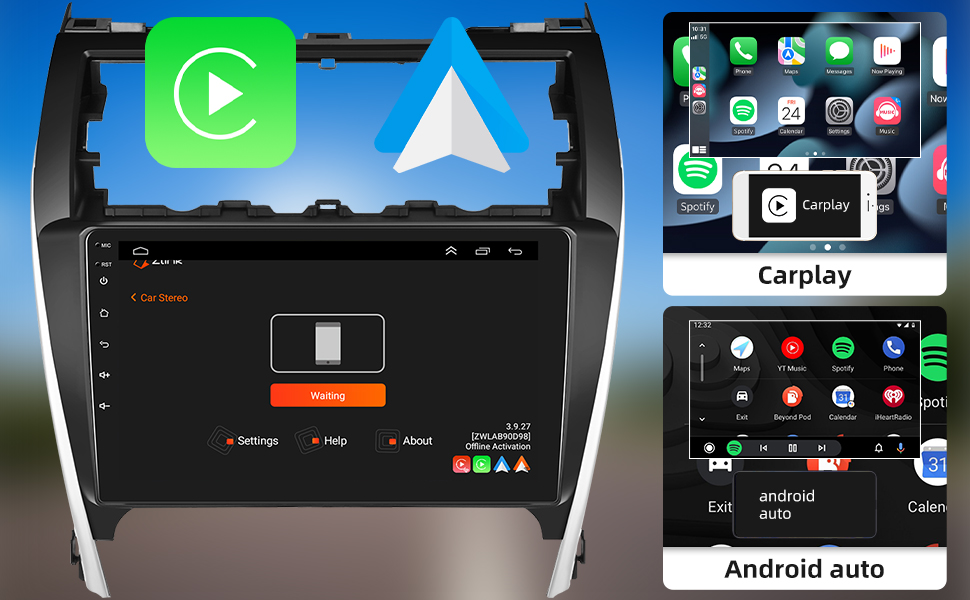
Figure 5: Display of Apple CarPlay and Android Auto interfaces, demonstrating phone integration.
3.3 GPS Navigation and Wi-Fi
The stereo has built-in GPS navigation. You can download offline maps or use online maps via Wi-Fi.
- To connect to Wi-Fi, go to 'Settings' > 'Network & Internet' > 'Wi-Fi'.
- Turn on Wi-Fi and select your desired network.
- Alternatively, enable 'Hotspot & tethering' on your mobile phone and connect the stereo to your phone's hotspot.
- Once connected, you can access online maps and other applications like YouTube, TikTok, and Spotify from the app store.

Figure 6: GPS navigation display and Wi-Fi icon indicating internet connectivity.
3.4 FM Radio
Access the FM radio function to listen to local broadcasts. The unit has 18 preset stations.

Figure 7: FM radio tuning screen and Bluetooth call interface.
3.5 Rear View Camera
The included backup camera automatically displays the reverse image on the screen when the vehicle shifts into reverse gear, enhancing safety and convenience.

Figure 8: Automatic display of the rear view camera feed when reversing.
3.6 Steering Wheel Controls
The unit supports steering wheel controls. To configure them, navigate to 'Settings' > 'Car Settings' > 'Steering Learn' and follow the on-screen instructions to map your vehicle's steering wheel buttons to the stereo functions.

Figure 9: Interface for configuring steering wheel controls.
3.7 Hi-Fi Sound Function
The stereo supports Hi-Fi high-fidelity sound. Adjust sound settings and equalizer presets (Custom, Classical, Jazz, Pop, Rock) to optimize your audio experience. You can also connect USB multimedia for playback.

Figure 10: Equalizer and sound field adjustment interface for Hi-Fi audio.
4. Maintenance
To ensure the longevity and optimal performance of your car stereo:
- Cleaning: Use a soft, dry cloth to clean the touchscreen and exterior. Avoid abrasive cleaners or solvents.
- Software Updates: Periodically check for software updates to ensure the system runs efficiently and has the latest features. Updates can typically be found in the system settings or on the manufacturer's website.
- Environmental Conditions: Avoid exposing the unit to extreme temperatures, direct sunlight for prolonged periods, or excessive moisture.
5. Troubleshooting
This section addresses common issues you might encounter with your Rimoody Android Car Stereo.
5.1 Connection Issues (Bluetooth, ZLINK, Wi-Fi)
If you experience difficulty connecting your phone via Bluetooth, ZLINK (CarPlay/Android Auto), or Wi-Fi:
- Bluetooth: Ensure Bluetooth is enabled on both the stereo and your phone. Verify the correct device name ('CarBT') is selected and the PIN '0000' is entered. If issues persist, restart Bluetooth on both devices.
- ZLINK (CarPlay/Android Auto): If the initial connection fails, go to the stereo's 'Settings' > 'Android Settings' > 'Network & Internet' > 'Hotspot & tethering' > 'Wi-Fi hotspot' to enable the hotspot. Then, on your phone, connect to the stereo's Wi-Fi hotspot (e.g., 'AndroidAP_B442'). After a successful Wi-Fi connection, delete the stereo's Wi-Fi history record on your phone, then re-open the ZLINK app on the stereo. The second connection should automatically succeed via Bluetooth.
- Wi-Fi: Check that Wi-Fi is enabled on the stereo and that you have selected the correct network and entered the password accurately. Ensure your mobile hotspot is active and discoverable if connecting via phone.
Video 1: Instructions on how to connect Apple CarPlay and Android Auto, including troubleshooting steps for Wi-Fi and Bluetooth connections.
5.2 Screen Not Responding
If the touchscreen is unresponsive, try restarting the unit by pressing and holding the power button (if available) or turning off and on the vehicle's ignition. Ensure the screen is clean and free of debris.
5.3 No Sound
Check the volume levels on both the stereo and your connected device. Ensure all audio cables are securely connected. Verify that the correct audio source is selected.
6. Specifications
| Feature | Description |
|---|---|
| Model | B0BFR94HG7 |
| Compatible Vehicles | Toyota Camry 2012, 2013, 2014 |
| Operating System | Android |
| Screen Size | 10.1 Inches |
| Resolution | 1024 x 600 |
| Memory (RAM + ROM) | 2GB RAM + 32GB ROM |
| Connectivity Technology | Bluetooth, Cellular, USB, Wi-Fi |
| Special Features | Bluetooth, Touchscreen, GPS Navigation, Apple CarPlay, Android Auto, FM Radio, Hi-Fi Sound, Rear View Camera Support, Steering Wheel Control Support, Split Screen |
| Audio Output Mode | Stereo |
| Map Type | North America (downloadable offline maps) |
| Item Weight | 4.02 pounds |
| Package Dimensions | 13.46 x 12.8 x 4.76 inches |
7. Warranty and Support
Specific warranty details and direct customer support contact information are not provided in the available product data. For warranty claims or technical assistance, please refer to the documentation included with your product or contact the seller directly through the platform where the purchase was made. Ensure you retain your proof of purchase for any warranty-related inquiries.