
Introduction
This manual provides instructions for the Kawaye Multifunctional Stand and Cooling Station, designed for PlayStation 5, PS5 Slim, and PS5 Pro consoles. It integrates a cooling fan, dual controller charging, headset holder, and game storage to enhance your gaming setup.

Image: The Kawaye multifunctional stand, showcasing its features including console support, controller charging, headset storage, and game slots.
Package Contents
Verify that all components are present in the package:
- Kawaye PS5/Slim/Pro Stand and Cooling Station
- Interchangeable Panels (for PS5, PS5 Slim, PS5 Pro compatibility)
- Security Screw
- Type-C Cable
- Headset Holder

Image: An exploded diagram illustrating the various parts of the Kawaye stand and their functions.
Setup Instructions
- Console Compatibility: This stand is compatible with the 2020 PS5, 2023 PS5 Slim (CFI-2000A01, CFI-2000B01), and 2024 PS5 Pro (CFI-7019B01X) consoles. Select the appropriate interchangeable panel for your console model.
- Panel Installation: Insert the correct panel into the stand. For PS5 Slim/Pro, use the designated panel. For the original PS5, use its specific panel.
- Console Placement: Carefully place your PS5, PS5 Slim, or PS5 Pro console onto the stand.
- Secure the Console: Locate the screw hole on the bottom of your console (you may need to remove a small rubber cover). Use the provided security screw to firmly attach the console to the stand. Turn clockwise to tighten.
- Connect Power: Use the included Type-C cable to connect the stand to your PS5 console for power. Alternatively, the stand can be powered by a 5V/3A adapter (not included).
- Attach Headset Holder: If desired, attach the headset holder to the top edge of your console.

Image: Step-by-step visual guide for assembling and connecting the stand with a PS5 console.

Image: Visual representation of the stand's compatibility with different PlayStation 5 console versions.
Operating Instructions
Cooling System Operation
The stand features a turbo cooling fan with three adjustable speeds to manage console temperature during use.
- Fan Switch: Use the dedicated fan switch button on the stand to cycle through fan speeds (High, Medium, Low) or to turn the fan off.
- Speed Indicators: LED indicators on the stand will show the current fan speed setting.
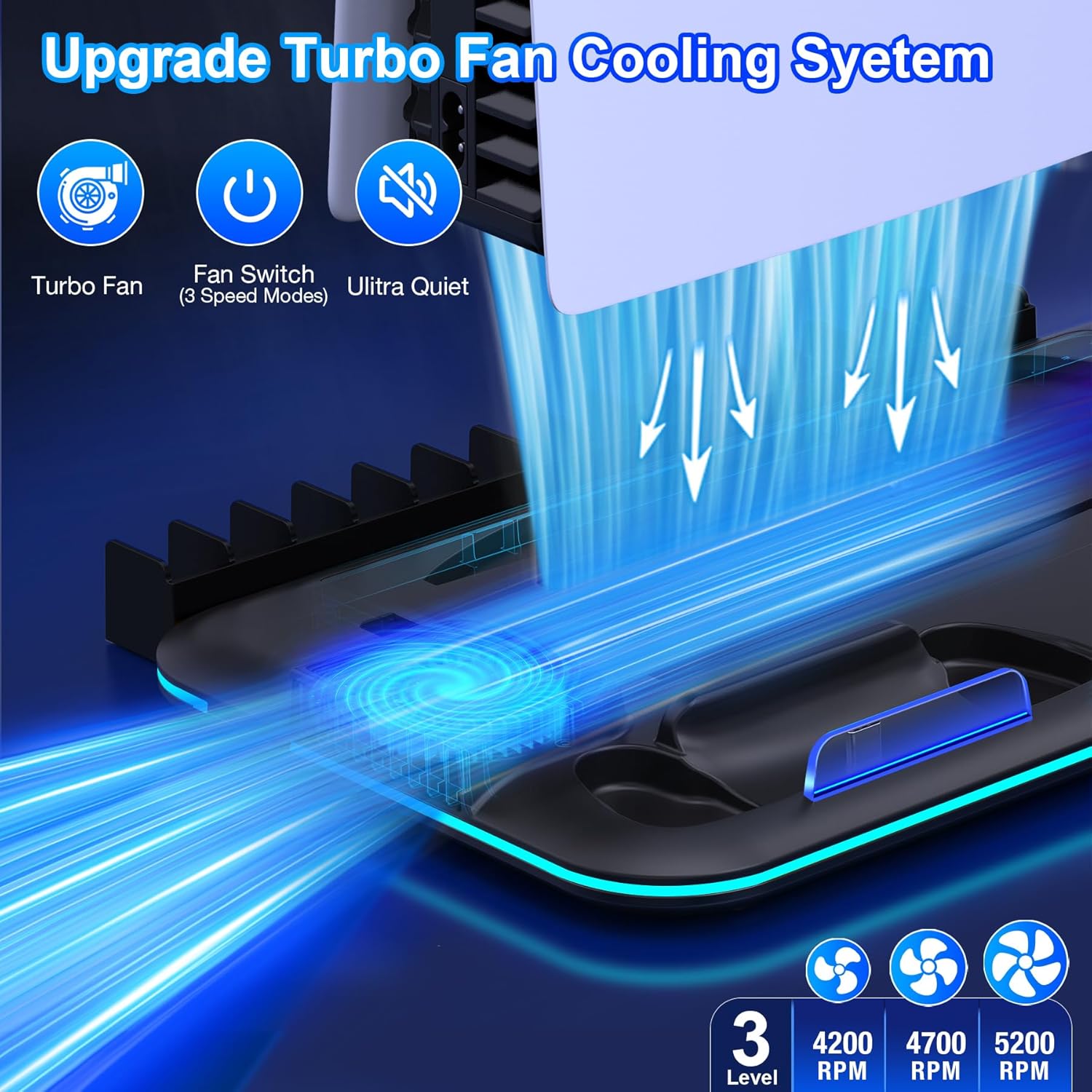
Image: Illustration of the cooling fan's airflow and speed settings.
Controller Charging
The stand includes two charging docks for PlayStation 5 controllers.
- Charging Placement: Gently place your PS5 controllers into the designated charging slots. Ensure they are properly seated.
- LED Indicators: The charging indicators will display red when a controller is charging and blue when it is fully charged.
- Charging Time: Controllers typically charge in approximately 3 hours.

Image: The stand's controller charging functionality with status indicators.
Lighting Effects
The stand features customizable lighting effects.
- Light Button: Use the dedicated light button on the stand to cycle through 5 colorful lighting effects and 9 solid color modes.
- Available Modes: Includes slow flash, breathing light, fast flash, single-color gradient, and dual-color gradient.

Image: The stand displaying its various LED lighting options.
Storage and Organization
The stand is designed to organize your gaming accessories efficiently.
- Game Slots: The stand includes 15 slots for storing game discs.
- Headset Holder: A detachable holder is provided for storing your gaming headset.
- USB Hub: An additional USB hub is integrated for connecting other small accessories.
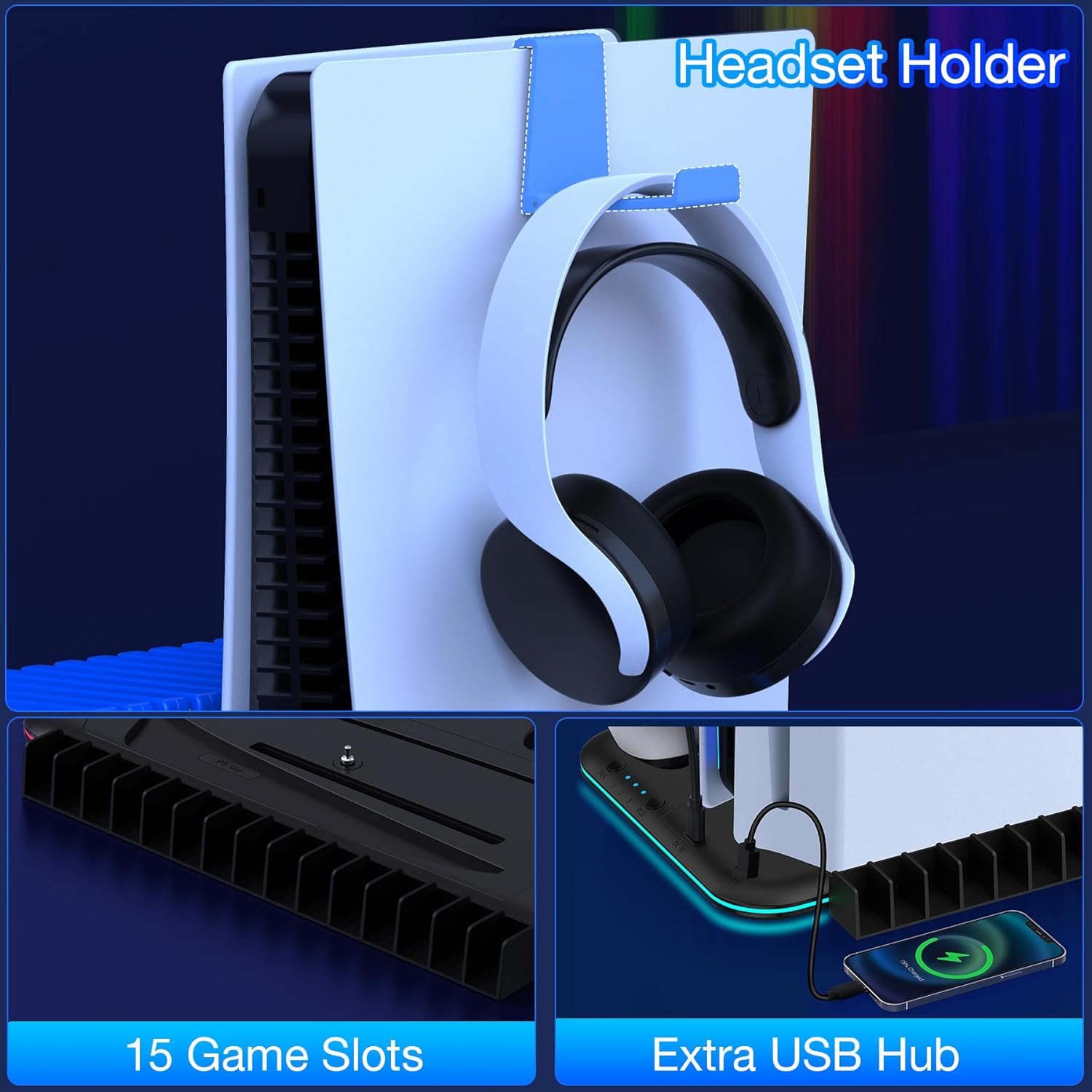
Image: The stand's features for organizing games, headsets, and other accessories.
Safety Precautions
The Kawaye stand incorporates a built-in smart chip for protection during charging and operation.
- Overcurrent Protection: Prevents damage from excessive current.
- Overcharging Protection: Stops charging once controllers are full to prevent battery degradation.
- Short Circuit Protection: Safeguards against electrical shorts.
Always ensure the stand is placed on a stable, flat surface and avoid blocking the fan vents.
Troubleshooting
| Issue | Possible Cause | Solution |
|---|---|---|
| Stand not powering on. | Power cable not connected or faulty. | Ensure the Type-C cable is securely connected to both the stand and the PS5 console or a 5V/3A adapter. Try a different power source or cable. |
| Controllers not charging. | Controllers not properly seated; stand not powered. | Verify controllers are correctly placed in the charging docks. Check if the stand is receiving power (LEDs should be active). |
| Cooling fan not operating. | Fan switch off; power issue. | Press the fan switch button to activate the fan. Check power connection to the stand. |
| Fan making unusual noise. | Obstruction in fan; unit defect. | Ensure no objects are blocking the fan intake/exhaust. If noise persists, contact customer support. |
Specifications
- Brand: Kawaye
- Model Number: 732404141453
- Compatible Consoles: PlayStation 5, PS5 Slim, PS5 Pro
- Fan Speeds: 3 adjustable levels (High, Medium, Low)
- Controller Charging Time: Approximately 3 hours
- Game Slots: 15
- Power Input: Console USB-C or 5V/3A adapter
- Package Dimensions: 12.87 x 8.5 x 1.34 inches
- Item Weight: 1.23 pounds
Warranty and Support
For any questions or assistance regarding your Kawaye PS5/Slim/Pro Stand and Cooling Station, please contact our professional support team. We aim to respond and assist within 24 hours.
Refer to your purchase documentation for specific warranty details.