
1. Introduction
This manual provides detailed instructions for the setup, operation, and maintenance of your Snpurdiri 2.4G Wireless Gaming Keyboard and Mouse Combo. Please read this manual thoroughly before using the product to ensure optimal performance and longevity.

Image 1.1: The Snpurdiri 2.4G Wireless Gaming Keyboard and Mouse Combo, featuring the compact white keyboard, ergonomic white mouse, and the 2.4G USB receiver.
2. Package Contents
Verify that all items are present in the package:
- Snpurdiri 60% Wireless Gaming Keyboard
- Snpurdiri Wireless Gaming Mouse
- 2.4G USB Receiver
- USB-C Charging Cable
- User Manual (this document)
3. Setup Guide
3.1. Connecting the Devices (2.4G Wireless)
- Locate the 2.4G USB receiver. It is typically stored in a compartment on the underside of the mouse for safekeeping during transport.
- Plug the 2.4G USB receiver into an available USB port on your computer.
- Turn on the keyboard and mouse using their respective power switches. The power switch for the mouse is located on its underside.
- The devices should automatically connect to your computer. If connection is not established, ensure the devices are charged and the receiver is properly inserted.

Image 3.1: Diagram illustrating the 2.4G wireless connection, showing the USB receiver, keyboard, mouse, and various compatible devices such as desktops and laptops, with a 10-meter connection distance.
3.2. Charging the Devices
Both the keyboard and mouse are equipped with rechargeable lithium batteries.
- Keyboard: Features a 2000mAh battery. Connect the provided USB-C charging cable to the keyboard's charging port and a USB power source.
- Mouse: Features a 500mAh battery. The Type-C charging port is located on the underside of the mouse. Connect the provided USB-C charging cable to the mouse and a USB power source.
A full charge provides approximately 500 hours of runtime with lights off and 40 hours with lights on for the keyboard. The mouse also offers extended usage on a single charge.

Image 3.2: Visual representation of battery capacity, indicating a 2000mAh battery for the keyboard and a 500mAh battery for the mouse, highlighting their super battery life.

Image 3.3: Underside view of the mouse, showing the Type-C charging port, power switch, optical engine, and smooth large pads for stable movement.

Image 3.4: The keyboard's side profile, illustrating the ergonomic key height design and the Type-C to USB charging port connection.
4. Operating Instructions
4.1. Keyboard Functions
The 60% compact keyboard design utilizes FN key combinations to access various functions.
- RGB Backlight Control:
- FN + K: Switch streamer light mode (backlight effects).
- FN + U / J: Adjust backlight brightness (U for increase, J for decrease).
- FN + O / L: Adjust marquee speed (O for increase, L for decrease).
- FN + *: Turn backlight On/Off.
- WASD and Arrow Key Switching:
- FN + W: Toggles the functionality of the W, A, S, D keys to act as arrow keys (Up, Left, Down, Right) and vice-versa. This allows for cyclical switching between these modes.
- Floating Keycaps: The keyboard features floating keycaps for a soft feel and enhanced durability, preventing fading over time.

Image 4.1: Illustration of the keyboard's RGB backlight controls, detailing FN key combinations for switching light modes, adjusting brightness, changing marquee speed, and toggling the backlight on/off.
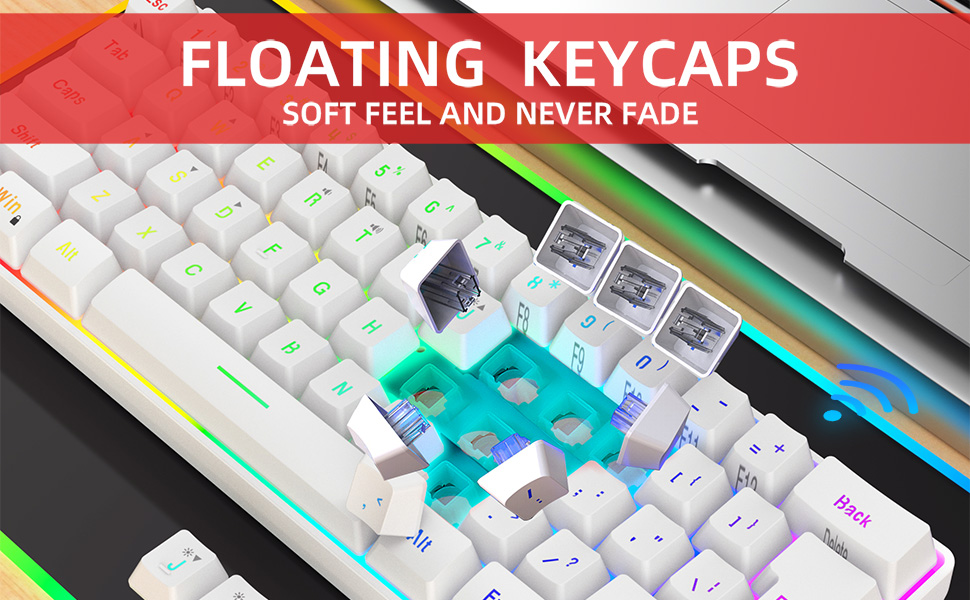
Image 4.2: Demonstrates the FN+W key combination, which allows users to switch the functionality of the W, A, S, D keys with the arrow keys for versatile control.
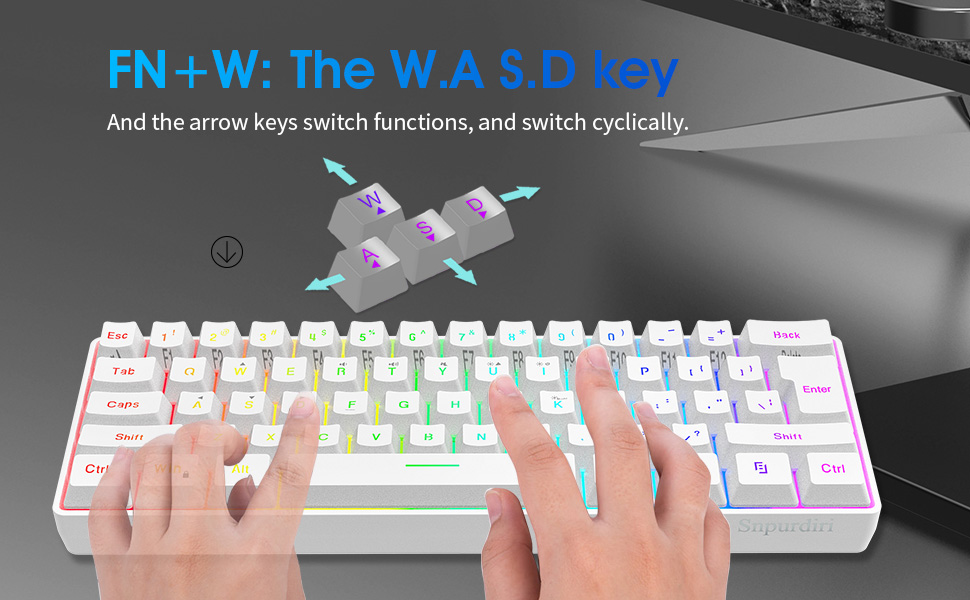
Image 4.3: Close-up view of the keyboard's floating keycaps, highlighting their design for a soft tactile feel and long-lasting print.
4.2. Mouse Functions
The ergonomic mini wireless mouse provides precise control.
- Power Switch: Located on the underside of the mouse (refer to Image 3.3). Slide to ON/OFF to conserve battery when not in use.
- Ergonomic Design: The mouse is designed for a natural vertical grip, reducing strain during extended use. Its anti-sweat and non-slip surface ensures a secure hold.

Image 4.4: A user operating the keyboard and mouse combo, demonstrating the comfortable and ergonomic design suitable for various tasks including gaming and office work.
5. Maintenance
- Cleaning: Use a soft, dry cloth to clean the surfaces of the keyboard and mouse. For stubborn dirt, a slightly damp cloth with mild soap can be used, ensuring no liquid enters the device. Avoid harsh chemicals.
- Battery Care: To prolong battery life, avoid fully discharging the devices frequently. Charge them when the battery indicator is low. If storing for an extended period, charge them to about 50% and turn off the power.
- Storage: Store the combo in a cool, dry place away from direct sunlight and extreme temperatures.
6. Troubleshooting
| Problem | Possible Cause | Solution |
|---|---|---|
| Devices not connecting | Low battery, USB receiver not properly inserted, devices not powered on, interference. | Ensure devices are charged. Re-insert the USB receiver. Turn on both devices. Move closer to the receiver or away from other wireless devices. |
| Keyboard backlight not working | Backlight turned off, low battery. | Press FN + * to toggle backlight. Charge the keyboard. |
| Keys not responding | Connectivity issue, low battery. | Check connection and battery level. Restart the computer. |
| Mouse cursor erratic or unresponsive | Low battery, dirty optical sensor, uneven surface. | Charge the mouse. Clean the optical sensor with a soft cloth. Use on a flat, opaque surface. |
7. Specifications
| Feature | Detail |
|---|---|
| Model | Snpurdiri 2.4G Wireless Gaming Keyboard and Mouse Combo (White Combo) |
| Connectivity Technology | 2.4G Radio Frequency Wireless |
| Wireless Range | Up to 10 meters (33 feet) |
| Keyboard Battery | 2000mAh Lithium Polymer (Rechargeable) |
| Mouse Battery | 500mAh Lithium Polymer (Rechargeable) |
| Keyboard Layout | 60% Compact |
| Backlight | RGB (Customizable modes, brightness, speed) |
| Keyboard Dimensions | 292mm x 102mm x 40mm (approx. 11.5 x 4.0 x 1.6 inches) |
| Mouse Dimensions | 105mm x 70mm x 38mm (approx. 4.1 x 2.8 x 1.5 inches) |
| Item Weight | 1.34 pounds (approx. 0.61 kg) |
| Compatible Devices | Personal Computer (Windows 11/10/8/7/Vista/XP, limited macOS support) |
| Manufacturer | SnpurTech |
| ASIN | B0BFQP7K32 |

Image 7.1: Detailed dimensions of both the keyboard and mouse, providing measurements in millimeters.
8. Warranty and Support
Snpurdiri products are designed for reliability and performance. For warranty information, technical support, or customer service inquiries, please refer to the contact information provided with your purchase documentation or visit the official Snpurdiri website.
For further assistance, you may also visit the Snpurdiri Store on Amazon.