
VBESTLIFE VBESTLIFEzic8459vae
VBESTLIFE Mini LED Projector User Manual
Model: VBESTLIFEzic8459vae
1. Introduction
Thank you for purchasing the VBESTLIFE Mini LED Projector. This portable projector is designed to provide a versatile viewing experience, allowing you to project content from various devices, including smartphones and tablets. Please read this manual thoroughly before using the product to ensure proper operation and to maximize its lifespan.
2. Safety Information
- Do not expose the projector to rain or moisture to prevent fire or electric shock.
- Do not open the projector casing. Refer all servicing to qualified personnel.
- Ensure proper ventilation. Do not block ventilation openings.
- Use only the power adapter specified for this device.
- Avoid direct eye exposure to the projector lens when the device is operating.
- Keep the projector away from heat sources and direct sunlight.
3. Package Contents
Please check the package contents upon unpacking. If any items are missing or damaged, contact your retailer.
- VBESTLIFE Mini LED Projector
- Charging Cable
- User Manual
- Remote Control

Figure 3.1: Package Contents. This image displays the projector, remote control, USB charging cable, and the user manual included in the box.
4. Product Overview
Familiarize yourself with the projector's components and interfaces.

Figure 4.1: VBESTLIFE Mini LED Projector. The projector is shown with a smartphone connected, illustrating its compact design and primary function.

Figure 4.2: Interface Function Description. This diagram highlights the different ports and controls on the projector, such as the built-in speaker, USB ports, headphone connection, charging power input (5V 2A), and infrared window for the remote control.
5. Setup
5.1 Power Connection
Connect the projector to a power source using the provided charging cable. Ensure the power supply meets the required specifications of 5V 2A.
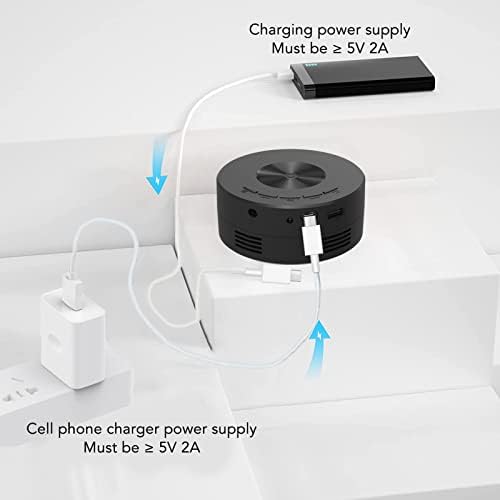
Figure 5.1: Power Supply Connection. The image shows the projector being powered by either a power bank or a standard cell phone charger, emphasizing the 5V 2A requirement for both.
5.2 Placement
Place the projector on a stable, flat surface. Adjust the distance from the projection surface (wall or screen) to achieve the desired image size. The projector should be positioned perpendicular to the screen for optimal image geometry.
5.3 Focus Adjustment
Locate the focus ring or knob near the lens. Rotate it until the projected image appears clear and sharp on the screen.
6. Operating Instructions
6.1 Power On/Off
- To power on: Press the power button on the projector or the remote control.
- To power off: Press the power button again.
6.2 Connecting Smartphones/Tablets (Wired Co-Screen)
The projector supports wired screen mirroring for iOS and Android devices.
- Connect your smartphone or tablet to the projector using its original charging cable.
- Ensure the projector is powered on and set to the correct input mode (if applicable).
- Follow any on-screen prompts on your device to allow screen mirroring.

Figure 6.1: Wired Co-Screen Connection. This image demonstrates connecting a smartphone to the projector using its standard charging cable for direct screen projection, eliminating the need for a separate adapter cable.
6.3 USB Media Playback
Insert a USB flash drive into the USB port on the projector. Navigate through the projector's menu using the remote control to select and play media files (photos, videos, music) stored on the USB drive.
6.4 Audio Output
The projector has a built-in speaker. For a more immersive audio experience or private listening, you can connect external headphones or speakers to the headphone jack.

Figure 6.2: External Audio Connection. This image shows the projector in use, highlighting its built-in speaker and the option to connect external headphones or speakers for enhanced audio.
7. Maintenance
7.1 Cleaning the Lens
Use a soft, lint-free cloth specifically designed for optical lenses to gently wipe the projector lens. Do not use abrasive cleaners or excessive force.
7.2 Cleaning the Casing
Wipe the projector's exterior with a soft, dry cloth. For stubborn dirt, a slightly damp cloth can be used, followed by a dry cloth.
7.3 Ventilation
Ensure the ventilation openings are clear of dust and debris to prevent overheating. Do not place the projector on soft surfaces that may block airflow.
8. Troubleshooting
If you encounter issues with your projector, refer to the following common problems and solutions:
| Problem | Possible Cause | Solution |
|---|---|---|
| No image projected | No power; incorrect input source; device not connected properly. | Check power connection; ensure device is connected securely; select correct input. |
| Image is blurry | Focus not adjusted; projector too close/far from screen. | Adjust the focus ring; reposition the projector. |
| No sound | Volume too low; external audio device not connected or configured. | Increase volume on projector and source device; check external audio connections. |
| Smartphone/Tablet connection issues | Cable issue; device not authorizing screen share. | Use original charging cable; ensure cable is not damaged; check device settings for screen sharing permissions. |
9. Specifications
| Feature | Specification |
|---|---|
| Brand | VBESTLIFE |
| Model Number | VBESTLIFEzic8459vae |
| Color | Black |
| Screen Size (Max) | 100 Inches |
| Native Display Resolution | 320 x 180 |
| Maximum Display Resolution | 1920 x 1080 |
| Power Type | PowerSource (5V 2A recommended) |
| Hardware Interface | USB |
| Connector Type | USB |
| Device Compatibility | iOS and Android devices |
| Item Dimensions (L x W x H) | 11 x 11 x 5 centimeters |
| Special Feature | Mobile Power Support |
| Connectivity Technology | USB |
| Display Type | LCD |
| Form Factor | Portable |
| Mounting Type | Table Mount |
10. Warranty and Support
For warranty information and customer support, please refer to the documentation provided at the time of purchase or visit the official VBESTLIFE website. Keep your purchase receipt as proof of purchase for any warranty claims.
Ask a question about this manual
Ask about setup, troubleshooting, compatibility, parts, safety, or missing instructions. Manuals+ will review the question and use this page’s manual context to help answer it.