
Caixun CM24X2
Caixun 24-inch Full HD Monitor (Model CM24X2) User Manual
Brand: Caixun | Model: CM24X2
1. Introduction
This manual provides essential information for the proper setup, operation, and maintenance of your Caixun 24-inch Full HD Monitor, Model CM24X2. Please read this manual thoroughly before using the monitor to ensure optimal performance and longevity.
The Caixun CM24X2 monitor delivers an impressive visual experience with its Full HD 1920x1080 resolution and 99% sRGB color coverage, ensuring clear images and rich colors from various viewing angles. Designed with user comfort in mind, it features eye protection modes that reduce blue light, anti-glare properties, and flicker-free technology, allowing for comfortable extended use.
Equipped with both HDMI and VGA ports, this monitor offers versatile connectivity for a wide range of devices, including PCs, laptops, gaming consoles, and Blu-ray players. Its ergonomic design allows for a tilt adjustment of -5° to 15°, promoting healthy posture, and supports both stand and wall-mount installations (VESA 75x75mm compatible).

Image 1.1: Front view of the Caixun 24-inch Full HD Monitor, highlighting its key display specifications.
2. What's in the Box
Please verify that all the following items are included in your product package:
- 1 x Caixun 24-inch Monitor
- 1 x HDMI Cable
- 1 x Monitor Stand Feet
- 1 x User Manual (this document)
- 1 x Warranty Card

Image 2.1: Illustration of the items included in the Caixun CM24X2 monitor package.
3. Setup Instructions
3.1 Assembling the Stand
- Carefully remove the monitor and stand components from the packaging.
- Attach the stand neck to the base, ensuring it clicks securely into place or is fastened with provided screws.
- Align the assembled stand with the mounting slot on the back of the monitor. Gently push until it locks into position.
- Place the monitor on a stable, flat surface.
3.2 Connecting to Devices
The Caixun CM24X2 monitor supports both HDMI and VGA connections. Choose the appropriate cable for your device.
- HDMI Connection: Connect one end of the HDMI cable to the HDMI port on your monitor and the other end to the HDMI output port on your computer, game console, or other compatible device.
- VGA Connection: Connect one end of the VGA cable to the VGA port on your monitor and the other end to the VGA output port on your computer or compatible device.
- Power Connection: Connect the power adapter to the monitor's power input, then plug the power cord into a wall outlet.

Image 3.1: Rear view of the monitor displaying HDMI and VGA input ports, along with examples of compatible devices.
3.3 Wall Mounting (Optional)
The monitor is VESA 75x75mm compatible. If you wish to wall-mount the monitor, remove the stand and attach a VESA-compatible wall mount (sold separately) according to the mount's instructions.

Image 3.2: VESA mounting pattern on the back of the monitor.
4. Operating the Monitor
4.1 Powering On/Off
Press the power button located on the monitor to turn it on or off. The power indicator light will illuminate when the monitor is on.
4.2 Adjusting Display Settings
Use the control buttons (usually located on the back or bottom right of the monitor) to navigate the On-Screen Display (OSD) menu. From the OSD menu, you can adjust various settings such as:
- Brightness/Contrast: Adjust the overall luminance and contrast ratio of the display.
- Color Settings: Modify color temperature, hue, and saturation.
- Input Source: Manually select between HDMI and VGA inputs.
- Aspect Ratio: Change the display aspect ratio (e.g., 16:9, 4:3).
4.3 Eye-Care Features
The Caixun CM24X2 monitor incorporates several features to reduce eye strain during prolonged use:
- Anti-Bluelight Mode: Reduces harmful blue light emissions, which can contribute to eye fatigue. Activate this mode through the OSD menu.
- Anti-Glare Surface: The screen surface is designed to minimize reflections from ambient light.
- Flicker-Free Technology: Eliminates screen flickering, providing a more comfortable viewing experience.
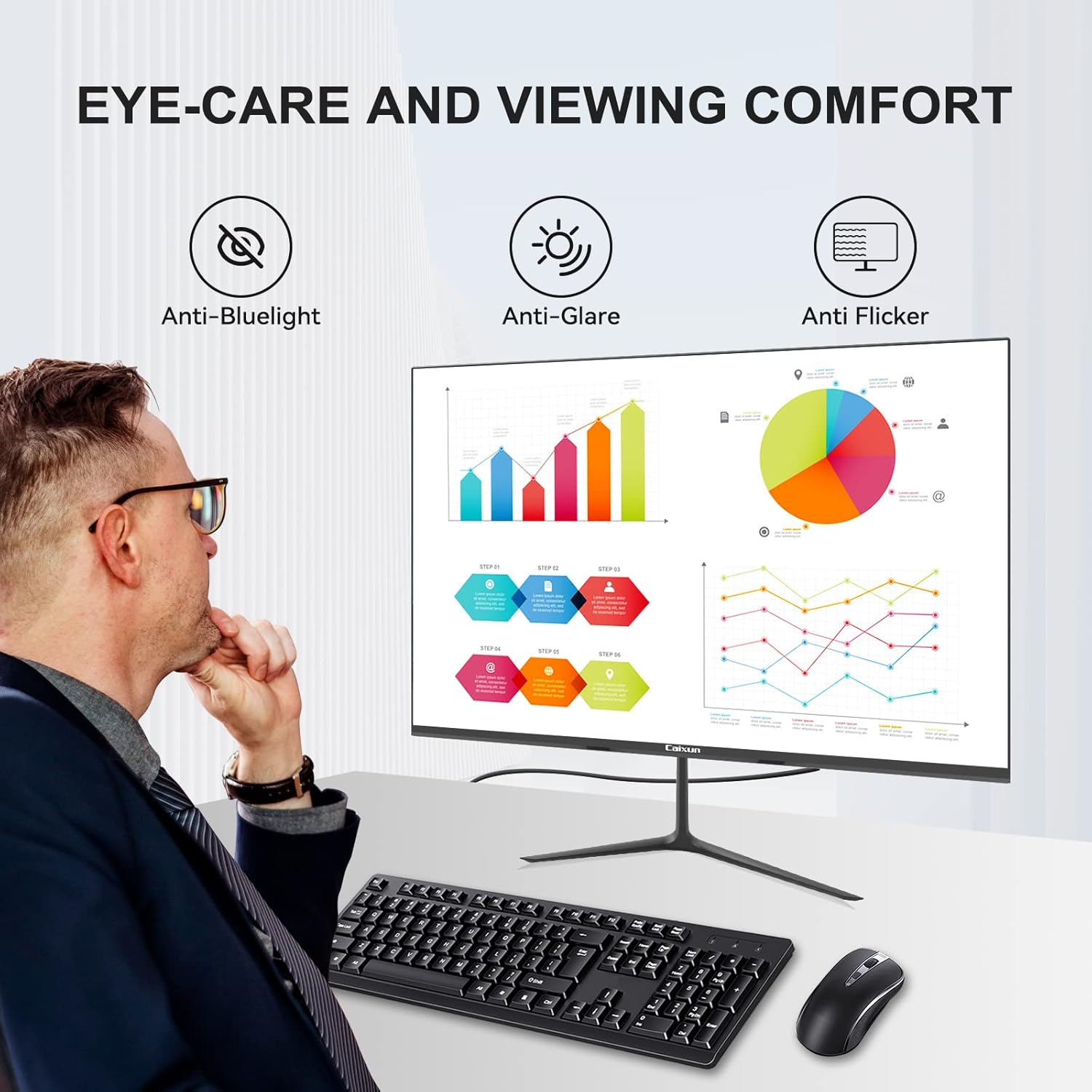
Image 4.1: The monitor's eye-care features for enhanced viewing comfort.
4.4 Tilt Adjustment
The monitor allows for a tilt adjustment to optimize your viewing angle. Gently tilt the screen forward (5°) or backward (15°) to find the most comfortable position.

Image 4.2: The monitor's tilt capability and wide 178° viewing angle.
5. Maintenance
5.1 Cleaning the Screen
To clean the monitor screen, first, power off the monitor and unplug the power cord. Use a soft, lint-free cloth lightly dampened with water or a screen-specific cleaning solution. Do not spray liquid directly onto the screen.
5.2 Cleaning the Casing
For the monitor casing, use a soft, dry cloth to wipe away dust and dirt. For stubborn marks, a slightly damp cloth can be used, followed by a dry cloth. Avoid using abrasive cleaners or solvents.
5.3 General Care
- Avoid placing the monitor in direct sunlight or near heat sources.
- Do not block the ventilation openings on the monitor.
- Protect the monitor from excessive dust, humidity, and extreme temperatures.
- Handle the monitor with care to prevent physical damage.
6. Troubleshooting
If you encounter issues with your Caixun monitor, please refer to the following common problems and solutions before contacting support.
| Problem | Possible Cause | Solution |
|---|---|---|
| No power | Power cable not connected; Power outlet faulty | Ensure power cable is securely connected to monitor and outlet. Test outlet with another device. |
| No signal / Blank screen | Incorrect input source selected; Video cable loose or faulty; Computer not outputting signal | Press the input source button on the monitor to select the correct input (HDMI/VGA). Check video cable connections. Restart your computer. |
| Image is blurry or distorted | Incorrect resolution; Video cable quality; Graphics driver issue | Set display resolution to 1920x1080. Ensure video cable is high quality and securely connected. Update graphics drivers on your computer. |
| Colors are incorrect | Color settings misconfigured; Faulty cable | Adjust color settings via the OSD menu. Try a different video cable. |
7. Specifications
Below are the detailed technical specifications for the Caixun 24-inch Full HD Monitor (CM24X2):
| Feature | Specification |
|---|---|
| Brand | Caixun |
| Model | CM24X2 |
| Screen Size | 24 Inches (60 cm) |
| Display Technology | LED |
| Resolution | 1920 x 1080 (Full HD 1080p) |
| Refresh Rate | 60 Hz |
| Response Time | 5 Milliseconds |
| Aspect Ratio | 16:9 |
| Contrast Ratio | 3000:1 |
| Viewing Angle | 178 Degrees (Horizontal/Vertical) |
| Connectivity | HDMI, VGA |
| Special Features | Tilt Adjustment, Built-in Speakers, Blue Light Filter, Wall Mountable (VESA 75x75mm), Frameless Design, Flicker-Free |
| Power Source | AC |
| Product Dimensions (L x W x H) | 40 x 50 x 15 cm (approx.) |
| Product Weight | 3.76 kg |

Image 7.1: Detailed dimensions of the Caixun CM24X2 monitor.
8. Warranty and Support
Your Caixun monitor comes with a two-year warranty from the date of purchase, covering manufacturing defects and malfunctions under normal use. Additionally, Caixun provides lifetime technical service to assist you with any product-related inquiries or issues.
If you receive the product with any damage, missing accessories, or experience any operational problems, please contact Caixun customer support immediately. Refer to the warranty card included in your package for specific contact details and warranty terms.
For technical assistance or warranty claims, please have your model number (CM24X2) and proof of purchase readily available.
Ask a question about this manual
Ask about setup, troubleshooting, compatibility, parts, safety, or missing instructions. Manuals+ will review the question and use this page’s manual context to help answer it.