
Product Overview
The Yeskamo 2K Pet Surveillance Camera is an advanced indoor security solution designed to monitor your pets, children, or home with high-definition clarity. Featuring 3-megapixel resolution, 360-degree pan and 110-degree tilt capabilities, smart motion detection with auto-tracking, two-way audio, and compatibility with Amazon Alexa, this camera provides comprehensive coverage and interactive monitoring. It supports both local SD card storage and cloud service options for flexible recording.

Image: The Yeskamo 2K Pet Surveillance Camera, a white dome-shaped device, shown next to a smartphone displaying a live feed of a baby.
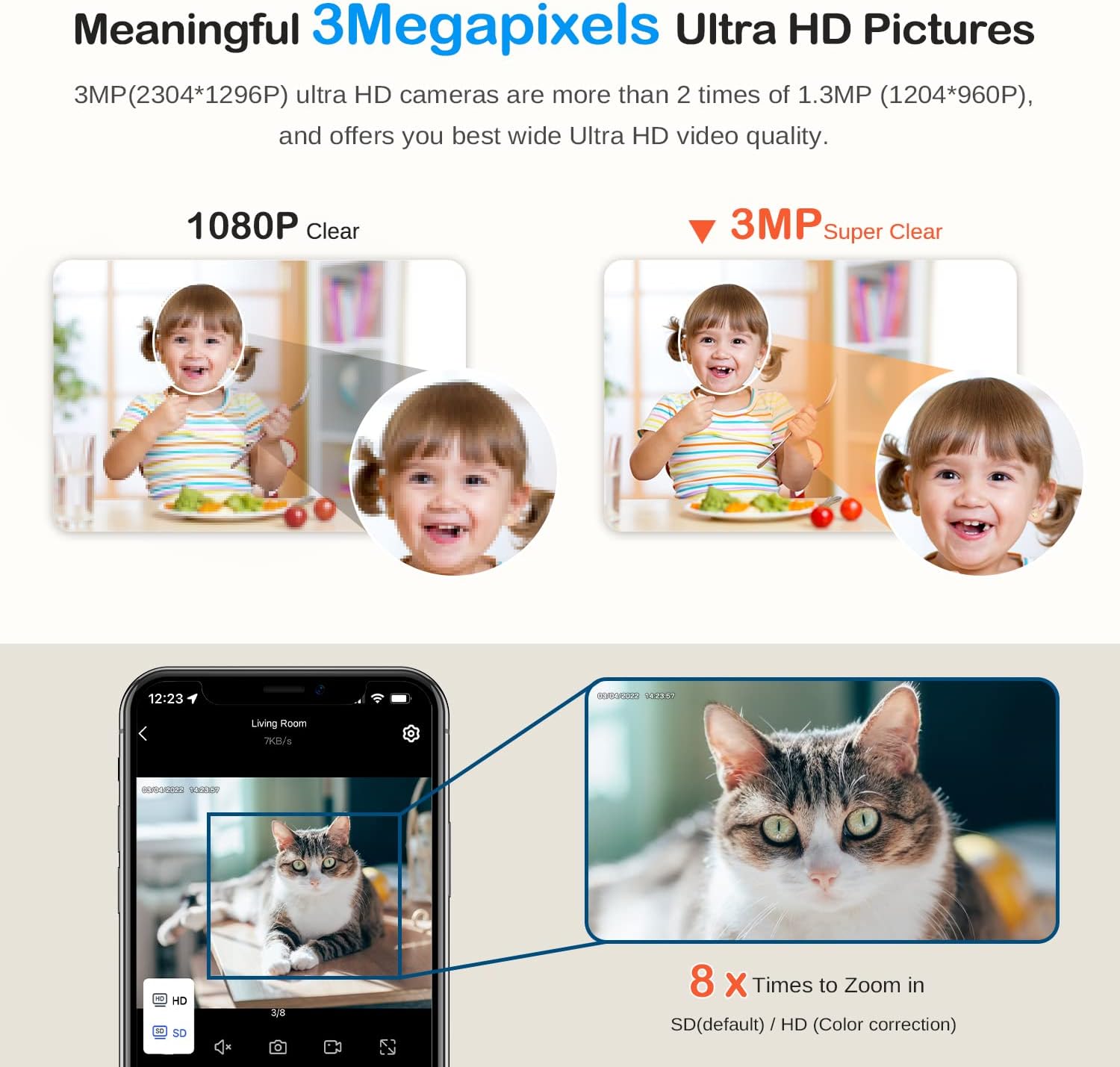
Image: A visual comparison demonstrating the superior clarity of 3-megapixel Ultra HD video compared to 1080P, highlighting the detailed image quality of the Yeskamo camera.
Setup Guide
1. Unboxing and Initial Inspection
Carefully remove all components from the packaging. Verify that all items listed in the package contents are present and undamaged. The package typically includes the camera unit, power adapter, USB cable, mounting bracket, screws, and a user manual.
2. Powering On the Camera
- Connect the USB cable to the camera's power input port.
- Plug the power adapter into a standard electrical outlet.
- The camera will power on, and its indicator light will begin to flash, indicating it is ready for setup.
3. Inserting a Micro SD Card (Optional)
For local video storage, insert a micro SD card (up to 128GB, sold separately) into the camera's micro SD card slot. Ensure the card is inserted correctly until it clicks into place. The camera supports continuous recording and loop recording with an SD card.
4. App Download and Wireless Connection
- Download the official Yeskamo app from your smartphone's app store (iOS or Android).
- Register a new account or log in if you already have one.
- Follow the in-app instructions to add your camera. This typically involves scanning a QR code on the camera or entering its device ID, and connecting it to your 2.4GHz Wi-Fi network.
- Once connected, the camera's indicator light will turn solid, and you will be able to view the live feed on your phone.
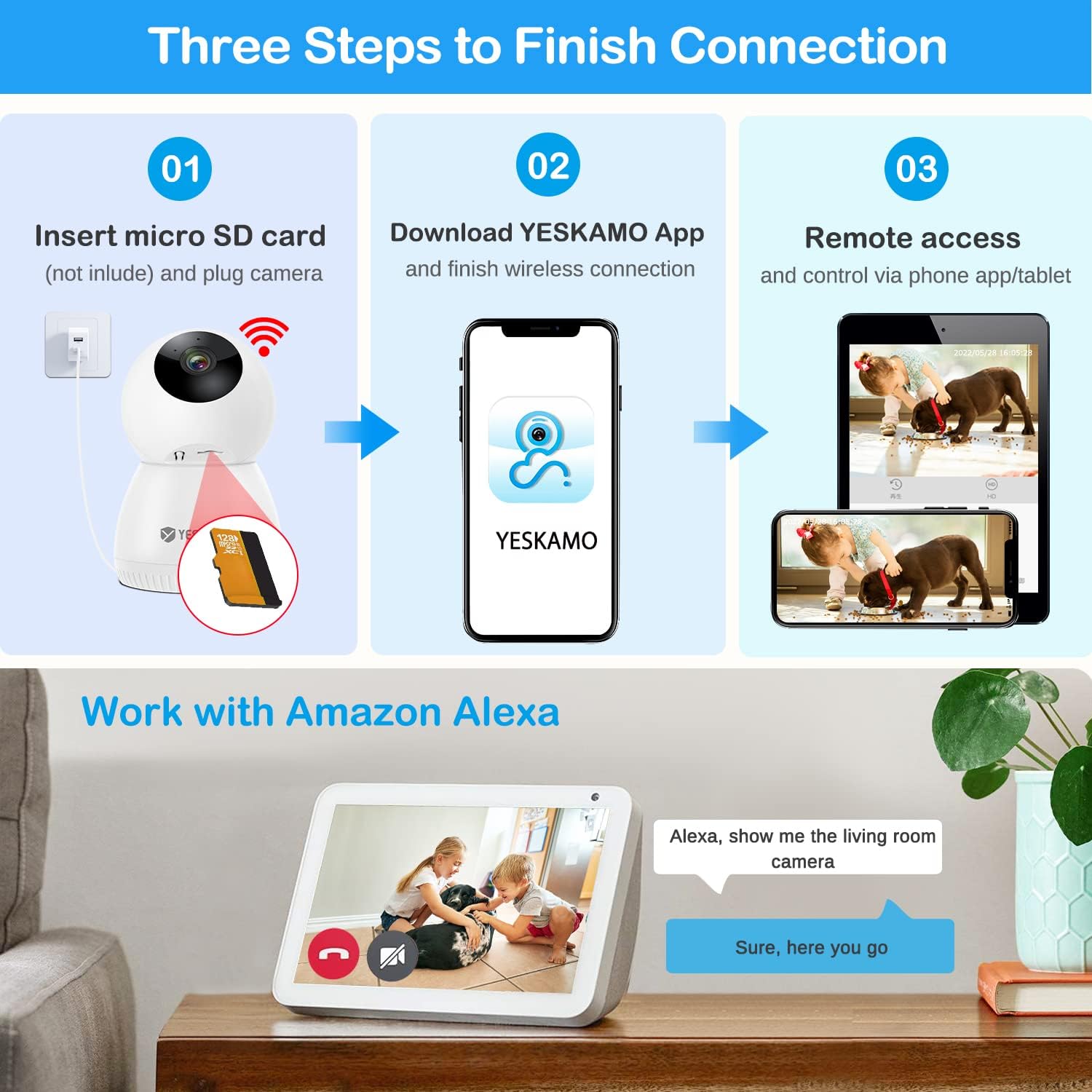
Image: A step-by-step guide illustrating the connection process: inserting a micro SD card, downloading the YESKAMO app for wireless connection, and remote access via phone/tablet, along with a demonstration of Alexa integration.
5. Mounting Options
The camera offers versatile installation options:
- Desktop Stand: Place the camera on any flat surface like a table or shelf.
- Ceiling Mount: Use the provided mounting bracket and screws to attach the camera to the ceiling. Ensure the camera is securely fastened.
- Wall Mount: Similar to ceiling mounting, the bracket can be used to fix the camera to a wall.
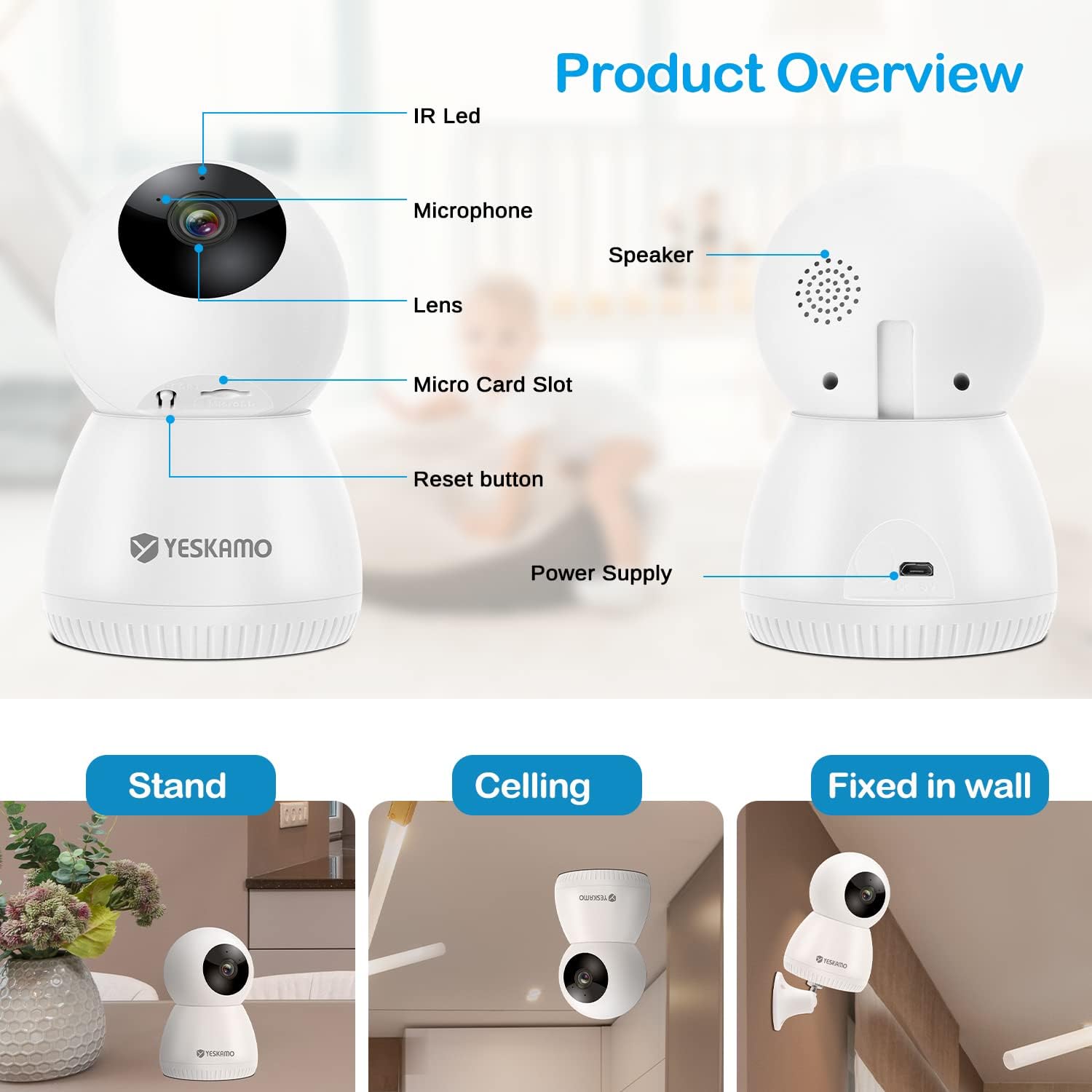
Image: A detailed product overview highlighting components like the IR LED, lens, microphone, micro SD card slot, reset button, speaker, and power supply, alongside illustrations of stand, ceiling, and wall mounting options.
Operating Instructions
1. Pan/Tilt and PTZ Rotation
Control the camera's viewing angle directly from the app. The camera supports 360° horizontal pan and 110° vertical tilt, allowing you to cover a wide area without blind spots. You can manually adjust the view or set up automatic patrol routes.
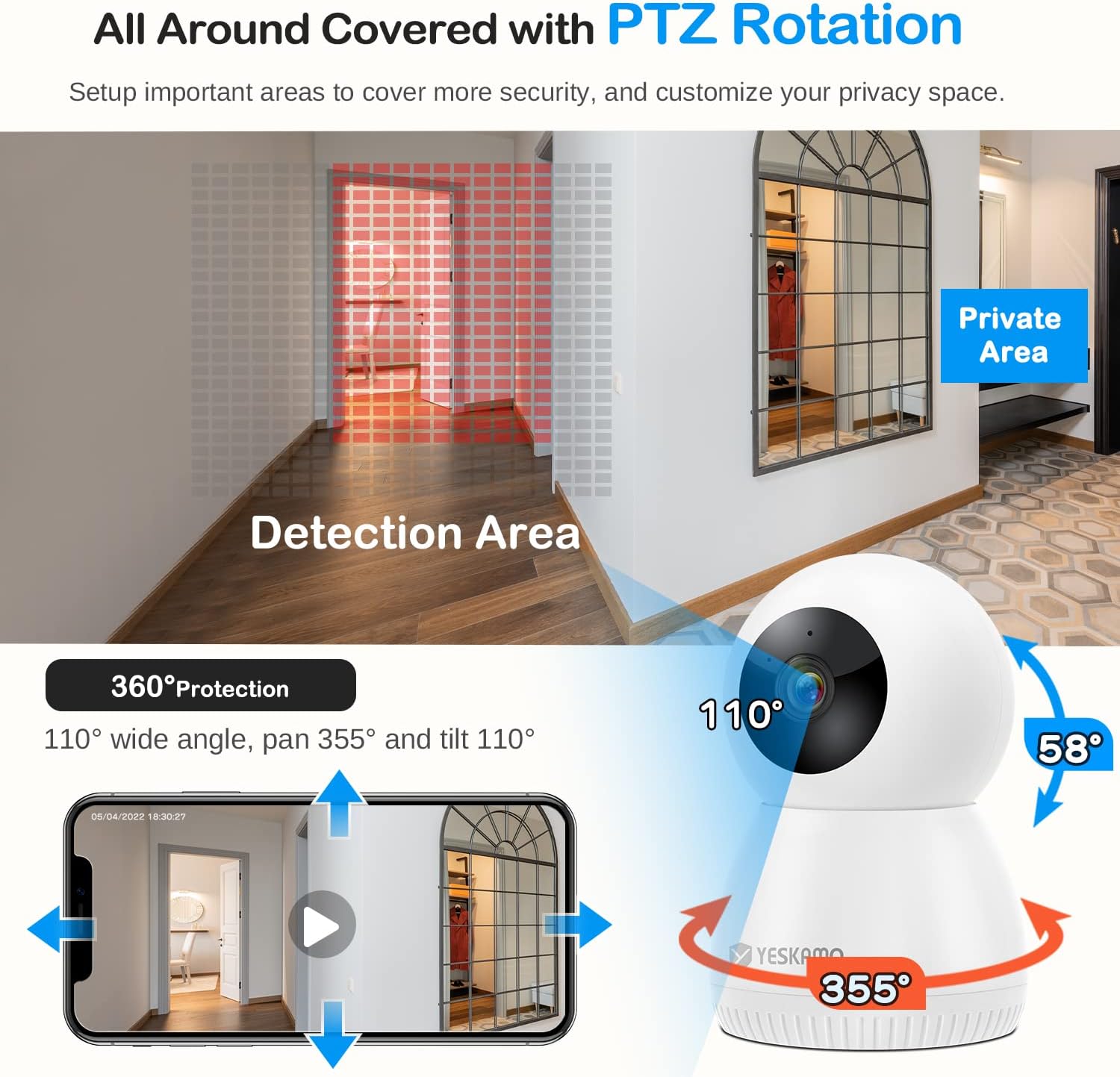
Image: An illustration demonstrating the camera's 360-degree pan and 110-degree tilt rotation, highlighting how it covers an entire area and allows for setting private zones.
2. Motion Detection and Auto Tracking
The camera features intelligent motion detection that can identify and track moving objects, including pets and people. When motion is detected, the camera can send real-time alerts to your phone and begin recording. You can also define specific detection areas and privacy zones within the app.

Image: A scene depicting the camera's auto-tracking function following a cat, along with an illustration of how to set and navigate to multiple preset viewing locations.

Image: A visual breakdown of the camera's motion detection features, including motion + AI detect, alarms with app push notifications, and clear two-way talk functionality.
3. Two-Way Audio
With a built-in microphone and speaker, the camera enables two-way communication. You can listen to what's happening in the room and speak through the camera to interact with pets or family members from anywhere using the app.
4. Storage Options (SD Card & Cloud)
The camera supports two primary storage methods:
- Micro SD Card: Record continuously or based on motion detection directly to a micro SD card (up to 128GB, not included). The system supports automatic overwriting of old footage when the card is full.
- Cloud Storage: Subscribe to the cloud service for secure, encrypted storage of your video recordings. A 7-day free trial is often available. Cloud storage provides remote access to footage even if the camera is damaged or stolen.

Image: A diagram illustrating the local storage option via SD card and the cloud service, emphasizing auto overwrite and loop recording features for continuous video capture.
5. Alexa Integration
The Yeskamo camera is compatible with Amazon Alexa. You can use voice commands to view the camera's live feed on compatible Alexa-enabled devices, such as an Echo Show, providing convenient hands-free monitoring.
6. Multi-View and Sharing
The app allows you to add multiple Yeskamo cameras and view up to four live feeds simultaneously on a single screen. You can also share access to your camera with family members, allowing them to monitor the home or pets from their own devices.
Maintenance
1. Cleaning the Camera
To ensure optimal performance, periodically clean the camera lens and body. Use a soft, dry cloth to wipe away dust and smudges. Avoid using harsh chemicals or abrasive materials that could damage the camera's surface or lens.
2. Firmware Updates
Regularly check for and install firmware updates through the Yeskamo app. Firmware updates often include performance improvements, bug fixes, and new features, ensuring your camera operates with the latest capabilities and security enhancements.
3. Power Cycle
If the camera experiences minor issues or becomes unresponsive, try power cycling it. Disconnect the power adapter from the outlet, wait for 10-15 seconds, and then plug it back in. This can often resolve temporary glitches.
Troubleshooting
Camera Not Connecting to Wi-Fi
- Ensure your Wi-Fi network is 2.4GHz. The camera does not support 5GHz Wi-Fi.
- Check your Wi-Fi password for accuracy.
- Place the camera closer to your Wi-Fi router to improve signal strength.
- Restart your router and the camera.
- If issues persist, try resetting the camera using the reset button (refer to the Product Overview image for location) and re-attempt the setup process.
Poor Video Quality
- Ensure your internet connection is stable and has sufficient bandwidth.
- Clean the camera lens with a soft, dry cloth.
- Check the video resolution settings in the app; ensure it's set to 3MP or HD for the best quality.
Motion Detection Not Working
- Verify that motion detection is enabled in the app settings.
- Adjust the motion detection sensitivity.
- Ensure no objects are obstructing the camera's view in the detection zone.
- Check the schedule for motion detection if one is set.
No Audio or Poor Two-Way Audio
- Check the volume settings on your smartphone and within the app.
- Ensure the microphone and speaker on the camera are not obstructed.
- Verify that microphone access is granted to the app in your phone's privacy settings.
Specifications
| Feature | Specification |
|---|---|
| Model Number | JP-NK03-10804-2TB |
| Video Resolution | 3 Megapixels (2048 x 1080) |
| Pan/Tilt Range | 360° Horizontal, 110° Vertical |
| Connectivity | Wi-Fi (2.4GHz only) |
| Storage Options | Micro SD Card (up to 128GB), Cloud Storage |
| Audio | Two-Way Audio |
| Special Features | Motion Detection, Auto Tracking, Night Vision, Alexa Compatibility, Private Zones, Preset Locations |
| Power Source | Electric Cable (3 Watt-hours) |
| Dimensions (L x W x H) | 8 x 8 x 13 cm |
| Weight | 350 grams |
| Recommended Use | Baby Monitoring, Pet Monitoring, Home Security |
Warranty and Support
Warranty Information
Please refer to the manufacturer's official website or the product packaging for specific warranty terms and conditions. Typically, Yeskamo products come with a limited warranty covering manufacturing defects for a specified period from the date of purchase.
Customer Support
For technical assistance, troubleshooting, or warranty claims, please contact Yeskamo customer support through their official website or the contact information provided in your product's packaging. When contacting support, please have your product model number (JP-NK03-10804-2TB) and purchase details ready.