1. Introduction
This manual provides essential information for the setup, operation, and maintenance of your Samsung ViewFinity S8 Series 27-Inch 4K UHD Monitor. Designed for professionals and content creators, this monitor offers high resolution, accurate color reproduction, and versatile connectivity options to enhance your workspace.
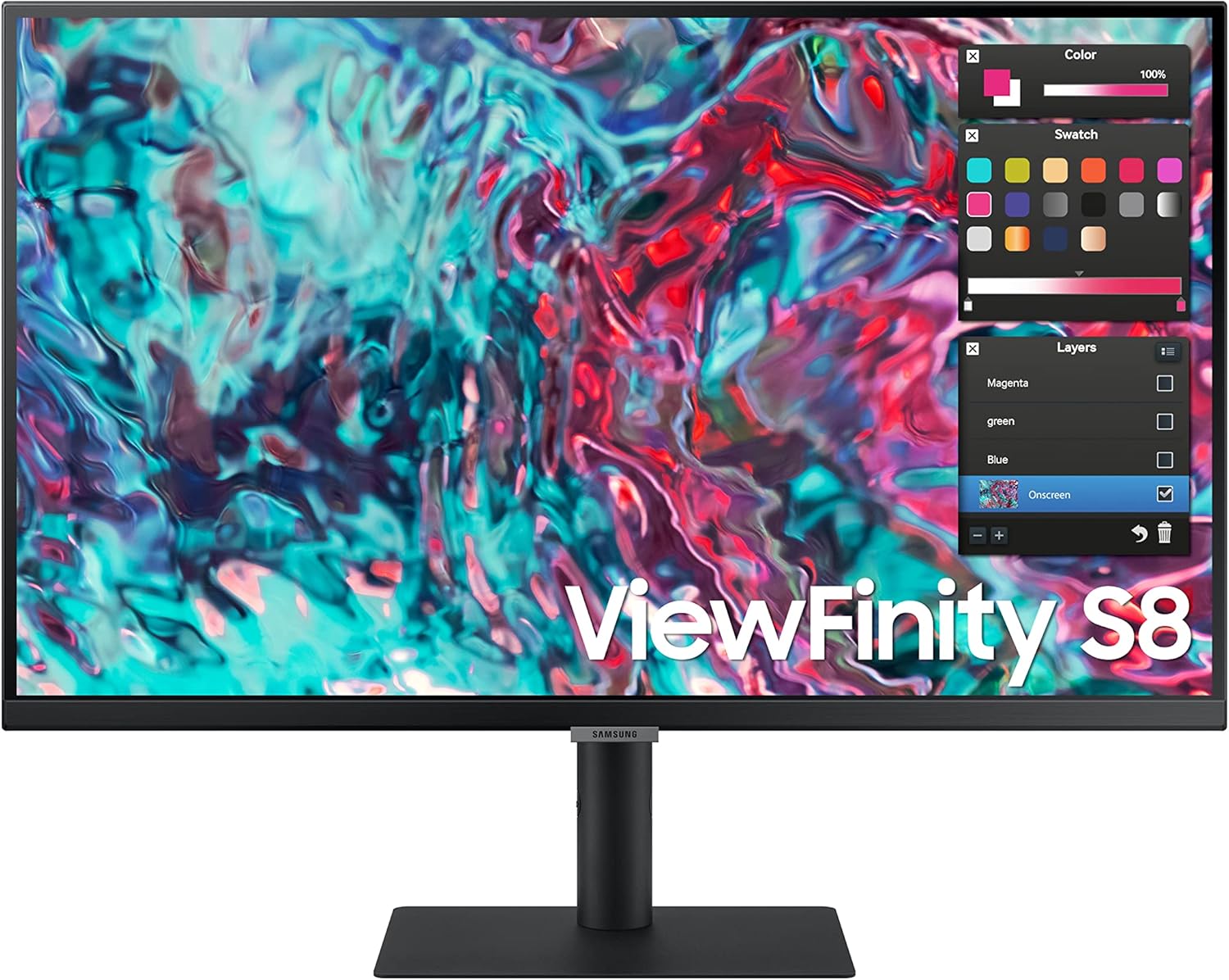
Figure 1.1: Samsung ViewFinity S8 27-Inch 4K UHD Monitor
2. Package Contents
Verify that all items are present in your product packaging:
- Samsung ViewFinity S8 27-Inch 4K UHD Monitor
- Monitor Stand (Base and Neck)
- Power Cable
- HDMI Cable
- Thunderbolt 4 Cable
- Quick Setup Guide (this document)
3. Setup
3.1 Assembling the Stand
- Place the monitor face down on a soft, clean surface to prevent scratches.
- Attach the stand neck to the monitor by aligning the tabs and pushing until it clicks into place.
- Secure the stand base to the stand neck using the captive screw on the underside of the base.
3.2 Connecting Cables
Connect the necessary cables to the monitor's rear ports. Refer to Figure 3.1 for port locations.

Figure 3.1: Rear Ports and Connections
- Power: Connect the power cable to the monitor and a wall outlet.
- Video Input: Connect either the HDMI cable to the HDMI IN port (1) or the Thunderbolt 4 cable to the Thunderbolt 4 Upstream port (3) on the monitor and to your computer.
- Thunderbolt 4 Daisy Chain: For a dual monitor setup, connect a second compatible monitor to the Thunderbolt 4 Downstream port (2).
- LAN: Connect an Ethernet cable to the LAN port (4) for network connectivity, especially useful for laptops without an Ethernet port.
- USB Devices: Connect USB peripherals to the USB 3.0 ports (5, 6, 7).
- Audio: Connect headphones or external speakers to the Headphone IN port (8).
4. Operating the Monitor
4.1 Basic Controls
The monitor features a control button (often a joystick-like button) located on the bottom center or rear of the display for power and menu navigation. Press the button to turn the monitor on/off or access the On-Screen Display (OSD) menu. Use the joystick to navigate through menu options and adjust settings.
4.2 Display Features
- UHD Resolution & IPS Panel: Experience crystal clear color quality and a wide viewing angle of 178° with 4K UHD resolution, providing ample screen real estate for multiple applications.

Figure 4.1: UHD Resolution and IPS Panel Benefits
- 1 Billion Colors with HDR 10: Enjoy content with stunning color accuracy and depth. HDR10 support ensures darker darks and brighter highlights, displaying content as intended by creators.

Figure 4.2: 1 Billion Colors with HDR 10
- Picture-by-Picture (PBP) & Picture-in-Picture (PIP): View inputs from simultaneous sources at native resolution (PBP) or resize a second source to up to 25% of the screen (PIP) to multitask efficiently.

Figure 4.3: Picture-by-Picture (PBP) Functionality
- TUV Certified Intelligent Eye Care: The monitor automatically adjusts brightness and color temperature to optimize viewing in any environment. Eye Saver Mode and Flicker Free features protect against excessive blue light and eye strain.

Figure 4.4: Intelligent Eye Care Features
4.3 Connectivity Features
- Thunderbolt 4: Utilize two Thunderbolt 4 ports for a single-cable solution to power your laptop (up to 90W), transmit data at up to 40Gbps, and connect to compatible Macs and PCs. Daisy-chaining allows for a simple dual UHD display setup.

Figure 4.5: Dual 4K Display Setup with Thunderbolt 4 Daisy Chain
- Built-in Speakers: The integrated speakers provide audio without the need for external peripherals, contributing to a cleaner and more efficient workspace.

Figure 4.6: Built-in Speakers
4.4 Ergonomic Design
The monitor stand allows for various adjustments to optimize your viewing comfort and minimize distractions:
- Height Adjustment: Raise or lower the screen to your preferred height.
- Tilt: Adjust the vertical angle of the screen.
- Swivel: Rotate the screen horizontally.
- Pivot: Rotate the screen from landscape to portrait orientation.

Figure 4.7: Ergonomic Adjustments (Height, Slim Stand, Pivot)

Figure 4.8: Ergonomic Adjustments (Swivel, Tilt)
5. Maintenance
To ensure the longevity and optimal performance of your monitor:
- Cleaning the Screen: Gently wipe the screen with a soft, lint-free cloth. For stubborn marks, use a screen-specific cleaning solution applied to the cloth, not directly to the screen.
- Cleaning the Exterior: Use a soft, dry cloth to clean the monitor's casing. Avoid abrasive cleaners.
- Ventilation: Ensure the monitor's ventilation openings are not blocked to prevent overheating.
- Power Off: Always power off the monitor when not in use for extended periods.
6. Troubleshooting
If you encounter issues with your monitor, refer to the following common solutions:
| Problem | Possible Cause / Solution |
|---|---|
| No image on screen |
|
| No sound from built-in speakers |
|
| Monitor does not wake from sleep / Controls unresponsive |
|
| Picture-by-Picture (PBP) or Picture-in-Picture (PIP) not working |
|
7. Specifications
Detailed technical specifications for the Samsung ViewFinity S8 Series 27-Inch 4K UHD Monitor (Model S27B804TGN):
| Feature | Detail |
|---|---|
| Brand | Samsung |
| Model Number | LS27B804TGNXGO |
| Screen Size | 27 inches |
| Screen Resolution | 3840x2160 (4K UHD) |
| Max Screen Resolution | 3840 x 2160 Pixels |
| Panel Type | IPS |
| Refresh Rate | 60Hz |
| HDR Support | HDR10 |
| Connectivity | 2 x Thunderbolt 4, 1 x HDMI, 3 x USB 3.0, 1 x LAN, 1 x Headphone IN |
| Built-in Speakers | Yes |
| Ergonomics | Height Adjustable, Tilt, Swivel, Pivot |
| Item Weight | 15.7 pounds |
| Product Dimensions (LxWxH) | 7.7 x 24.2 x 21.7 inches |
| Color | Black |
| Voltage | 240 Volts |
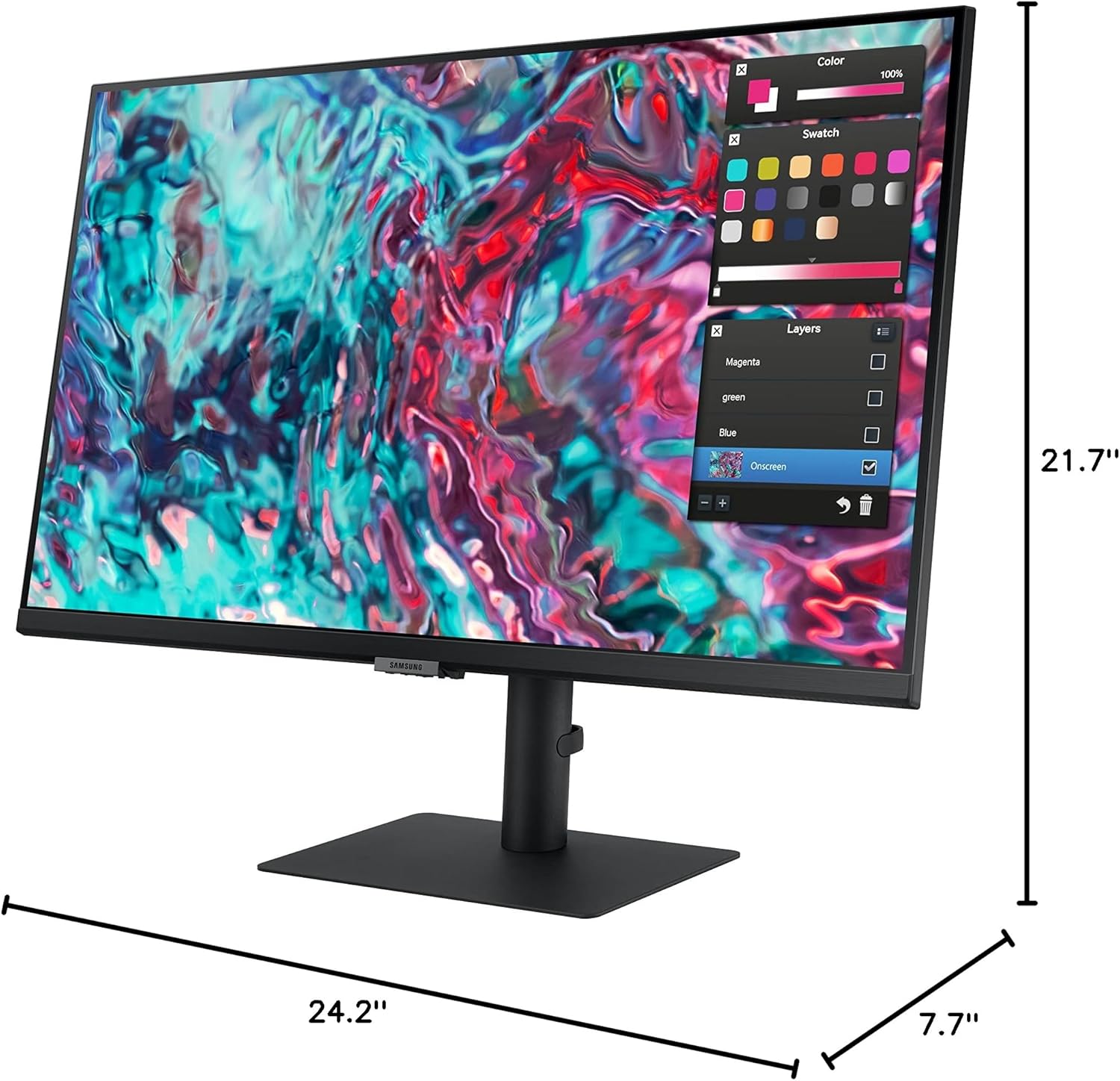
Figure 7.1: Monitor Dimensions
8. Warranty Information
For detailed warranty information regarding your Samsung ViewFinity S8 monitor, please refer to the warranty card included in your product packaging or visit the official Samsung support website. Warranty terms and conditions may vary by region and purchase date.
9. Customer Support
If you require further assistance or have questions not covered in this manual, please contact Samsung Customer Support:
- Online Support: Visit the official Samsung website and navigate to the support section for your specific monitor model.
- Phone Support: Refer to your product documentation for regional customer service contact numbers.