
1. Introduction
This manual provides essential information for the safe and efficient operation of your PowerWalker VFI 1000 AT FR Online Uninterruptible Power Supply (UPS). The VFI AT series utilizes double-conversion technology to provide reliable power protection for critical devices. Please read this manual thoroughly before installation and use, and retain it for future reference.
2. Safety Instructions
WARNING: Failure to follow these safety instructions can result in fire, electric shock, serious injury, or death.
- Do not open the UPS casing. There are no user-serviceable parts inside. Refer all servicing to qualified service personnel.
- Do not connect appliances that could overload the UPS, such as hair dryers or vacuum cleaners.
- Ensure the UPS is connected to a properly grounded power outlet.
- Do not block ventilation openings. Maintain adequate clearance around the UPS for proper airflow.
- Avoid installing the UPS in areas with excessive dust, humidity, or extreme temperatures.
- In case of emergency, press the OFF button and disconnect the UPS from the AC power source.
3. Product Overview
The PowerWalker VFI 1000 AT FR UPS is designed to provide clean, stable power to your connected equipment. It features a user-friendly interface and various connectivity options.
3.1 Front Panel

Figure 3.1: Front Panel of the UPS. This image shows the main display screen indicating input and output voltage, battery status, and load level. Below the screen are four control buttons: ON, OFF, ENTER, and ESC.
The front panel includes an LCD display that provides real-time information about the UPS status, such as input/output voltage, battery charge, and load level. Control buttons allow for easy navigation and configuration.
- LCD Display: Shows operational status and parameters.
- ON Button: Powers on the UPS.
- OFF Button: Powers off the UPS.
- ENTER Button: Confirms selections or enters menus.
- ESC Button: Exits menus or cancels operations.
3.2 Rear Panel
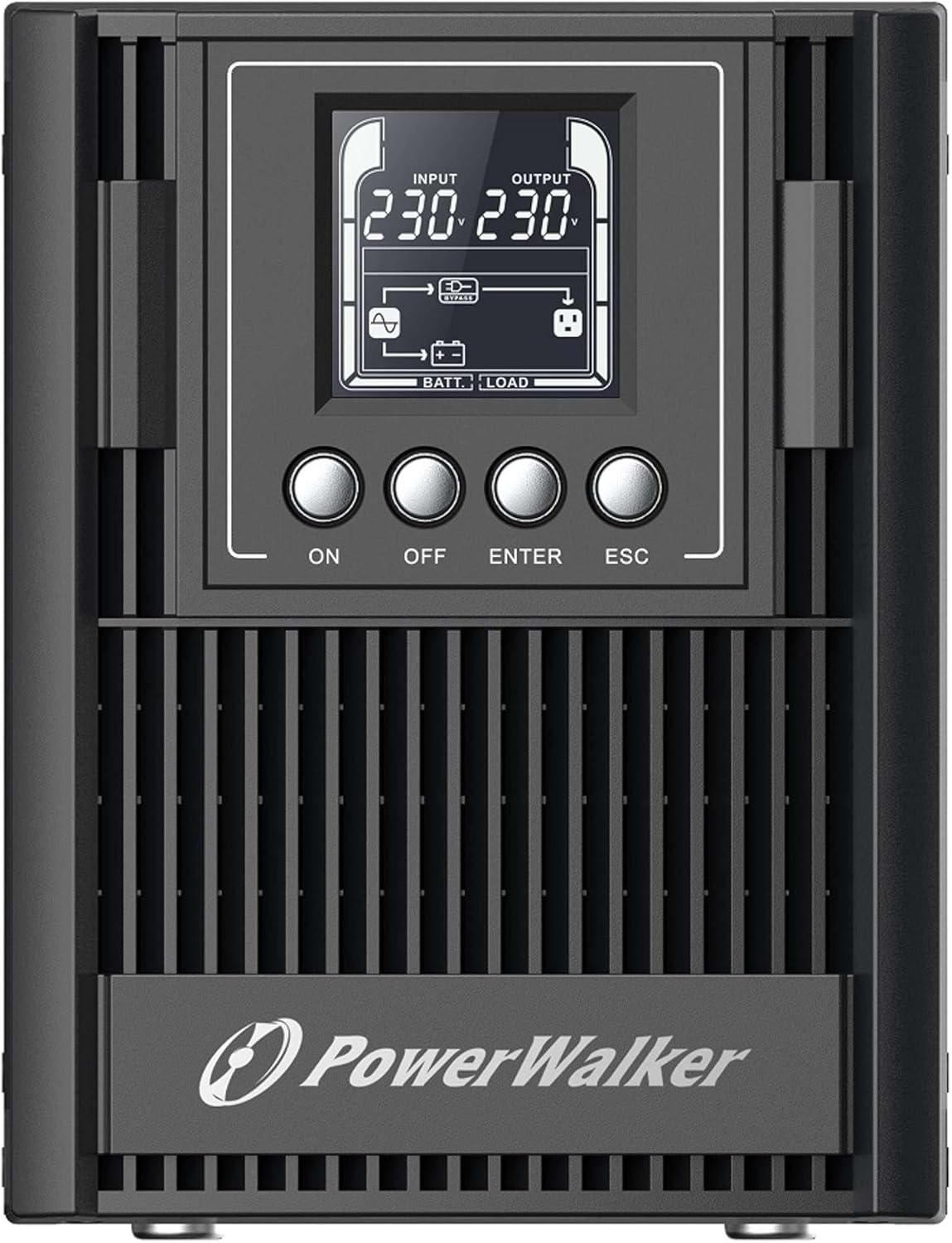
Figure 3.2: Rear Panel of the UPS. This image displays the connectivity options including a serial port (DB9), cooling fan, multiple Type F outlets, a USB port, an EPO (Emergency Power Off) terminal, and the AC input socket.
The rear panel provides all necessary connections for input power, output to protected devices, and communication interfaces.
- AC Input: Connects the UPS to the main power supply.
- Output Sockets: Type F, Type E, or Type G outlets (depending on model) for connecting protected equipment.
- USB Port: For communication with a computer and monitoring software.
- RS-232 Port (Serial): For advanced communication and monitoring.
- EPO (Emergency Power Off) Terminal: For remote emergency shutdown.
- Intelligent Slot: For optional communication cards (e.g., SNMP card).
- External Battery Pack Connector: For connecting optional external battery packs to extend backup time.
4. Setup
4.1 Unpacking and Inspection
Carefully unpack the UPS and inspect it for any shipping damage. If any damage is found, do not install the unit and contact your dealer.
4.2 Placement
Place the UPS in a clean, dry, and well-ventilated area. Ensure sufficient clearance (at least 20 cm) around the unit for proper heat dissipation. Avoid direct sunlight, heat sources, and excessive moisture.
4.3 Initial Charging
Before initial use, connect the UPS to a standard AC power outlet for at least 8 hours to ensure the internal batteries are fully charged. The UPS will charge its batteries whether it is turned ON or OFF.
4.4 Connecting Equipment
- Connect your critical equipment (computers, monitors, network devices) to the output sockets on the rear panel of the UPS.
- Connect the UPS power cord to a grounded AC power outlet.
- (Optional) Connect the USB or RS-232 cable from the UPS to your computer for monitoring and management.
- (Optional) If using external battery packs, connect them according to their specific instructions to the designated connector on the UPS.
5. Operating the UPS
5.1 Turning On the UPS
Press and hold the ON button on the front panel for approximately 2 seconds until you hear a beep and the LCD display illuminates. The UPS will perform a self-test and then enter normal operating mode.
5.2 Turning Off the UPS
To turn off the UPS, press and hold the OFF button for approximately 2 seconds until the LCD display turns off. Ensure all connected equipment is properly shut down before turning off the UPS.
5.3 LCD Display and Navigation
The LCD display provides various operational parameters. Use the ENTER and ESC buttons to navigate through menus and view different information screens. The display automatically darkens after a period of inactivity and can be woken up with a single button press.
5.4 Remote Shutdown (RPO)
The UPS supports Remote Power Off (RPO) functionality. Connect an external switch to the EPO terminal on the rear panel. Activating this switch will immediately shut down the UPS and connected equipment. Refer to the wiring diagram in the advanced user manual for proper connection.
6. Maintenance
6.1 Battery Care
The UPS contains internal lithium batteries. To maximize battery life:
- Keep the UPS connected to AC power to keep batteries charged.
- Avoid storing the UPS in extreme temperatures.
- Perform a battery calibration (if available via software) or a full discharge/recharge cycle every 3-6 months.
- Replace batteries when their capacity significantly degrades. Battery replacement should only be performed by qualified personnel.
6.2 Cleaning
Clean the exterior of the UPS with a soft, dry cloth. Do not use liquid or aerosol cleaners. Ensure ventilation openings are free from dust and debris.
6.3 Storage
If storing the UPS for an extended period, ensure the batteries are fully charged. Recharge the batteries every three months to prevent permanent damage.
7. Troubleshooting
This section provides solutions to common issues you may encounter with your UPS. If the problem persists, contact technical support.
| Problem | Possible Cause | Solution |
|---|---|---|
| UPS does not turn on. | No AC input power; Low battery charge. | Check AC power connection; Allow UPS to charge for 8 hours. |
| UPS beeps continuously. | Overload; Low battery; Fault condition. | Reduce connected load; Allow batteries to charge; Check LCD for error codes. |
| Short backup time. | Batteries not fully charged; Batteries reaching end of life. | Ensure full charge; Consider battery replacement. |
| Connected equipment not receiving power. | UPS is off; Output sockets not enabled; UPS in fault mode. | Turn on UPS; Check LCD for status; Consult manual for output settings. |
8. Specifications
| Feature | Detail |
|---|---|
| Model | VFI 1000 AT FR (Model Number: 10122183) |
| Brand | PowerWalker |
| Output Power Capacity | 900W |
| Input Voltage | 220V (Wide input voltage range) |
| Battery Type | Lithium |
| Output Sockets | Type F, Type E, Type G (various versions available) |
| Communication Ports | USB (HID support), RS-232, Intelligent Slot |
| Dimensions (H x W x D) | 50 x 10 x 48 cm (approximate) |
| Weight | 2 Kilograms |
| Special Features | Double-conversion online technology, Generator compatible, RPO, External battery pack support, Automatically darkening LCD. |
9. Warranty and Support
The PowerWalker VFI 1000 AT FR UPS is covered by a standard manufacturer's warranty. Please refer to the warranty card included with your product or visit the official PowerWalker website for detailed warranty terms and conditions.
For technical support, troubleshooting assistance beyond this manual, or spare parts inquiries, please contact your local dealer or PowerWalker customer service. The EU Spare Part Availability Duration is 2 Years.