
podofo 769261d4-eafe-46c2-8081-2abcc1557057
User Manual: Android Car Stereo for Suzuki SX4 2006-2013
Brand: podofo
1. Product Overview
This Android Car Stereo is specifically designed for Suzuki SX4 models from 2006 to 2013. It features a 9-inch touchscreen with Wireless CarPlay and Android Auto support, allowing seamless integration with your smartphone for navigation, communication, and entertainment. The unit includes GPS navigation, WiFi connectivity, HiFi audio capabilities, Bluetooth for hands-free calls and music, FM radio with RDS, and Mirror Link functionality. It also comes with an HD backup camera and supports steering wheel controls for enhanced safety and convenience.
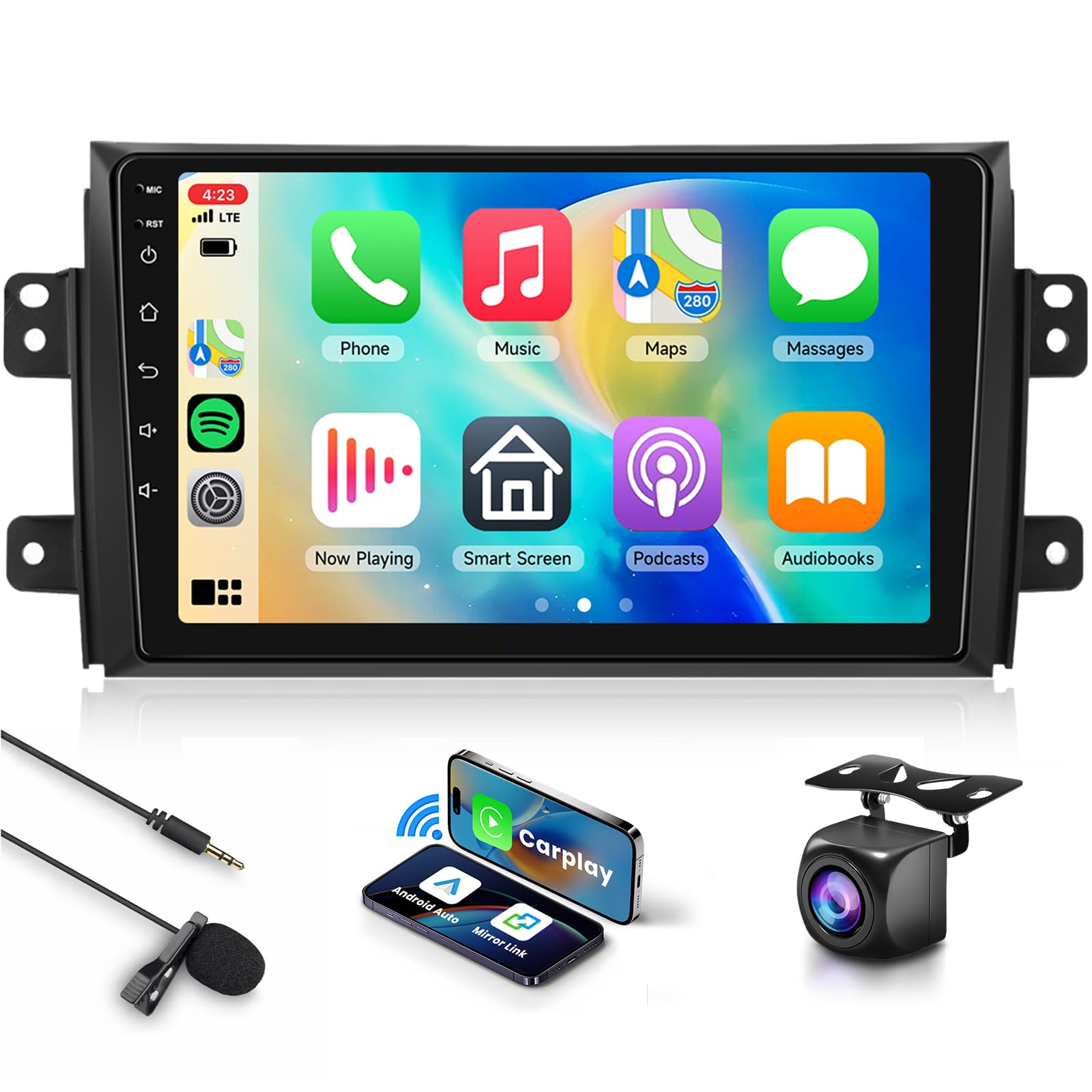
Image: The main unit of the Android Car Stereo with its 9-inch touchscreen display, along with an external microphone, a smartphone displaying wireless CarPlay/Android Auto, and a backup camera.
2. What's in the Box
Verify that all components are present before beginning installation.
- Android Car Stereo
- GPS Antenna
- External Microphone
- HD Backup Camera
- Power Cable
- Original Car USB Cable
- RCA Cable
- USB Cable (x2)
- Rear Camera Input Cable
- User Manual
- Installation Tool

Image: A visual representation of all included accessories: the main stereo unit, various cables (power, USB, RCA, camera input), GPS antenna, external microphone, backup camera, user manual, and installation tools.
3. Setup and Installation
This car stereo is designed for easy installation in Suzuki SX4 models from 2006-2013. No additional frame is required, and a plug-and-play wiring harness is included.
3.1. Pre-Installation Checklist
- Ensure the vehicle's ignition is off and the battery is disconnected.
- Verify all components listed in "What's in the Box" are present.
- Familiarize yourself with your vehicle's dashboard and existing stereo removal process.
3.2. Wiring Connections
Connect the provided wiring harness to the car stereo and your vehicle's existing wiring. Ensure all connections are secure.

Image: A comparison showing the original Suzuki SX4 dashboard with the factory radio on the right, and the same dashboard on the left with the new 9-inch Android car stereo seamlessly installed.
3.3. Backup Camera Wiring
For the HD backup camera, connect the red wire to the car's reversing light positive and the black wire to the car's reversing light negative. The reverse trigger wire (labeled "Reverse, Back or Trigger") connects to the vehicle's reverse light positive. If this wire is not present, no connection is needed.

Image: A detailed diagram illustrating the wiring connections for the backup camera, showing how to connect the camera to the car stereo and to the vehicle's reverse light power source.
4. Operating Instructions
The Android car stereo features a 9-inch touchscreen and runs on the latest Android operating system, ensuring smooth operation.
4.1. Wireless CarPlay & Android Auto
Connect your smartphone wirelessly to access navigation, phone contacts, email, notifications, and music. This feature supports both iOS (CarPlay) and Android (Android Auto) devices, allowing for intelligent voice control.
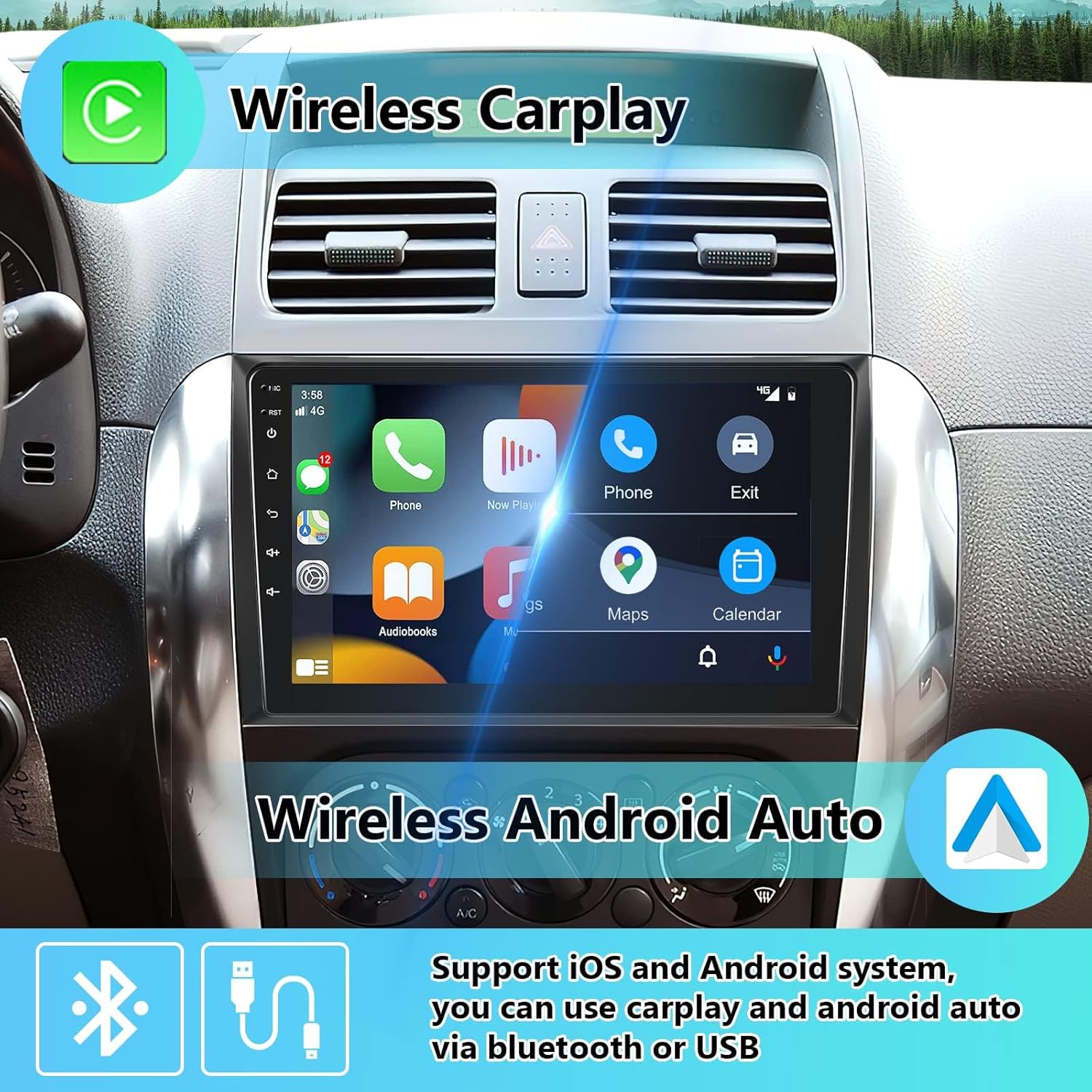
Image: The car stereo display showing the Wireless CarPlay interface on the left and the Wireless Android Auto interface on the right, demonstrating seamless smartphone integration.
4.2. GPS Navigation & WiFi
The unit includes a GPS module for both offline and online map navigation. Connect to WiFi or a mobile hotspot to download apps from the Play Store, stream online videos, and use online navigation services.
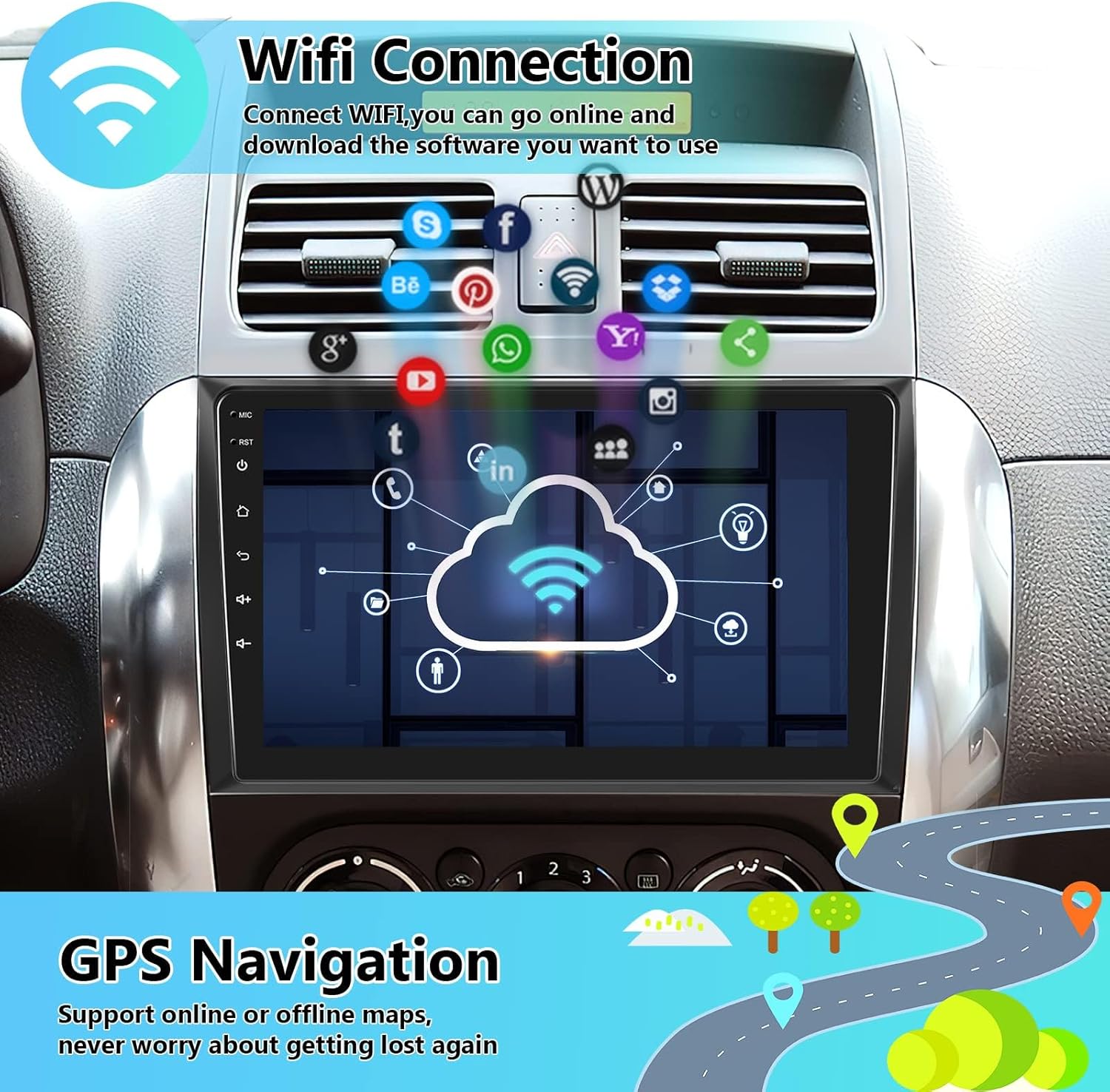
Image: The car stereo display showing a map for GPS navigation and icons indicating WiFi connectivity, along with various app icons suggesting online functionality.
4.3. HiFi Audio
Experience high-fidelity audio with 16-band EQ options. This technology aims to reproduce sound with exceptional clarity and accuracy, providing an immersive listening experience.

Image: The car stereo display showing an equalizer interface for HiFi audio settings, with various frequency bands and sound profiles (Custom, Classical, Jazz, Pop) to optimize the audio output.
4.4. Bluetooth & FM Radio & Mirror Link
- Bluetooth: Built-in noise-canceling microphone and external 3.5mm jack ensure clear call sound. Easily connect your phone for hands-free calls and music streaming.
- FM Radio: Tune into FM radio stations with RDS for real-time traffic, news, and music broadcasts.
- Mirror Link: Supports both wired and wireless mirror link to project your smartphone's screen onto the car stereo display.

Image: The car stereo display showing interfaces for Bluetooth calls (dial pad) and Bluetooth music playback, illustrating the seamless integration of phone functions.

Image: The car stereo display showing the FM/RDS radio interface with a frequency tuner and options for station search and presets, indicating access to real-time broadcasts.
4.5. HD Backup Camera & Steering Wheel Control
- HD Backup Camera: The included HD night vision rear view camera offers a 170-degree ultra-wide viewing angle and is fully waterproof, enhancing parking safety and ease.
- Steering Wheel Control: Supports integration with your vehicle's steering wheel buttons, allowing you to answer calls, play music, switch modes, and more, keeping your focus on driving.
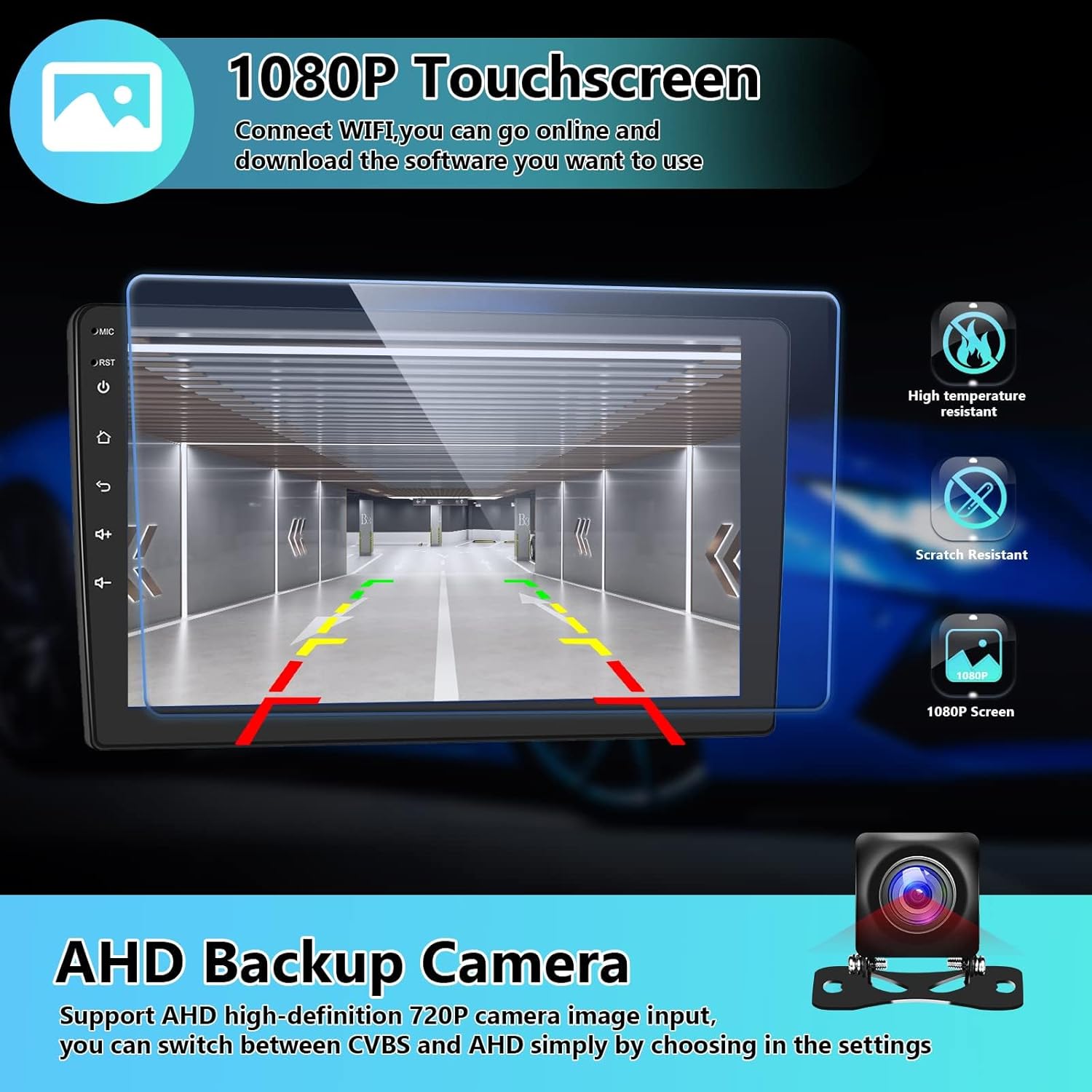
Image: The car stereo display showing the view from the AHD backup camera with parking guidelines, highlighting the 1080P touchscreen's high temperature resistance and scratch resistance.

Image: The car stereo display showing the steering wheel control learning interface, allowing users to map vehicle steering wheel buttons to various functions of the stereo.
5. Maintenance
To ensure the longevity and optimal performance of your car stereo, follow these maintenance guidelines:
- Cleaning: Use a soft, dry cloth to clean the touchscreen and exterior. Avoid abrasive cleaners or solvents that could damage the surface.
- Temperature: Operate the unit within recommended temperature ranges. Extreme temperatures can affect performance and lifespan.
- Software Updates: Periodically check for and install software updates to ensure optimal performance and access to new features.
6. Troubleshooting
If you encounter any issues with your car stereo, refer to the following common problems and solutions:
| Problem | Possible Cause | Solution |
|---|---|---|
| Unit does not power on. | Loose power connection, blown fuse. | Check power cables and vehicle's fuse box. Ensure secure connections. |
| No sound or poor sound quality. | Speaker wiring issues, incorrect audio settings. | Verify speaker connections. Adjust EQ settings. Consider an external amplifier if sound is consistently low. |
| Wireless CarPlay/Android Auto not connecting. | Bluetooth/WiFi issues, phone compatibility. | Ensure Bluetooth and WiFi are enabled on both devices. Restart phone and stereo. Check for software updates. |
| GPS signal weak or inaccurate. | GPS antenna placement, environmental interference. | Ensure GPS antenna has a clear view of the sky. Avoid placing near metal objects. |
| Unit is slow or glitchy. | Too many apps running, low RAM, software issue. | Close unnecessary applications. Perform a factory reset if issues persist (backup data first). Ensure sufficient RAM for desired operations. |
If the problem persists after trying these solutions, please contact customer support.
7. Specifications
| Feature | Detail |
|---|---|
| Item Weight | 2.81 pounds |
| Package Dimensions | 12.52 x 6.81 x 3.15 inches |
| Display Size | 9 Inches |
| Connectivity Technology | Bluetooth, USB, Wi-Fi |
| Controller Type | Touch |
| Special Feature | Navigation, wired/wireless CarPlay/Android Auto |
| Compatible Devices | Smartphone |
| Audio Output Mode | Stereo |
| Surround Sound Channel Configuration | 4.0 |
| Video Encoding | MKV, AVI, MP4, RMVB, H.264, H.265/HEVC |
| Output Power | 45 Watts |
8. Warranty and Support
8.1. Warranty Information
This product comes with a 2-Year Warranty. For details regarding warranty claims and coverage, please refer to the terms provided at the time of purchase or contact customer support.
8.2. Technical Support
Podofo specializes in car electronics and offers professional technical support. If you have any issues regarding compatibility, installation, or usage, please contact us at any time.
For 24/7 technical support, you can typically find assistance by:
- Navigating to the product page on the retailer's website.
- Locating the "Sold by [Seller Name]" section (e.g., "Sold by Podofo US").
- Clicking on the seller's name to access their profile.
- Selecting "Ask a question" to directly contact their support team.

Image: A graphic illustrating the two steps to find Podofo technical support: first, click on "Sold by Podofo US" on the product page, and then click "Ask a question" on the seller's page.