
1. Introduction
This manual provides instructions for the safe and effective operation of your ThreeH 1/4 Inch Digital Torque Adapter. This device converts a standard ratchet wrench into a digital torque wrench, offering precise torque measurement with audible and visual alerts.
2. Safety Information
- Always wear appropriate personal protective equipment, such as safety glasses, when using tools.
- Ensure the adapter is securely attached to the ratchet wrench and the fastener before applying torque.
- Do not exceed the maximum torque capacity of the adapter (30 Nm / 22.1 ft-lb).
- Keep the device clean and dry. Avoid exposure to extreme temperatures or corrosive environments.
- Do not attempt to disassemble or modify the adapter. Refer servicing to qualified personnel.
3. Product Overview
The ThreeH Digital Torque Adapter features a clear digital display, intuitive controls, and a compact design for use in various applications.

Figure 3.1: Digital Torque Adapter Components and Controls. This image highlights the LED flashing indicator, buzzer, and control buttons (P/T, Power, M, +, -) for unit selection and value adjustment.
Key Components:
- Digital Display: Shows real-time torque values and settings.
- P/T Button: Toggles between Peak Hold (P) and Track (T) modes.
- Power Button: Turns the device on/off.
- M Button: Used for mode selection and data memory functions.
- '+' and '-' Buttons: Adjust preset torque values.
- LED Flashing Indicator: Provides visual alert during torque application.
- Buzzer: Provides audible alert during torque application.
- 1/4 Inch Drive: Input and output square drives for connecting to a ratchet wrench and sockets.
4. Setup
4.1 Battery Installation
The torque adapter requires two (2) AAA 1.5V batteries (not included).
- Locate the battery compartment cover on the back of the adapter.
- Remove the screw(s) securing the battery cover and carefully lift it off.
- Insert two AAA batteries, ensuring correct polarity (+/-) as indicated inside the compartment.
- Replace the battery cover and secure it with the screw(s).
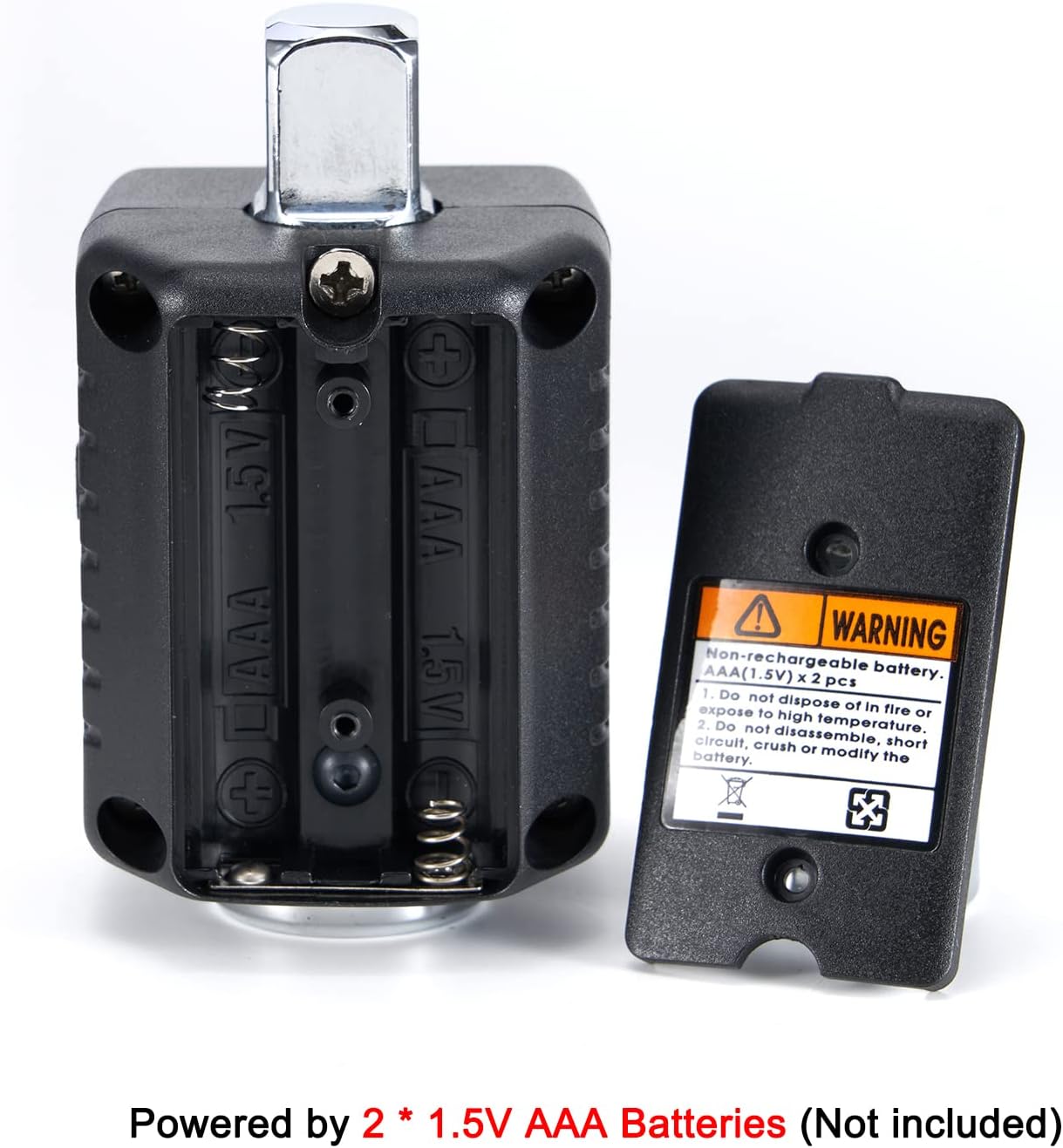
Figure 4.1: Battery Compartment. The image shows the open battery compartment, ready for two AAA batteries to be inserted with correct polarity.
5. Operating Instructions
5.1 Power On/Off
- To turn on: Press the Power button.
- To turn off: Press and hold the Power button for approximately 3 seconds. The device will also auto shut off after 70 seconds of inactivity.
5.2 Unit Selection
The adapter supports torque units in Newton-meters (Nm), foot-pounds (lb-ft), and kilogram-meters (kg-m).
- To change units: Simultaneously press the P/T and M buttons. The unit displayed on the screen will cycle through Nm, lb-ft, and kg-m. Release the buttons when the desired unit is shown.
5.3 Setting Target Torque Value
- Press the M button to enter the preset torque setting mode.
- Use the '+' and '-' buttons to adjust the target torque value. Pressing and holding these buttons will increase or decrease the value more rapidly.
- Once the desired value is set, press the M button again to confirm and exit the setting mode.
5.4 Torque Application and Alerts
Attach the digital torque adapter to your 1/4 inch drive ratchet wrench, then attach the appropriate socket to the adapter's output drive. Apply torque to the fastener.

Figure 5.1: Adapter in Use. The image shows the digital torque adapter connected to a ratchet wrench, being used to tighten a fastener on an engine.
- As you apply torque, the digital display will show the real-time torque value.
- When the applied torque reaches 80% of the preset target value, the buzzer will begin to sound, and the LED will flash. The frequency of the beeps and flashes will increase as the torque approaches the target.
- When the preset target torque value is reached, the buzzer will emit a continuous tone, and the LED will flash rapidly. At this point, stop applying force immediately to avoid over-tightening.
5.5 Peak Hold (P) and Track (T) Modes
- Track Mode (T): Displays the real-time torque value as it is being applied. This is the default mode.
- Peak Hold Mode (P): Displays the maximum torque value achieved during the tightening process. To switch to Peak Hold mode, press the P/T button once. The display will show 'P' to indicate Peak Hold mode. To clear the peak value, press the P/T button again.
6. Maintenance
6.1 Cleaning
- Wipe the adapter with a soft, dry cloth after each use.
- Do not use abrasive cleaners or solvents, as these can damage the display or housing.
6.2 Storage
- Store the adapter in its protective case when not in use to prevent damage.
- Remove batteries if the device will not be used for an extended period to prevent leakage.
- Store in a cool, dry place away from direct sunlight and extreme temperatures.

Figure 6.1: Protective Carrying Case. The image displays the compact protective case designed for storing the digital torque adapter, with dimensions indicated.
7. Troubleshooting
- Device does not power on: Check battery installation and ensure batteries are fresh. Replace if necessary.
- Inaccurate readings: Ensure the adapter is properly seated on the ratchet wrench and the socket is firmly attached. Avoid sudden jerking motions when applying torque. If persistent, the device may require professional calibration.
- Display is dim or flickering: Batteries may be low. Replace batteries.
- Buzzer or LED not working: Check battery level. If the issue persists, contact customer support.
8. Specifications
| Feature | Specification |
|---|---|
| Model Number | H-TG55A |
| Torque Range | 0.3 - 30 Nm (0.22 - 22.1 ft-lb) |
| Drive Size | 1/4 Inch |
| Accuracy | ±2% |
| Units | Nm, lb-ft, kg-m |
| Data Memory | 40 sets |
| Auto Shut-off | 70 seconds (no usage) |
| Power Source | 2 x 1.5V AAA Batteries |
| Material | Alloy Steel |
| Item Length | 4.7 Inches |
| Item Weight | 120 Grams |

Figure 8.1: Drive Size and Torque Range. This image visually confirms the 1/4 inch drive size and the specified torque range of 0.3-30Nm (0.22-22.1ft-lb).
9. Warranty Information
This product comes with a standard manufacturer's warranty. Please retain your proof of purchase for any warranty claims. For specific warranty terms and conditions, refer to the documentation included with your purchase or contact ThreeH customer support.
10. Support
For technical assistance, troubleshooting, or warranty inquiries, please contact ThreeH customer support through the retailer's platform or the official ThreeH website. Please have your product model number (H-TG55A) and purchase details ready when contacting support.