
Introduction
Thank you for choosing the Samsung RS28A500ASR Smart Side-by-Side Refrigerator. This appliance is designed to provide efficient and convenient food storage with advanced features for modern households. Please read this manual thoroughly before operating your new refrigerator to ensure safe and optimal performance. Keep this manual for future reference.

Figure 1: Exterior view of the Samsung RS28A500ASR Refrigerator.
Key Features
- Generous Capacity: 28 cu. ft. total capacity (17.9 cu. ft. fresh-food, 10.1 cu. ft. freezer) for ample storage.
- Sleek Design: Modern minimalist design with flat-door styling and recessed handles.
- Fingerprint-Resistant Finish: Stainless steel exterior resists smudges for easy maintenance.
- Smart Connectivity: WiFi enabled for remote control and monitoring via the SmartThings app.
- Indoor Ice Maker: Conveniently located ice maker frees up freezer shelf space.
- All-Around Cooling: Ensures even airflow to maintain consistent temperatures throughout.
- ADA Compliant: Designed for easier access.
- Sabbath Mode: Special setting for observing Shabbat.

Figure 2: Interior view showcasing the spacious and organized compartments.
Setup
1. Unpacking and Placement
- Remove all packaging materials, including tape and protective film.
- Place the refrigerator on a flat, stable surface. Ensure adequate clearance around the appliance for proper ventilation.
- Dimensions (D x W x H): 33.5 x 35.88 x 70.06 inches.

Figure 3: Refrigerator dimensions for proper installation.
2. Electrical Connection
- Connect the refrigerator to a dedicated, grounded 115V AC outlet.
- Do not use extension cords or ungrounded adapters.
3. Water Connection (for Ice Maker)
- Connect the refrigerator to a potable water supply using a new water line kit.
- Flush the water line for several minutes before connecting to the refrigerator.
- Refer to the detailed installation guide for specific water line connection instructions.
4. Initial Cleaning
- Wipe down the interior and exterior surfaces with a soft cloth and mild detergent.
- Allow the refrigerator to run for at least 2-3 hours before storing food to reach optimal temperatures.
Operating Instructions
1. Control Panel
The control panel is located inside the refrigerator compartment. It allows you to adjust temperatures, activate special functions, and monitor alerts.

Figure 4: Interior control panel for temperature and feature adjustments.
2. Temperature Control
- Press the Fridge button to cycle through desired refrigerator temperatures.
- Press the Freezer button to cycle through desired freezer temperatures.
- For rapid cooling, use Power Cool for the refrigerator or Power Freeze for the freezer.
3. Ice Maker Operation
The indoor ice maker automatically produces ice once connected to a water supply. The ice bucket is located in the freezer door.

Figure 5: Close-up view of the indoor ice maker in the freezer compartment.
- To turn the ice maker ON/OFF, press and hold the Ice Maker button for 3 seconds.
- To access ice, pull the ice bucket forward.
4. SmartThings App Connectivity
- Download the Samsung SmartThings app on your smartphone.
- Follow the in-app instructions to connect your refrigerator to your home WiFi network.
- Monitor and control temperatures, receive door-open alerts, and manage energy usage remotely.
5. Sabbath Mode
- To activate Sabbath Mode, refer to the detailed instructions in the full user manual. This mode disables certain functions in observance of religious holidays.
Maintenance
1. Cleaning the Exterior
- Wipe the fingerprint-resistant stainless steel surface with a soft, damp cloth.
- For stubborn smudges, use a stainless steel cleaner specifically designed for appliances.
- Avoid abrasive cleaners or scouring pads, which can damage the finish.
2. Cleaning the Interior
- Remove all food items and shelves.
- Wash shelves and drawers with mild soap and warm water.
- Wipe down interior walls with a solution of baking soda and water (1 tablespoon baking soda to 1 quart water) to neutralize odors.
3. Water Filter Replacement
The water filter should be replaced approximately every 6 months, or when the filter indicator light illuminates on the control panel.
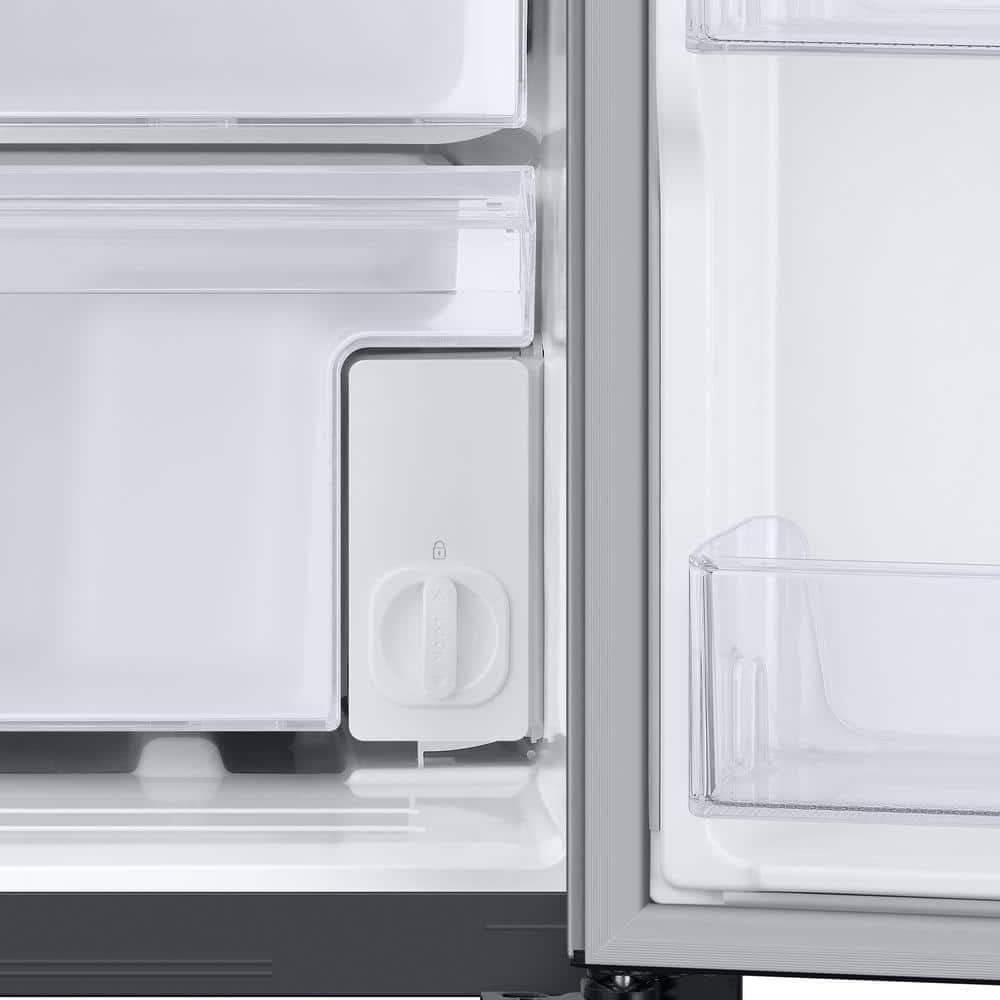
Figure 6: Location of the internal water filter for replacement.
- Locate the water filter compartment (typically in the lower right corner of the fresh food section).
- Twist the old filter counter-clockwise to remove.
- Insert the new filter and twist clockwise until secure.
- Flush several gallons of water through the dispenser to clear air and carbon dust.
Troubleshooting
If you encounter issues with your Samsung refrigerator, please refer to the following basic troubleshooting steps. For more complex problems, consult the full user manual or contact Samsung customer support.
- Refrigerator not cooling: Check if the power cord is securely plugged in. Ensure temperature settings are correct. Verify that the doors are fully closed.
- Ice maker not producing ice: Confirm the water supply is connected and the ice maker is turned ON. Check if the water filter needs replacement.
- Unusual noises: Some operational noises are normal (e.g., fan, defrost cycle). If noises are excessive or unusual, ensure the refrigerator is level and not touching walls.
- Door alarm sounding: Close the door completely. If the alarm persists, check for obstructions or ensure the door seal is intact.
Specifications
| Feature | Specification |
|---|---|
| Brand | Samsung |
| Model Info | RS28A500ASR |
| Total Capacity | 28 Cubic Feet |
| Fresh Food Capacity | 17.9 Cubic Feet |
| Freezer Capacity | 10.1 Cubic Feet |
| Product Dimensions (D x W x H) | 33.5 x 35.88 x 70.06 inches |
| Item Weight | 242.5 Pounds |
| Color | Fingerprint Resistant Stainless Steel |
| Installation Type | Freestanding |
| Voltage | 115 Volts |
| Annual Energy Consumption | 685 Kilowatt Hours |
| Defrost System | Automatic |
| Included Components | Gallon Door Bins, In-Door Ice Maker, LED Lighting, Water Filter |
Warranty & Support
Your Samsung RS28A500ASR Refrigerator comes with a standard manufacturer's warranty. For specific warranty details, including coverage and duration, please refer to the warranty card included with your product or visit the official Samsung website.
For technical assistance, service requests, or to purchase replacement parts (such as water filters), please contact Samsung Customer Support:
- Online Support: Visit samsung.com/us/support/
- Phone Support: Refer to your product documentation for the appropriate contact number.
Always provide your model number (RS28A500ASR) and serial number when contacting support for faster service.