
1. Introduction
Thank you for choosing the CLIKBUTM BYJ76-G Rechargeable Green Laser Pointer Presentation Clicker. This device is designed to enhance your presentations with its wireless control capabilities and bright green laser pointer. It offers seamless navigation through slides and is compatible with various operating systems and presentation software.

Image 1.1: The CLIKBUTM BYJ76-G Presentation Clicker, showcasing its sleek design.
2. Product Overview
Familiarize yourself with the components and controls of your presentation clicker.
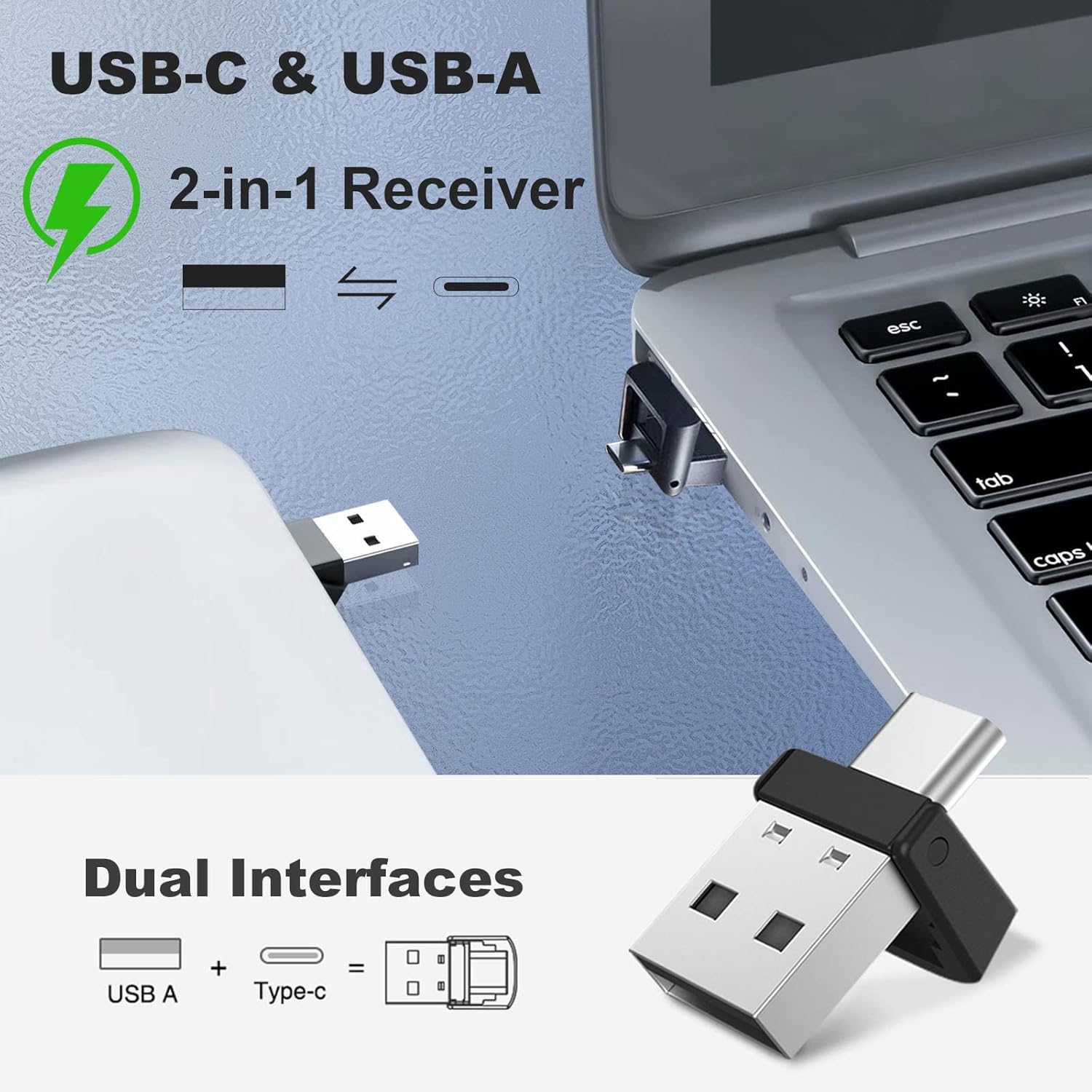
Image 2.1: Detailed diagram of the presentation clicker with key features labeled.
- Laser Pointer: Emits a green laser beam for highlighting.
- Page Up Button: Advances to the next slide or scrolls up. Also functions as Full Screen/Exit Full Screen.
- Page Down Button: Returns to the previous slide or scrolls down. Also functions as Black Screen.
- Laser Button: Activates the green laser pointer.
- Power Switch: Turns the device ON or OFF.
- Charging Port: USB-C port for recharging the internal battery.
- Indicator Light: Displays connection status and battery level.
- Volume Up/Down Buttons: Controls system volume.
- USB Receiver: Wireless dongle for connecting to your computer.

Image 2.2: The magnetic design allows for secure storage of the USB receiver within the clicker body.
3. Setup
The CLIKBUTM BYJ76-G is a plug-and-play device, requiring no software installation.
- Retrieve the USB Receiver: Gently pull the USB receiver from its magnetic storage slot at the bottom of the presentation clicker.
- Connect to Computer: Insert the 2-in-1 USB-A/USB-C receiver into an available USB-A or USB-C port on your computer. The system will automatically detect and install the necessary drivers.
- Power On: Slide the power switch on the side of the presentation clicker to the 'ON' position. The indicator light will illuminate, signifying a successful connection.

Image 3.1: The versatile 2-in-1 USB-A and USB-C receiver for broad compatibility.
4. Operating Instructions
Once connected, the presentation clicker provides intuitive control over your slides and media.
- Page Up: Press the Page Up (▲) button to move to the next slide in your presentation or scroll up in documents.
- Page Down: Press the Page Down (▼) button to move to the previous slide or scroll down in documents.
- Green Laser Pointer: Press and hold the Laser Button (💡) to activate the green laser pointer. Release the button to turn off the laser. The laser has a range of up to 328 feet (100 meters).
- Full Screen/Exit Full Screen: In presentation software, a quick double-press of the Page Up (▲) button may toggle full-screen mode.
- Black Screen: In presentation software, a quick double-press of the Page Down (▼) button may toggle a black screen.
- Volume Control: Use the dedicated Volume Up and Volume Down buttons on the side of the clicker to adjust your computer's audio output.
- Wireless Control Range: The wireless control distance is up to 100 feet.
5. Charging
The CLIKBUTM BYJ76-G features a built-in rechargeable Lithium Ion battery.
- Low Power Indication: The indicator light will turn red when the battery level is low.
- Connect Charger: Connect the included USB-C charging cable to the charging port on the clicker and the other end to a USB power source (e.g., computer USB port, wall adapter).
- Charging Status: The indicator light will show charging status (e.g., solid red while charging, turning off or blue when fully charged).
- Charging Time: A full charge typically takes less than 1 hour.
- Battery Life: A single charge provides over two months of worktime or up to 200 days of standby time.
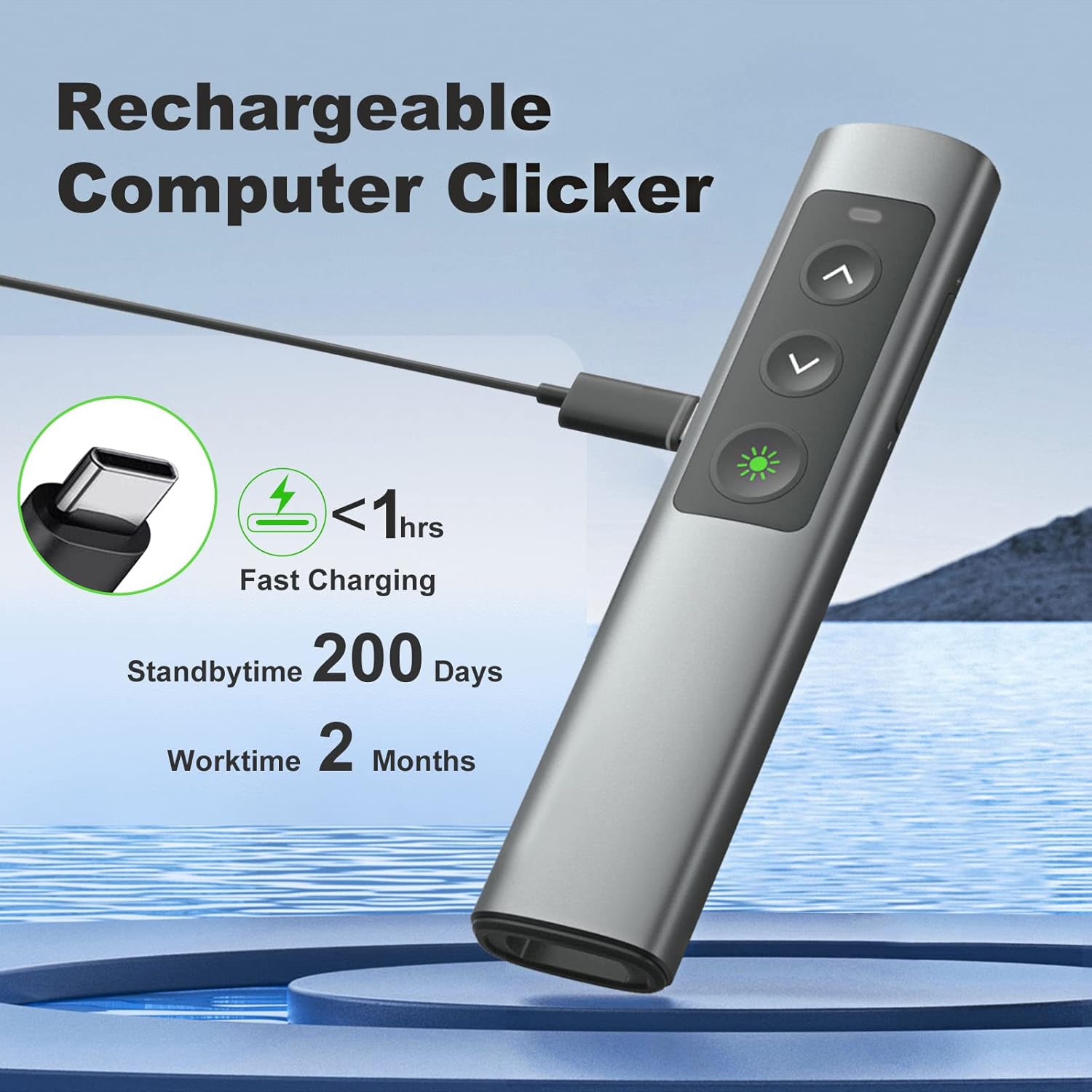
Image 5.1: The presentation clicker being charged via its USB-C port.
6. Compatibility
The CLIKBUTM BYJ76-G is designed for broad compatibility with various operating systems and presentation software.
Supported Operating Systems:
- Windows 2003/XP/Vista/7/8/10
- Mac OS
- Linux
Supported Software:
- PowerPoint
- Keynote
- Prezi
- Word
- Excel
- ACD See
- iWork
- Google Slides

Image 6.1: Visual representation of the clicker's compatibility with various systems and applications.
7. Maintenance
To ensure the longevity and optimal performance of your presentation clicker, follow these maintenance guidelines:
- Cleaning: Wipe the device with a soft, dry cloth. Avoid using harsh chemicals or abrasive materials.
- Storage: When not in use, store the clicker and its USB receiver in a cool, dry place. The magnetic storage for the receiver helps prevent loss.
- Battery Care: Avoid fully discharging the battery frequently. Recharge the device when the low power indicator appears.
- Avoid Drops: While designed with a durable metal casing, excessive drops or impacts can damage internal components.
8. Troubleshooting
If you encounter issues with your presentation clicker, refer to the following common solutions:
- Device Not Responding:
- Ensure the clicker is powered ON.
- Check if the USB receiver is securely plugged into a working USB port on your computer.
- Verify the battery level of the clicker and recharge if necessary.
- Try plugging the USB receiver into a different USB port.
- Restart your computer.
- Laser Pointer Not Working:
- Ensure the clicker is powered ON and connected.
- Press and hold the laser button firmly.
- Check battery level.
- Buttons Not Functioning Correctly:
- Ensure the clicker is connected and has sufficient battery.
- Test the clicker with different presentation software or documents to isolate the issue.
- Ensure no other wireless devices are causing interference.
- Short Wireless Range:
- Ensure there are no large metallic objects or other electronic devices obstructing the signal path between the clicker and the receiver.
- Move closer to the computer.
9. Specifications
| Feature | Specification |
|---|---|
| Model Number | BYJ76-G |
| Item Weight | 2.89 ounces (82 grams) |
| Package Dimensions | 5.79 x 2.2 x 0.75 inches (14.7 x 5.6 x 1.9 cm) |
| Laser Color | Green |
| Laser Range | Up to 328 feet (100 meters) |
| Wireless Control Range | Up to 100 feet |
| Connectivity | 2.4GHz Wireless (USB-A & USB-C 2-in-1 Receiver) |
| Battery Type | 1 Lithium Ion battery (included) |
| Charging Port | USB-C |
| Charging Time | Less than 1 hour |
| Worktime | Over 2 months per charge |
| Standby Time | Up to 200 days |

Image 9.1: Physical dimensions of the presentation clicker for size reference.
10. Safety Information
Please observe the following safety precautions when using the laser pointer:
- DO NOT point the laser beam at people or animals.
- DO NOT look directly into the laser beam.
- DO NOT point the laser beam at reflective surfaces.
- DO NOT allow children to use the laser pointer unsupervised.
- This product is not a toy.
11. Warranty and Support
For warranty information or technical support, please refer to the product packaging or contact CLIKBUTM customer service through the retailer where the product was purchased. Keep your purchase receipt for warranty claims.