1. Introduction and Overview
The InnoView 15.6-inch FHD Dual Portable Monitor (Model INVPM009) is designed to enhance productivity by providing expanded screen space for laptops. Its foldable and stackable design offers versatility for various work environments, including remote work, travel, and office use. This monitor features Full HD (1920x1080) resolution, a 16:9 aspect ratio, and a matte screen surface for reduced glare. It supports multiple display modes and offers broad compatibility with Windows and macOS systems via USB-C and HDMI connections.
2. What's in the Box
- HDMI cable
- 30W adapter
- Type-C power cable
- Full-featured Type-C cable
3. Product Features
- Dual 15.6-inch FHD IPS Panels: Provides ample screen space for multitasking with clear 1080P resolution.
- Foldable & Stackable Design: Offers space-saving portability and flexible setup options.
- 315° Screen Adjustment & 180° Stand: Allows for various viewing angles and configurations, including automatic 180° rotation with gravity sensor for Windows/Mac.
- Multiple Display Modes: Supports Extension, Splicing, and Copy modes for diverse content display.
- Plug and Play Connectivity: Connects to Windows and macOS systems without requiring driver installation for basic functionality (specific modes may require drivers).
- USB-C and HDMI Connectivity: Versatile connection options for a wide range of devices.
- Built-in 2W Speakers: Enhances multimedia experience without external audio devices.
- A+ Eye Care Matte Screen: Reduces glare and eye fatigue.
4. Setup Guide
4.1 Physical Setup
- Unfold the monitor and adjust the integrated stand to your desired viewing angle. The stand supports 180° adjustment.
- Position the monitor next to or above your laptop, utilizing its stackable design.
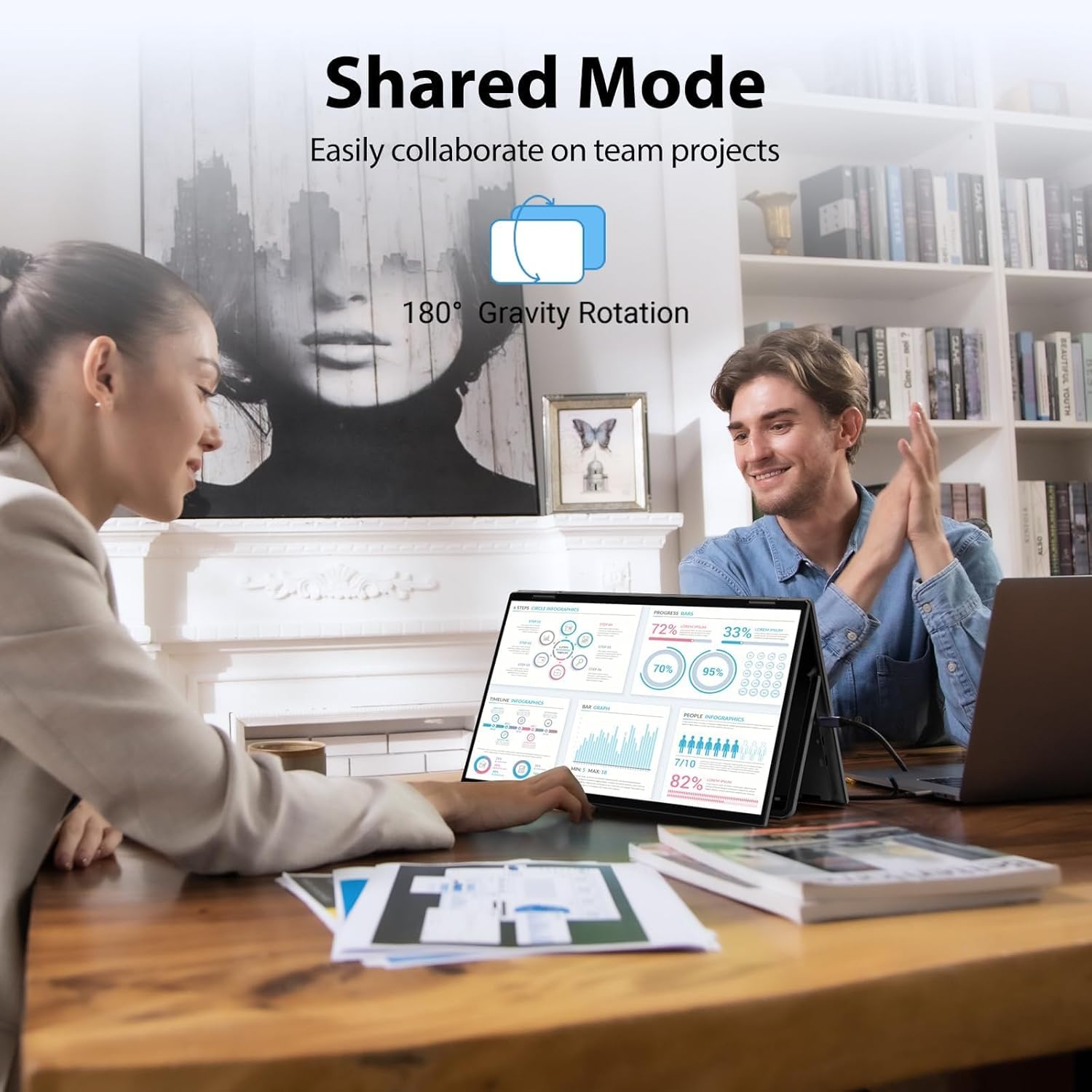
Image: The InnoView dual portable monitor in a stacked configuration, displaying content alongside a laptop, illustrating an expanded workspace.
4.2 Connectivity
The monitor offers flexible connectivity options. Ensure your device's Type-C port is a Type-C 3.0 (or higher) full-featured port for optimal performance with a single cable for signal and power.
- USB-C Connection (Recommended):
- Connect one full-featured Type-C cable from your laptop to the monitor for both signal and power.
- If your laptop's Type-C port does not provide sufficient power, connect the included 30W adapter to the monitor's power input using the Type-C power cable.
- HDMI Connection:
- Connect the HDMI cable from your laptop to the monitor.
- Connect the included 30W adapter to the monitor's power input using the Type-C power cable. Note: Power supply is always required when using HDMI.

Image: A visual guide demonstrating how to connect the monitor using a Type-C cable and an additional power cord if needed.

Image: A visual guide demonstrating how to connect the monitor using an HDMI cable, emphasizing the requirement for a separate power connection.
4.3 Driver Installation (Mac Only for Extended Mode)
For Windows systems, the monitor is plug-and-play for most modes. For macOS, driver installation is required to enable extended display mode via Type-C connection.
- Connect the monitor to your Mac via Type-C.
- Access the monitor's menu (using the buttons on the side).
- Navigate to "Other Settings" -> "Mac extend" -> "On".
- Follow the on-screen prompts to download and install the necessary driver.
- Restart your Mac after installation.
Video: This video demonstrates the process of installing drivers on a Mac to enable extended display mode for the InnoView dual portable monitor, allowing for three screens with three different displays.
5. Operating Modes
The InnoView dual portable monitor supports several display modes to suit various tasks:
- Copy Mode: The upper and lower screens display the same content. This is useful for sharing information directly.
- Splicing Mode: Combines the upper and lower screens into one larger overall screen, creating a "waterfall" effect for viewing long documents or web pages.
- Extended Mode: Displays different content across the three screens (laptop + two portable screens), providing maximum workspace. Note: Extended mode is not supported for HDMI connections. Mac requires driver installation via Type-C for this mode.
- Shared Mode: The top and bottom screens display the same content, but the top screen is flipped, allowing for easy face-to-face presentations or collaboration.
- Portrait Mode: Vertical mode for specific tasks like programming or reading long texts. (Windows only, manual adjustment required).

Image: This diagram visually explains the different display modes available, including Copy, Splicing, Extended, and Shared modes, detailing how content is presented across the screens.
Video: This video demonstrates how to set the monitor's copy, extended, and splicing modes in Windows, showcasing how to achieve three screens with different displays.

Image: The monitor configured in shared mode, with both screens displaying the same content, ideal for collaborative work or presentations.
6. Maintenance
- Cleaning: Use a soft, lint-free cloth slightly dampened with water or a screen cleaner to wipe the display. Avoid harsh chemicals or abrasive materials.
- Storage: When not in use, fold the monitor to its compact size and store it in a protective sleeve or bag to prevent scratches and damage.
- Handling: Handle the monitor with care, especially the hinges and screen panels, to ensure longevity.
7. Troubleshooting
- No Signal:
- Ensure all cables (USB-C or HDMI + power) are securely connected.
- Verify that your laptop's Type-C port is full-featured (supports video output and power delivery).
- If using HDMI, confirm the power adapter is connected and providing sufficient power (30W or higher recommended).
- Check your computer's display settings to ensure the external monitor is detected and configured correctly (e.g., extended or duplicate display).
- Display Mode Issues:
- For Mac extended mode, ensure the necessary drivers are installed and enabled as described in Section 4.3.
- HDMI connections only support splicing and copy modes; extended mode is not available via HDMI.
- Use the mode change buttons on the side of the monitor to cycle through available display modes.
- Screen Rotation Issues:
- The monitor supports 180° automatic rotation via gravity sensor. If rotation is not working, check for physical obstructions or ensure the monitor is placed on a stable surface.
- For portrait mode on Windows, manual adjustment in display settings may be required.
- Power Issues:
- Ensure the monitor is connected to a 30W or higher power supply for optimal performance, especially when using HDMI or if your laptop's USB-C port cannot provide enough power.
- Use the original power adapter and cables provided.
8. Specifications
| Feature | Detail |
|---|---|
| Product Dimensions | 8.5 x 14 x 0.85 inches |
| Item Weight | 3.1 pounds |
| Model Number | INVPM009 |
| Screen Size | 15.6 Inches |
| Resolution | 1920 x 1080 Pixels (FHD 1080p) |
| Aspect Ratio | 16:9 |
| Image Brightness | 300 Candela |
| Screen Surface | Matte |
| Manufacturer | InnoView |
9. Warranty and Support
This InnoView dual portable monitor comes with an 18-month warranty. Additionally, a 30-day return policy is offered for peace of mind. For any technical assistance, troubleshooting, or warranty claims, please contact InnoView customer support. Our dedicated team is available to ensure your monitor performs optimally for all your needs.
For further support, please visit the InnoView Store on Amazon.