
1. Product Overview
The Eyoyo EY-032P is an upgraded QR Bluetooth Barcode Scanner designed for versatile use with smartphones, tablets, and computers. This wireless back-clip scanner offers 1D and 2D barcode reading capabilities, making it suitable for various applications such as warehouse inventory, book management, and retail operations. Its innovative design ensures compatibility with a wide range of phone sizes and cases, without obstructing the camera.

Figure 1.1: Eyoyo EY-032P Barcode Scanner attached to a smartphone.
2. Key Features
- Universal Phone Compatibility: Features a groundbreaking horizontal retractable clip that accommodates phone screen sizes between 4.7"-7.2". Designed with anti-slip silicone and a 0.5" depth, it is suitable for heavy phones and thick phone cases without damaging the device. Made of high-toughness aviation material for durability.
- Advanced Scanning Engine: Capable of scanning virtually all 1D and 2D barcodes, including those of poor quality, damaged, or low contrast. It can also read barcodes directly from smartphone screens, supporting mobile coupons, digital wallets, and digital loyalty cards.
- 3-in-1 Connection Options: Supports stable and sustainable connectivity via Bluetooth, 2.4G Wireless, and USB Wired connections. This allows for flexible integration with various devices and systems.
- Intelligent Battery Management: Features a unique battery indicator level on the scanner, eliminating guesswork on charging. The physical power switch button helps conserve energy.
- Extended Working Time: Equipped with a 1200mAh rechargeable battery, providing up to 10 hours of continuous work on a single charge, minimizing electricity anxiety during long shifts.
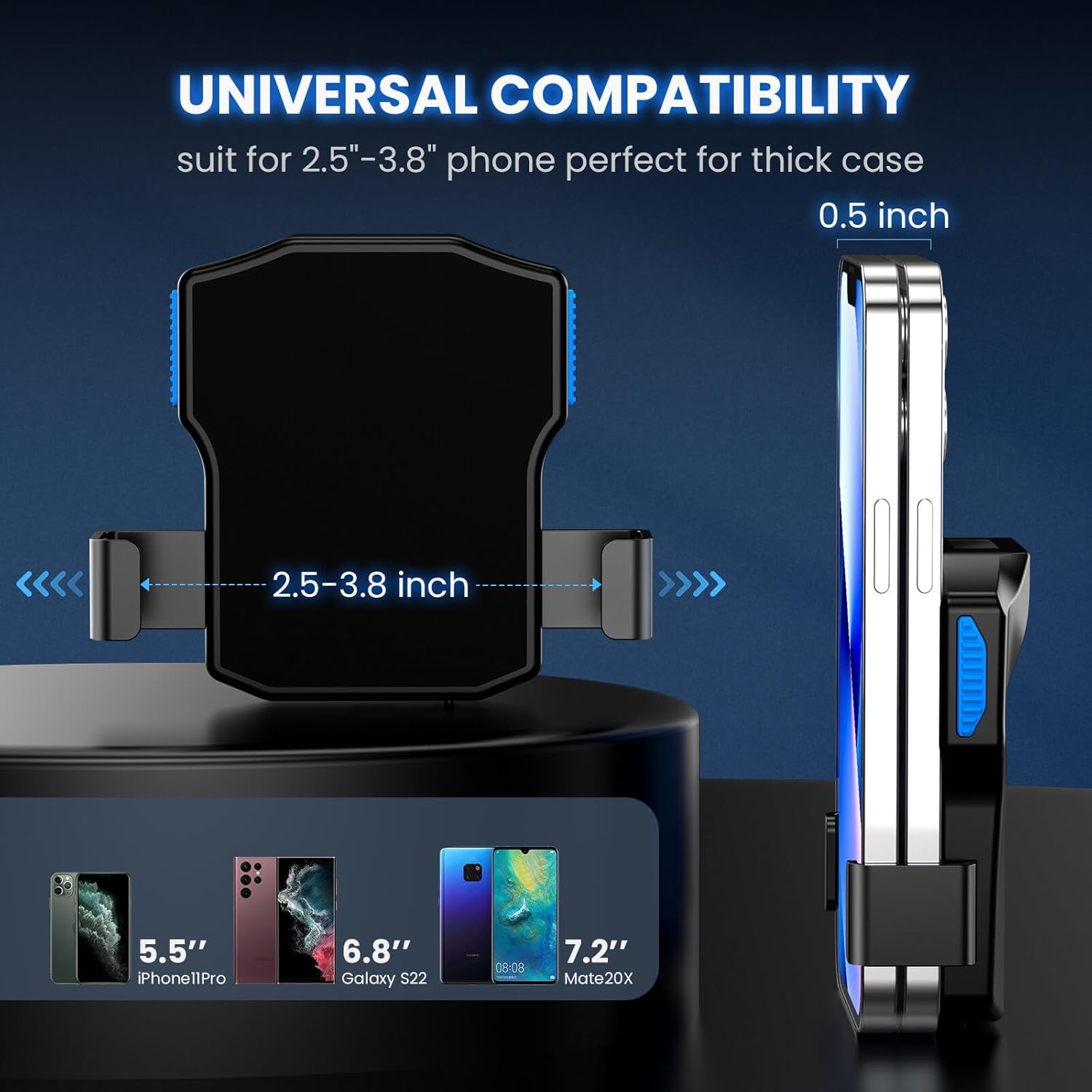
Figure 2.1: Universal compatibility of the scanner clip with various phone sizes.

Figure 2.2: Powerful 1D and 2D scanning capabilities.
3. Setup and Connection
3.1 Connection Methods
- Bluetooth Connection:
Press and hold the scanner's main button for 8-10 seconds until it beeps. On your phone or tablet, enable Bluetooth and search for 'EY-032P' to connect.
- 2.4G Wireless Connection:
Before inserting the wireless receiver into your computer's USB port, scan the setup code for 2.4G mode (typically found on page 21 of the physical manual). This step is crucial for successful pairing and data upload.
- USB Wired Connection:
Connect the scanner directly to your computer or device using the provided USB cable. This is a plug-and-play connection, requiring no additional setup.
3.2 Compatibility
The Eyoyo EY-032P scanner is compatible with a wide range of devices and operating systems:
- Compatible Devices: Computers, laptops, POS systems, smartphones, tablets, iPhones, and iPads.
- Compatible Operating Systems: Windows XP/7/8/10/11, Mac OS, Linux, Android, and iOS.
- Compatible Software: Works with common software such as Word, Excel, Novell, Quickbook, Scoutiq, and Scoutly.
Note: This scanner is not compatible with Google Chrome OS or software that has its own custom scanner integration, such as Square, certain POS systems, or Amazon Fire.
4. Operating Instructions
4.1 Scanning Modes
The scanner supports three distinct scanning modes to suit various operational needs:
- Manual Trigger Mode: Requires you to press the trigger button for each barcode scan. This is the most frequently used method for precise control.
- Continuous Scan Mode: The scanning light remains constantly on when the scanner is powered. Barcodes can be scanned without pressing any trigger button, ideal for high-volume scanning in production lines.
- Auto-Sense Mode: The scanning light is off until a barcode is detected within the scanning window. Once detected, the light turns on automatically to scan the barcode. This mode is suitable for retail stores and inventory warehouses, allowing hands-free scanning.
4.2 Button Design
The Eyoyo EY-032P features a 3-button design for flexible operation:
- Central Button: Primary trigger for scanning in Manual Trigger Mode.
- Left and Right Side Buttons: Provide alternative trigger points, enhancing ergonomic use, especially when the scanner is clipped to a phone.

Figure 4.1: Three scanning button design for versatile use.
4.3 Data Upload Modes
- Instant Upload Mode: Scanned data is immediately transmitted to the connected device.
- Storage Mode: When a connection is not available or desired, scanned data is stored in the scanner's internal memory. Data can be uploaded all at once later when a connection is established.
4.4 Customization Options
- Add Prefix and Suffix: Supports adding control characters (e.g., STX/EOT/Ctrl-]/Ctrl-\) as prefixes and suffixes to scanned data.
- Hide Characters: Allows hiding front and back characters of 8 bits or more from the scanned output.
- Sound & Vibration Settings: Adjust or turn off the sound and vibration feedback by scanning specific setup codes (refer to page 28 of the physical manual for details).
5. Maintenance
5.1 Battery Charging and Life
The Eyoyo EY-032P is powered by a 1200mAh Lithium Polymer battery. To ensure optimal performance and longevity:
- Charging: Connect the scanner to a power source using the provided USB cable. A full charge typically takes approximately 2 hours.
- Battery Indicator: Monitor the battery level using the indicator lights on the scanner to avoid unexpected power loss.
- Power Off: Use the physical power switch button to turn off the scanner when not in use to conserve battery life.

Figure 5.1: Battery level indicator and battery life details.
5.2 Cleaning
To clean the scanner, use a soft, dry cloth. Do not use abrasive cleaners or immerse the device in water.
6. Troubleshooting
- Scanner not connecting via 2.4G: Ensure you have scanned the specific setup code for 2.4G mode (refer to page 21 of the manual) before inserting the wireless receiver into your computer's USB port. Incorrect pairing will prevent data upload.
- No data uploaded after scanning in 2.4G mode: This is often related to incorrect pairing. Re-scan the 2.4G setup code and re-pair the device.
- Scanner not recognized by computer via USB: Try a different USB port or cable. Ensure the scanner is powered on.
- Scanner not scanning barcodes: Check if the scanner is in the correct scanning mode (Manual, Continuous, or Auto-Sense). Ensure the barcode is clean and well-lit. Verify the scanner's battery level.
- Bluetooth connection issues: Ensure the scanner is in Bluetooth pairing mode (long press button until beep). On your device, forget the scanner and try pairing again. Ensure no other Bluetooth devices are interfering.
- Buttons unresponsive: Check battery level. If the issue persists, try resetting the scanner (refer to the full manual for reset instructions if available).
7. Specifications
| Attribute | Detail |
|---|---|
| Product Dimensions | 3.15 x 3.54 x 0.39 inches |
| Item Weight | 5.3 ounces |
| Model Number | EY-032P |
| Batteries | 1 Lithium Polymer battery required (included) |
| Power Source | Battery-Powered, Corded Electric |
| Connectivity Technology | Bluetooth, USB, 2.4G Wireless |
| Manufacturer | Eyoyo |
| First Available Date | September 5, 2022 |
8. Warranty and Support
For warranty information and technical support, please refer to the documentation included with your product or visit the official Eyoyo website. You may also contact Eyoyo customer service directly for assistance with product issues or inquiries.
Eyoyo Official Store: Visit the Eyoyo Store on Amazon


