
1. Introduction
The Eyoyo 1D Bluetooth Barcode Scanner (Model EY-032L) is a versatile and portable barcode reader designed for efficient data collection. It features a unique back-clip design for seamless smartphone integration, offering multiple connection options and a long-lasting battery. This manual provides essential information for setting up, operating, and maintaining your device.
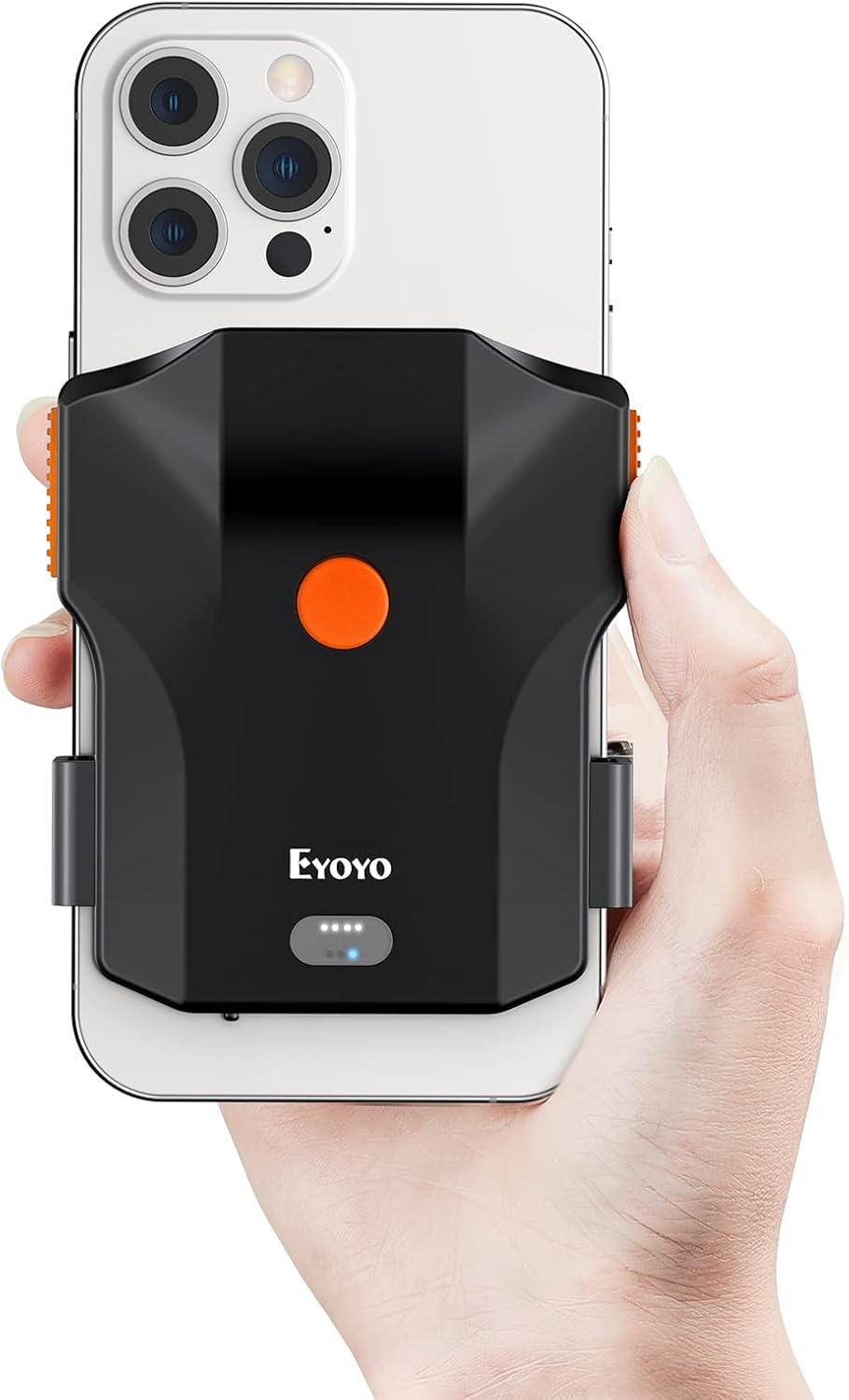
Figure 1: Eyoyo 1D Bluetooth Barcode Scanner attached to a smartphone, demonstrating its compact and portable design.
2. Safety Information
- Always handle the device with care to prevent damage.
- Avoid exposing the scanner to extreme temperatures, direct sunlight, or liquids.
- Do not attempt to disassemble, modify, or repair the device yourself. Refer to qualified personnel for service.
- Keep the device out of reach of children.
- Ensure proper ventilation when charging to prevent overheating.
3. Package Contents
Please verify that all items are present in your package:
- Eyoyo 1D Bluetooth Barcode Scanner (Model EY-032L)
- USB Charging Cable
- 2.4G Wireless Receiver (if applicable to your model variant)
- User Manual (this document)
4. Setup
4.1 Charging the Scanner
Before first use, fully charge the scanner. The 1200mAh rechargeable battery provides approximately 15 hours of continuous operation and takes about 2 hours to fully charge. The battery level indicator lights on the scanner will show the charging status and remaining battery level.

Figure 2: Battery level indicator on the scanner, showing charge status (25%, 50%, 75%, 100%).
4.2 Connecting the Scanner
The Eyoyo barcode scanner supports three connection methods: Bluetooth, 2.4G Wireless, and USB Wired. Choose the method that best suits your needs.

Figure 3: Overview of the three available connection modes: USB Wired, 2.4G Wireless, and Bluetooth Wireless.
4.2.1 Bluetooth Connection
- Ensure the scanner is charged.
- Press and hold the main button on the scanner for 8-10 seconds until you hear a beep. This indicates it's in pairing mode.
- On your smartphone, tablet, or computer, enable Bluetooth and search for available devices.
- Select "EY-032L" from the list of devices to pair.
- Once paired, the scanner is ready for use.
4.2.2 2.4G Wireless Connection
- Locate the 2.4G wireless receiver.
- Before inserting the receiver into your computer's USB port, scan the setup code for 2.4G mode (refer to page 21 of the physical manual for specific setup codes).
- Insert the 2.4G wireless receiver into an available USB port on your computer.
- The scanner should automatically connect.
4.2.3 USB Wired Connection
- Connect the USB charging cable to the scanner.
- Connect the other end of the USB cable to an available USB port on your computer.
- The scanner will be recognized as a plug-and-play device and is ready for immediate use.
5. Operating Instructions
5.1 Attaching to a Phone (Optional)
The scanner features a horizontal retractable clip designed to fit smartphones between 4.7" and 7.2" screen sizes, including those with thick cases. The design ensures the phone's camera is not blocked.

Figure 4: The scanner's universal compatibility with various phone sizes and its ability to accommodate thick phone cases.

Figure 5: The scanner's design ensures it does not block the phone's camera, regardless of camera placement.
5.2 Scanning Modes
The scanner offers two primary scanning modes:
- Manual Trigger Mode: Press the trigger button to initiate each scan. This is the most commonly used method.
- Continuous Scan Mode: The scanning light remains on, allowing for continuous barcode reading without repeatedly pressing the trigger. This mode is ideal for high-volume scanning environments.

Figure 6: The scanner features a 3-button design for flexible scanning, including a central button and side buttons for ergonomic use.

Figure 7: The scanner can be used either attached to a phone for integrated operation or independently via Bluetooth connection.
5.3 Supported Barcode Types
The Eyoyo 1D barcode scanner supports a wide range of 1D barcode symbologies, including but not limited to:
- Code128, EAN-8, EAN-13, ISBN, ISSN, UPC-E0, UPC-E1, UPC-A
- Interleaved 2 of 5, Matrix 2 of 5, Industrial 2 of 5, IATA 2 of 5
- Code 39, Code32, Code 39 Full ASCII, Codabar, Code 93, Code 11, MSI Plessey
It is designed for high-speed scanning, even for damaged, reflective, or high-density 1D barcodes. If certain barcode types are not scanning, they may be disabled by factory default and can be enabled via specific setup codes in the full manual.

Figure 8: The scanner's capability to read various 1D barcode formats, highlighting its superior scanning performance.
5.4 Advanced Features
- Prefix and Suffix Support: The scanner allows adding control characters (e.g., STX/EOT/Ctrl-]/Ctrl-\) as prefixes and suffixes to scanned data.
- Hide Characters: You can configure the scanner to hide 8 or more front and back characters from scanned data.
- Storage Mode: For situations where a connected device is not available, the scanner can store scanned data in its internal memory. Data can then be uploaded in bulk once a connection is re-established.
- Sound & Vibration Settings: The scanner provides audible feedback and vibration upon successful scans. These settings, including volume and vibration on/off, can be adjusted by scanning specific setup codes found in the comprehensive user manual.
6. Maintenance
- Cleaning: Regularly clean the scanner's exterior and scanning window with a soft, dry, lint-free cloth. Do not use abrasive cleaners, solvents, or harsh chemicals.
- Storage: When not in use for extended periods, store the device in a cool, dry place away from direct sunlight and extreme temperatures.
- Battery Care: To prolong battery life, avoid fully discharging the battery frequently. Charge the device regularly, even if not in constant use.
7. Troubleshooting
| Problem | Possible Cause | Solution |
|---|---|---|
| Scanner does not turn on or scan. | Low battery or no charge. | Ensure the scanner is fully charged before use. |
| Certain barcodes cannot be scanned. | Barcode type is disabled by default. | Refer to the comprehensive user manual for setup codes to enable specific barcode symbologies. |
| Scanner is not connecting via 2.4G. | Incorrect mode or pairing issue. | Ensure you have scanned the 2.4G setup code before inserting the receiver. Try turning the scanner off and on again. |
| No sound or vibration feedback. | Sound/vibration settings are off. | Scan the appropriate setup codes (e.g., "Volume on", "Vibration on") from the manual to re-enable these features. |
| Occasional glitches or unresponsive behavior. | Temporary software or connection issue. | Turn the scanner off, wait a few seconds, and then turn it back on. Re-establish connection if necessary. |
8. Specifications
| Feature | Detail |
|---|---|
| Model Number | EY-032L |
| Product Dimensions | 3.15 x 2.36 x 0.39 inches |
| Item Weight | 5.6 ounces |
| Battery Type | 1 Lithium Polymer battery (included) |
| Battery Capacity | 1200mAh |
| Working Time | Up to 15 hours (continuous) |
| Charging Time | Approximately 2 hours |
| Connectivity Technology | Bluetooth, USB, 2.4G Wireless |
| Compatible Devices | Laptop, Smartphone, Tablet, iPad, iPhone |
| Power Source | Battery-Powered, Corded Electric |
| Manufacturer | Eyoyo |
9. Warranty and Support
Eyoyo is committed to providing high-quality products and excellent customer service. While specific warranty details are not provided in this document, please refer to the product packaging or the official Eyoyo website for the most up-to-date warranty information.
For technical support, troubleshooting assistance, or any inquiries regarding your Eyoyo 1D Bluetooth Barcode Scanner, please contact Eyoyo customer support through their official channels. Contact information can typically be found on the product packaging or the manufacturer's website.
You can visit the official Eyoyo store for more information: Eyoyo Store on Amazon.