
1. Introduction
Thank you for choosing the VBESTLIFE S21 Ultra Unlocked Cell Phone. This manual provides essential information for setting up, operating, and maintaining your device. Please read it carefully to ensure proper use and to maximize the phone's features. This smartphone features a 6.1-inch HD display, dual SIM capability, and runs on the Android 11 operating system.
2. Safety Information
- Do not expose the device to extreme temperatures, direct sunlight, or high humidity.
- Avoid dropping or subjecting the phone to severe impact.
- Use only approved chargers and accessories to prevent damage and ensure safety.
- Keep the device away from medical implants and pacemakers.
- Do not attempt to disassemble or repair the phone yourself. Refer to qualified service personnel.
- Dispose of the device and its battery responsibly according to local regulations.
3. Package Contents
Ensure all items are present in the box:
- VBESTLIFE S21 Ultra Unlocked Cell Phone
- Adapter (US plug)
- USB Cable
- Headphones
- SIM Ejector Tool
- Protective Case
- Screen Protector
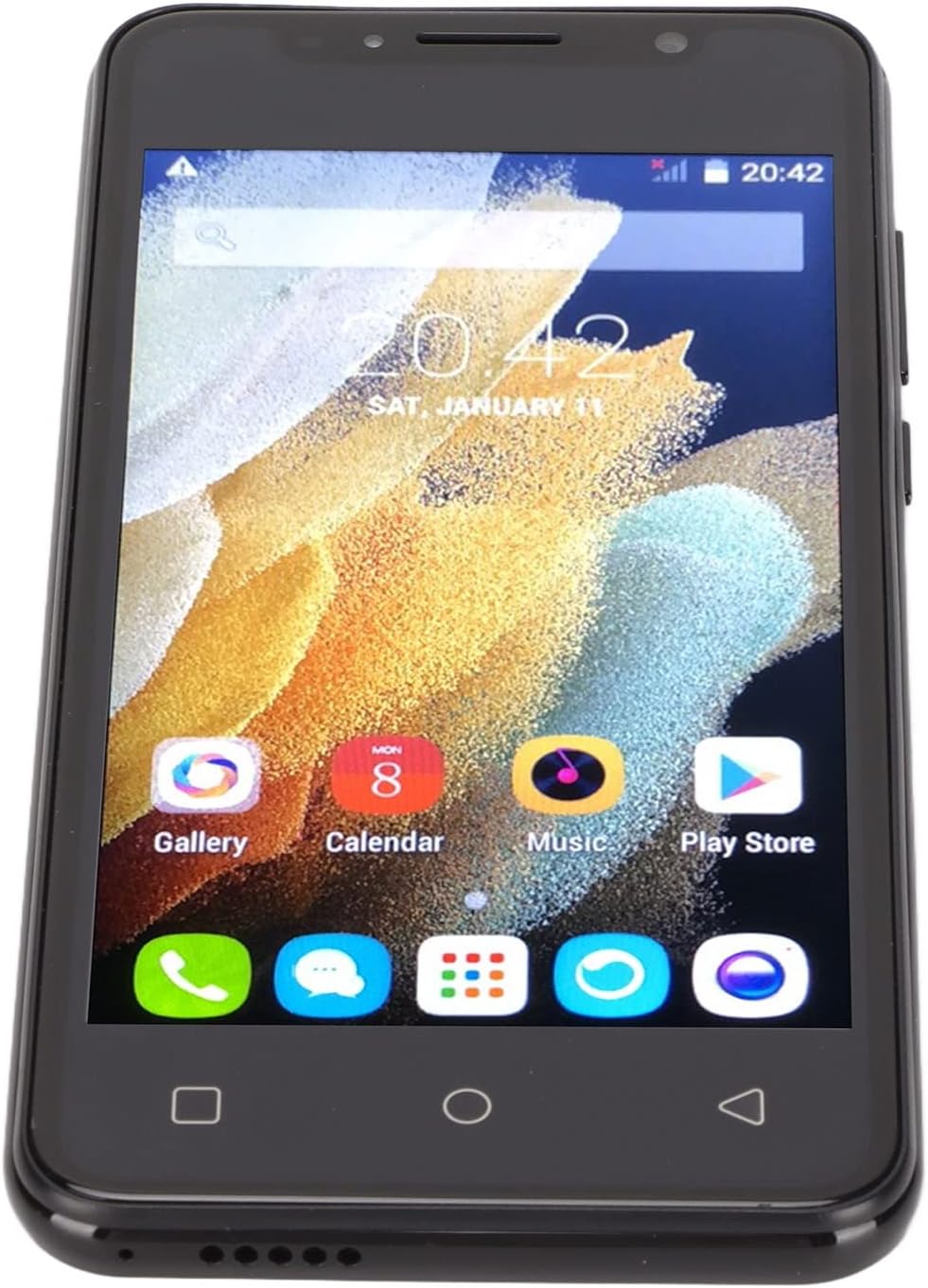
Image: The VBESTLIFE S21 Ultra phone displayed with its accessories, including a charger, USB cable, headphones, SIM ejector tool, protective case, and screen protector.
4. Device Overview
Familiarize yourself with the physical features and components of your VBESTLIFE S21 Ultra smartphone.

Image: Front and back views of the VBESTLIFE S21 Ultra phone, highlighting its design and displaying key specifications such as model, resolution, screen size, RAM, and ROM.

Image: An angled view showcasing both the front display and the rear camera module of the VBESTLIFE S21 Ultra smartphone.
4.1 Display
The phone features a 6.1-inch HD+ display with a resolution of 1440 x 3200 pixels, offering a clear and vibrant visual experience.

Image: A user holding the VBESTLIFE S21 Ultra phone, which displays a scenic image on its 6.1-inch HD+ screen.
5. Setup
5.1 Inserting SIM and Memory Card
The VBESTLIFE S21 Ultra supports dual SIM cards and one small memory card simultaneously. Use the provided SIM ejector tool to open the SIM tray.
- Locate the SIM tray on the side of the phone.
- Insert the SIM ejector tool into the small hole next to the tray and push gently until the tray pops out.
- Place your Nano SIM cards into the designated SIM1 and SIM2 slots.
- If using, insert a small memory card into its dedicated slot.
- Carefully push the tray back into the phone until it clicks into place.

Image: A diagram illustrating the correct placement of two SIM cards (SIM1 and SIM2) and a memory card into the phone's tray.
5.2 Initial Power On
Press and hold the Power button located on the side of the phone until the screen lights up. Follow the on-screen prompts to complete the initial setup, including language selection, Wi-Fi connection, and Google account setup.
5.3 Charging the Device
Connect the USB cable to the phone's charging port and plug the adapter into a power outlet. The battery indicator on the screen will show the charging status. For optimal battery life, fully charge the phone before first use.
6. Operating Instructions
6.1 Basic Navigation
- Touch: Tap an icon to open an app or select an item.
- Swipe: Drag your finger across the screen to scroll or navigate between screens.
- Pinch: Use two fingers to zoom in or out on photos and web pages.
- Home Button: Returns to the home screen.
- Back Button: Returns to the previous screen.
- Recent Apps Button: Displays recently used applications.
6.2 Making Calls and Sending Messages
Tap the Phone icon to access the dialer. Enter the number and tap the call button. To send a message, tap the Messages icon, select a contact or enter a number, type your message, and send.
6.3 Connecting to Networks
- Wi-Fi: Go to Settings > Network & internet > Wi-Fi. Turn Wi-Fi on and select your desired network. Enter the password if required.
- Bluetooth: Go to Settings > Connected devices > Bluetooth. Turn Bluetooth on and pair with available devices.
- Mobile Data: Ensure your SIM card is active and mobile data is enabled in Settings > Network & internet > Mobile network.
6.4 Using the Camera
Tap the Camera icon to open the camera application. The phone features a 24-megapixel front camera (f/2.0 aperture) and a 48-megapixel rear camera (f/1.8 aperture) with autofocus.
- Tap the shutter button to take a photo.
- Switch between front and rear cameras using the camera toggle icon.
- Explore various shooting modes and settings within the camera app.

Image: Details on the HD Front and Rear Camera specifications, including megapixels and aperture for the VBESTLIFE S21 Ultra.
6.5 Face Recognition
The VBESTLIFE S21 Ultra supports face recognition for quick and secure unlocking.
- Go to Settings > Security > Face Unlock.
- Follow the on-screen instructions to register your face. Ensure you are in a well-lit area.
- Once registered, you can unlock your phone by simply looking at the front camera.

Image: An illustration demonstrating the facial recognition feature, where the front camera recognizes faces for quick unlocking.
7. Maintenance
7.1 Cleaning
Use a soft, lint-free cloth to clean the phone's screen and body. Avoid using harsh chemicals or abrasive materials that could damage the device.
7.2 Battery Care
- Avoid fully discharging the battery frequently.
- Do not leave the phone charging for extended periods after it's fully charged.
- Keep the phone within a moderate temperature range to prevent battery degradation.
7.3 Software Updates
Regularly check for software updates to ensure your phone has the latest features and security patches. Go to Settings > System > System update to check for and install available updates.
8. Troubleshooting
| Problem | Solution |
|---|---|
| Phone does not turn on | Ensure the battery is charged. Connect to a charger for at least 30 minutes. If it still doesn't turn on, perform a forced restart (hold Power button for 10-15 seconds). |
| Cannot connect to Wi-Fi | Check if Wi-Fi is enabled in settings. Restart your router and the phone. Verify the Wi-Fi password. |
| Poor call quality | Check network signal strength. Move to an area with better reception. Ensure nothing is blocking the microphone or speaker. |
| Apps are crashing or freezing | Close and reopen the app. Clear the app's cache (Settings > Apps > [App Name] > Storage > Clear cache). Restart the phone. |
| Battery drains quickly | Reduce screen brightness. Close unused apps. Turn off Wi-Fi, Bluetooth, and GPS when not in use. Check battery usage in settings to identify power-hungry apps. |
9. Specifications
Detailed technical specifications for the VBESTLIFE S21 Ultra Unlocked Cell Phone:
| Feature | Detail |
|---|---|
| Brand | VBESTLIFE |
| Model | S21 Ultra |
| Operating System | Android 11.0 |
| RAM Memory | 512 MB |
| Storage Capacity | 4 GB |
| Screen Size | 6.1 Inches |
| Display Resolution | 1440 x 3200 Pixels |
| Display Type | LCD |
| Wireless Carrier | Unlocked |
| Cellular Technology | 4G |
| Connectivity Technology | USB, Wi-Fi |
| Color | Black |
| SIM Card Slot Count | Dual SIM |
| Connector Type | 3.5mm Jack |
| Biometric Security | Face Recognition |
| Front Camera Resolution | 3 MP |
| Rear Camera Resolution | 48 MP |
| Battery Capacity | 2500 Milliamp Hours |
| Battery Type | Lithium-Ion |
| Video Capture Resolution | 4k at 24 fps |
| Water Resistance Level | Not Water Resistant |

Image: A summary of key features for the S21 Ultra Unlocked Smartphone, including screen size, camera, dual SIM, battery, memory, and face recognition.
10. Warranty and Support
For warranty information and technical support, please refer to the documentation provided with your purchase or contact VBESTLIFE customer service. Keep your proof of purchase for warranty claims.