
1. Product Overview
The Point Wired Mini Keyboard Pt-350 is a compact and versatile keyboard designed for both gaming and general typing. It features a high-quality build and a modern design, adhering to industry standards for reliable performance. This keyboard is an ideal choice for users seeking a durable and efficient input device.
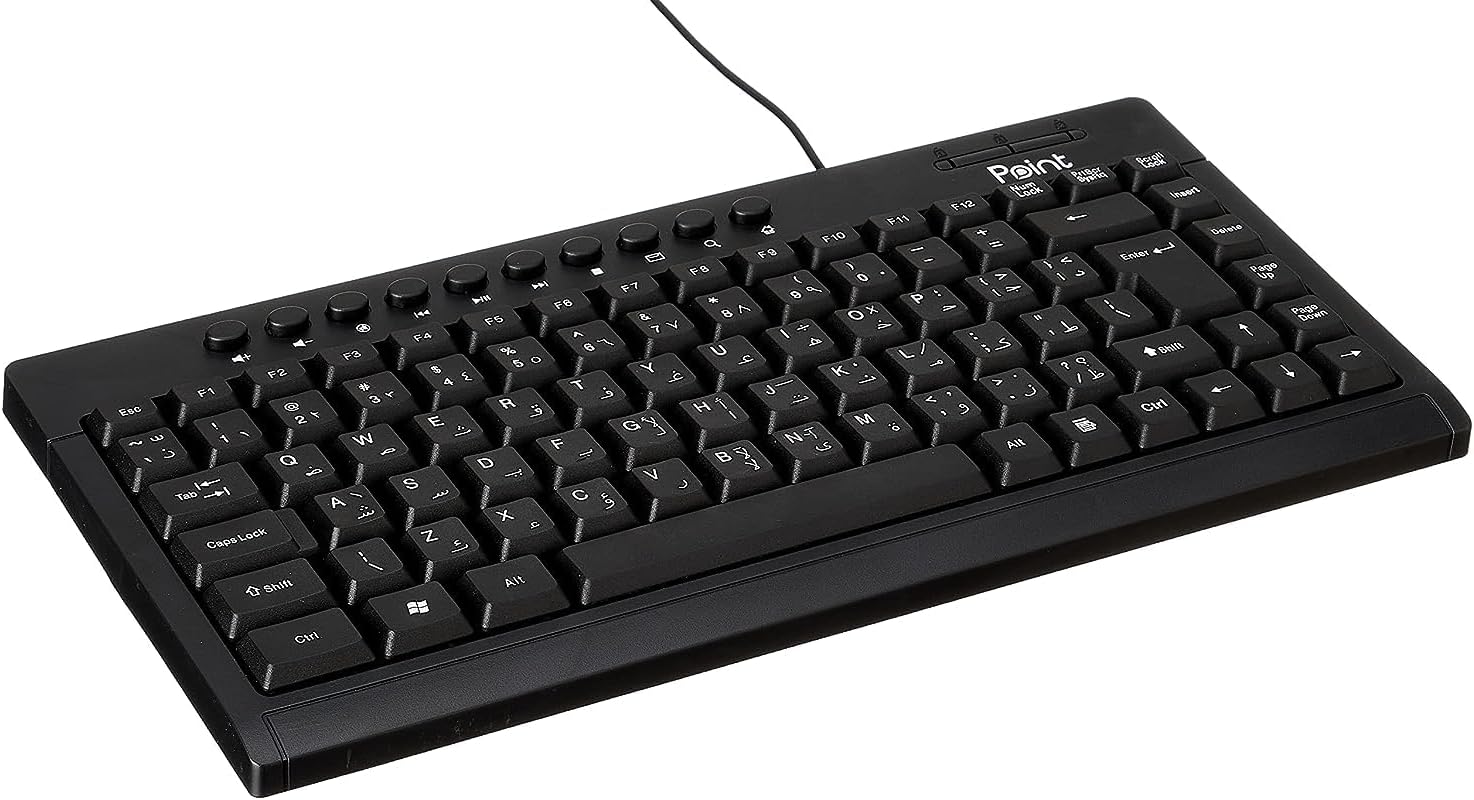
Figure 1.1: Angled view of the Point Wired Mini Keyboard Pt-350, showcasing its compact design and key layout.
Key Features:
- Wired connectivity for stable performance.
- Compact design suitable for various setups.
- Durable construction from high-quality plastic materials.
- Designed for both gaming and typing applications.
2. Package Contents
Please check the package carefully to ensure all items are present:
- Point Wired Mini Keyboard Pt-350
- User Manual (this document)
3. Setup
Follow these steps to set up your Point Wired Mini Keyboard Pt-350:
- Unpack the Keyboard: Carefully remove the keyboard from its packaging.
- Identify the USB Connector: The keyboard comes with an integrated USB cable.
- Connect to Your Computer: Locate an available USB port on your computer (desktop PC, laptop, etc.). Insert the keyboard's USB connector firmly into the USB port.
- Driver Installation (Plug & Play): The keyboard is plug-and-play compatible. Your operating system (Windows, macOS, Linux) should automatically detect and install the necessary drivers. This process usually takes a few seconds.
- Verify Functionality: Once connected, open a text editor or any application that accepts text input and test the keys to ensure proper operation.

Figure 3.1: Top-down view of the keyboard, illustrating the key layout and integrated cable for connection.
4. Operating Instructions
The Point Wired Mini Keyboard Pt-350 operates like a standard computer keyboard. Below are general instructions and tips for use:
Basic Typing:
- Simply press the desired keys to input characters, numbers, and symbols into your active application.
- Use the Shift key for uppercase letters and alternative symbols on keys.
- The Caps Lock key toggles permanent uppercase typing.
- The Backspace key deletes characters to the left of the cursor.
- The Enter key confirms input or moves to the next line.
Function Keys (F1-F12):
The function keys (F1 through F12) perform various tasks depending on the active program or operating system. Some common uses include:
- F1: Often opens help for the active program.
- F2: Renames a selected item.
- F5: Refreshes a web page or document.
- F11: Toggles full-screen mode in many browsers.
Multimedia Keys:
The keyboard may include dedicated multimedia keys or secondary functions on the F-keys (accessed via the Fn key, if present). These typically control:
- Volume control (Mute, Volume Up, Volume Down)
- Media playback (Play/Pause, Stop, Previous Track, Next Track)
5. Maintenance
Proper maintenance ensures the longevity and optimal performance of your keyboard:
- Cleaning: Regularly clean the keyboard to prevent dust and debris buildup. Use a soft, lint-free cloth slightly dampened with water or a mild cleaning solution. Avoid harsh chemicals or abrasive materials.
- Dust Removal: Use compressed air to blow out dust and crumbs from between the keys.
- Avoid Spills: Keep liquids away from the keyboard to prevent damage to internal components. In case of a spill, immediately disconnect the keyboard and allow it to dry completely before reconnecting.
- Storage: When not in use, store the keyboard in a clean, dry environment away from extreme temperatures.
6. Troubleshooting
If you encounter issues with your Point Wired Mini Keyboard Pt-350, refer to the following common problems and solutions:
Keyboard Not Responding:
- Check USB Connection: Ensure the USB cable is securely plugged into a working USB port on your computer. Try a different USB port.
- Restart Computer: A simple restart can often resolve connectivity issues.
- Test on Another Computer: Connect the keyboard to another computer to determine if the issue is with the keyboard or your computer's setup.
- Check Device Manager (Windows): In Windows, go to Device Manager and check if the keyboard is listed under 'Keyboards' and if there are any error symbols. You might need to update or reinstall the driver.
Keys Not Working or Sticky:
- Clean Keys: Dust, crumbs, or liquid residue can cause keys to stick or malfunction. Refer to the Maintenance section for cleaning instructions.
- Physical Damage: Inspect the keys for any visible physical damage.
Incorrect Character Output:
- Check Language Settings: Ensure your operating system's keyboard language settings match the physical layout of your keyboard.
- Driver Issue: Reinstalling the keyboard driver might resolve this.
If the problem persists after trying these steps, please contact customer support.
7. Specifications
Technical specifications for the Point Wired Mini Keyboard Pt-350:

Figure 7.1: Side view of the keyboard, highlighting its profile and compact form factor.
| Feature | Detail |
|---|---|
| Brand Name | Point |
| Model | Pt-350 |
| Connectivity Technology | Wired |
| Compatible Devices | Computer |
| Keyboard Description | Multifunctional |
| Recommended Uses | PC Gaming |
| Special Features | Gaming |
| Color | Black |
| Style | Modern |
| Material | Plastic |
| Shipping Dimensions | 34.5 x 26.4 x 3 cm |
| Weight | 800 grams |
| First Available Date | September 4, 2022 |
| ASIN | B0BD2DM9ZJ |
8. Warranty and Support
This product is covered by a standard manufacturer's warranty. Please refer to the warranty card included with your purchase for specific terms and conditions, including the warranty period and coverage details.
For technical support, troubleshooting assistance, or warranty claims, please contact Point customer service through the contact information provided on the product packaging or the official Point website. When contacting support, please have your product model (Pt-350) and purchase details ready.


