
SUPOOBE WiFi Extender
SUPOOBE WiFi Extender User Manual
Model: WiFi Extender
Introduction
This manual provides detailed instructions for the installation, configuration, and use of your SUPOOBE WiFi Extender. Please read this manual thoroughly before operating the device to ensure proper functionality and optimal performance. The WiFi Extender is designed to expand your existing wireless network coverage, eliminating dead zones and providing stable internet access throughout your home or office.

Figure 1: Common WiFi signal issues that an extender can resolve.
Safety Information
- Do not expose the device to water or moisture.
- Do not attempt to open or repair the device yourself. Refer all servicing to qualified personnel.
- Use only the power adapter provided or specified by the manufacturer.
- Ensure proper ventilation around the device to prevent overheating.
- Keep the device away from heat sources and direct sunlight.
Package Contents
The package should contain the following items:
- SUPOOBE WiFi Extender Unit
- Quick Installation Guide (This document serves as a comprehensive guide)
- Ethernet Cable (Optional, for AP mode setup)
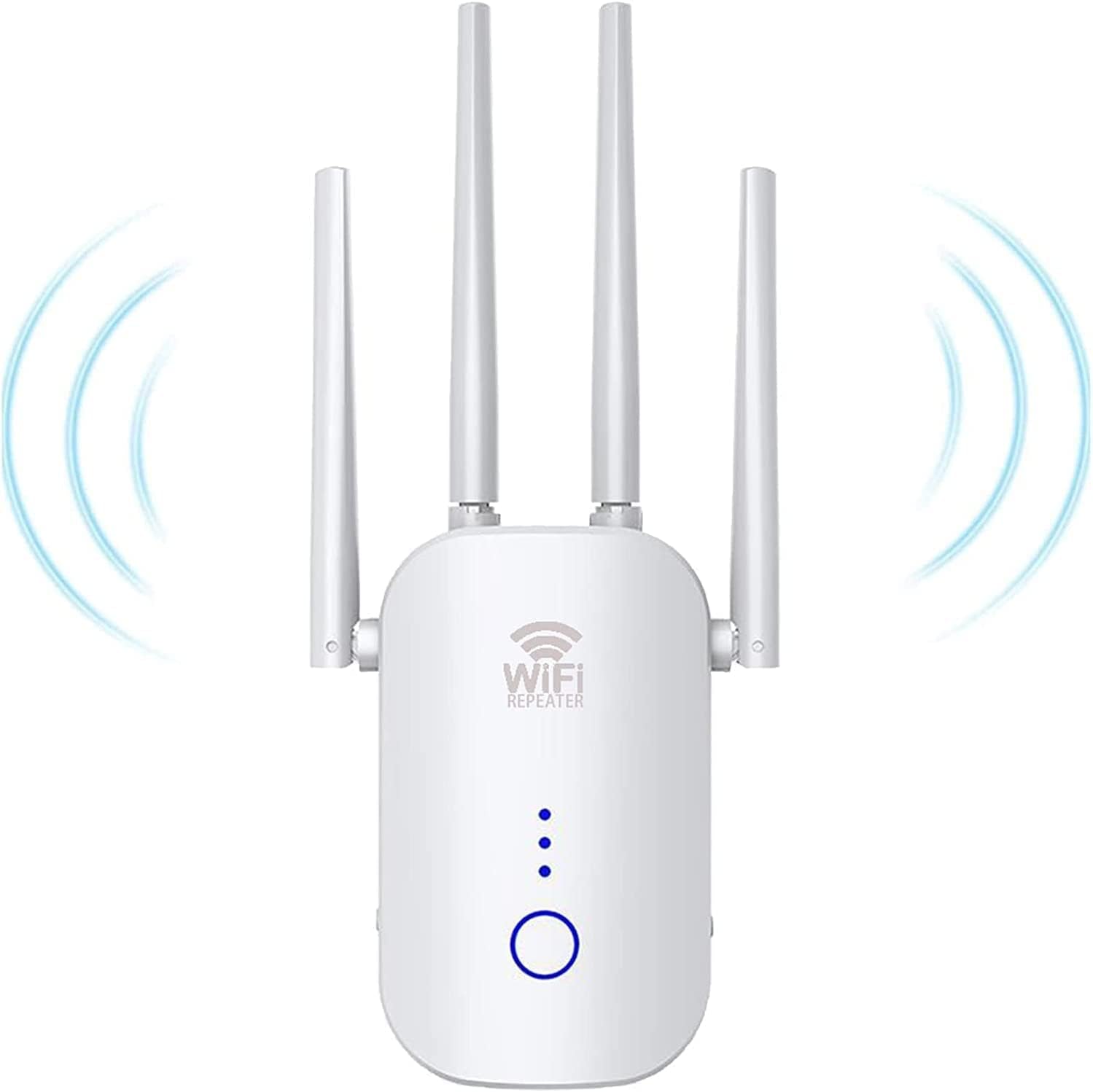
Figure 2: SUPOOBE WiFi Extender unit.
Product Overview
The SUPOOBE WiFi Extender is a versatile networking device designed to enhance your wireless coverage. It features four external antennas for improved signal penetration and effective heat dissipation for stable operation. It supports multiple operating modes including Repeater Mode, Access Point Mode, and WiFi Mesh functionality.

Figure 3: The WiFi Extender extends coverage to various areas of a home or office.

Figure 4: Key features of the WiFi Extender.

Figure 5: The WiFi Extender provides powerful and stable signal extension.
Setup
Follow these steps to set up your SUPOOBE WiFi Extender in Repeater Mode. This mode extends the range of your existing wireless network.
1. Initial Power-on
Plug the WiFi Extender into a power outlet near your main router. Wait for the indicator lights to stabilize, indicating it is ready for configuration.
2. Connect to the Extender's Network
On your smartphone or computer, go to your WiFi settings. Look for a new WiFi network named similar to "Repeater-xxxx" or "WiFi-2.4G-xxxx" / "WiFi-5G-xxxx" (where xxxx are the last four digits of the device's MAC address). Connect to this network. No password is required for the initial connection.

Figure 6: Connecting to the extender's default WiFi network and selecting Repeater Mode.
3. Access the Configuration Page
Open a web browser (e.g., Chrome, Safari, Firefox) and enter the default IP address 192.168.11.1 or wdlogin.com into the address bar. You will be prompted to log in. The default username and password are usually admin for both. If these do not work, check the label on your device or the quick start guide.
4. Select Your Main WiFi Network and Enter Password
From the list of scanned networks, select your main home or office WiFi network (your router's SSID). Enter the password for your main WiFi network. Ensure the password is correct.

Figure 7: Selecting the main WiFi network, entering its password, and connecting to the extended network.
5. Configure New SSID (Optional)
You may have the option to change the name (SSID) of the extended network. By default, it might append "_EXT" or "_PRO" to your main network's name. You can keep the default or create a new name. Click "Next" or "Apply" to save settings.
6. Connect Devices to Extended Network
After the settings are applied, the extender will restart. Go back to your device's WiFi settings. You should now see the new extended WiFi network. Connect to it using the password you set (or your main WiFi password if you didn't change the SSID). The extender's LED indicator should light up, confirming successful setup.
Video Guide: WiFi Expander Connection Mode
Video 1: Step-by-step guide on setting up the WiFi Extender in Repeater Mode using a mobile device.
Operating Modes
The SUPOOBE WiFi Extender supports multiple operating modes to suit various networking needs:
- Repeater Mode: This is the most common mode, extending the coverage of an existing wireless network. The extender connects wirelessly to your main router and rebroadcasts the signal, creating a larger WiFi coverage area.
- Access Point (AP) Mode: In AP mode, the extender connects to your wired network (e.g., via an Ethernet cable from your router) and transforms it into a wireless access point. This is useful for adding WiFi capability to a wired-only network or creating a new wireless network.
- WiFi Mesh: This feature allows the extender to integrate seamlessly with compatible mesh systems, creating a unified network with a single SSID and password, providing a more robust and intelligent roaming experience.
Maintenance
To ensure the longevity and optimal performance of your WiFi Extender, consider the following maintenance tips:
- Placement: Position the extender in a central location between your router and the area where you need improved WiFi coverage. Avoid placing it near large metal objects, concrete walls, or other electronic devices that may cause interference.
- Cleaning: Periodically clean the device with a soft, dry cloth. Do not use liquid cleaners or aerosols.
- Firmware Updates: Check the manufacturer's website (SUPOOBE or Krevi) for any available firmware updates. Keeping the firmware updated can improve performance, add new features, and enhance security.
- Restart: If you experience performance issues, try restarting the extender by unplugging it from the power outlet for 10 seconds and then plugging it back in.
Troubleshooting
If you encounter issues with your SUPOOBE WiFi Extender, refer to the following common problems and solutions:
| Problem | Solution |
|---|---|
| Cannot access the configuration page (e.g., 192.168.11.1 or wdlogin.com). |
|
| No internet access after setup. |
|
| Weak or unstable extended WiFi signal. |
|
| Forgot the extender's login password or WiFi password. | Perform a factory reset. Locate the reset button (usually a small pinhole) on the extender. Press and hold it for 5-10 seconds until the lights flash. The extender will revert to its factory default settings, and you can reconfigure it from scratch. |
Specifications
| Feature | Detail |
|---|---|
| Brand | SUPOOBE |
| Model | WiFi Extender |
| Manufacturer | Krevi |
| Item Weight | 7 ounces |
| Package Dimensions | 8.54 x 3.98 x 2.52 inches |
| ASIN | B0BCYLJGDG |
| UPC | 679264268527 |
| Special Features | Access Point Mode, WiFi Mesh |
| Date First Available | September 3, 2022 |
Warranty and Support
Specific warranty details for the SUPOOBE WiFi Extender are not provided in this manual. For warranty information, technical support, or further assistance, please refer to the product packaging, the manufacturer's official website (SUPOOBE or Krevi), or contact your retailer.
Related Documents - WiFi Extender
 |
Wavlink AC1200 Outdoor Access Point Quick Start Guide A quick start guide for the Wavlink AC1200 Dual Band High-Power Outdoor Access Point, covering hardware overview, installation, configuration modes (AP, Repeater, Mesh Router, Mesh Extender), firmware upgrades, and FAQs. |
 |
devolo WiFi 6 Repeater 3000 User Manual & Setup Guide Comprehensive user manual and setup guide for the devolo WiFi 6 Repeater 3000. Learn how to extend your WiFi network with WiFi 6 technology for faster, more reliable internet coverage throughout your home. |
 |
Zyxel WX3401-BO/WX3100-TO Dual-Band Wireless Extender User's Guide This user's guide provides comprehensive instructions for setting up, configuring, and troubleshooting the Zyxel WX3401-BO and WX3100-TO Dual-Band Wireless Extenders. Learn about MPro Mesh, WiFi settings, and network management. |
 |
WAVLINK AC1200 Outdoor WiFi Extender Quick Start Guide Concise guide to setting up the WAVLINK AC1200 Outdoor Weatherproof WiFi Extender, Access Point, and Mesh device. Learn how to install, configure, and connect your network. |
 |
WAVLINK AERIAL-HD6 WiFi 6 Outdoor Mesh Router Quick Start Guide Comprehensive quick start guide for the WAVLINK AERIAL-HD6 WiFi 6 Outdoor Mesh Router. Learn about hardware overview, installation, connection methods, configuration in various modes (Router, AP, Repeater, EasyMesh Agent), firmware updates, and FAQs. |
 |
NETGEAR Nighthawk X4 Mesh AC2200 WiFi Range Extender EX7300 Quick Start Guide This guide provides instructions for setting up and using the NETGEAR Nighthawk X4 Mesh AC2200 WiFi Range Extender, model EX7300. Learn how to connect the extender in repeater or access point mode, understand the indicator lights, and troubleshoot common issues. |
Ask a question about this manual
Ask about setup, troubleshooting, compatibility, parts, safety, or missing instructions. Manuals+ will review the question and use this page’s manual context to help answer it.